Выбрать организацию
How to Dynamically Find Salesforce Object Prefixes to Reuse the Same Screen Flow Across Multiple Objects
Дата публикации: Aug 25, 2025
Описание
Often times, we need to invoke a Salesforce Screen Flow from multiple different object records without creating a duplicate Flow, as the needs across these objects are the same. Using the same Screen Flow for multiple objects makes it hard to branch the Flow logic based on the Record ID that is passed to the Flow. We often hardcode the prefix of the records first 3 letters to find the object type. Hardcoding prefixes is a bad practice, as it’s different for sandbox and production for custom objects, though it remains the same for standard objects.
In this article, we will walk through how to achieve this requirement using best practices.
Решение
In this use case, we are assuming that there is a Screen Flow that needs to be surfaced on two different objects, i.e. one standard and one custom.
Standard Object: Account (Api Name: Account)
Custom Object: Application (Api Name: Application__c)
Note: You can use this approach to bring more objects support to the same Screen Flow.
Follow the steps provided below to create the automation:
Login to your Salesforce account.
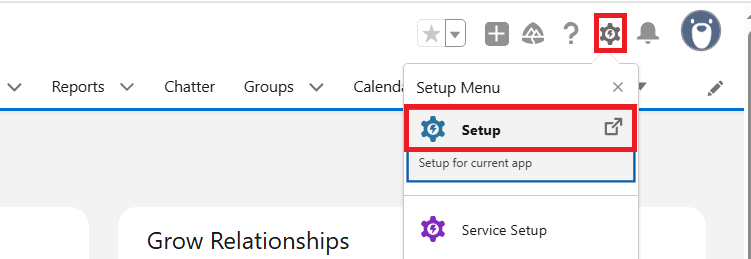
Step 1. Click the Gear Icon on the top right corner of your screen and select Setup
Step 2. From the quick find box, search for Flows and select the New Flow button

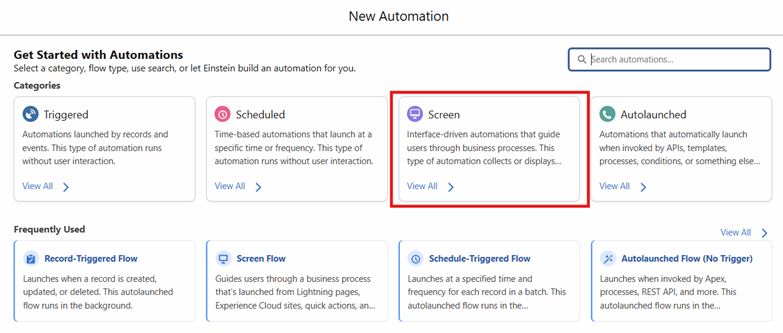
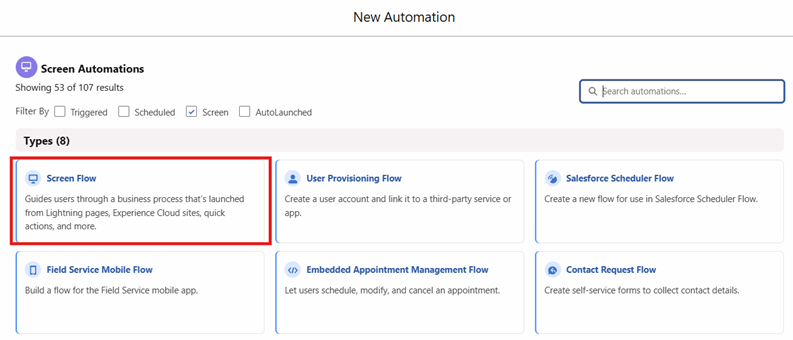
Step 3. Select the Screen option under Categories and Screen Flow as type of Flow
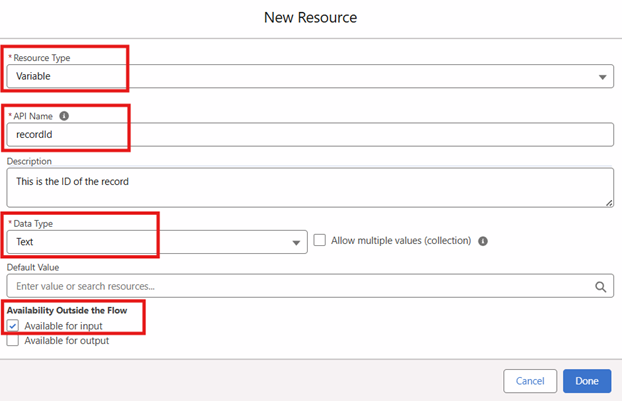
Step 4. Once the Flow canvas opens, create a Text Variable which will be used to bring the Record ID from the record where the Flow will be surfaced
Notes:
- Make sure you add the exact API name as provided below
- It's a best practice to provide Descriptions to the elements
- Make sure you mark the variable as Available for Input to bring the record details inside the Flow
| Resource Type | Variable |
| API Name | recordId |
| Description | Provide a suitable description |
| Date Type | Text |
| Availability Outside the Flow | Available for Input |
Step 5. Create a new resource of Formula resource type to find the first 3 characters from the left of the Record ID
| Resource Type | Formula |
| API Name | KeyPrefix_Formula |
| Description | Provide a suitable description |
| Data Type | Text |
| Formula | LEFT({!recordId},3) |
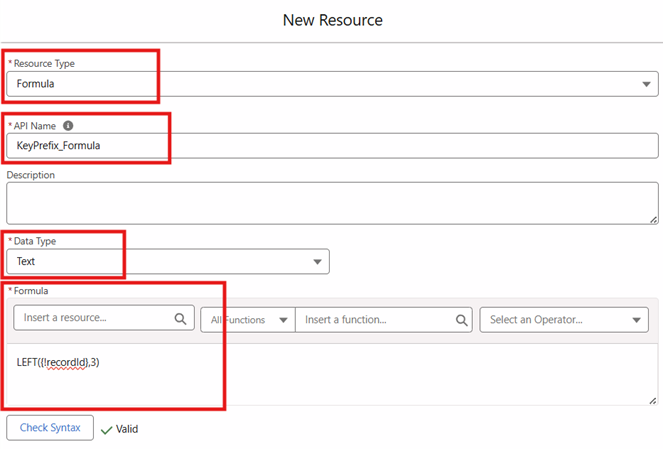
Step 6. Now, go back to the Flow canvas and select the Get Records element by clicking the + icon. We are using this Get Records element to fetch the Entity Definition of the object from where the Record ID is being passed
In the Get Records Element, substitute the following values:
| Label | Get Entity Definition |
| API Name | Get_Entity_Definition |
| Description | Provide a suitable description |
| Object | Entity Definition |
| Filter Conditions Requirement | All Conditions Are Met (AND) |
| Filter Logic | KeyPrefix Equals {!KeyPrefix_Formula} |
| How Many Records to Store | Only the first record |
| How Many Store Record Data | Choose fields and let Salesforce do the rest and add QualifiedApiName |
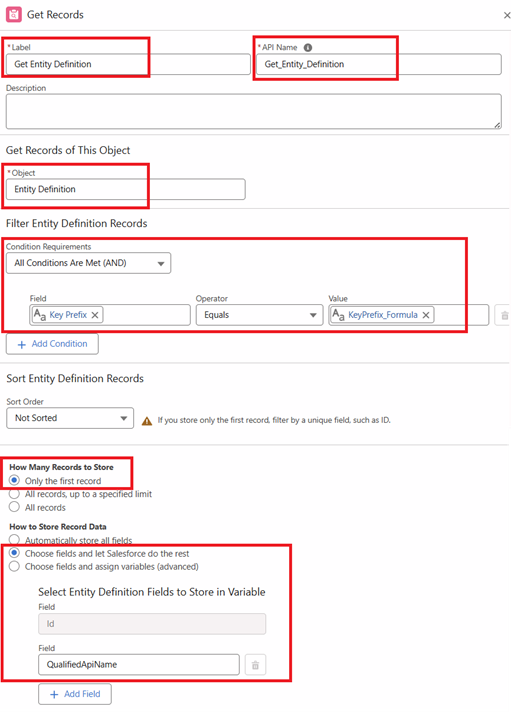
Step 7. Now, add a Decision element, which is available when the + icon is selected
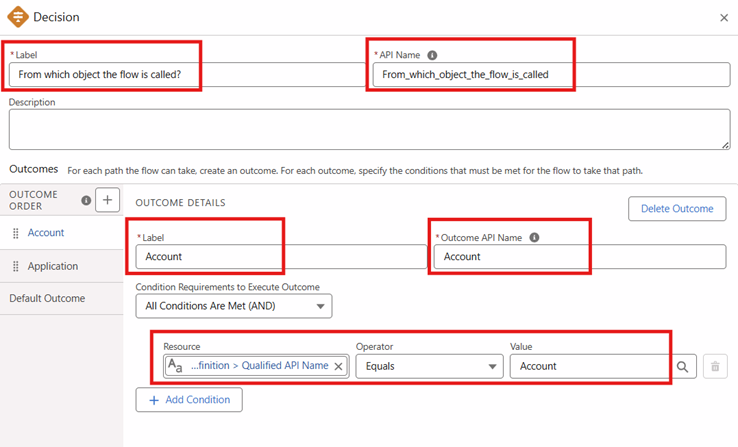
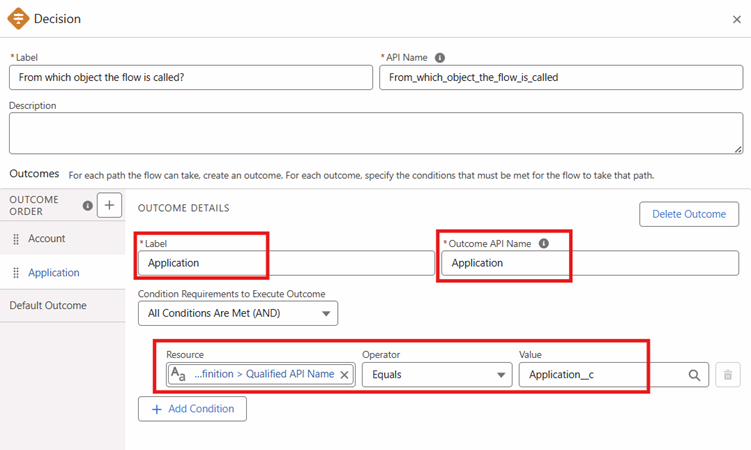
In the Decision element, add two outcomes one for the Account object and one for the Application object
Notes:
- Provide any suitable Label
- It's optional but it's a best practice to provide Descriptions
- Account and Application__c on the value side of the Outcome criteria shown below are the API names of the objects
a. For Account Outcome
| Label | Account |
| Description | Provide any suitable description |
| Condition Requirements to Execute Outcome | {!Get_Entity_Definition.QualifiedApiName} Equals Account |
b. For Application Outcome
| Label | Application |
| Description | Provide any suitable description |
| Condition Requirements to Execute Outcome | {!Get_Entity_Definition.QualifiedApiName} Equals Application__c |
Step 8. Now, add your corresponding Flow logic in Account and Application outcome branches based on the use case you have. In this use case, I have simply added two Screens to display a message for demo purposes
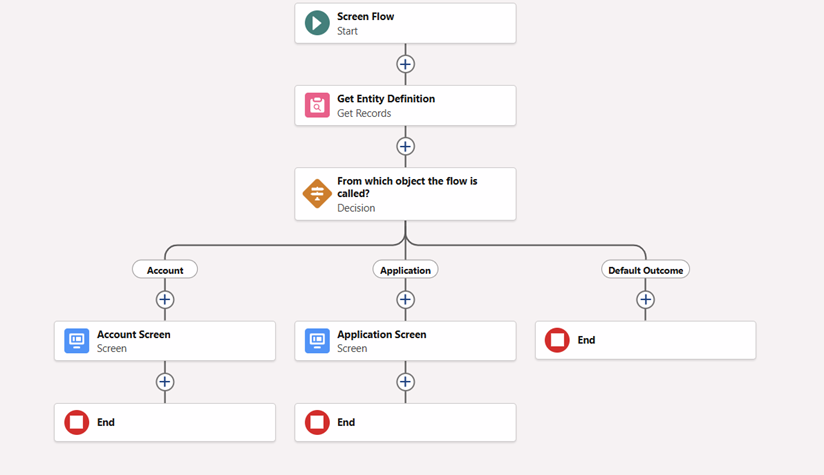
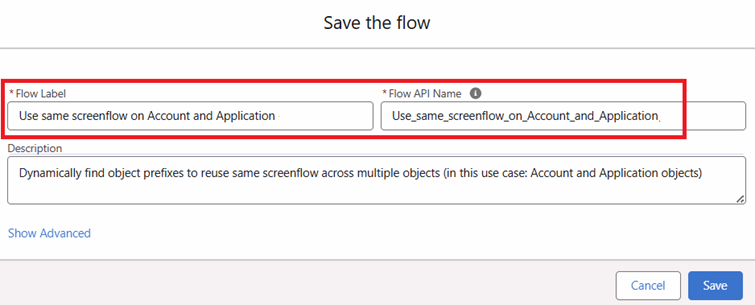
Step 9. Now, on the upper right side of the Flow canvas, hit the Save button and provide a suitable Flow name
Step 10. Finally, click the Activate button next to the Save button to activate the Flow

_________________________________________________________________________________
Written by: Ajaypreet Singh Saini | Forum Ambassador
Ajaypreet Singh Saini is working as a Salesforce Implementation Specialist at Grantbook. Prior to Grantbook, Ajaypreet served as a Salesforce Administrator for 2 years working on Sales Cloud where he was responsible for configuring and administrating complex processes and maintaining security of Salesforce Instance.
Submissions reflect only the opinions of the user who made available the Submission and not the opinions of Salesforce, regardless of whether the user is affiliated with Salesforce, and may contain or constitute products, services, information, data, content and other materials made available by or on behalf of third parties ("Third Party Materials). Salesforce neither controls nor endorses, nor is Salesforce responsible for, any Third Party Materials, including their accuracy, validity, timeliness, completeness, reliability, integrity, quality, legality, usefulness or safety, or any applicable intellectual property rights. Any Submissions made available through any message board or forum in response to posted questions, or that otherwise purports to answer any questions, including any questions about Salesforce or Programs, are made available for your general knowledge only and should never be relied upon as answers to your specific questions (even if an answer is marked as a “best” answer or with any similar qualifications). You should always contact Salesforce support for answers to your specific questions. Salesforce has no control over Submissions, and is not responsible for any use or misuse (including any distribution) by any third party of Submissions.
If you have questions, tap into the wisdom of our entire Trailblazer Community here: https://trailhead.salesforce.com/trailblazer-community/feed
Номер статьи базы знаний
005131979
Эта статья решила вашу проблему?
Оставьте свой отзыв, чтобы мы могли стать лучше!
