Seleziona un'organizzazione
Prepare for Salesforce Connected App Usage Restrictions Change
Data pubblicazione: Sep 22, 2026
Descrizione
Starting in early September 2025, Salesforce Platform will restrict the use of uninstalled connected apps. This usage restriction will block end users from using uninstalled connected apps. This change is part of Salesforce's commitment to making our products and services secure-by-default.
To minimize disruption to existing app usage, end users can continue to use uninstalled apps only if both of these criteria apply.
- The user has previously authorized the app.
- The app isn't using the OAuth 2.0 device flow.
Any new user trying to access these same uninstalled apps will be blocked. All uninstalled apps that use the OAuth 2.0 device flow will be blocked, even for specific users who have previously authorized the app. Connected apps installed before the change will continue to function without interruption.
There is no change to user permissions required to install new connected apps, which are Customize Application AND either Modify All Data OR Manage Connected Apps. Take steps to review and install connected apps that you want to make accessible for end users. Block any apps that you do not trust.
Risoluzione
This article explains how Salesforce administrators should prepare for the Salesforce Connected App usage restriction change taking effect in September 2025, including the new "Approve Uninstalled Connected Apps" permission, how to review and install trusted apps, how to block untrusted apps, and common end-user error scenarios.
New Approve Uninstalled Connected Apps User Permission
This new user permission is automatically assigned to the System Administrator standard profile. Custom profiles aren't automatically updated, including those previously cloned from the System Administrator standard profile.
After the connected app usage restriction is enforced in September 2025, this user permission grants access to use uninstalled connected apps, bypassing the new usage restriction. It should only be assigned to highly trusted users, such as administrators and those involved in managing or testing connected app integrations.
We recommend using care when assigning this user permission. For example, only grant it to admin users and to users who manage connected app integrations and need to test the apps before installing them on the org for access by other end users.
Prepare for the Change
Communication Plan
Customer Admins or users responsible for managing connected apps should:
- Communicate this change to end-users to prevent issues if users can't access connected apps. For example: "Starting in early September, you may face issues accessing some connected apps since restrictions were put in place for accessing uninstalled apps. Please contact your Salesforce Org Admin, provide the name of the application you are trying to access, and the reason for the access request."
- Establish a process for handling new end-user access requests for uninstalled apps following the least privileged principle.
- For Signature & Premier customers, update your Security contacts to keep them informed of future security changes. For more detailed guidance, refer to the article: Manage Security Contacts for Your Salesforce Organization.
Review OAuth Usage for Connected Apps
Customer Admins or users responsible for managing connected apps should review connected app OAuth Usage to identify uninstalled apps currently being used, and determine if they are trusted and need to be installed, or if they are untrusted apps that should be blocked.
Performing these steps before the change and installing trusted apps helps ensure continued user access, minimizing disruption. If trusted apps aren't installed, most end users will be blocked from using these apps when this change takes effect. The review process can also occur after the change, and regular reviews of connected app usage are recommended to uphold the principle of least privilege.
- In Setup, find and select Connected Apps OAuth Usage.
- Review the Action column. If an app is uninstalled, the action column displays an Install button.

- For each app that displays an Install button, review the app details and the User Count.
- To see more information about which users are using an app, click the number in the User Count column. You can see which users are using the app, when they first connected, when they last used the app, and their use count.

- Group uninstalled apps into two categories:
a. Trusted apps
b. Untrusted apps - Look for app names that you don't recognize, and unusual usage patterns.
Install Trusted Connected Apps
- In Setup, find and select Connected Apps OAuth Usage.
- For each trusted app, click Install. Salesforce displays an installation page.
- Click Install again.

Manage Access to a Connected App After Install
After a connected app is installed in your org, you can manage access to it. To configure which users can access the connected app, select a Permitted Users setting.
- From Setup, enter Connected Apps in the Quick Find box, then select Manage Connected Apps.
- Click Edit next to the connected app that you are configuring access for.
- Under OAuth Policies, click the Permitted Users dropdown menu and select one of the following options.

- All users may self-authorize — Default. Allows all users in the org to authorize the app after successfully signing in. Users must approve the app the first time they access it.
- Admin approved users are pre-authorized — Allows only users with the associated profile or permission set to access the app without first authorizing it. After selecting this option, manage profiles for the app by editing each profile's Connected App Access list, or manage permission sets for the app by editing each permission set's Assigned Connected App list.
- In a Group Edition org, you can't manage individual user access with profiles. However, you can manage all users' access when you edit a connected app's OAuth settings.
Note: Salesforce recommends the Admin approved users are pre-authorized setting, as this provides the most control over who can access the connected app by allowing the Admin to explicitly grant access through profiles and permission sets, restricting access to only authorized users.
See the help article Manage Access to a Connected App for more information.
Block Untrusted Connected Apps
This step ensures that users can no longer access untrusted apps. Blocking an app ends all current user sessions and prevents future sessions.
- Notify users about changes to their app access.
- In Setup, find and select Connected Apps OAuth Usage.
- For each untrusted app, click Block.
End User Error Message Scenarios
Here are some of the error scenarios that can be encountered by users trying to access or install connected apps.
Scenario: Authenticating via an uninstalled connected app when API Access Control isn't enabled
If API Access Control isn't enabled, end users see the following error message in the UI if they try to access an uninstalled app: "We can't authorize you because of an OAuth error. For more information, contact your Salesforce administrator." along with the OAUTH_APPROVAL_ERROR_GENERIC message.

The URL describes the error in more detail using these parameters:
- error=invalid_client
- error_description=app must be installed into org
Here's an example URL with this error:
https://example[.]com?error=invalid_client&error_description=app+must+be+installed+into+orgUsers without the "Approve Uninstalled Connected Apps" permission will see the error message "OAUTH_APPROVAL_ERROR_GENERIC". In edge case scenarios in Sandbox environments where the "Approve Uninstalled Connected Apps" permission is missing from profiles and cannot be granted, admins are advised to run the "Match Production Licenses to Sandbox without a Refresh" tool in the affected sandbox environment. More details on this tool can be found in this article.
Scenario: Authenticating via an uninstalled connected app when API Access Control is enabled
If API Access Control is enabled, end users are redirected to the Callback URL, also known as the redirect_uri configured in your connected app OAuth settings.

The error is reflected in the URL using these parameters:
- error=OAUTH_APP_BLOCKED
- error_description=this+app+is+blocked+by+admin
Here's an example URL with this error:
https://example.com?error=OAUTH_APP_BLOCKED&error_description=this+app+is+blocked+by+adminScenario: "You cannot install a sandbox app outside on a non sandbox organization" error
Please refer to the article Resolving "Cannot Install a Sandbox App" Error for Connected Apps for further steps for this scenario.
Scenario: Not seeing the Install/Uninstall buttons for connected apps in Connected Apps OAuth Usage
On the OAuth Usage page, if a connected app does not show the "Install/Uninstall" option, but instead shows a "Block" option, it indicates that the connected app has been explicitly created and installed within your organization. Connected apps that are created and managed within an organization don't show the Install button.
Scenario: "This application has already been installed" error when installing a connected app
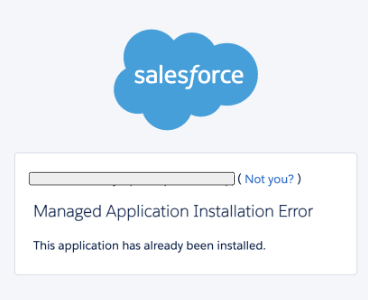
When you have duplicate connected apps with the same name, you can only install one instance. Please try the following steps:
- Rename the existing connected app — If you are the connected app owner, try updating the label of the existing connected app and then attempt to install the connected app again. If the connected app is coming from a managed package, reach out to the package provider to update the connected app label.
- Delete — If you are the owner of the connected app, you can delete the existing app if it is not in use. Steps to delete: Setup > App Manager > search for the app name > click the dropdown > click View > you should then see the delete option.
Note: Before deleting the existing app, ensure it is no longer in use, as removal could impact your current configuration. Proceed with installation of the new connected app. Also note that deleting a managed connected app is not possible, as these components are part of the managed package — reach out to the package provider to make changes to the connected app label instead.
Frequently Asked Questions (FAQ)
What are "uninstalled connected apps" and how do I identify which ones are being used?
An "uninstalled connected app" is an application that was not explicitly installed by a System Administrator into your Salesforce org. Instead, a Salesforce end-user directly authorized it by logging in and granting access via an OAuth authorization page.
To find uninstalled connected apps, navigate to the "OAuth Connected App Usage" page in Setup. Look for applications that display an "Install" button in the "Actions" column. These are the apps that will be impacted by the new restrictions. Note that apps not used recently may not appear on this page.
What are the benefits of this feature change?
This update enhances your control over connected apps, and reduces the risk of unauthorized connected app access.
What does this change impact?
Users will be blocked from accessing uninstalled connected apps. To access new connected apps, the apps must be installed on the org. While users who previously authorized the uninstalled connected app can continue using those apps, any new user trying to access the same uninstalled apps will be blocked. Also, all usage of uninstalled apps that use the OAuth 2.0 device flow will be blocked, even if the user has previously authorized the app.
The specific user permission ("Approve Uninstalled Connected Apps") is now required to use uninstalled connected apps. Salesforce recommends using care when assigning this permission, as it allows users to bypass the restriction on using uninstalled connected apps. For example, you might only give this permission to users, such as an admin or developer, who manage connected apps and need to test the apps before installing them on the org for access by other end users.
What does this change not impact?
Connected apps installed prior to this change will continue to function without interruption. If a Salesforce end-user has authorized a connected app prior to this change, that user can continue using it without interruption, even when the app is not installed on the org.
What is the difference between API Access Control and the new connected app usage restriction?
API Access Control is an existing, optional feature that you can use to restrict users from accessing Salesforce APIs. When this feature is enabled, users can access Salesforce APIs only through specific connected apps that you allowlist. You determine the criteria for the allowlist. To turn on API Access Control, you must contact Salesforce Customer Support.
The new connected app usage restriction is a new, required restriction that will be automatically enabled for all orgs. It can't be turned off. It restricts end users from accessing uninstalled connected apps.
What is the impact for connected apps created and managed within the org?
There is no impact from this change to connected apps created and managed on the org.
How will I know when the changes are applied in my org?
To confirm that restrictions on uninstalled connected apps have been successfully applied in your org:
- Test with a new user: Have a new user attempt to self-authorize an uninstalled connected app.
- Look for the error message: If the user is blocked and receives an OAuth error message with "app must be installed into org" in the URL's error_description, then the changes have been applied.
Please note that Customer Admins may see the "Approve Uninstalled Connected Apps" user permission assigned to the standard System Administrator profile in Setup, even before these restrictions are fully rolled out.
What is the impact on browser extensions?
If the browser extension integrates with your Salesforce org using the Connected App Framework, new users will be blocked from using them after this change. Install it as a connected app and manage access to control who can use the browser extension to interact with your org data.
If the browser extension relies on the user's active session with the Salesforce org and is not integrating as a connected app, the browser extension may not be affected by this change.
How will these changes affect existing users who have previously authorized an uninstalled app versus new users attempting to access it for the first time?
- Existing Usage: Users who have previously authorized an uninstalled app (and it is not using the OAuth 2.0 device flow) will be able to continue using it without immediate disruption.
- New Usage: However, all new users of these previously authorized uninstalled apps will be blocked.
- OAuth 2.0 Device Flow Impact: All usage of uninstalled apps that specifically use the OAuth 2.0 device flow will be blocked, even if the user had authorized the app prior to this change. Device flow is typically used for devices with limited input capabilities.
Risorse aggiuntive
Numero articolo Knowledge
005132365
Questo articolo ha risolto il problema?
Facci sapere, così possiamo migliorare!
