Seleccionar una organización
Truncated Text (#######) in Fixed-Sized Dashboards on Tableau Cloud
Fecha de publicación: Aug 25, 2025
Descripción
When dashboards are published to Tableau Cloud with Fixed sizing, certain text fields may appear as #######, even though they are displayed correctly in Tableau Desktop or Tableau Server.
This issue is not resolved by republishing.
Solución
This issue is caused by space constraints in Fixed-sized dashboards rendered in Tableau Cloud. Since Tableau Cloud uses a strict browser-based rendering engine, text that exceeds its allocated space may appear as #######.
To resolve the issue without switching to Automatic sizing, use one or more of the following approaches:
1. Reduce Text Size or Font Weight
-
Lower the font size for the affected text fields.
-
Avoid bold or heavy fonts if not necessary.
-
Test smaller font sizes using the Marks card or layout container.
-
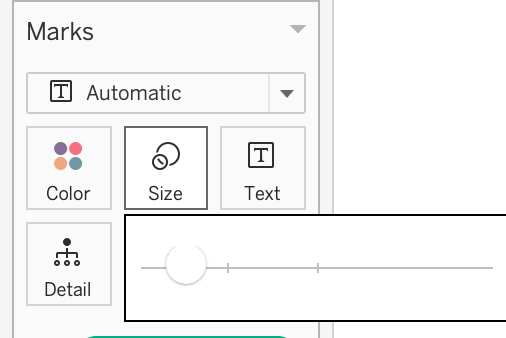
2. Increase Dashboard or Container Dimensions
-
Slightly expand the width/height of the dashboard or specific containers that hold text.
-
Ensure that there's sufficient padding or spacing around text fields.
3. Optimize Text Field Layout
-
Avoid placing multiple text objects too closely.
-
Allow room for longer dynamic text fields (e.g., parameters or calculated fields).
-
Consider wrapping text where possible.
4. Test Layout Using Cloud Preview
-
Use the Web Preview in Tableau Desktop or open the published dashboard in Tableau Cloud to validate rendering.
-
Adjust layout iteratively based on browser-based rendering behavior.
Note: Switching to Automatic sizing will resolve the issue entirely.
Recursos adicionales
Tableau articles and community discussions:
- https://help.tableau.com/current/pro/desktop/en-us/dashboards_organize_floatingandtiled.htm
- https://help.tableau.com/current/pro/desktop/en-us/dashboards_dsd_create.htm
- https://community.tableau.com/s/question/0D54T00000T9UyVSAV/major-differences-in-sizing-and-layout-across-the-tableau-desktop-and-server-versions-of-the-same-dashboard
Número del artículo de conocimiento
005133006
¿Resolvió este artículo su problema?
¡Háganos saber cómo podemos mejorar!
