Seleccionar una organización
Prepare for Restrictions on Custom Connected Apps Integrated with Consumer Goods mobile app
Fecha de publicación: Apr 30, 2026
Descripción
Salesforce is restricting the use of custom connected apps that aren’t installed on Salesforce orgs. This change starts on August 28, 2025, for all new orgs. For existing orgs, the rollout begins in phases on September 2, 2025. Users can have trouble accessing the Consumer Goods (formerly known as Consumer Goods Cloud) mobile app when using a custom connected app that isn’t installed. Installing trusted apps helps minimize disruption.
Who is Affected:
If you use a custom connected app that isn’t installed and share the consumer key via QR Code across your orgs, any new user trying to access it will be blocked from using the Consumer Goods mobile app when this change takes effect.
Solución
Admins or users who manage connected apps must review Connected App OAuth Usage. They must identify if the connected app used for Consumer Goods mobile app connects to a Salesforce org without being installed. If so, take action.
Take these steps for continued user access.
1. On the Salesforce org, in Setup, find and select Connected Apps OAuth Usage.
2. Identify the connected app that the Consumer Goods mobile app uses to connect to the Salesforce org.
3. Review the Action column. If the app isn’t installed, the action column displays an Install button.
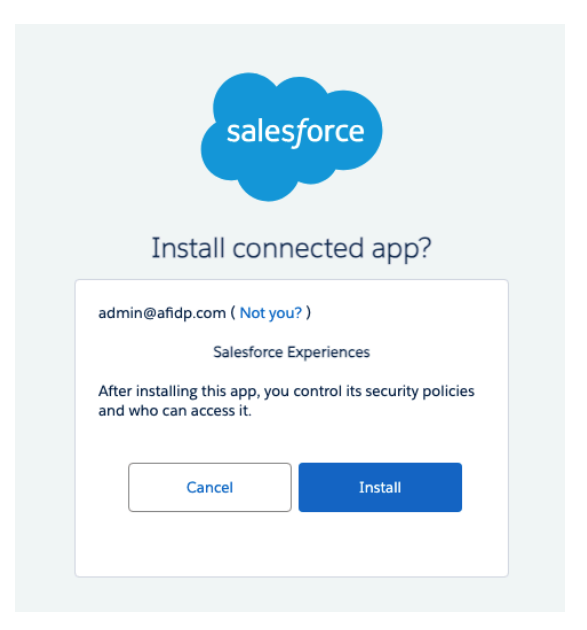
4. For the connected app, click Install.
Step Result: The installation page is shown.
5. Click Install again.
If you don't see your Consumer Goods mobile app on the Connected Apps OAuth Usage
page, you as an admin must authorize the app that isn’t installed. This occurs when users log in
to the mobile app using a QR code that is generated from a custom connected app on another
Salesforce org.
To authorize the app, you must:
1. Download the Consumer Goods app from the App Store or Play Store.
2. Scan the QR code to open the app and provide the credentials.
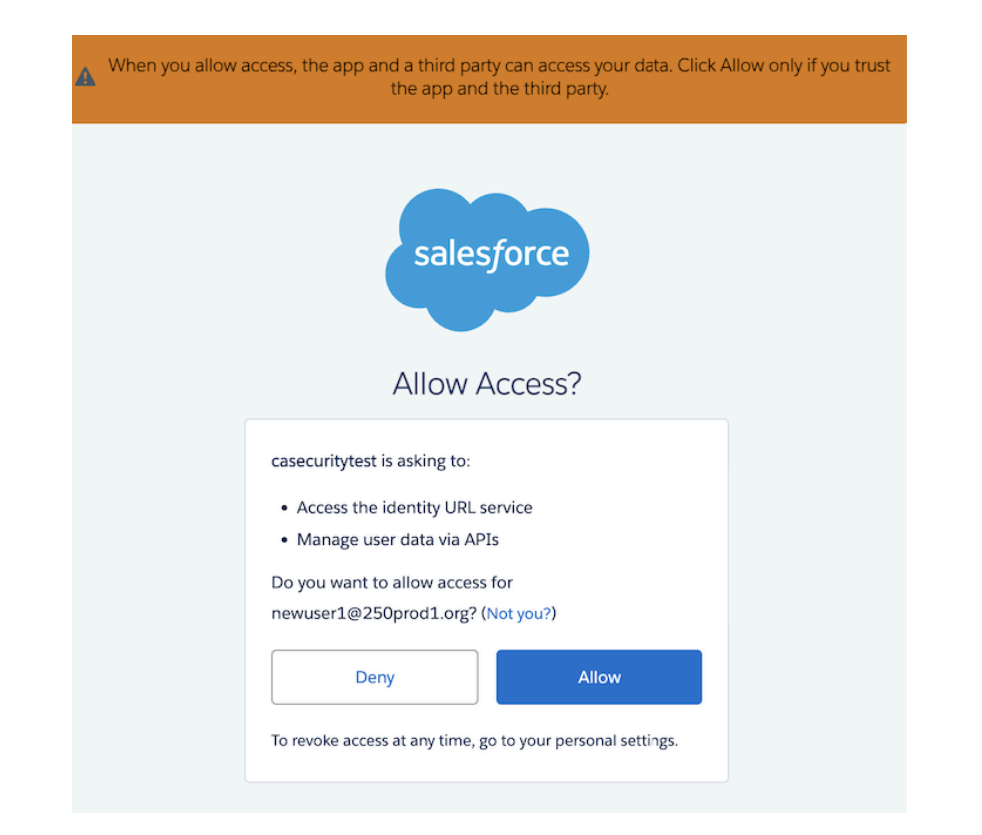
Step Result: You are prompted to connect to the Salesforce org via connected app.
3. Click Allow.
Info: The success of the sync or app usability isn’t relevant. You are logging in only to
authorize the connected app.
you can install the app.
4. For the connected app, click Install.
Step Result: The installation page is shown.
5. Click Install again.
Result: Users can now use the Consumer Goods mobile app without any disruption.
Recursos adicionales
https://help.salesforce.com/s/articleView?id=005132365&type=1
https://help.salesforce.com/s/articleView?id=xcloud.connected_app_manage_current_sessions.htm&type=5
Número del artículo de conocimiento
005134869
¿Resolvió este artículo su problema?
¡Háganos saber cómo podemos mejorar!
