Valitse organisaatio
Customize Salesforce Email Matching with Flow Use Cases for Einstein Activity Capture
Julkaisupäivä: Mar 5, 2026
Kuvaus
This document will walk through several use cases and setup steps for the Customize Flows to Match Synced Email to Related Activity feature that is available in the Summer 25 release.
Important Note: Adding complex logic to the Activities Flow can potentially affect email sync times. We generally recommend using Apex triggers where possible for custom matching logic. Review full considerations here.
Ratkaisu
Use Case 1a - Skip matching an email to an opportunity. Combine with post trigger to match to a custom object using email subject content.
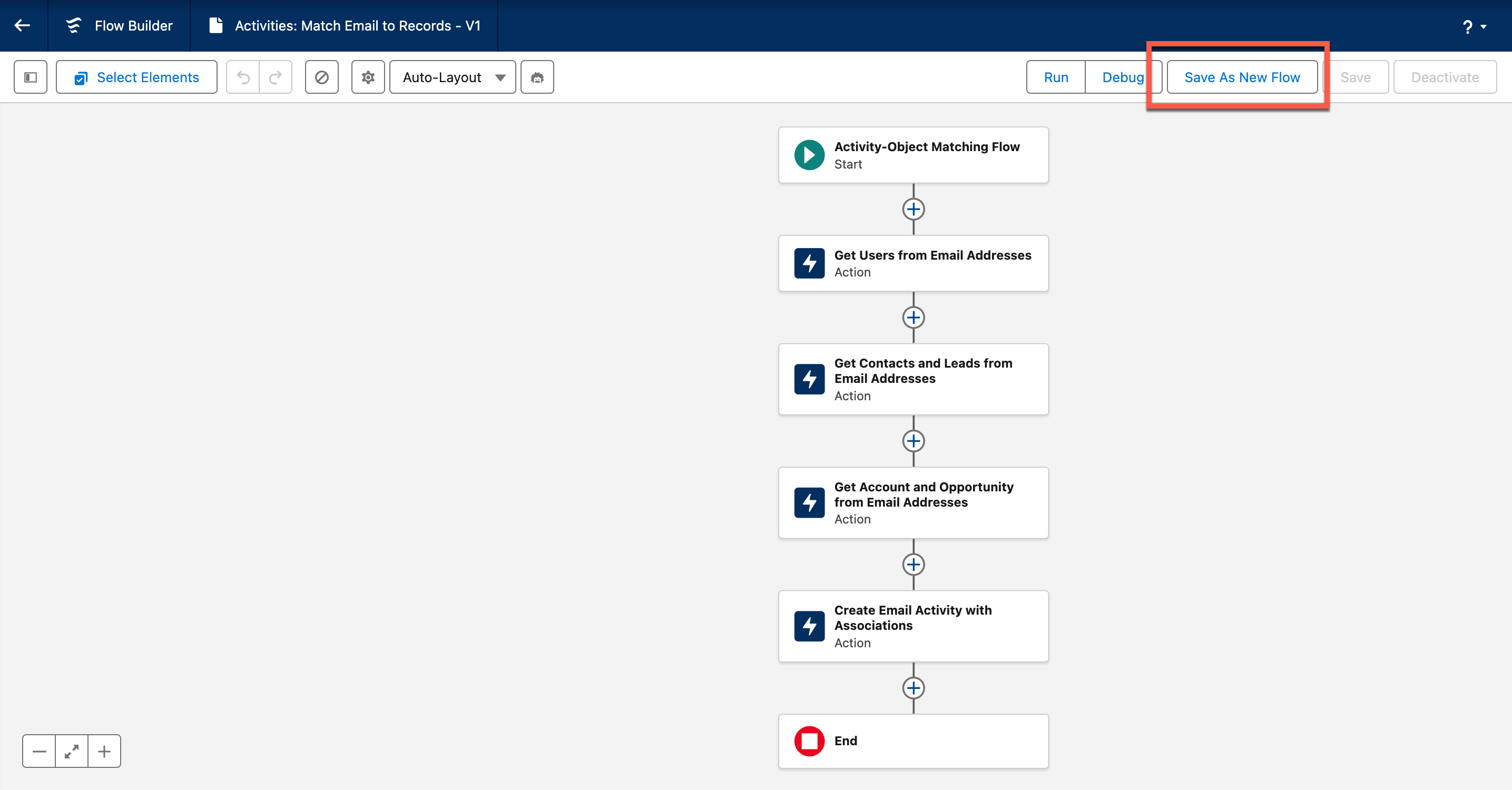
Step 1: Open the default “Activities: Match Email to Records” Flow. Then “Save as New Flow”. Name your new Flow.
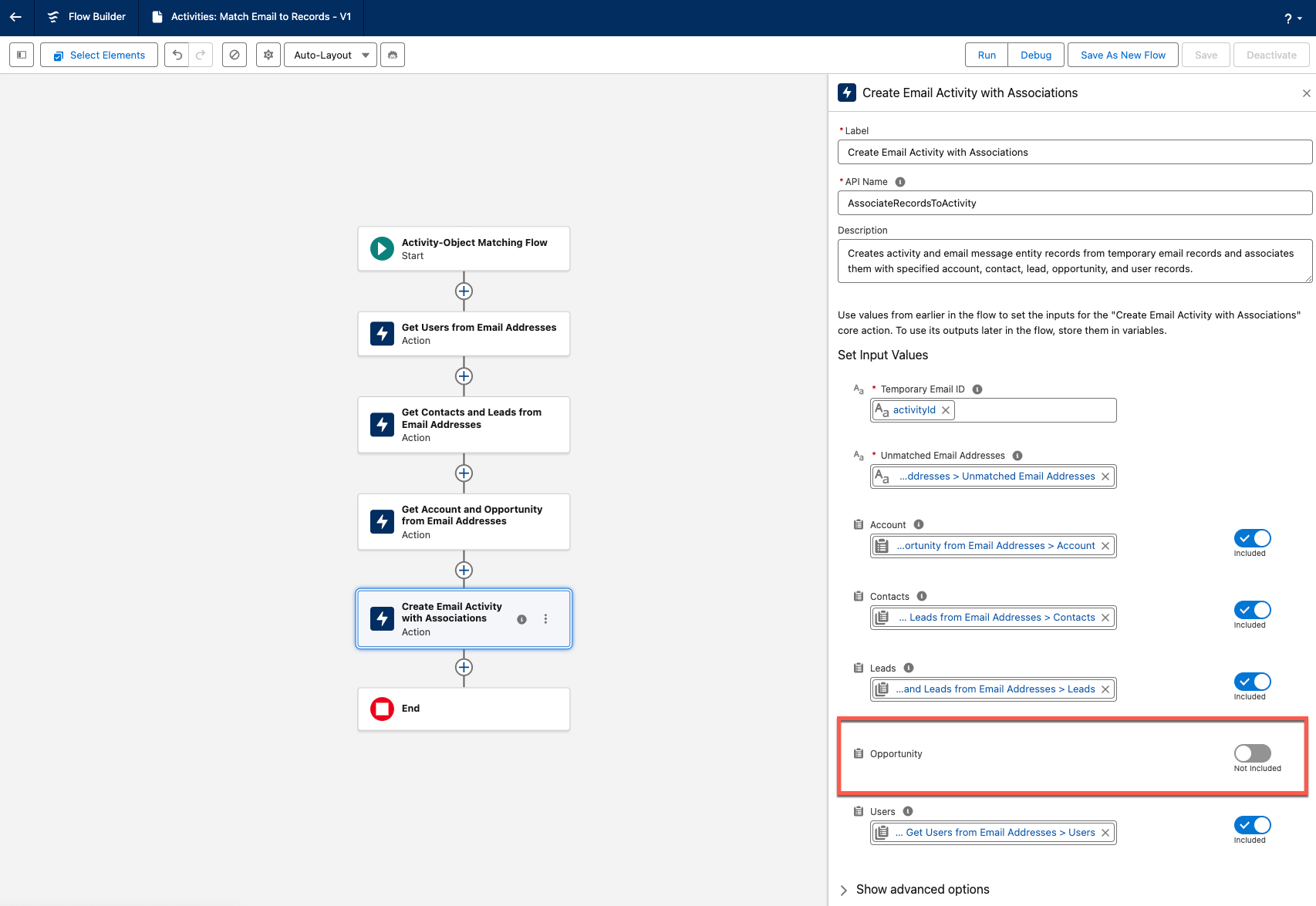
Step 2: Open the last action “Create Email Activity with Associations”. Disable the “Opportunity” input value. Save and activate.
Step 3: Create new trigger on EmailMessage to match to Custom Object.
EXAMPLE TRIGGER:
trigger EmailMessagetoCustomOpportunityMappingSimplified on EmailMessage (after insert) {
    List<EmailMessage> emailsToUpdate = new List<EmailMessage>();

    for (EmailMessage em : Trigger.new) {
        if (em.Incoming && (em.Source == 'Einstein Activity Capture' || em.Source == 'Einstein Activity Capture Limited') && String.isNotBlank(em.Subject)) {
            Matcher matcher = Pattern.compile('(?i)recruitment[\\s_-]*id[:\\s]*([0-9]+)').matcher(em.Subject);
            if (matcher.find()) {
                String recruitmentId = matcher.group(1);

                // Find existing Custom Opportunity
                List<Custom_Opportunity__c> opps = [
                    SELECT Id FROM Custom_Opportunity__c
                    WHERE RecruitmentId__c = :recruitmentId
                    LIMIT 1
                ];

                if (!opps.isEmpty()) {
                    emailsToUpdate.add(new EmailMessage(
                        Id = em.Id,
                        RelatedToId = opps[0].Id
                    ));
                }
            }
        }
    }

    if (!emailsToUpdate.isEmpty()) {
        update emailsToUpdate;
    }
}
How does it work?
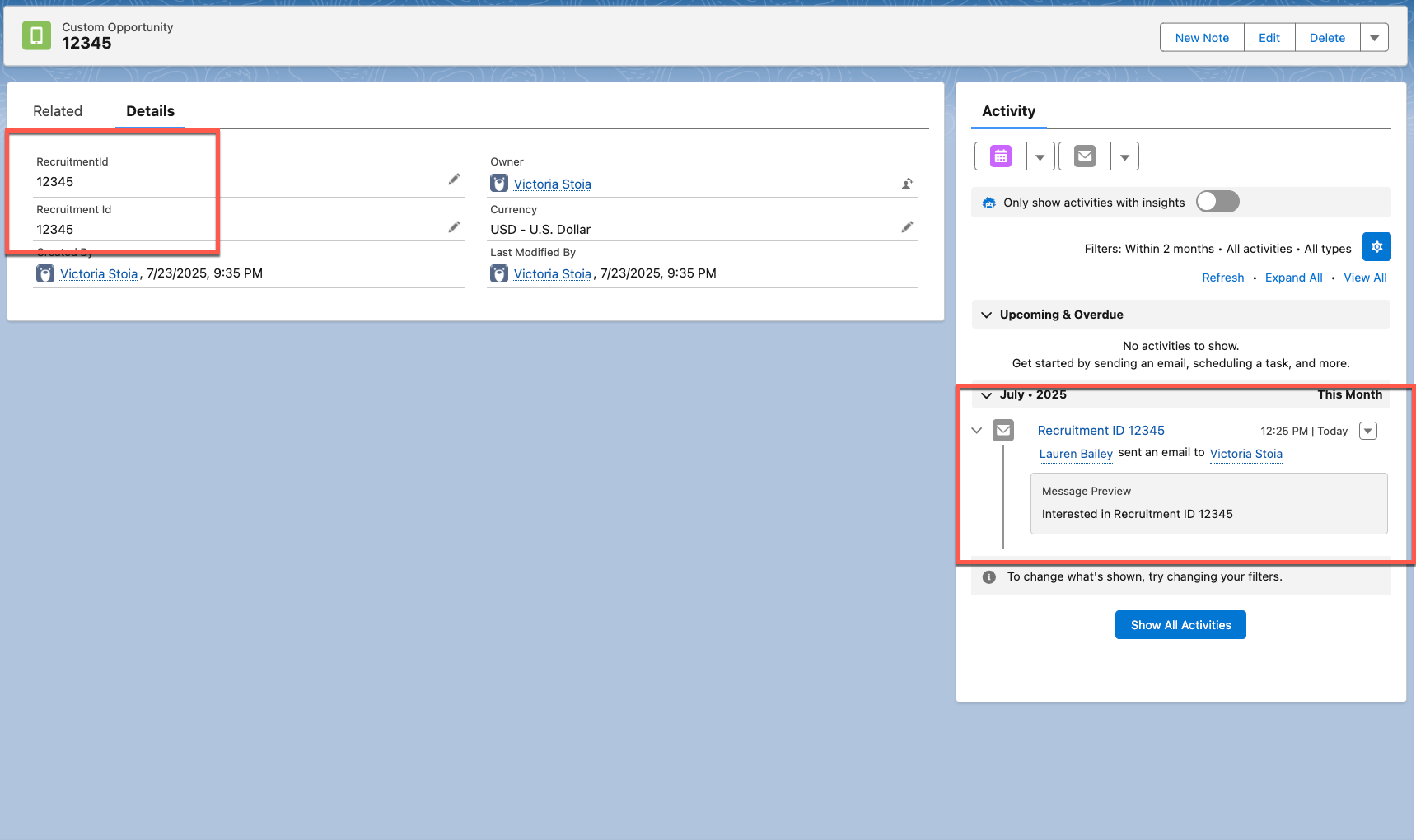
Example setup for above trigger:
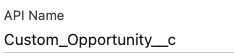
- Admin creates custom object:
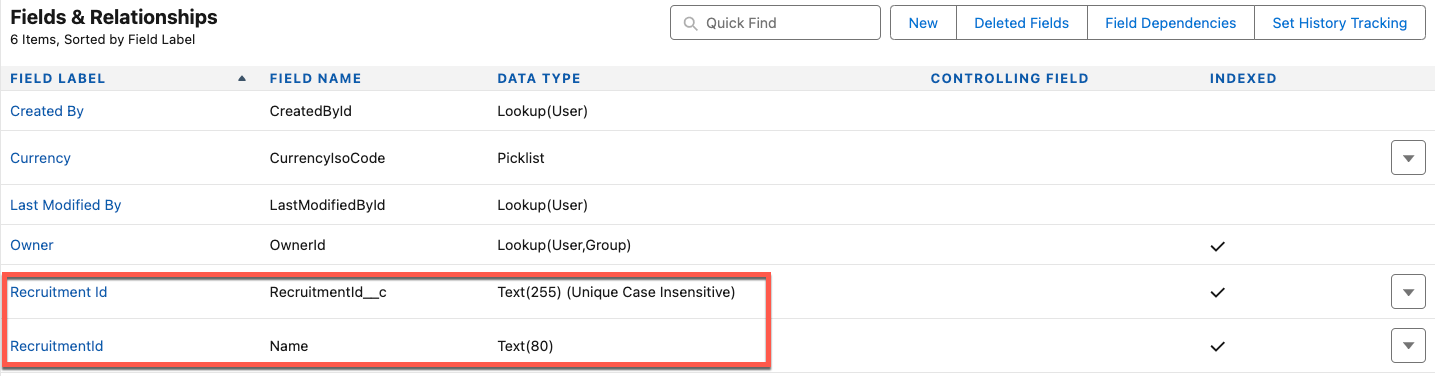
- Admin edits ‘Name’ field to “RecruitmentId”
- Admin adds custom text field to “Recruitment Id”
Test email sent containing “Recruitment ID 12345” in subject; matches to Recruitment Id record
Use Case 1b - Match to custom object using email body content
The previous example (use case 1a) uses email subject to match recruitment ID. Below is a sample trigger for using email subject and body content.
EXAMPLE TRIGGER:
trigger EmailMessagetoCustomOpportunityMappingNew on EmailMessage (after insert) {
    List<EmailMessage> emailsToUpdate = new List<EmailMessage>();

    for (EmailMessage em : Trigger.new) {
        if (em.Incoming && em.Source == 'Einstein Activity Capture' || em.Source == 'Einstein Activity Capture Limited') {
            // Combine Subject and Body for regex matching
            String combinedText = (em.Subject != null ? em.Subject : '') + ' ' +
                (em.TextBody != null ? em.TextBody : '') + ' ' +
                (em.HtmlBody != null ? em.HtmlBody : '');

            Matcher matcher = Pattern.compile('(?i)recruitment[\\s_-]*id[:\\s]*([0-9]+)').matcher(combinedText);
            if (matcher.find()) {
                String recruitmentId = matcher.group(1);

                // Find existing Custom Opportunity
                Custom_Opportunity__c opp = [
                    SELECT Id FROM Custom_Opportunity__c
                    WHERE RecruitmentId__c = :recruitmentId
                    LIMIT 1
                ];

                if (opp != null) {
                    emailsToUpdate.add(new EmailMessage(
                        Id = em.Id,
                        RelatedToId = opp.Id
                    ));
                }
            }
        }
    }

    if (!emailsToUpdate.isEmpty()) {
        update emailsToUpdate;
    }
}
Use Case 2 - Block email from logging if it contains certain word (confidential, project name, etc.)
Important Note: The staged email is still stored for 30 days even when the flow is bypassed. The staged email ID is available to admins during those 30 days, but no other email data is accessible.
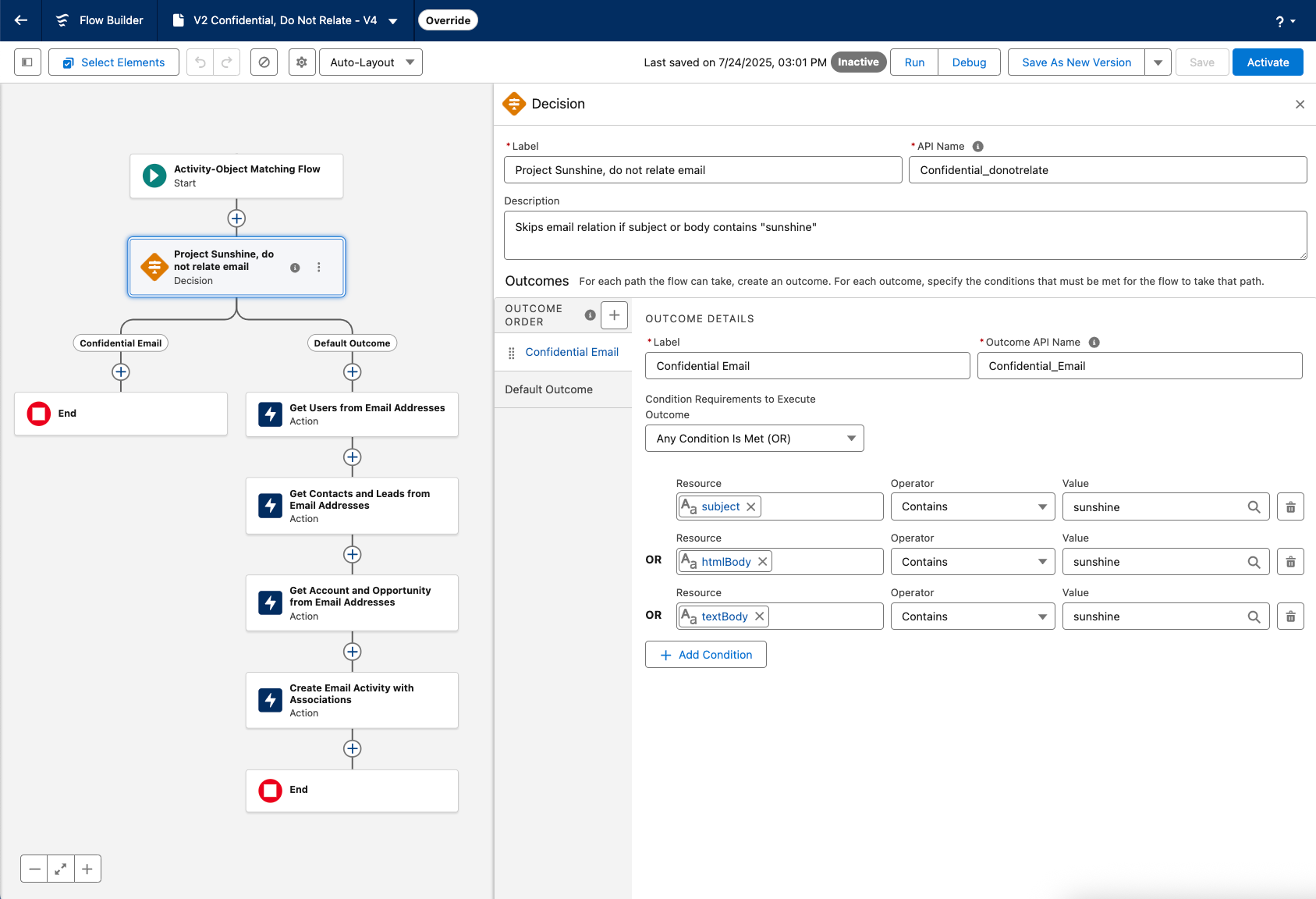
- Add decision element after Flow start.
- Add conditions for emails that should be skipped for matching, which will then END the flow. If conditions are not met, Flow runs normally.
- In below example, email is skipped for matching if the subject, HTML body, or text body contain the word “sunshine.”
Use Case 3 - Redact email body/subject if it contains certain word
Important Note: This trigger will edit the contents of the email message. The customer’s email service should always be the primary source of truth for email content.
EXAMPLE TRIGGER:
trigger RedactSensitiveEmail on EmailMessage (after insert) {

    String keyword = 'goldfish';
    List<EmailMessage> emailsToUpdate = new List<EmailMessage>();

    for (EmailMessage em : Trigger.new) {
        // Only handle EAC or EAC Limited sources
        if ((em.Source == 'Einstein Activity Capture' || em.Source == 'Einstein Activity Capture Limited')) {
            Boolean redact = false;

            if (!String.isEmpty(em.Subject) && em.Subject.toLowerCase().contains(keyword)) {
                redact = true;
            } else if (!String.isEmpty(em.TextBody) && em.TextBody.toLowerCase().contains(keyword)) {
                redact = true;
            } else if (!String.isEmpty(em.HtmlBody) && em.HtmlBody.toLowerCase().contains(keyword)) {
                redact = true;
            }

            if (redact) {
                emailsToUpdate.add(new EmailMessage(
                    Id = em.Id,
                    Subject = 'redacted',
                    TextBody = 'redacted',
                    HtmlBody = 'redacted'
                ));
            }
        }
    }

    if (!emailsToUpdate.isEmpty()) {
        update emailsToUpdate;
    }
}
How does it work?
Trigger looks for specific word in email content (in the case above, the word is ‘goldfish’). The trigger then replaces the subject and body with the word “redacted”.
Knowledge-artikkelin numero
005134931
Ratkaisiko tämä artikkeli ongelmasi?
Anna palautetta, jotta voimme kehittyä!
