組織を選択
How to Navigate to a Record from a Screen Flow Using a Lightning Web Component Local Action
公開日: Feb 6, 2026
説明
Step 1: Create a Lightning Web Component
-
create a new Lightning Web Component.
-
Open the
js-meta.xmlfile and configure it to be used as a Flow Action:<?xml version="1.0" encoding="UTF-8"?>
<LightningComponentBundle xmlns="http://soap.sforce.com/2006/04/metadata">
<apiVersion>64.0</apiVersion>
<isExposed>true</isExposed>
<targets>
<target>lightning__FlowAction</target>
</targets>
<targetConfigs>
<targetConfig targets="lightning__FlowAction">
<property name="accountId" type="String" label="Account Id"></property>
</targetConfig>
</targetConfigs>
</LightningComponentBundle>Step 2: Add JavaScript Logic
-
Open the
.jsfile. -
Add the following code:
import { LightningElement, api } from 'lwc';
import { NavigationMixin } from 'lightning/navigation';export default class NavigationAction extends NavigationMixin(LightningElement) {
// Input property to receive Account Id from Flow
@api accountId;// Method executed when Flow invokes this Action
@api invoke() {
this[NavigationMixin.Navigate]({
type: "standard__recordPage",
attributes: {
recordId: this.accountId,
objectApiName: "Account",
actionName: "view",
},
});
}
}Step 3: Configure the Screen Flow
-
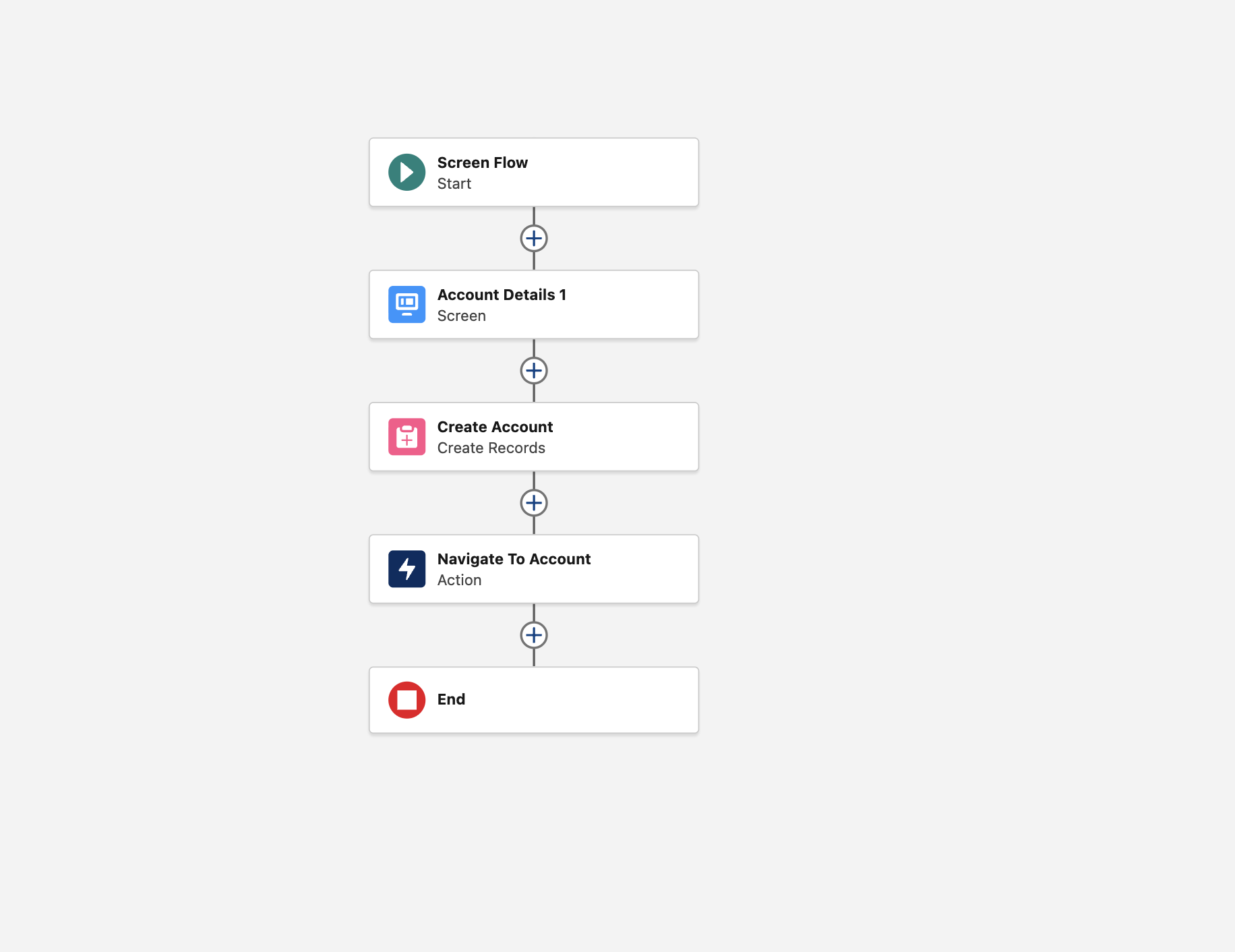
Go to Setup → Flows → New Flow → Screen Flow.
-
Add a Create Records element to create an Account record.
-
From the Elements panel, add an Action.
-
Search for the Lightning Web Component (
navigationAction). -
Select it from the list.
-
-
Pass the Account Id (from the record creation step) into the
accountIdproperty of the Action. -
Save and activate the Flow.
-
ナレッジ記事番号
005135134
この記事で問題は解決されましたか?
ご意見をお待ちしております。
