組織を選択
"Extensions are disabled by your system administrator" Shows Up in Dashboard Extensions in Tableau Desktop
公開日: Sep 29, 2025
説明
When attempting to open a dashboard that contains extensions in a dashborad results in the following error message, and the extension fails to load:
Extensions are disabled by your system administrator.
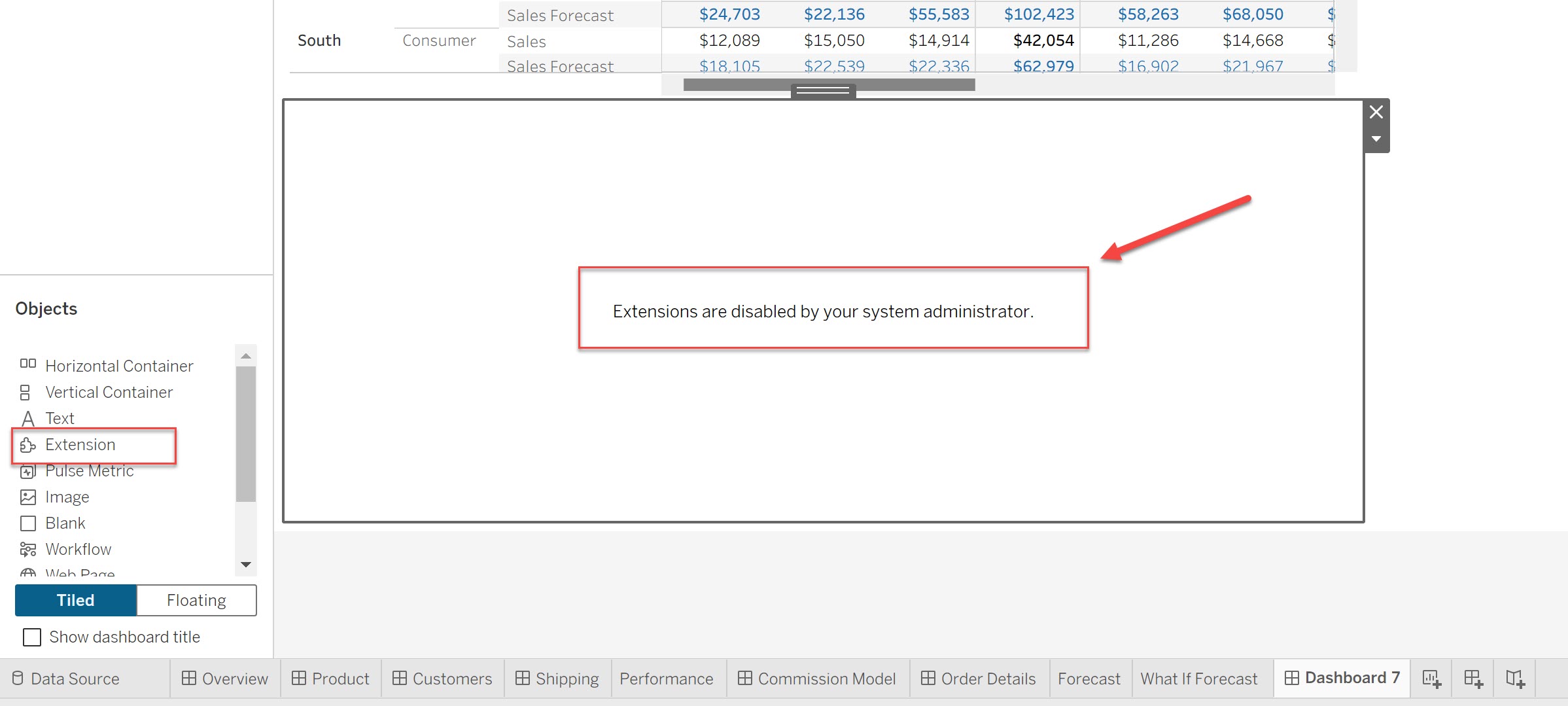
Cause:
This issue can be caused by the configuration of settings for extensions within the Windows Registry.
The settings in the Windows Registry might be controlled by your IT officers and administrators.
解決策
To resolve this issue, the Windows Registry setting for each major version needs to be modified to enable extensions.
Note: As an administrator on the computer running Tableau Desktop, back up the registry file before making any changes.
1. Open the Windows Start Menu or Search Bar, type "regedit", and run the "Registry Editor" as an administrator.
2. In the left-hand pane of the Registry Editor, navigate to the following path:
HKEY_LOCAL_MACHINE\SOFTWARE\Tableau\Tableau <version>\Settings\Extensions
Note: Replace <version> with your specific version of Tableau Desktop (e.g., Tableau 2024.2).
3. Select the `Extensions` folder, and you will see an entry named `DisableExtensions` in the right-hand pane.
4. Double-click on `DisableExtensions` to open the edit window.
5. Change the "Value data" from `1` (disabled) to `0` (enabled) and click "OK".
6. Close the Registry Editor and restart Tableau Desktop.
After restarting, verify that extensions are now working correctly.
その他のリソース
For more detailed information on security settings related to extensions, please refer to the official Tableau Help page:
ナレッジ記事番号
005135136
この記事で問題は解決されましたか?
ご意見をお待ちしております。
