Выбрать организацию
Unable to Complete User Registration Tableau Desktop / Prep
Дата публикации: Sep 9, 2025
Описание
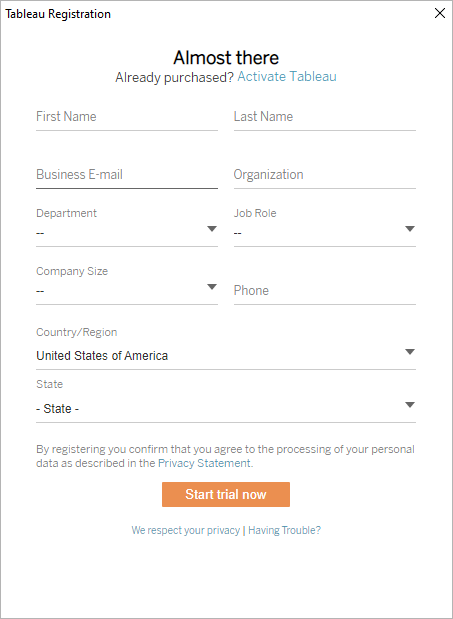
Upon launching Tableau Desktop or Tableau Prep Builder, the user registration form is displayed like the image below. After filling out the required fields and clicking "Register," the user can proceed. However, when the application is closed and launched again, the same registration form reappears, indicating the registration was not saved.
Below is an example of the registration window:
Environment:
Operating System: Windows
Product: Tableau Desktop and Tableau Prep Builder
Cause:
This issue is caused by the failure to save the user registration information to the Windows Registry on the user's computer. Normally, this information is written once and stored, preventing the registration screen from appearing on subsequent launches. The primary reasons for this write failure are either insufficient user permissions to modify the registry or interference from security software blocking the write process.
Решение
To resolve this issue, you must ensure the registration information can be successfully written to the registry. Please try the following workarounds in order.
Option 1: Run as Administrator
Run the application once with administrative privileges to force the registration data to be written to the registry.
1. Completely close the Tableau Desktop or Tableau Prep Builder application.
2. Right-click the application's shortcut icon and select "Run as administrator".
3. If a "User Account Control" prompt appears, click "Yes".
4. When the application launches and the user registration screen appears, fill in your information and click "Register".
5. Close the application completely.
6. Relaunch the application normally (by double-clicking the icon) and verify that the registration screen no longer appears.
Option 2: Temporarily Disable Security Software(if Option 1 fails)
If Option 1 does not resolve the issue, security software may be blocking the registry write operation.
Note: Always consult with your IT department or system administrator before proceeding with this step.
1. Following your system administrator's guidance, temporarily disable any security software (e.g., antivirus, firewall) on your computer.
2. With the security software disabled, launch the Tableau application normally and complete the user registration.
3. Close and relaunch the application to confirm the issue is resolved.
4. After confirming, ensure you re-enable your security software immediately.
Please note that you can still use all the features of the product without issue by simply closing the registration window without entering any information.
Дополнительные ресурсы
For a related issue where the 'Register' button is greyed out, see Registration Box Pops up Every Time Tableau Desktop is Opened.
Номер статьи базы знаний
005135144
Эта статья решила вашу проблему?
Оставьте свой отзыв, чтобы мы могли стать лучше!
