Выбрать организацию
How to build a Flow that update Related Contacts WhoID on calendar events when new volunteers are added to a shift
Дата публикации: Sep 27, 2025
Описание
This article explains how to find a specific field in a Salesforce Custom Metadata Type and modify its text values, providing step-by-step instructions for clarity and ease of use
Решение
Create a Record-triggered flow on GW_Volunteers__Volunteer_Hours__c object. When new Volunteer Hours are added, Flow will query related Events and then related Event attendees. If it does not find the attendee, it will add a new one based on Contact on the Volunteer Hour record. Here is the step by step guide for creating this Flow.
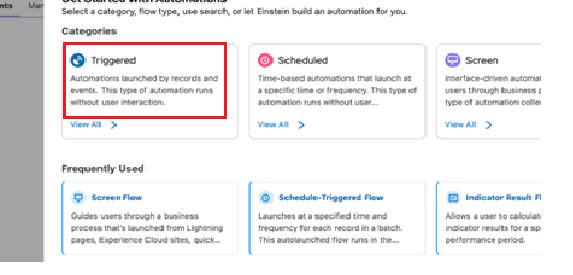
Step 1 : Select Flow Type
- Select Triggered as the value
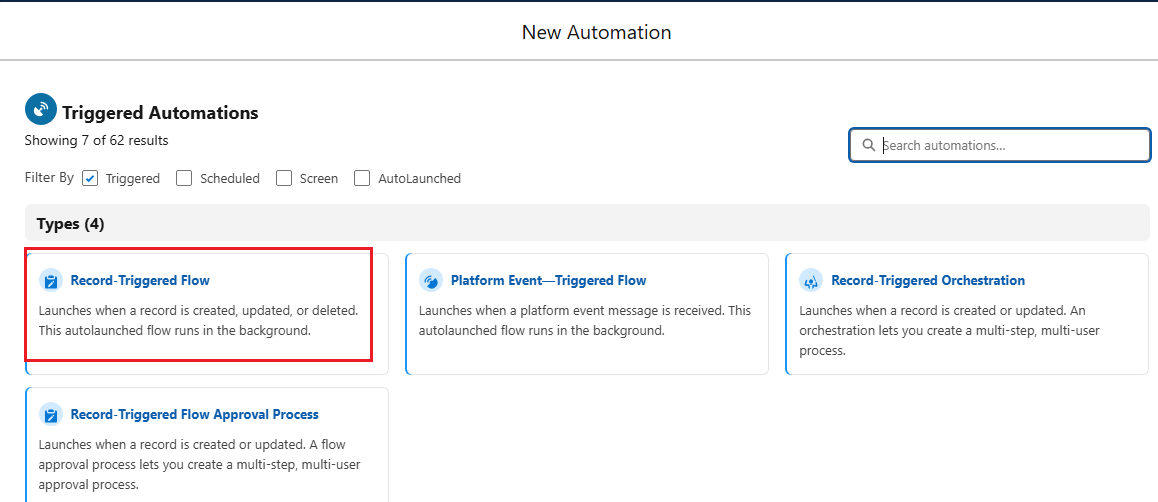
- Now, Select Record-Triggered Flow
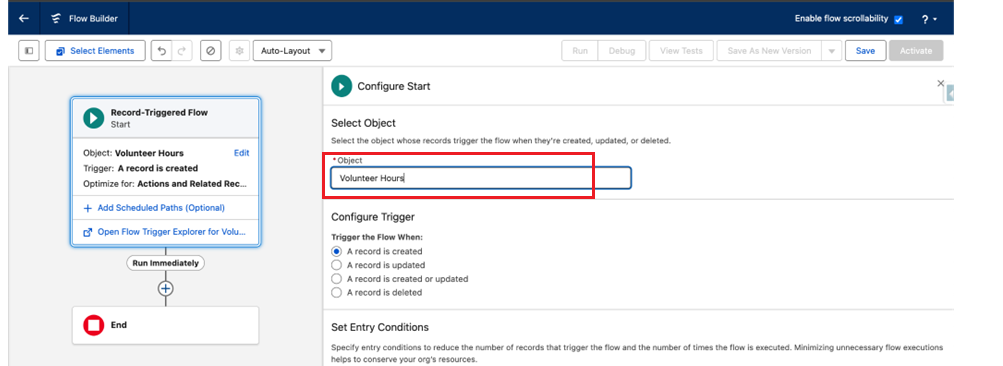
Step 2: Select Object
- Select Object as Volunteer Hours
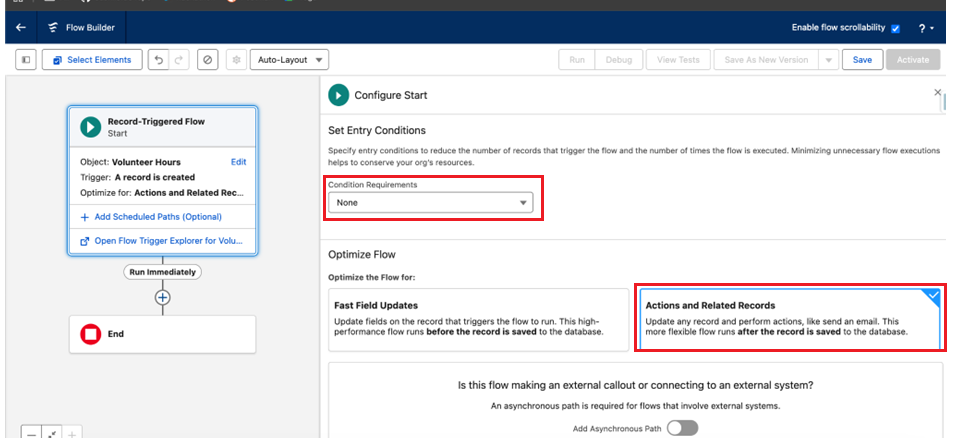
- Select Condition Requirements as None and Choose Flow Optimization as Action and Related Records
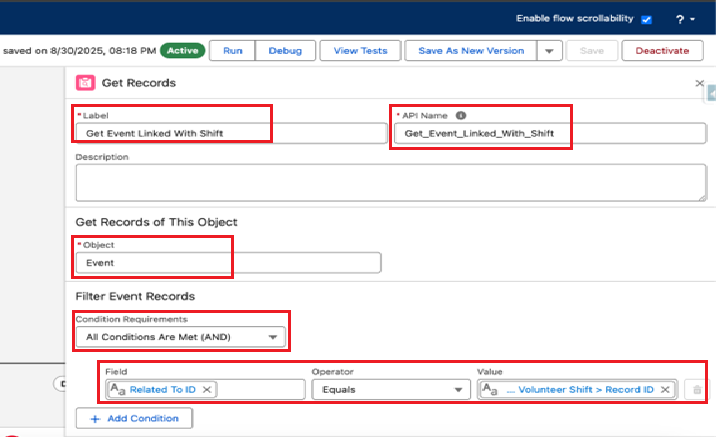
Step 3: Add a Get Records Element to Query Event Records
- Add Get Records element to query Event Object with conditions Related To ID equals to
{!$Record.GW_Volunteers__Volunteer_Shift__r.Id}as shown below
Step 4: Check if Any Linked Event Exist
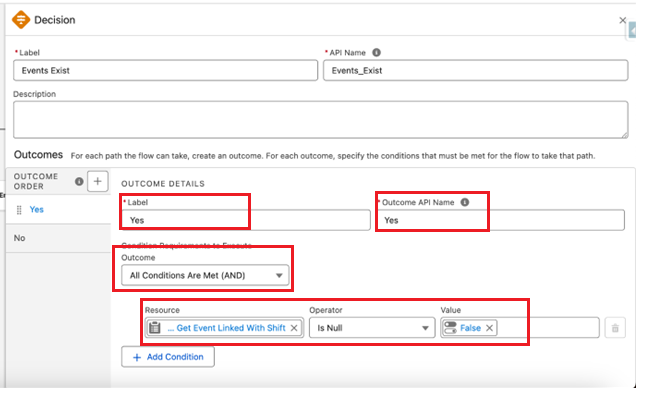
- Add a Decision element to check if any linked Event exists. Relabel the Outcome as Yes and add condition as shown below. We are checking for records fetched in the previous Get Record element to see if they are null. Rename the default outcome as No
Step 5: Check If Contact Already On The Event
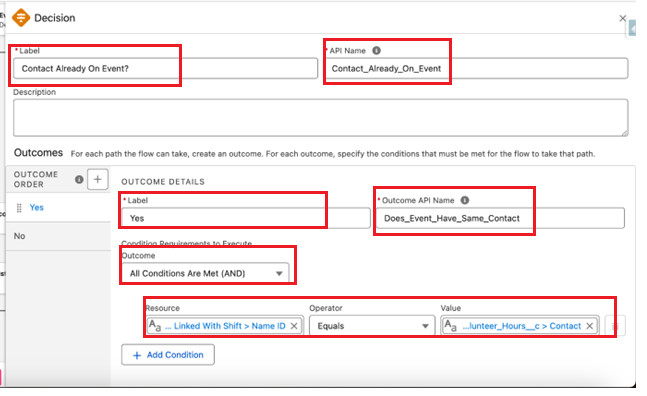
- If the Outcome of the previous decision is Yes, Add another Decision box as Contact Already On Event. This Decision checks whether the WhoId on the Event
( {!Get_Event_Linked_With_Shift.WhoId} )matches the Contact ({!$Record.GW_Volunteers__Contact__c} )on the Volunteer Hours record
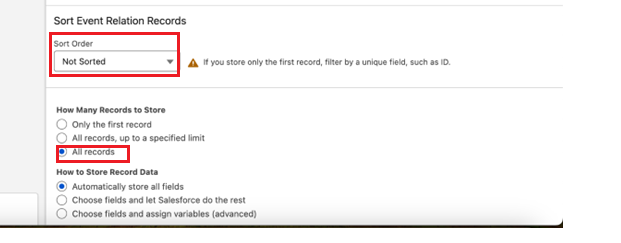
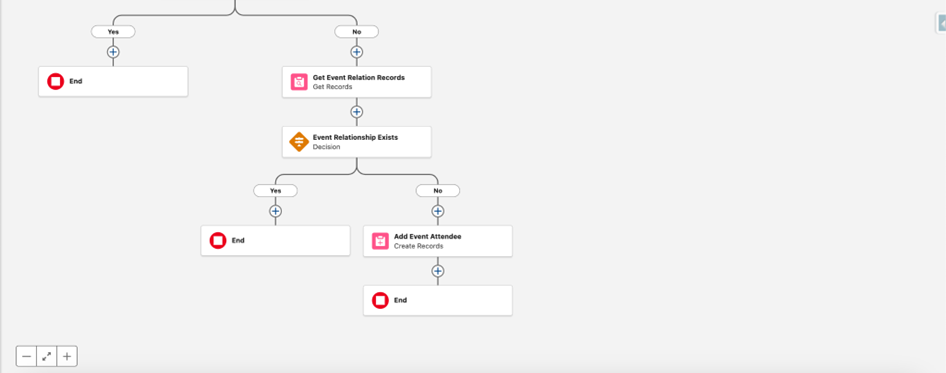
Step 6: Get Existing Event Relation Records
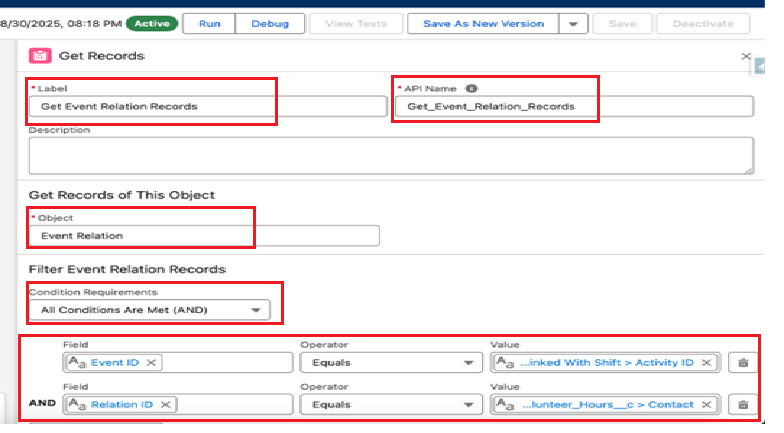
- In the previous step, If we don't find Contact on the Event, We need to look into additional Attendees object now
EventRelation,Add a new Get Records element which will query the EventRelation object with conditions Event ID = Event Id we queried in get element = {!Get_Event_Linked_With_Shift.Id}Relation ID = Contact on the Volunteer Hour Record = {!$Record.GW_Volunteers__Contact__c}
Step 7: Check if EventRelation Exists
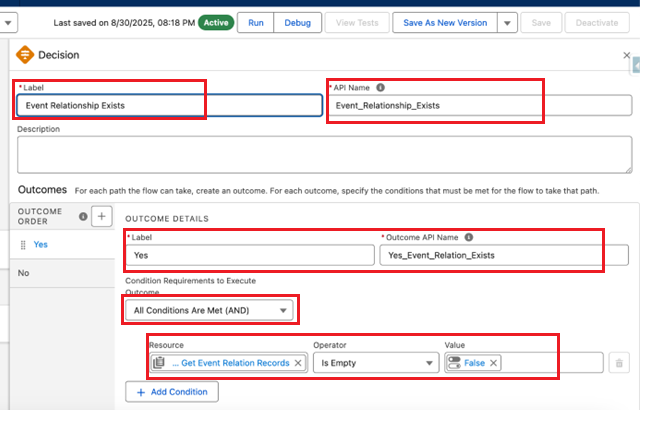
- Now, add a Decision element to check if EventRelation exists by checking Get Event Record Element Size
(IsEmpty = False). Name the outcome as Yes and API Name Yes_Event_Relation_Exists. Rename the default outcome to No
Step 8: Add Event Attendee
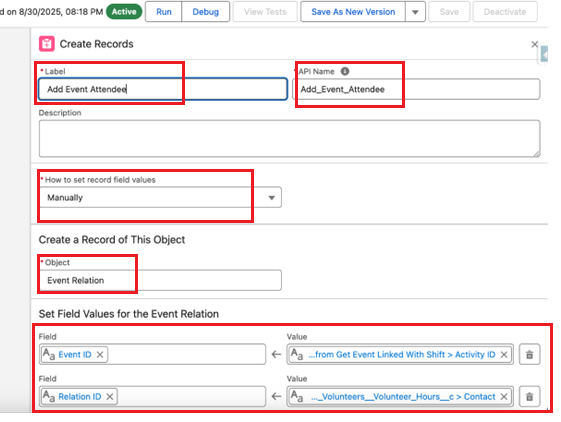
- If we don't find Contact as Event Attendee on the Event, We need to add it to the Event. We can add Create Records Action for EventRelation Object
Event ID = Event Queried in Previous Get Element = {!Get_Event_Linked_With_Shift.Id}Relation Id = Contact on the Volunteer Hours = {!$Record.GW_Volunteers__Contact__c}
Step 9: Save and Activate the Flow
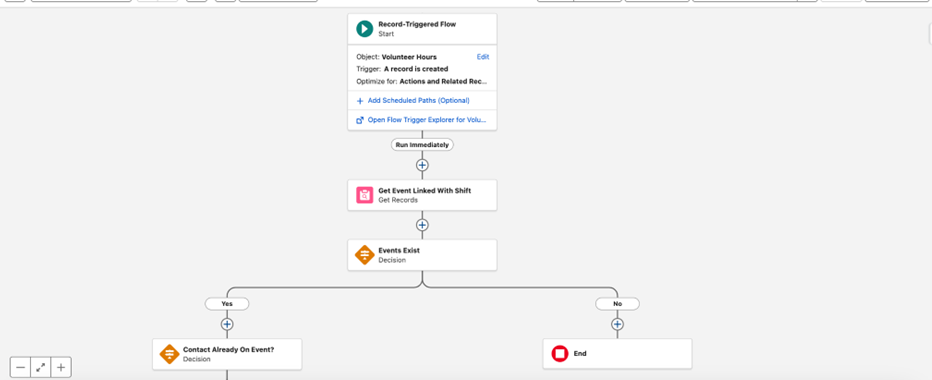
- Now your Flow is ready to add Event attendees as soon as Volunteer Hours are confirmed. Your final Flow will look like this
_______________________________________________________________________
Written by: Sushil Kumar | Forum Ambassador
Sushil Kumar is a Salesforce Technical Architect at UKG. At the time of writing, Sushil has worked in the Salesforce ecosystem for 14 Years, holds 14 Salesforce Credentials including Salesforce Application and System Architect. Sushil serves as a Trailblazer Community Forum Ambassador, and regularly participates in the community.
Submissions reflect only the opinions of the user who made available the Submission and not the opinions of Salesforce, regardless of whether the user is affiliated with Salesforce, and may contain or constitute products, services, information, data, content and other materials made available by or on behalf of third parties ("Third Party Materials). Salesforce neither controls nor endorses, nor is Salesforce responsible for, any Third Party Materials, including their accuracy, validity, timeliness, completeness, reliability, integrity, quality, legality, usefulness or safety, or any applicable intellectual property rights. Any Submissions made available through any message board or forum in response to posted questions, or that otherwise purports to answer any questions, including any questions about Salesforce or Programs, are made available for your general knowledge only and should never be relied upon as answers to your specific questions (even if an answer is marked as a “best” answer or with any similar qualifications). You should always contact Salesforce support for answers to your specific questions. Salesforce has no control over Submissions, and is not responsible for any use or misuse (including any distribution) by any third party of Submissions.
If you have questions, tap into the wisdom of our entire Trailblazer Community here: https://trailhead.salesforce.com/trailblazer-community/feed
Номер статьи базы знаний
005166989
Эта статья решила вашу проблему?
Оставьте свой отзыв, чтобы мы могли стать лучше!
