Valitse organisaatio
How to Automatically Update a Salesforce Opportunity When Its Converted Lead Is Updated Using Record-Triggered Flow
Julkaisupäivä: May 4, 2026
Kuvaus
This article focuses on Lead-Opportunity synchronization, but the same approach can be applied to any related converted objects. In Salesforce, the Converted Opportunity ID is located on the Lead, which deviates from a conventional database model where the Id would typically reside on the child or related object. This distinction influences the condition entries employed.
Ratkaisu
Prerequisite : To edit converted Leads, ensure that the user has the View and Edit Converted Leads permission enabled.
Step 1: Assign the View and Edit Converted Leads permission to the user using a Permission Set
- In Setup, go to Permission Sets
- Click New to create a Permission Set
- Enter a descriptive Label such as Converted Lead Management
- Select the type of Users who will use this Permission Set
- In the Permission Set, open App Permissions
- Click Edit, enable View and Edit Converted Leads and click Save
- Click Manage Assignment > Add Assignment, Select the required Users, and click Assign
Step 2: Create a Custom Field on Lead object
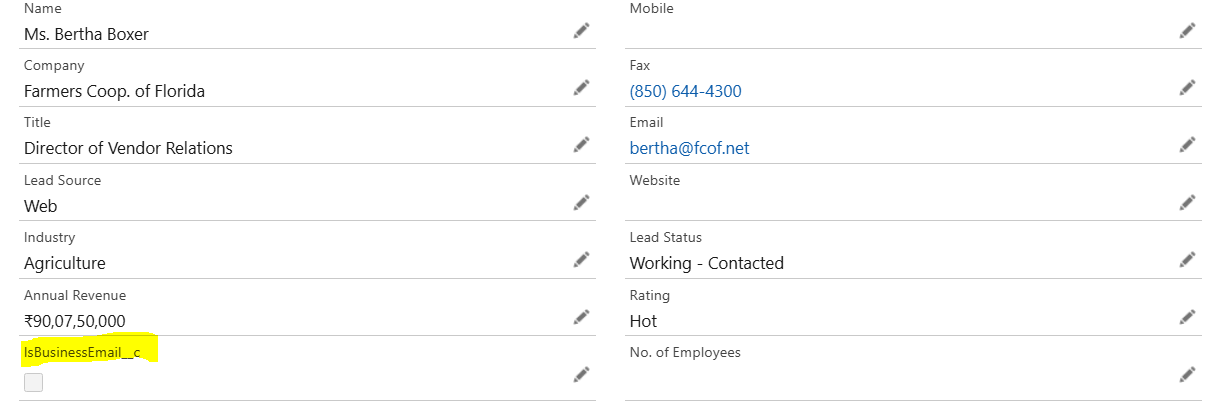
- Implement a Checkbox field on the Lead object
- This field, designated as IsBusinessEmail__c, is accessible via Setup > Object Manager > Lead > Fields & Relationships
- Its purpose is to store a Boolean value indicating whether the email associated with the record is a business email
Step 3: On the Opportunity object, create two fields to be synchronized under Setup > Object Manager > Opportunity > Fields & Relationships
-
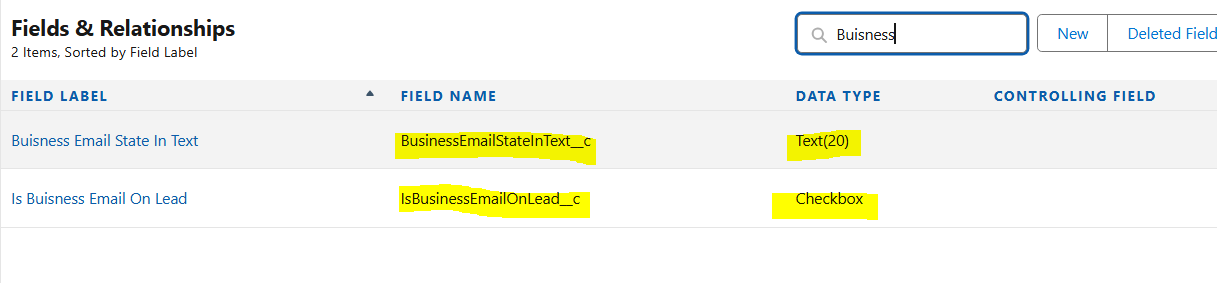
One Checkbox field Boolean IsBusinessEmailOnLead__c, which will be of the same data type as the field created on the Lead object
- One Text field Text BusinessEmailStateInText__c, designed to receive text information that will be True or False, based on the Boolean value from the Lead
- This field may also accommodate other relevant values, including the concerned email address
Step 4: Leverage a Record-Triggered Flow that would update a converted Opportunity, with a value update from its original Lead
- Create a Record-Triggered Flow on the Lead object
- Go to Setup, type Flows in the Quick Find Box
- Click New Flow
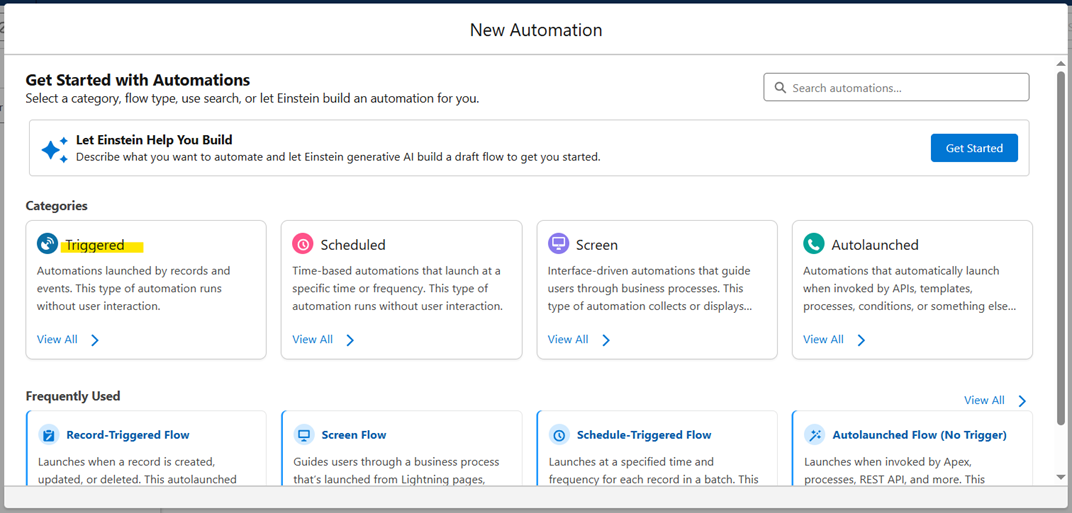
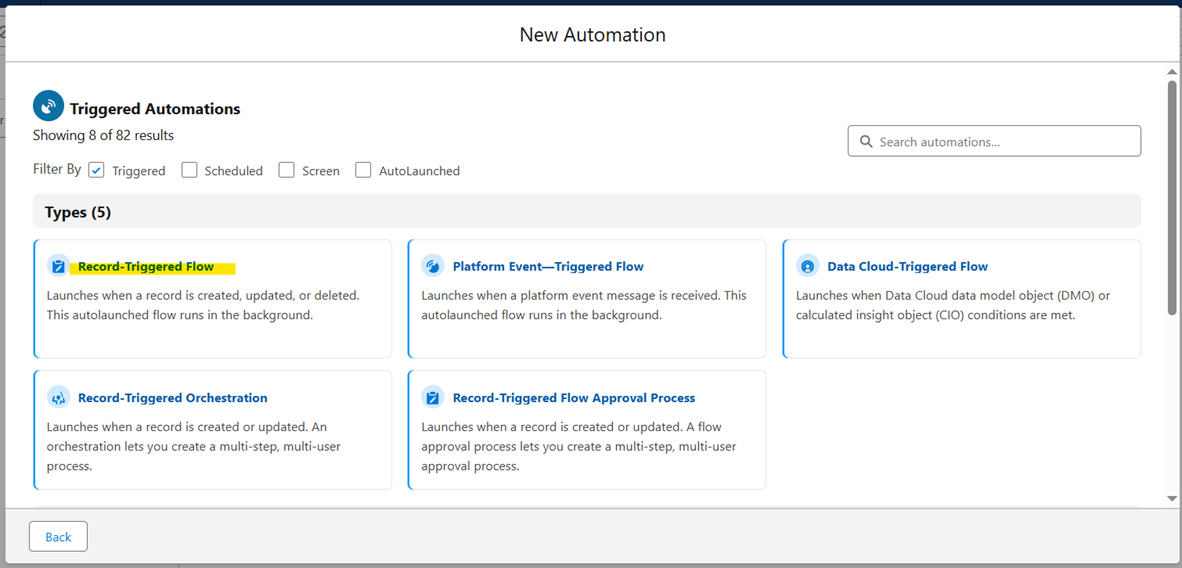
- Select Triggered > Record-Triggered Flow
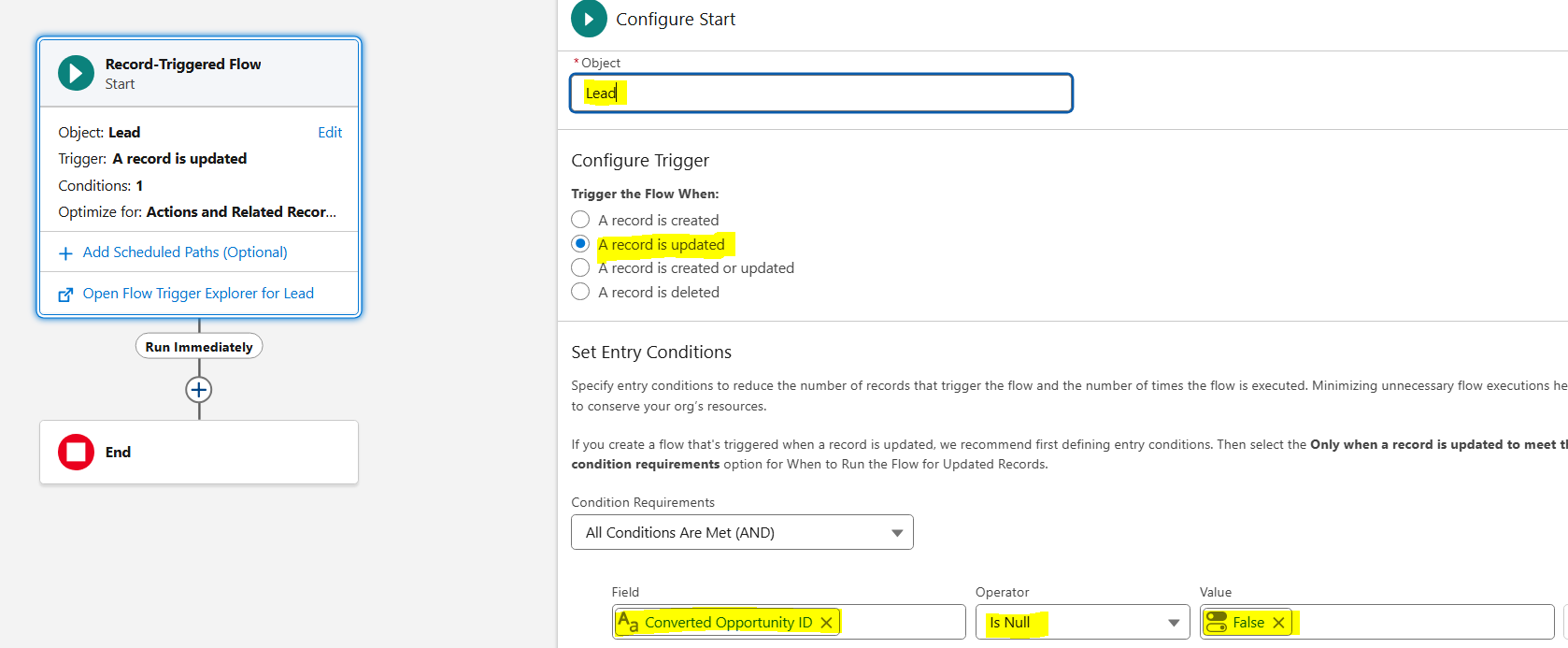
Step 5: When the Flow Builder page appears, configure it as follows
Notes:
- The test is done here on the Converted Opportunity ID tested for not null, but could also be done on the Converted Boolean field
- This Lead/Opportunity synchronization example has been used to illustrate this use case, but we can use the same logic with any other objects that are related to an ID. The difference may be that the Converted Opportunity ID is located on the Lead, whereas in a classical database model, the ID may be located on the child or related object, which could alter the Condition Entries
| Object | Lead |
| Trigger the Flow When | A record is updated |
| Condition Requirements | All Conditions Are Met (AND) |
The Condition Requirement should be as follows:
| Converted Opportunity ID | Is Null | False |
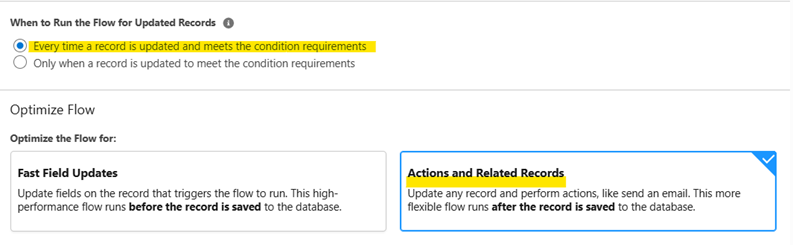
| When to Run the Flow for Updated Records | Every time a record is updated and meets the condition requirements |
|
Optimize the Flow for
| Actions and Related Records |
Step 6: Add an Update Records element, that will be in charge of updating the Opportunity whose ID equals to the Converted Opportunity ID of the triggering Lead record
- Click on the + icon, below the Start block
- Select the Update Records element
- Select the option that allows Specifying Conditions. This will handle both the Get query and the Update actions
Notes:
- By specifying conditions we do not need to position a Get Records element before the Update element
- While not mandatory, it is best practice to always provide a Description for the elements and resources used in the Flow
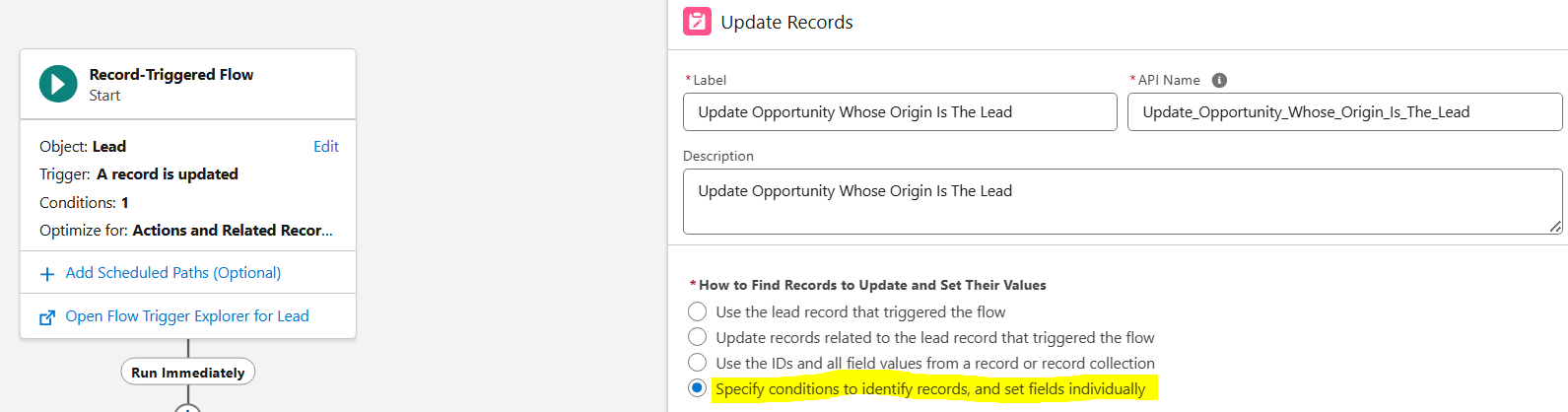
- Then select the Opportunity object, as this is the type of records that this Flow will update
- For Filter Opportunity Records section, mention the below criteria to target the Opportunity for an update
- Condition Requirements: All Conditions Are Met (AND)
- Field: Choose Opportunity ID for a field
- Operator: Equals
- Value: Navigate to Triggering Lead > Converted Opportunity ID or type {!$Record.ConvertedOpportunityId}
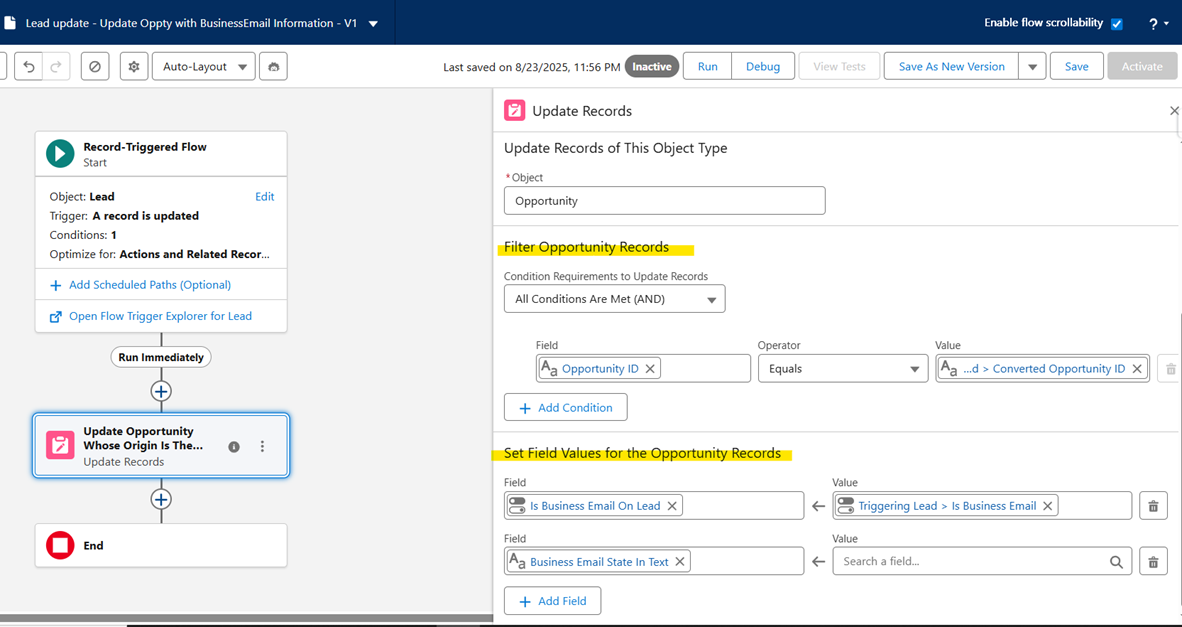
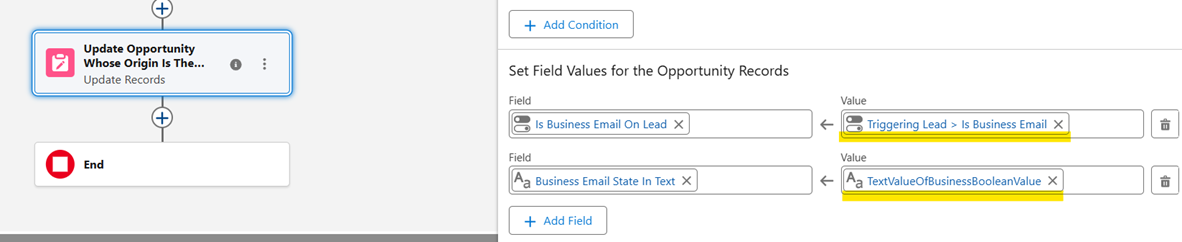
- In the Set Field Values section, directly map the Boolean field from the Lead to the corresponding Boolean field on the Opportunity, as both fields share the same data type

- To map to the text field, we must create a New Resource because the Data Types are different. Click in the value input field and select +New Resource

-
When specifying the resource type, select Formula. Define it as follows:
- Data Type: Text
- Formula:
IF( {!$Record.IsBusinessEmail__c}, "True" , "False" )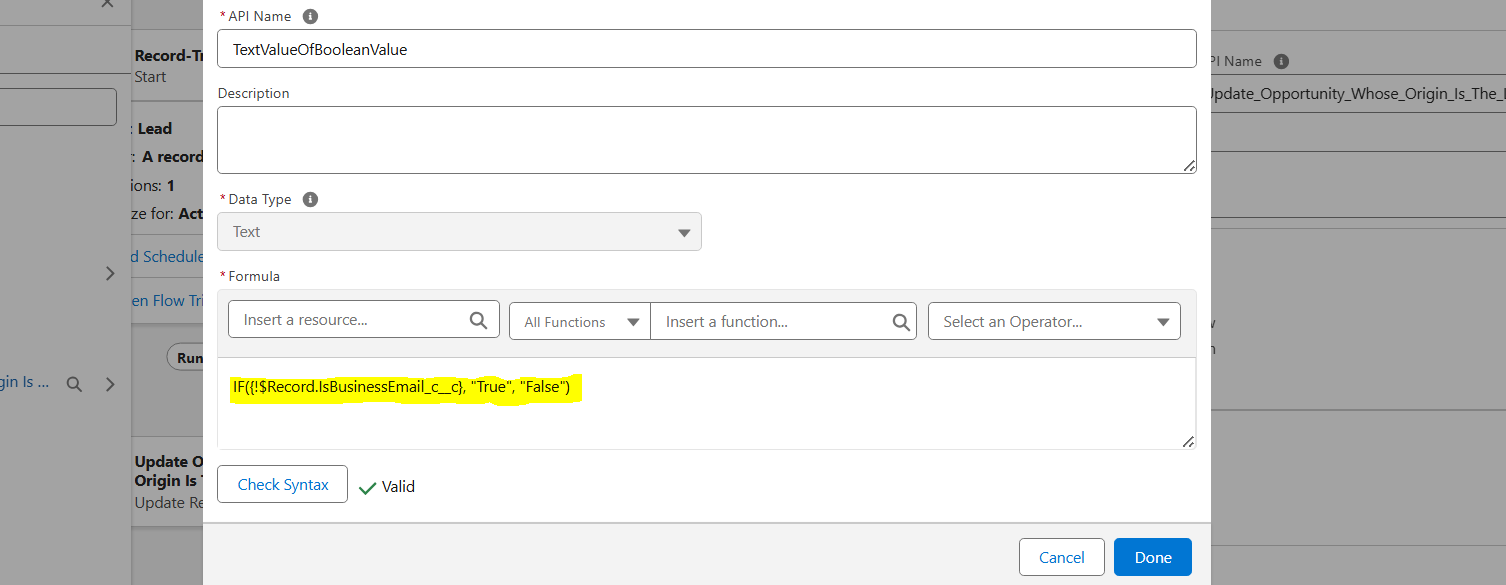
-
The Update Records element will appear as follows:
Note: The Flow can also be enriched with Fault Paths or error handling. To further enhance security during build and deployment, consider creating Flow test scenarios
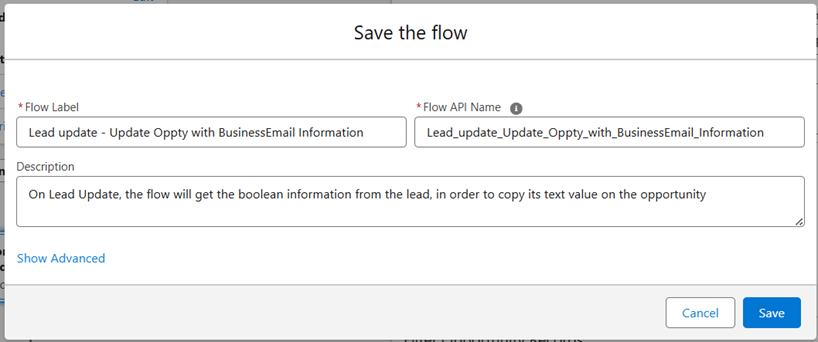
Step 7: Save and Activate the Flow
Step 8: Test our Flow and verify Opportunity synchronization with Lead
- To test this Flow, we can apply it to a Lead at various stages of its lifecycle, both before and after conversion
- Create a new open Lead, then update it
- Convert the updated Lead and check the associated Opportunity
- Create a Lead with converted Lead information Report to view combined Lead and Opportunity fields
- Observe that Opportunity fields are not populated upon initial Lead conversion, as the flow triggers only on Lead updates
- Update the Lead again from its record page
- Confirm that the Opportunity has been correctly updated by reviewing the Report and the Opportunity record
Alternative approaches that could be considered when working with Leads
A. Lead Conversion mapping
- Standard Lead Conversion functionality allows for the mapping of fields from a Lead to an Opportunity during the conversion process
- This mapping is exclusively for Opportunity creation upon Lead Conversion and cannot be re-applied for Lead updates after the Opportunity has been established
- Navigate to Setup > Object Manager > Lead > Fields & Relationships > Map Lead Fields

Mapping Requirements:
- For successful field mapping, fields on both the Lead and Opportunity objects must share the same data type. For instance, a custom Checkbox/Boolean field on the Lead can only be mapped to a Boolean field on the Opportunity
- Mapping fields with differing data types is not supported
B. Directly point to the Lead Field Value
- If we want to avoid duplicating boolean information on the Opportunity field, especially if it doesn't add value, we can consider using a lookup field. This field, located on the Opportunity object, will point to the original Lead, allowing to access to its fields through this connection
- We will need to create a Flow logic to update this Lead ID field on the Opportunity during Lead Conversion. This is similar to the Flow described in this article
- Once set up, we can either create a Formula field on the Opportunity object
- For a Boolean: OriginalLead__r.IsBusinessEmail__c
- For a Text field: IF(OriginalLead__r.IsBusinessEmail__c, "True", "False")
Or
-
Directly add the Lead field to the Opportunity Lightning Page
-
Edit the page from an Opportunity record page, or Setup > Object Manager > Opportunity > Lightning Record Pages or, use Page Layouts if Lightning Pages haven't been leveraged for this object
-
Click Upgrade Now on the layout to switch to a Dynamic Form if it's not already
-
From the left panel, select the Fields tab
-
Select Original Lead
-
Then select the Is Business Email Lead field to display on the Opportunity
-
Save and Assign the new Lightning Record Page to the relevant Applications or Profiles
-
C. Leverage a Screen Flow or a LWC (Lightning Web Component)
- Finally, we can also add a Screen Flow or an LWC (Lightning Web Component) to the Opportunity Record Page to display information from the original Lead
- This may prevent creating a Lead Lookup Field on the Opportunity, as it can query the Lead object whose ConvertedOpportunityId is equal to the Current Record's ID without needing to store this field on the Opportunity object
- The Screen Flow Component could be interesting as it can be configured without code, and visibility criteria can be added to make it visible or not, according to the User or information on the record
_____________________________________________________________________________
Lisäresurssit
- Salesforce Help: Convert Leads
https://help.salesforce.com/s/articleView?id=sf.leads_convert.htm
- Salesforce Help: Record-Triggered Flows
https://help.salesforce.com/s/articleView?id=sf.flow_concepts_trigger_record.htm
- Salesforce Help: Permission Sets Overview
https://help.salesforce.com/s/articleView?id=sf.perm_sets_overview.htm
- Salesforce Help: Map Lead Fields for Lead Conversion
https://help.salesforce.com/s/articleView?id=sf.customize_leadconvert.htm
- Trailhead: Flow Builder
https://trailhead.salesforce.com/content/learn/modules/flow-builder
- Salesforce Developer Docs: Lightning Web Components
https://developer.salesforce.com/docs/component-library/overview/components
Knowledge-artikkelin numero
005185010
Ratkaisiko tämä artikkeli ongelmasi?
Anna palautetta, jotta voimme kehittyä!
