Välj en organisation
Resolving Unexpected or More Frequent Device Activations for Logins (Non-SSO)
Publiceringsdatum: Aug 18, 2026
Beskrivning
Original Publication Date - September 19, 2025
Updated - April 13, 2026
Salesforce Implemented changes to Device Activation behavior for user logins in order to enhance security and prevent unauthorized account access. This change went into effect in early September 2025 for non-revenue orgs, and it went into effect for paid orgs (Production and Sandbox) at the end of October 2025 (changed from previous dates of September 26 and October 2).
To understand the upcoming changes related to device activation for SSO (Single Sign On) logins, please review this article: [Changes to Device Activation for SSO Logins]
What's changing:
For Active Production and Sandbox Orgs, Device Activation will be forced when username and password user logins occur with an excessively broad set of IP addresses allowed in either the org-level Network Access settings, or in the profile-level Login IP ranges.
For Non-Revenue Orgs, Device Activation will be always required even if a user accesses Salesforce from a trusted IP range. Refer to the Device Activation is Always Required for Non-Revenue Orgs Release.
What is Device Activation?
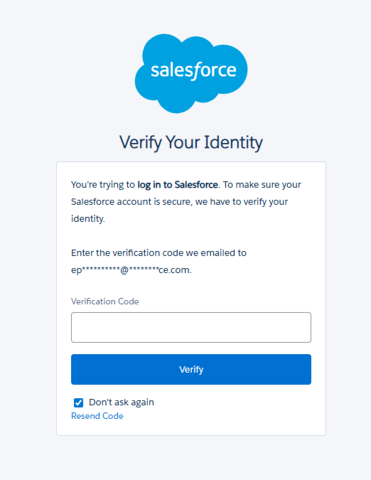
Salesforce Device Activation is a security feature that requires users to verify their identity when logging in from an unrecognized browser, device, or location outside a trusted IP range.
Email verification is the primary method for most users, and activation necessitates code verification sent to the user's email address during login. When the user has a stronger verification method (Salesforce Authenticator, a third-party Authenticator app, Security Key, Built-in Authenticator, or SMS) registered, that stronger verification method will be used instead of having the code sent to the user's email address.
What specific conditions will prompt Device Activation with this change?
Device Activation will be prompted for direct user interface logins using a Salesforce username and password, provided Salesforce Multi-Factor Authentication (MFA) is disabled for the user and one of the below conditions are met.
-
All Active Production and Sandbox orgs: If the allowed IP address range configured in either the Org-level Network Access settings (Set Trusted IP Ranges for Your Org) or Profile-level Login IP ranges (Restrict Login IP Addresses in Profiles) exceeds a total of 16,777,216 addresses,
-
All Free and Trial Orgs, Scratch Orgs and Non-Sandbox Demo Orgs (Non-Revenue): Device Activation will be prompted regardless of the IP address range configured for the Org or User's Profile.
-
For All Orgs: If the Trusted IP address range is not configured, users are prompted to verify their identity when they log in from a new browser or device. (This behavior has been in place and is not changing.)
Which user logins are excluded from Device Activation?
-
MFA enforced with username and password direct user logins will not be prompted for Device Activation.
Note: Single Sign-On (SSO) logins are not excluded from Device Activation and Single Sign-On (SSO) logins require Device Activation as part of Salesforce security enhancements. Beginning January 20, 2026, Salesforce will roll out staggered changes to enforce Device Activation for SSO user logins. ref: device activation updates for SSO logins. -
Logins from IP addresses configured in the org-level Network Access settings or Profile-level Login IP ranges, as long as the total number of IP addresses are within the defined limit mentioned above. (This item applies to active production and sandbox orgs, not free, trial, and non-sandbox demo orgs.)
-
External users are not going to be enforced by default to use Device Activation. This was true before and will remain the same after these changes, as described in the help article.
How is the range of IP addresses calculated for this behavior change?
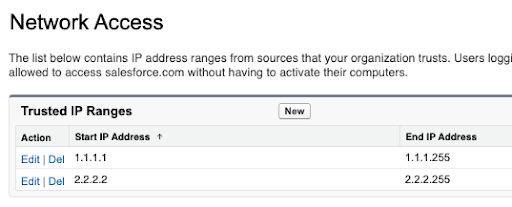
The range of IP addresses for this behavior change is calculated by adding the range in each row of defined addresses. In the following example, the first row contains 255 IP addresses, and the second row contains 254 IP addresses, for a total of 509 IP addresses in range.
Why am I not receiving verification code emails for Sandbox logins?
Users impacted by this issue should reach out to their Org Admin so that the Org Admin can troubleshoot using the below steps.
If users are not receiving verification codes via email in sandbox orgs, Customer org Admins should check the following:
-
Users' email addresses are accurate and are not appended with ".invalid". See more details here Email Addresses in Sandbox Appended With '.invalid' After Salesforce Refresh
-
Review and update your Email Deliverability settings to System email only or All email. If you can't update this setting, contact Salesforce Support.
Admins who do not receive verification code emails or cannot log in to the sandbox org, they can contact Salesforce Support.
How to address Metadata Deployment issues impacted by this change?
Metadata Deployments fail if you have IP ranges referenced in their Profile / Org-level Network access metadata which exceeds 16,777,216 IP addresses across all ranges.
You will see this error message "You reached the limit of 16,777,216 IP addresses across all of your IP ranges. Reduce the size of the IP range you entered and try again."
Review trusted IP address in your org-level Network Settings and profile-level Login IP ranges. Reduce the IP address ranges to specific addresses that match your enterprise or VPN, which will ensure unidentified or non-trusted IPs are denied or challenged within the defined limit.
Lösning
This section explains how admins can prevent unexpected or repeated Device Activation prompts for non-SSO logins by strengthening authentication or narrowing trusted IP ranges.
## Respond to this change
Avoid unexpected or more frequent device activation by taking one or both of the following steps.
-
Review trusted IP address in your org-level Network Settings and profile-level Login IP ranges. Reduce the IP address ranges to specific addresses that match your enterprise or VPN, which will ensure unidentified or non-trusted IPs are denied or challenged within the defined limit.
If logins cannot be made more secure via MFA or SSO, and if IP addresses cannot be reduced to smaller ranges, then ensure that every user who intends to login has access to the email address setup on the user record. Having access to the email address will allow that user to successfully complete device activation when prompted.
With IP address ranges set up at the profile level, impact of this change might be felt over the course of several weeks, depending on how often your users that have an excessively broad set of IP addresses actually login.
Ytterligare resurser
Knowledge-artikelnummer
005220394
Löste denna artikel ditt problem?
Berätta för oss vad vi kan förbättra!
