Seleziona un'organizzazione
How to Create a Custom Picklist on Salesforce Account and Use It in Screen Flow and Record-Triggered Flow
Data pubblicazione: May 4, 2026
Descrizione
This article explains how to create and configure a custom picklist field on the Account object to maintain consistent county values using Salesforce Flow. It also demonstrates how to use this picklist in Screen Flows and Record-Triggered Flows for streamlined data entry and automation.
Risoluzione
This can be achieved by creating a custom picklist field on the desired object to maintain consistent values, and then referencing it in Salesforce Flow for guided data entry or automated field population.
Assumptions:
- Standard Account object is used for example purpose
- A few Counties in Georgia are used to be populated via Salesforce Flow
Steps to follow:
Create a new Custom field on Account Object
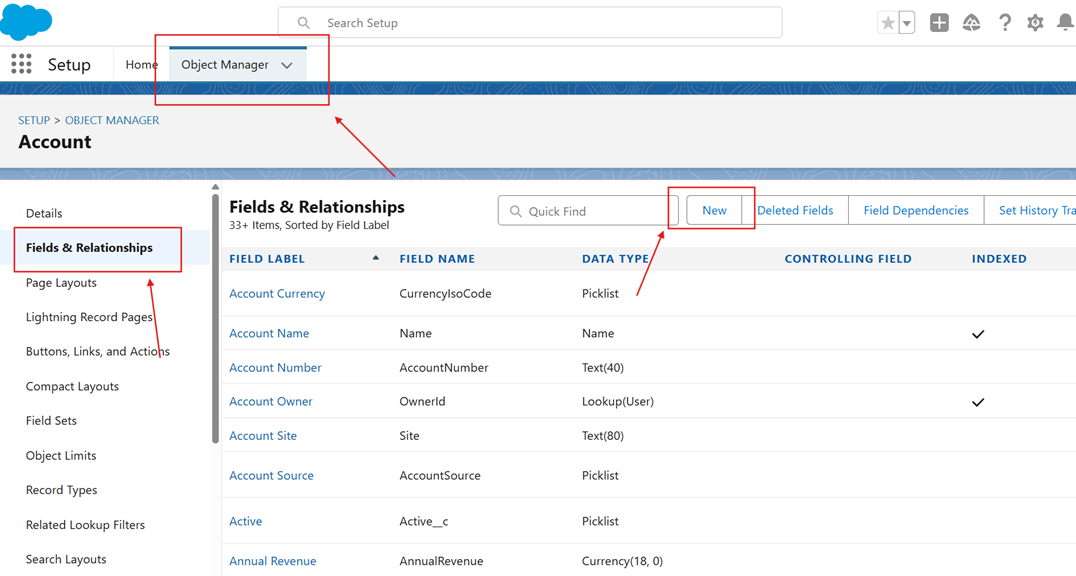
- Go to Setup > Object Manager > Account > Fields & Relationships > Click on New on top right corner
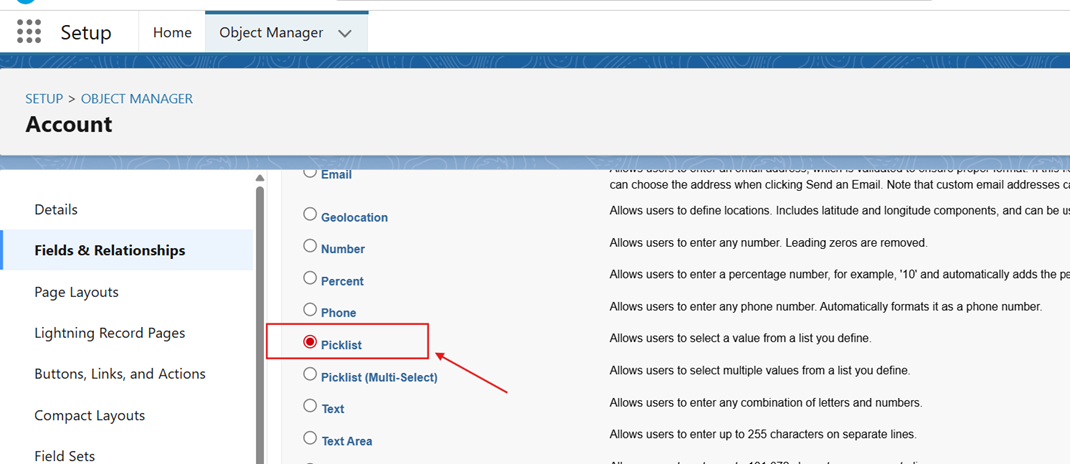
2. Select Picklist as Data Type
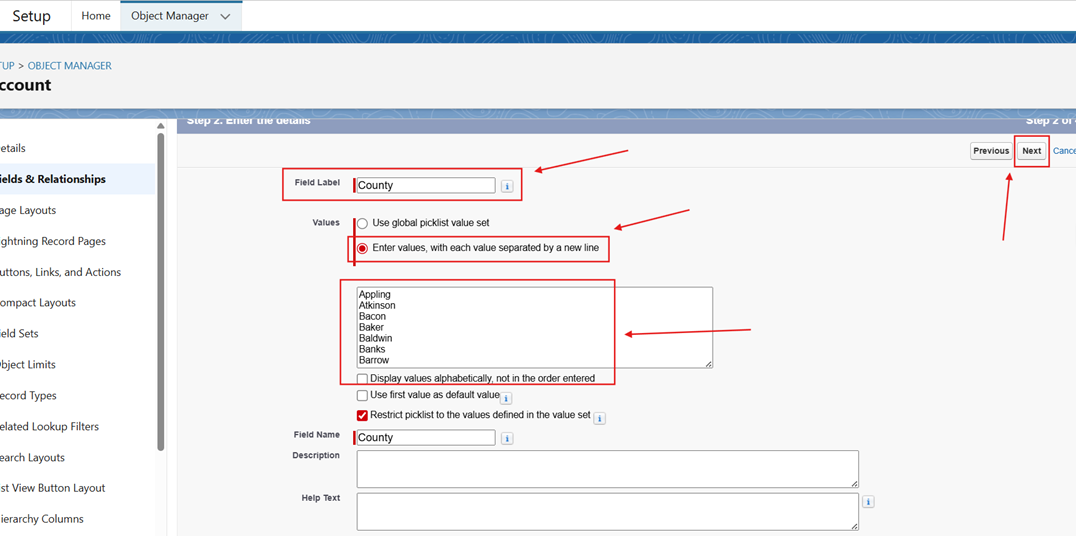
3. Enter the Field Label, select the option Enter values, with each value separated by a new line option and enter the Field Name as County. Click Next
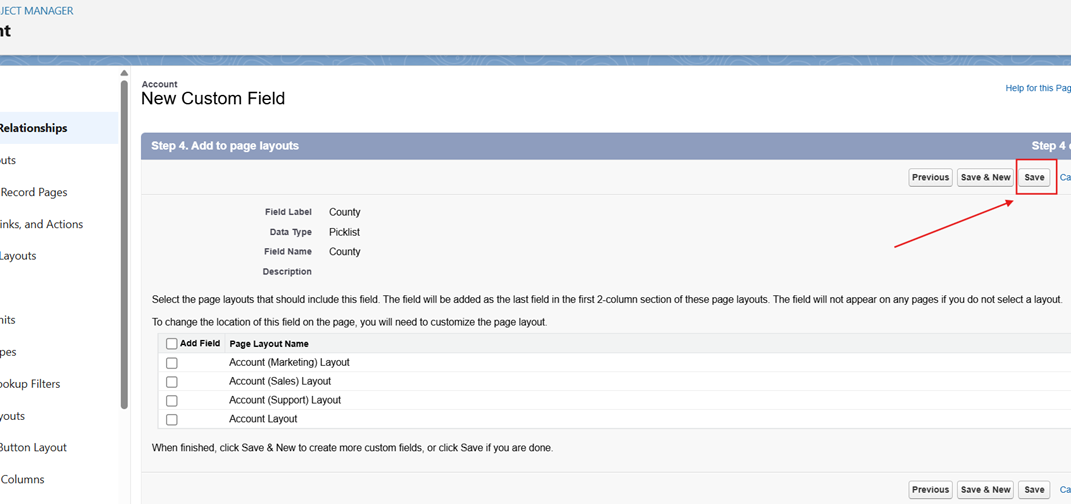
4. Click on Next on rest of the step until we see the Save button and click on it to finish the field setup
Use Case 1: Display List of Counties in Screen Flow
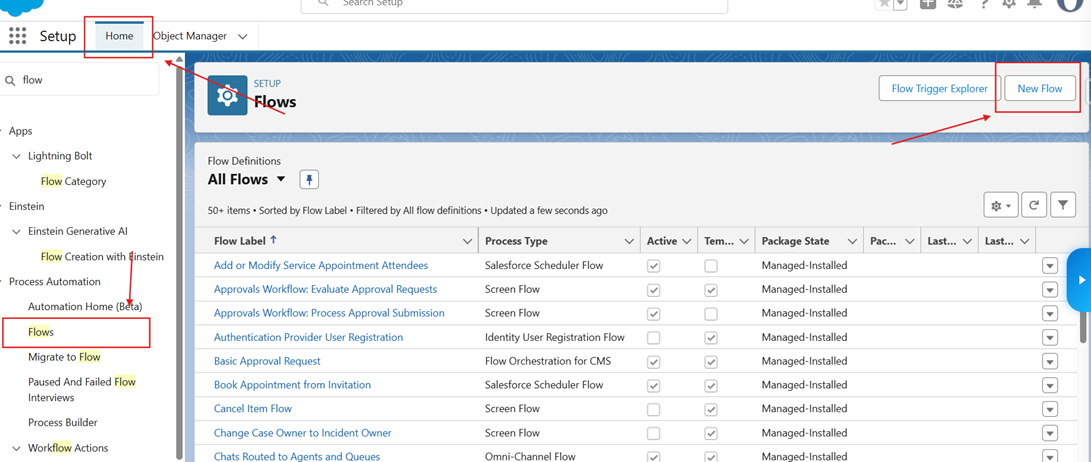
- Open your existing Screen Flow or create a new one by navigating to the Setup > Home > Type Flows in Quick Find and click on Flows > click on New Flow on top right corner
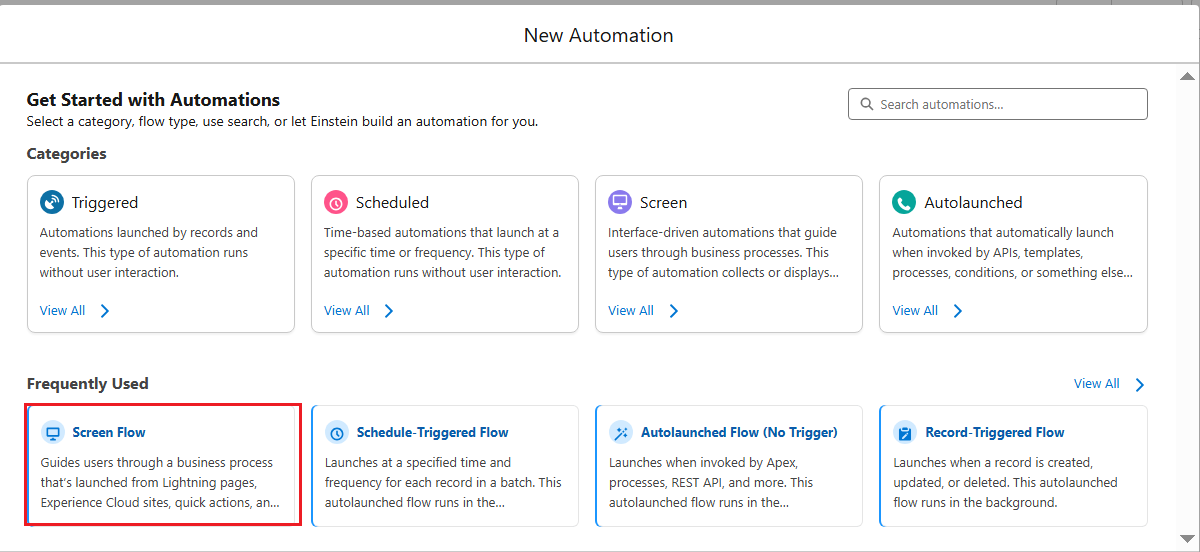
b. Select Screen Flow
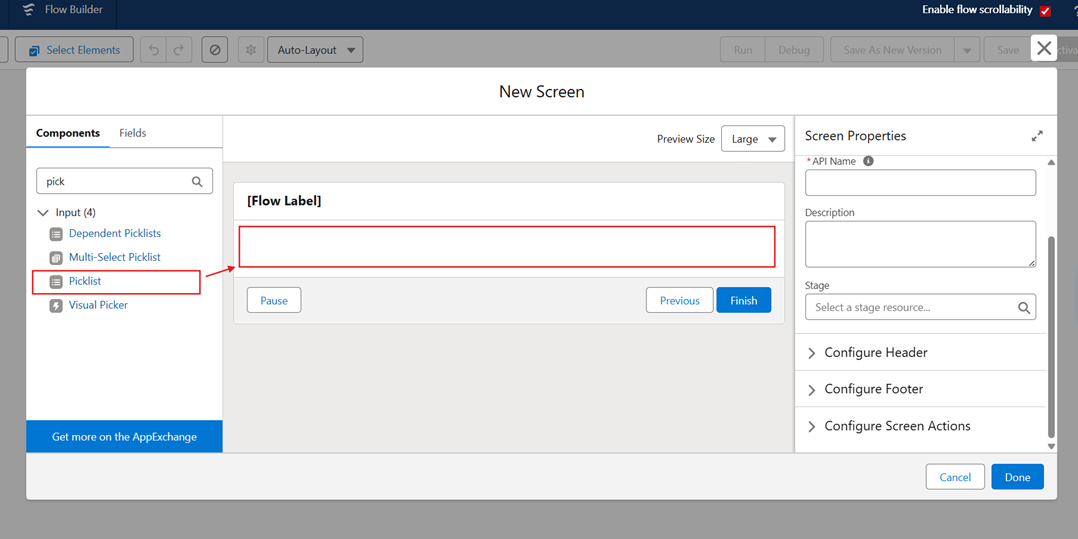
c. Add new Screen element or Open existing one > drag/drop Picklist to the Screen
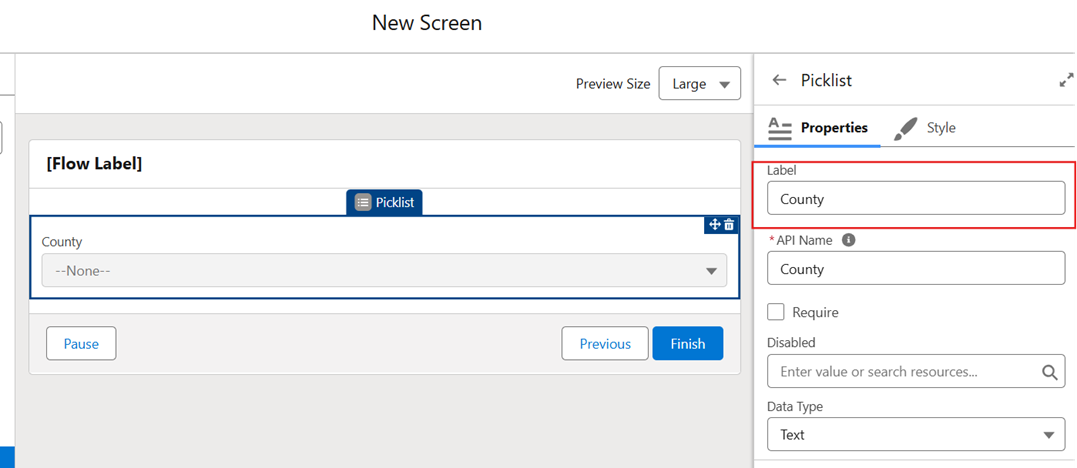
d. Give any preferred Label. We will use County for our use case
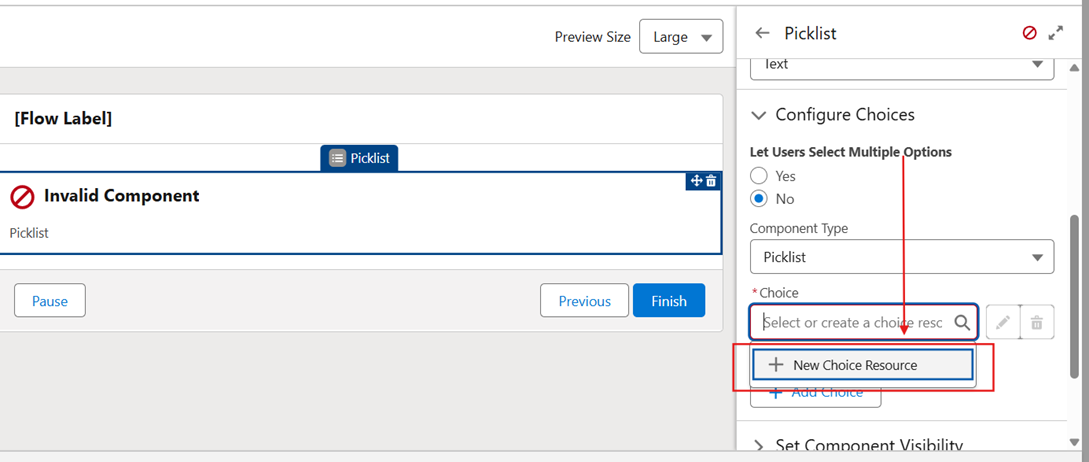
e. Scroll-down in properties and select New Choice Resource in Choice
Note : Please ignore the component error as it will be resolved once Choice option is set
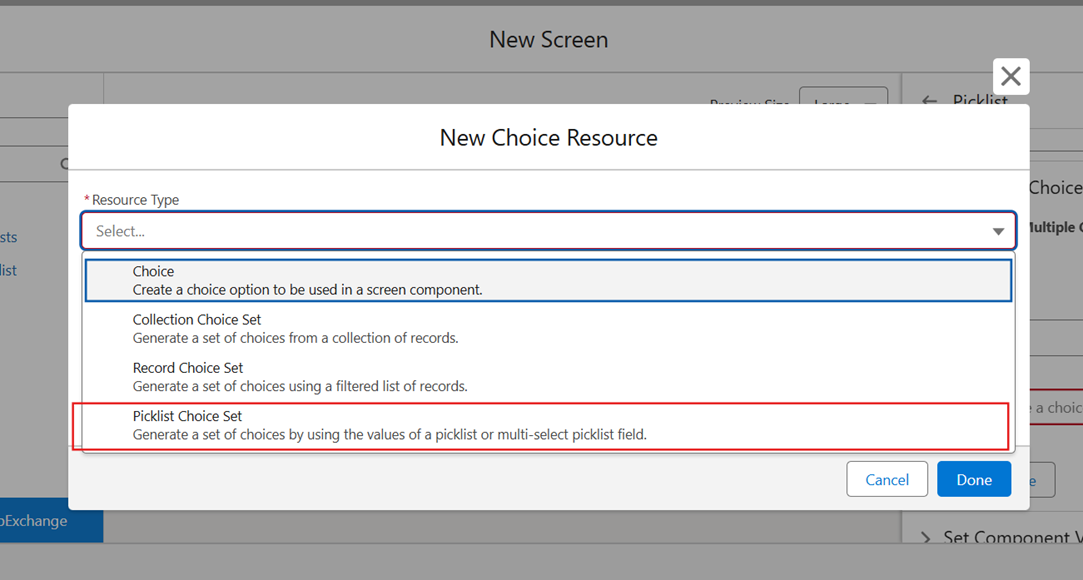
f. Click on Picklist Choice Set
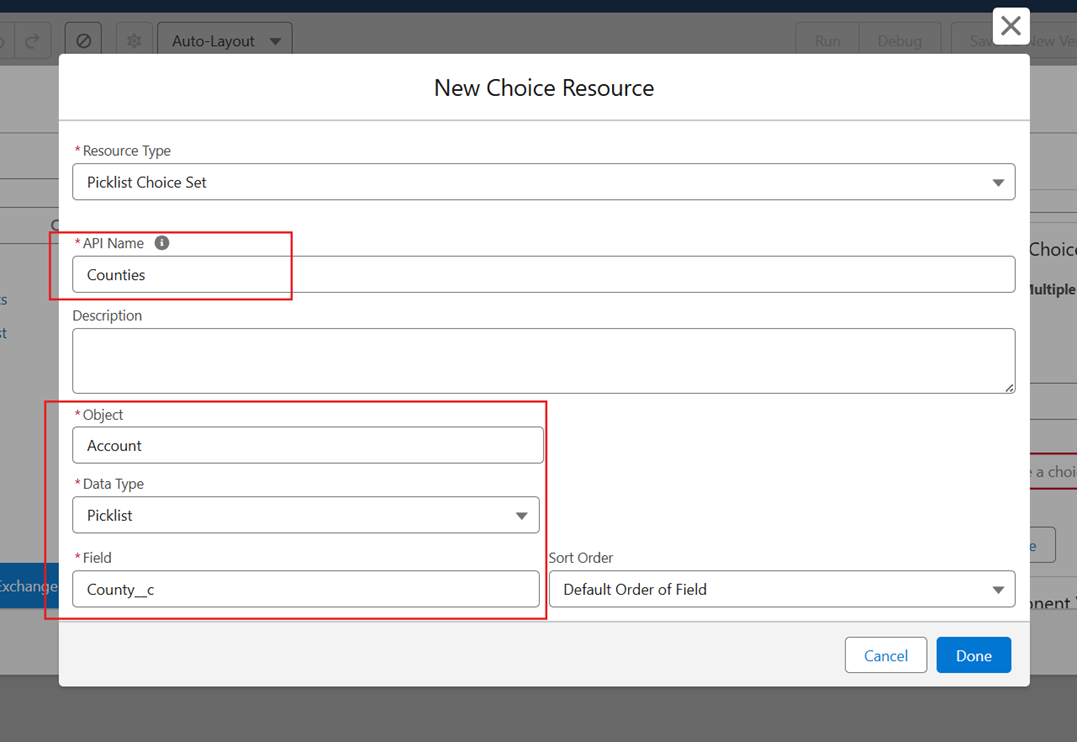
g. Enter API Name, and select rest of the option as shown in screenshot below to configure Choice option
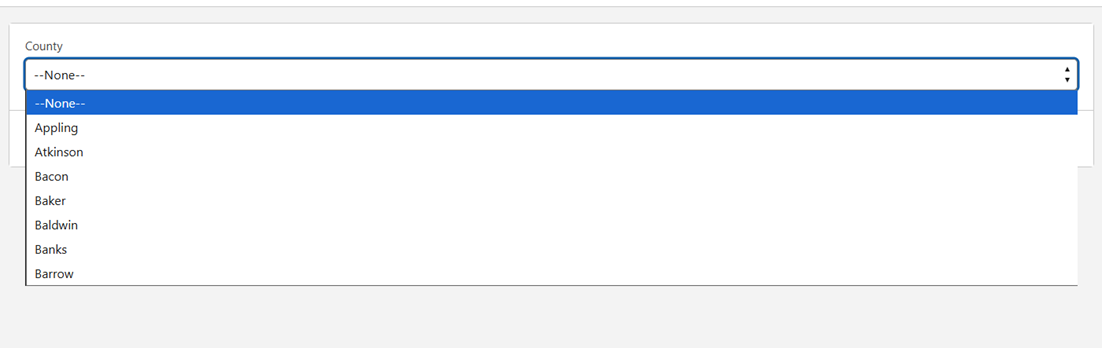
h. We should be able to see the fully configured Picklist with Counties. Click on Debug on top right corner to see it in action
Use case 2: Populate County on Account using Record-Triggered Flow
a. Open existing or create new Record-Triggered Flow using same navigation as shown in Step a of Use Case 1. Add Assignment element and configure as shown in the screenshot to populate the County
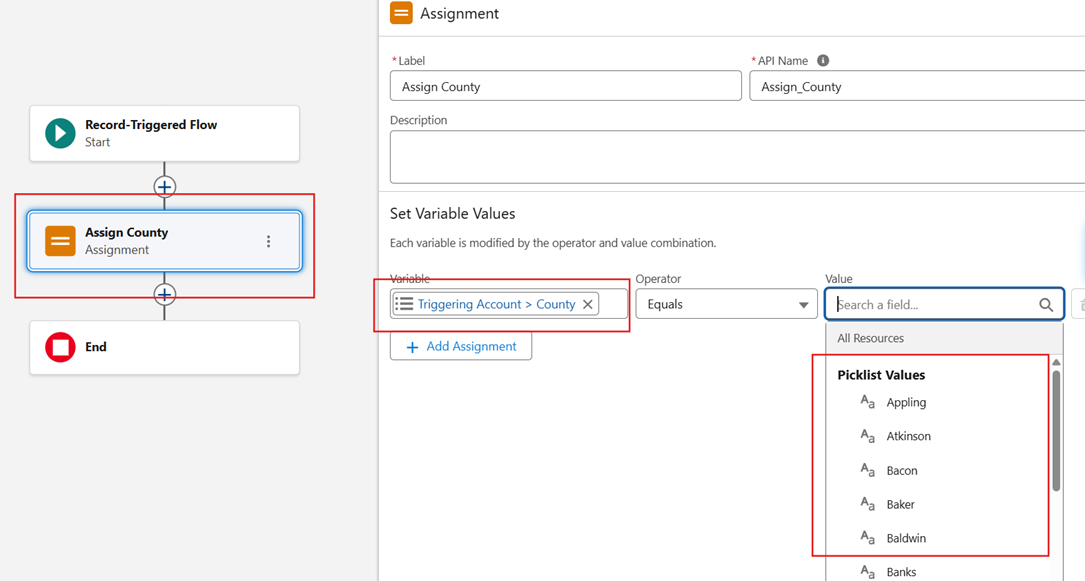
Note: We can either use Fast Field Update to populate or use Actions and Related Records option to update the assigned County on the Account
b. Save and Activate the Flow to see it in action
__________________________________________________________
Risorse aggiuntive
- Salesforce Help: Custom Field Types
https://help.salesforce.com/s/articleView?id=sf.fields_about_field_types.htm
- Salesforce Help: Screen Flows
https://help.salesforce.com/s/articleView?id=sf.flow_concepts_type_screen.htm
- Salesforce Help: Record-Triggered Flows
https://help.salesforce.com/s/articleView?id=sf.flow_concepts_trigger_record.htm
- Salesforce Help: Picklist Choice Sets in Flow
https://help.salesforce.com/s/articleView?id=sf.flow_ref_resources_choice_picklist.htm
- Trailhead: Flow Builder
https://trailhead.salesforce.com/content/learn/modules/flow-builder
- Salesforce Help: Add or Edit Picklist Values
https://help.salesforce.com/s/articleView?id=sf.customize_picklistvalues.htm
Numero articolo Knowledge
005224343
Questo articolo ha risolto il problema?
Facci sapere, così possiamo migliorare!
