조직 선택
How to use Engagement Signals to send Emails when Opportunities are Closed in Marketing Cloud Next
게시 일자: Jan 15, 2026
상세 설명
In this article, we explore how to use Marketing Cloud Next to trigger a Flow that sends an email to the Primary Contact whenever an Opportunity closes. This setup ensures that an automated email is sent when a record is created or changed in Salesforce, helping streamline communication and engagement.
Note: This feature is only available in Marketing Cloud Advanced Edition.
솔루션
Marketing Cloud Next has two types of Flows:
- Segment Triggered Flows: Triggered with Unified Individuals from a published segment.
- Automation Event-Triggered Flows: Triggered by predefined Events such as a Form Submission, an Email Open, or Click action.
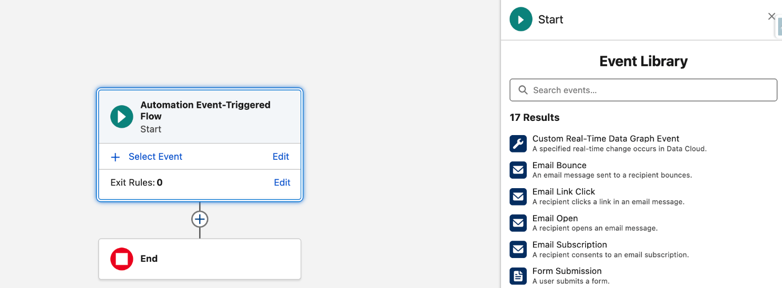
For this configuration, we'll create a Custom Event to extend the Event Library in Marketing Cloud Next. This is achieved using Engagement Signals, and it requires a DMO with the Engagement type to power it.
Data Cloud, used by Marketing Cloud Growth and Advance editions, includes existing DMO's under the Engagement category, such as Website Engagement and Email Engagement, which can be used to create an Engagement Signal.
Step 1: Create a new DMO
- Start by creating a new DLO and selecting the Engagement type for it
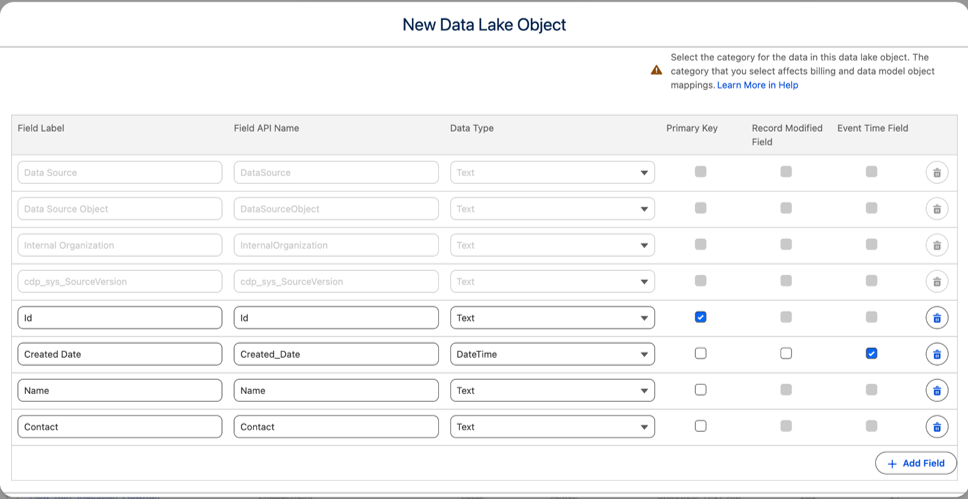
- Keep it simple by declaring an Id, the Created Date as the Event Time field required for this type of DLO , the Opportunity Name, and the Primary Contact
- Once created, map the DLO to a new DMO. To do this, first add the DLO in the default Data Space that Marketing Cloud Next uses. In Data Cloud > Data Spaces > Default > add Data Lake Objects, the DLO is added without filters
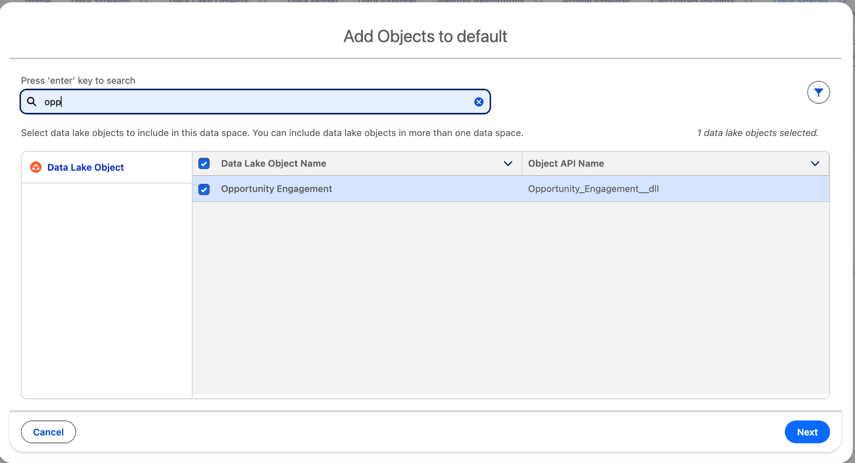
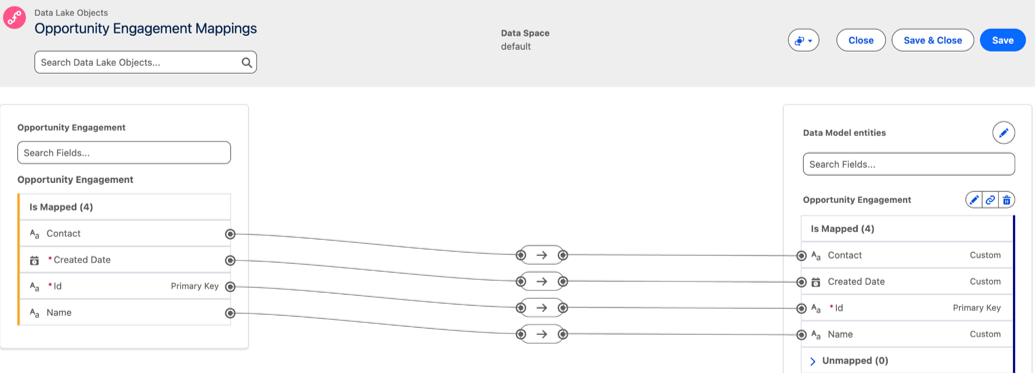
- Once added, start the Data Mapping by creating a new Custom DMO from the right sidebar, with the exact same structure as our DLO
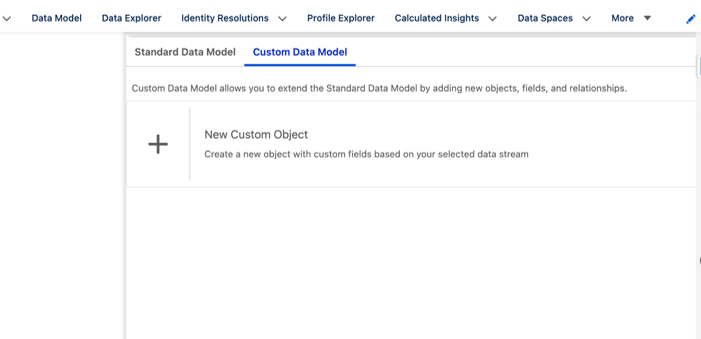
- The picture below shows the result of the mapping
Step 2: Create a new Data Transform
- Now we need to feed that new DMO. We do this by feeding the mapped DMO using a Data Transform
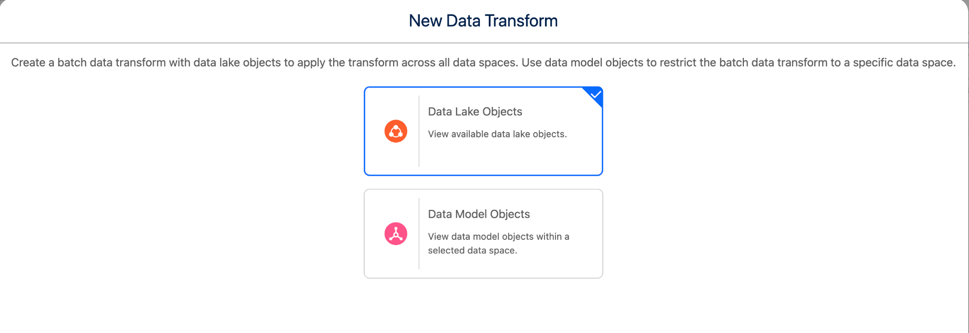
- Create a new Batch Data Transform in Data Cloud, choosing the Data Lake Objects option
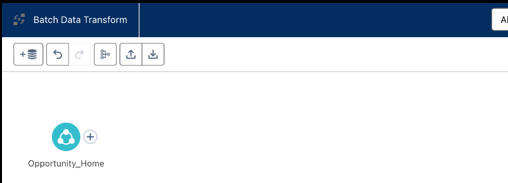
- Add the regular Opportunity DSO as a source, and select only the fields needed in the final DLO
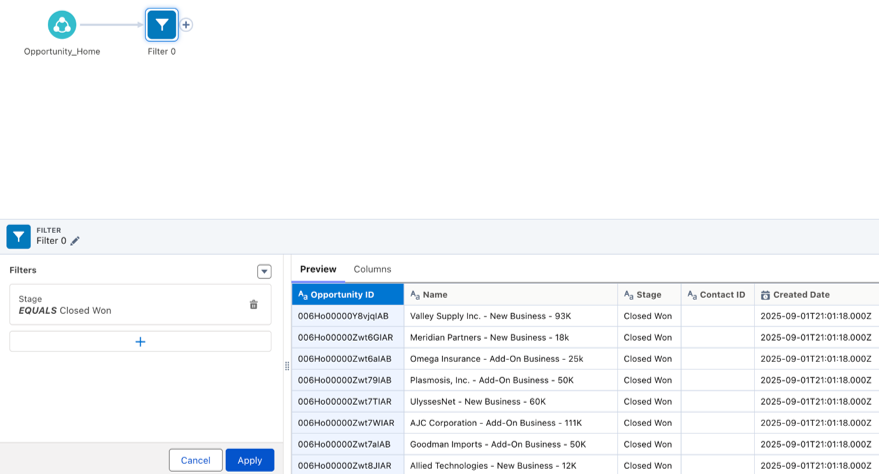
- Then add a Filter. We only want Closed Opportunities to pass through the filter
Notes:
- Add a Filter to include only recent Opportunities. Then write the resulting records to the DLO, which creates records in the new Opportunity Engagement DMO
- Add an output, select the Opportunity Engagement DMO, and map fields from the Opportunity DSO
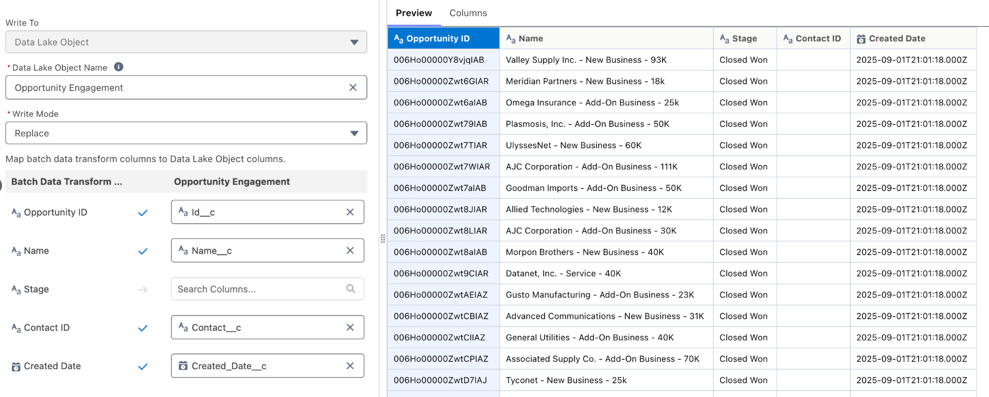
- Save the Batch Data Transform and Schedule it to run regularly
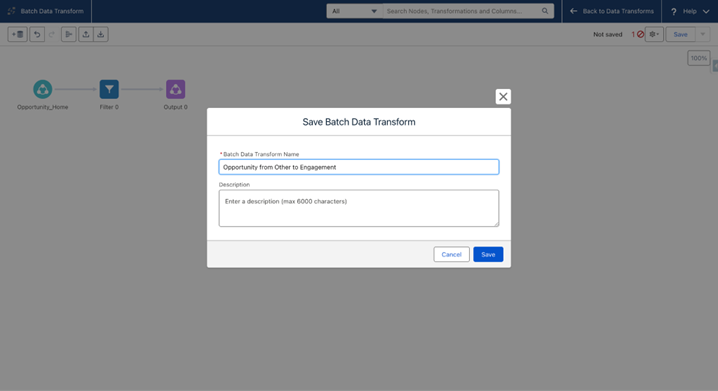
Step 3: Creating the Engagement Signal
- Create a new Engagement Signal using the Opportunity Engagement DMO to capture newly Closed Opportunities provided by the Data Transform
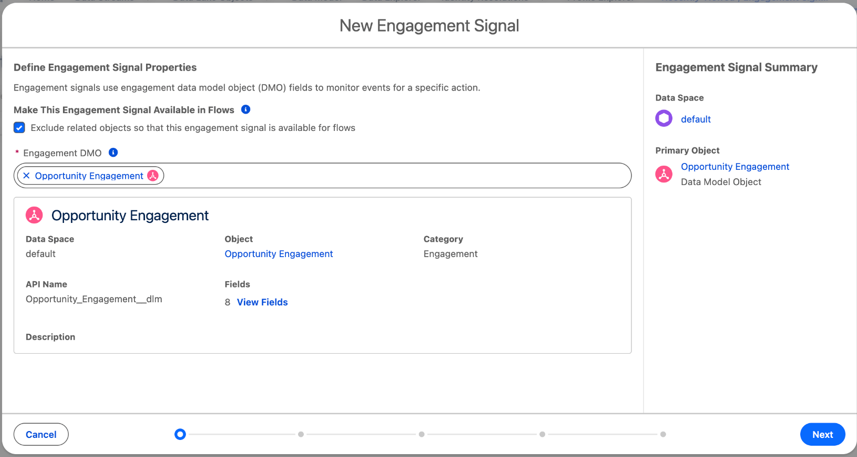
- In the App Launcher, search for Engagement Signal and New. Select Exclude related objects so that this engagement signal is available for flows and the new Opportunity Engagement DMO
- Then, for User Identifier, we select Contact. this is the individual injected in the Flow. The other fields are defined as follows
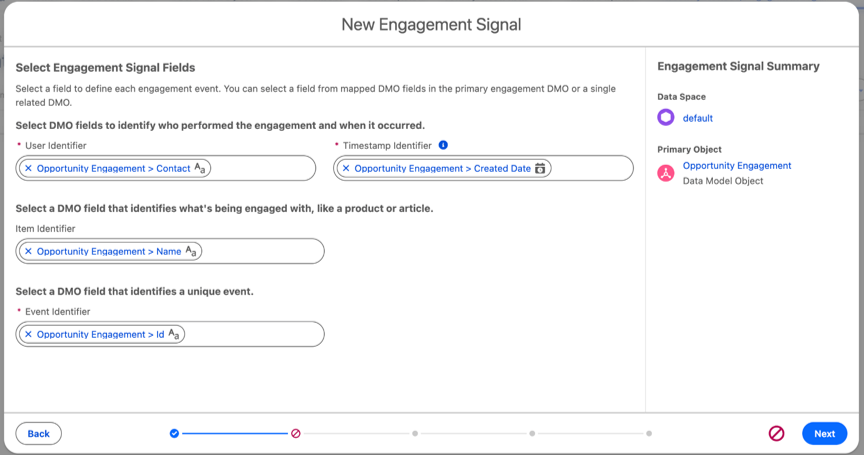
- We leave other options as proposed and finally give a name to our Custom Engagement, Closed Opportunity
Step 4: Building an Email
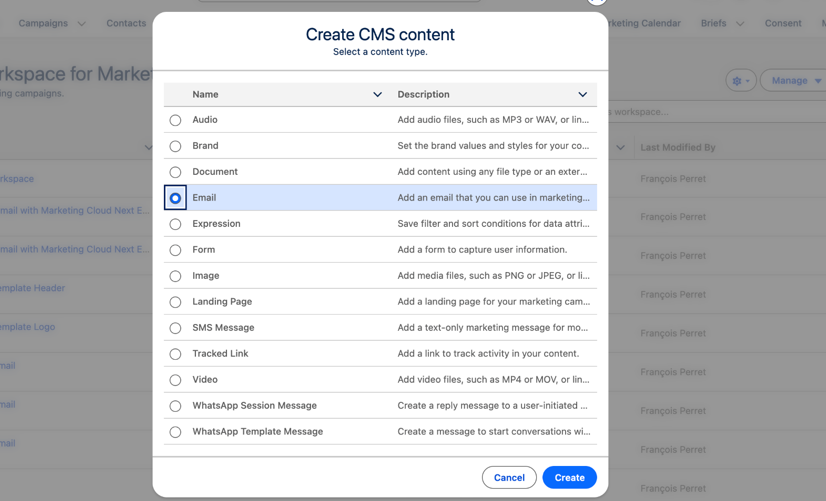
- From the CMS, we create a new Email
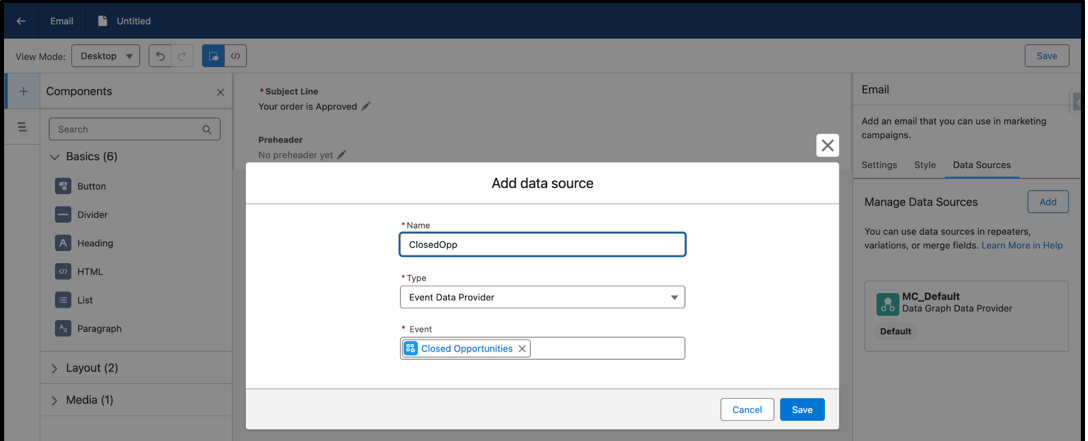
- We define a very basic Email in this example, and we will add the Name of the Opportunity as a Merge Field. To do so, we need the Engagement Signal as a Data Source
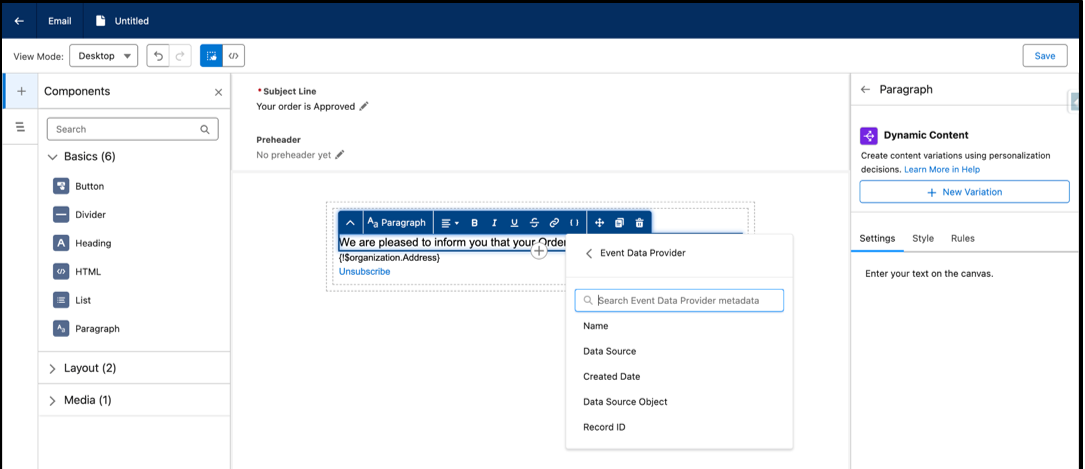
- Then we add a new Merge Field, by using the Data from the Event Data Provider
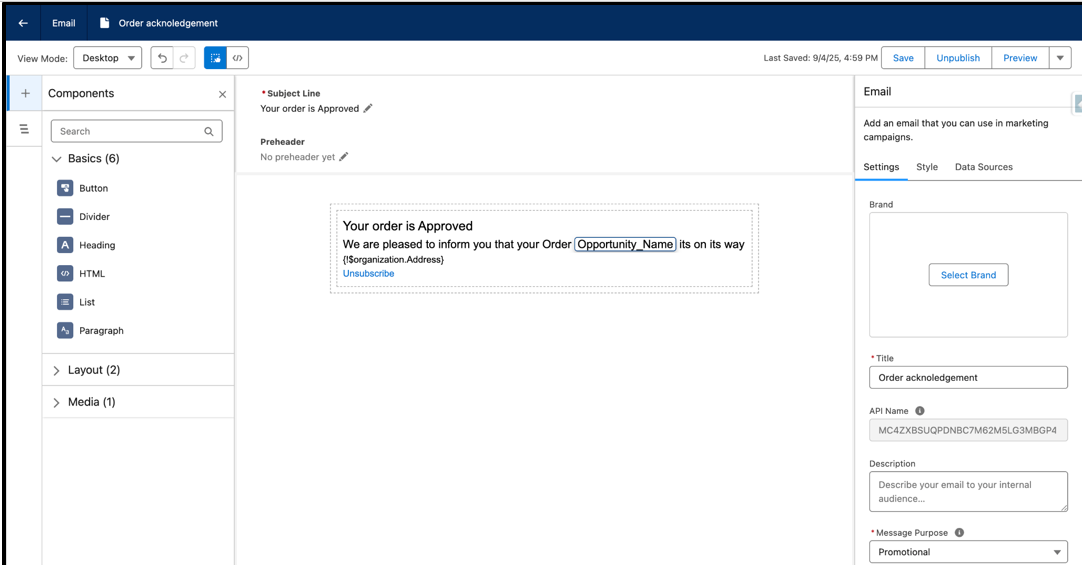
- Once the Email is ready with a personalization from the Custom Event, Save and Publish it
Step 5: Setting up a Blank Event Flow
- From Marketing Cloud Next, we create a Campaign and a Blank Event Flow, which is actually an Automation Event-Triggered Flow
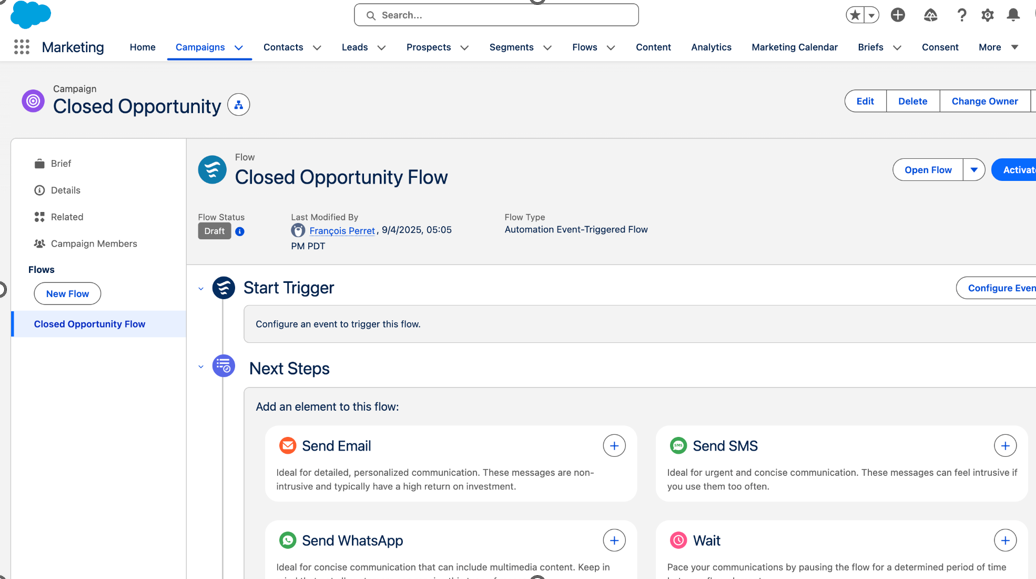
- When opening the Flow, we now see our Engagement Signal/Custom Event in the Event Library
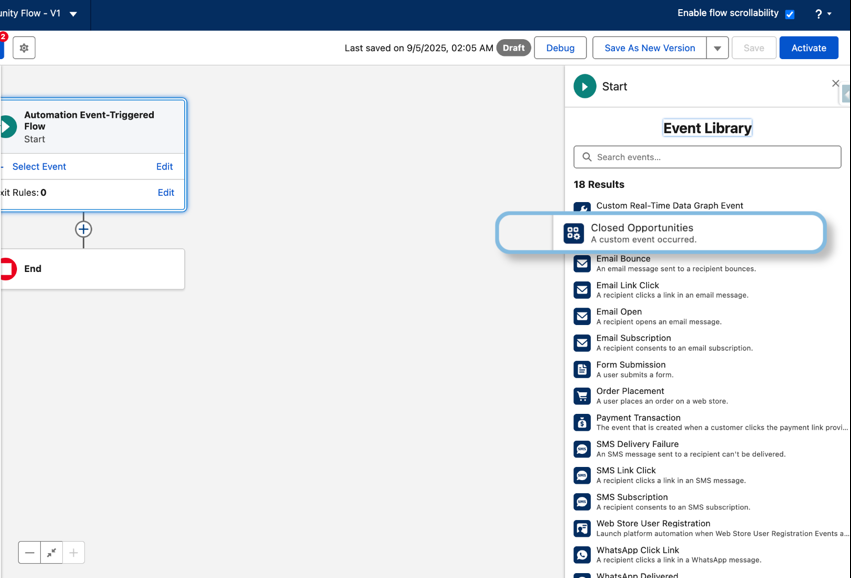
- Select our Engagement Signal and leave When to Trigger the Flow to Every time an event meets entry conditions
- Add an Email using the Send Email Message. Select the Email we previously created, define the Sender and the Subscription the recipient needs to have opted in
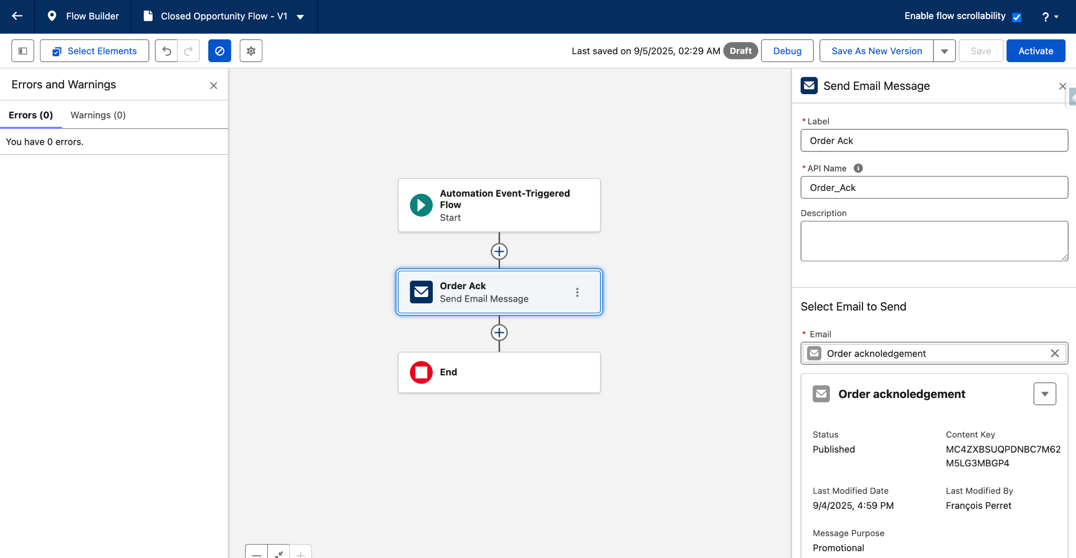
- Activate the Flow. Now, whenever an Opportunity closes, the Primary Contact automaticlly recevies an email from Marketing Cloud Next
________________________________________________________________
Written by: François Perret | Forum Ambassador
François Perret is a Trailblazer Forum Ambassador, Marketing Champion, Connection and Dreamforce Speaker. He currently owns 30 Salesforce certifications and he's co-leader of the Aix en Provence Marketer Group. He strongly believes that sharing is learning, and he's passionate about answering questions related to Salesforce Marketing products. He's the founder of Bamsoo, a french Salesforce Partner specialized in implementing an optimizing Account Engagement and Marketing Cloud Next (Growth & Advanced).
Submissions reflect only the opinions of the user who made available the Submission and not the opinions of Salesforce, regardless of whether the user is affiliated with Salesforce, and may contain or constitute products, services, information, data, content and other materials made available by or on behalf of third parties ("Third Party Materials). Salesforce neither controls nor endorses, nor is Salesforce responsible for, any Third Party Materials, including their accuracy, validity, timeliness, completeness, reliability, integrity, quality, legality, usefulness or safety, or any applicable intellectual property rights. Any Submissions made available through any message board or forum in response to posted questions, or that otherwise purports to answer any questions, including any questions about Salesforce or Programs, are made available for your general knowledge only and should never be relied upon as answers to your specific questions (even if an answer is marked as a “best” answer or with any similar qualifications). You should always contact Salesforce support for answers to your specific questions. Salesforce has no control over Submissions, and is not responsible for any use or misuse (including any distribution) by any third party of Submissions.
If you have questions, tap into the wisdom of our entire Trailblazer Community here: https://trailhead.salesforce.com/trailblazer-community/feed
Knowledge 기사 번호
005224346
이 기사를 통해 문제를 해결했습니까?
개선을 위한 의견을 보내주세요.
