Seleccionar una organización
Error "The process cannot access the file" Occurs When Publishing/Saving a Workbook Using a Data Source From Tableau Prep's "Preview in Tableau Desktop" Function
Fecha de publicación: Oct 7, 2025
Descripción
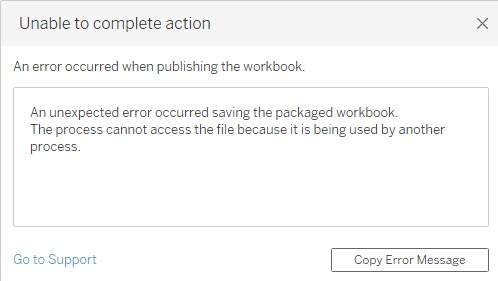
In a Tableau Prep flow, user right-clicks a step (e.g., a Clean step) and selects "Preview in Tableau Desktop" to create a workbook. After building views with this workbook, an attempt to publish it to Tableau Server/Cloud or save a pachaged workbook fails with the following error message:
Unable to complete action
An unexpected error occurred saving the packaged workbook.
The process cannot access the file because it is being used by another process.
*The data source created as an intermediate output from the Tableau Prep "Preview in Tableau Desktop" function has a name format like Superstore-node-Cleaning 1-bfe863de04864bfc8c1b5881fff35e89.
Cause:
This error occurs because Tableau Prep maintains a lock on the intermediate data file (e.g., a .hyper extract) that it generates for the "Preview in Tableau Desktop" feature. When Tableau Desktop attempts to package the workbook and its data source for publishing/saving, it is blocked from accessing this locked file, which triggers the error.
Solución
To work around the file lock issue, replace the data source in the workbook from the local, intermediate file generated by Tableau Prep to the final data source.
Follow these steps to replace the data source before publishing:
- Connect to the Server Data Source
In Tableau Desktop, navigate to the "Data" menu, select "New Data Source," and connect to the final output data source that was generated by your Tableau Prep flow and add it to the workbook. - Replace the Data Source
In the Data pane, right-click the original local data source (the one created from the Prep preview) and select "Replace Data Source." In the dialog, ensure the "Current" source is the original and the "Replacement" is the server data source you added in Step 1, then click "OK." - Close the Old Data Source
Once the replacement is complete and you have verified that your views are correct, right-click the original local data source in the Data pane and select "Close" to remove it from the workbook. - Publish/Save the Workbook
The workbook is now referencing only the final Tableau Prep data source. You can now proceed to publish/save the workbook.
Recursos adicionales
View flow output in Tableau Desktop
"Preview in Tableau Desktop" from Tableau Prep Builder Shows Fewer Rows of Data Than Expected
Número del artículo de conocimiento
005224867
¿Resolvió este artículo su problema?
¡Háganos saber cómo podemos mejorar!
