組織を選択
Adding Backup Services for Salesforce
公開日: Oct 7, 2025
タスク
Adding Backup Services for Salesforce
ステップ
| This content relates to Backup & Recover. For Salesforce Backup click here. |
Make sure you are logged out of your cloud service provider.
| The first time you sign in to your Own account, you'll be prompted to add a backup service. |
To add a new backup service to your account:
-
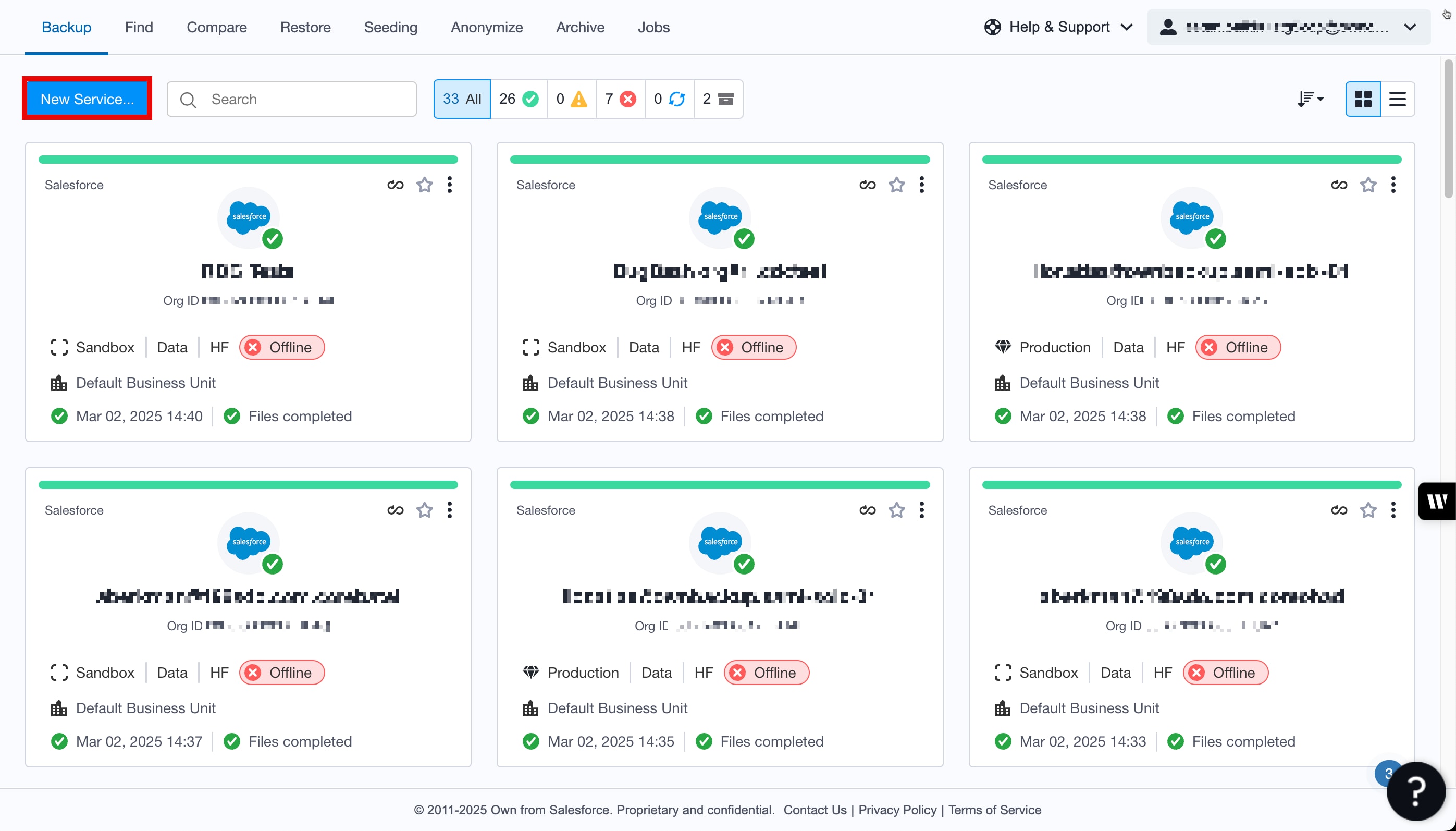
Go to the Backup tab and Click New Service.
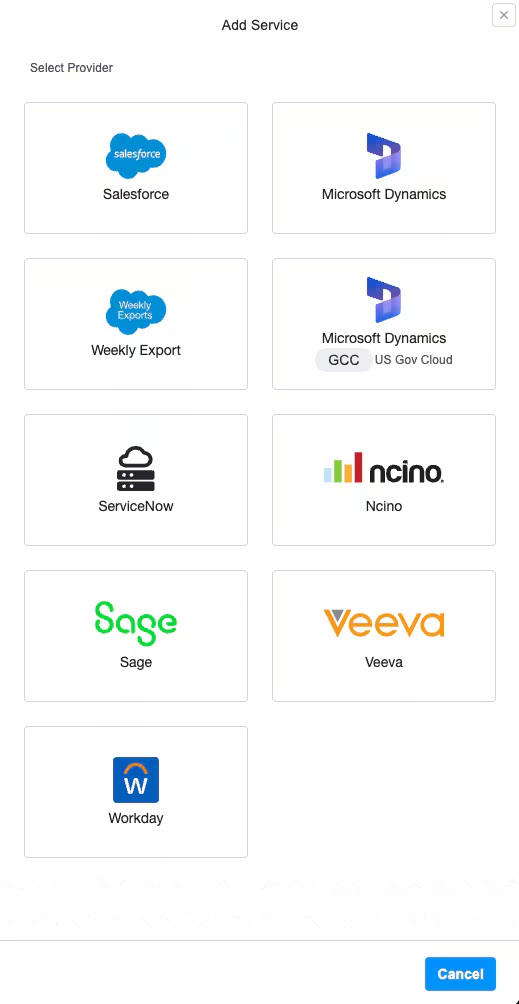
2. Select the Salesforce icon.
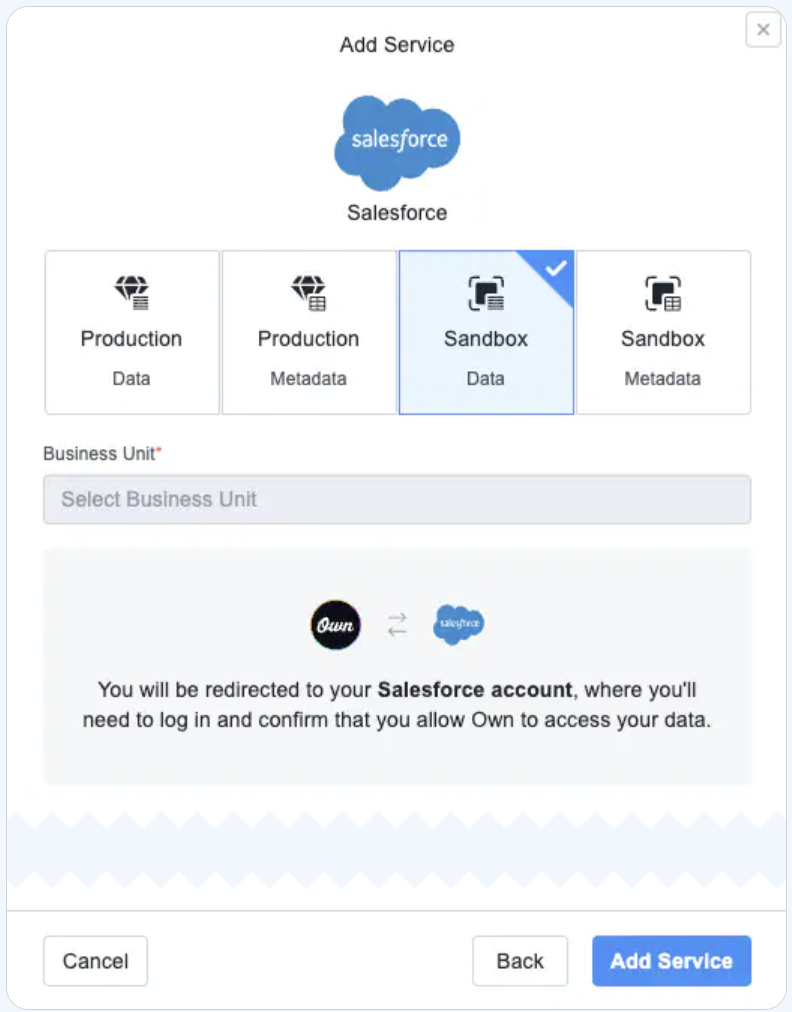
3. Choose a service type. Select from:
-
Production Data
-
Production Metadata
-
Sandbox Data
-
Sandbox Metadata
If you have Continuous Data Protection, select from:
-
Production Data
-
Sandbox Data
-
Turn on Continuous Data Protection .

b. In the Objects field, enter the objects, corresponding to their Salesforce API name.
Keep in mind that the API name is case-sensitive. Examples are:
-
Account
-
Contact
-
CustomObject__c
|
5. Click Add Service. You are prompted to authenticate with the cloud service provider, authorizing Own to access your org using OAuth.
After authenticated, the daily backups run automatically. You'll be informed by email after the first backup completes successfully.
|
ナレッジ記事番号
005225083
この記事で問題は解決されましたか?
ご意見をお待ちしております。
