組織を選択
Display name field shows users’ email addresses on Tableau Cloud with SAML authentication setting with Microsoft Entra ID
公開日: Dec 10, 2025
説明
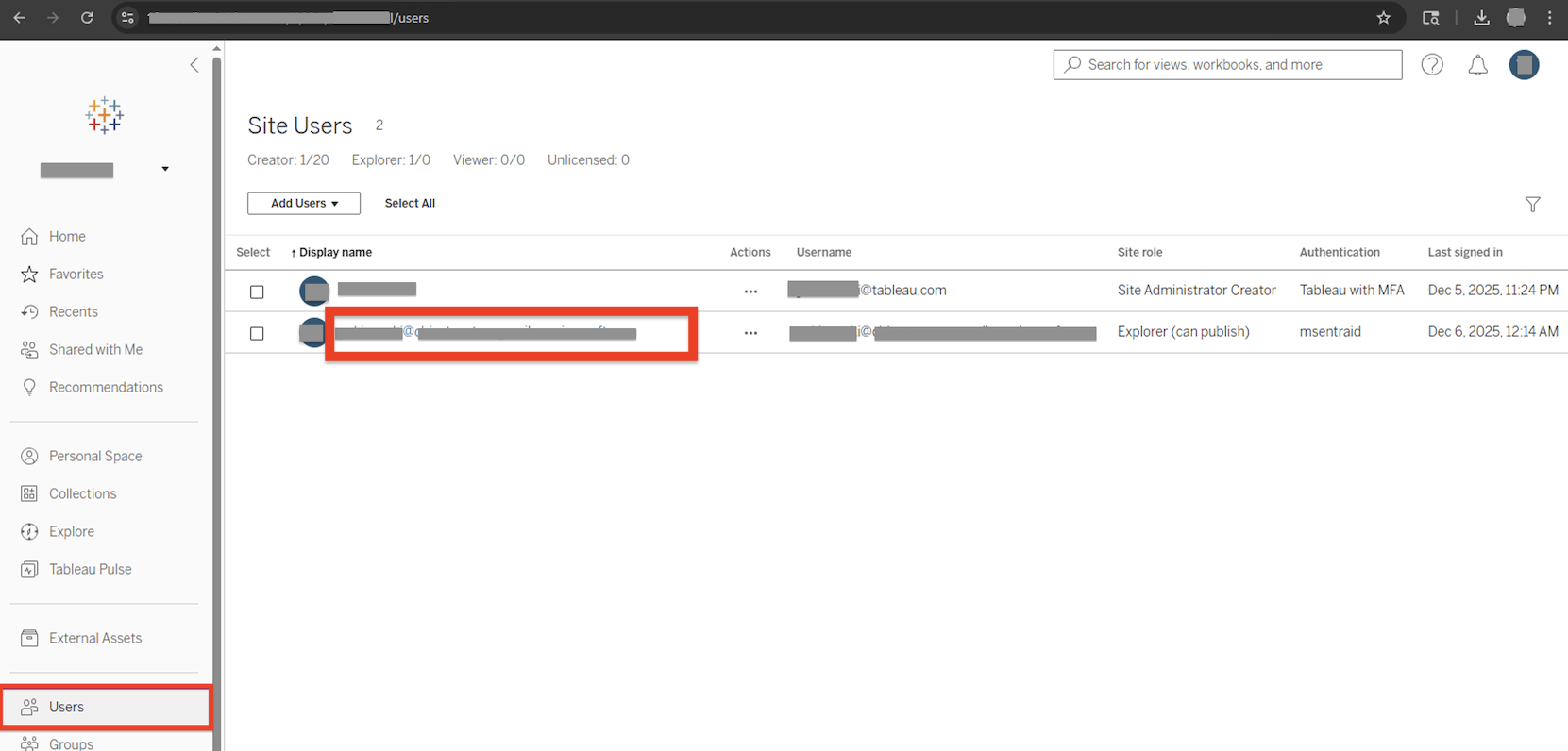
Some users’ display names in Tableau Cloud were showing their email addresses instead of friendly names, such as first and last names. This issue was caused by differences in how user attributes were provisioned in Microsoft Entra ID and mapped to Tableau Cloud’s SAML authentication settings. The issue shows as below screen shot:
解決策
To configure the SAML authentication settings in Tableau Cloud with Microsoft Entra ID as IdP to correctly map the 'Full name' attribute, follow below steps:
- Export IdP metadata file (.xml) from Microsoft Entra ID
- Log in to Tableau Cloud as Admin.
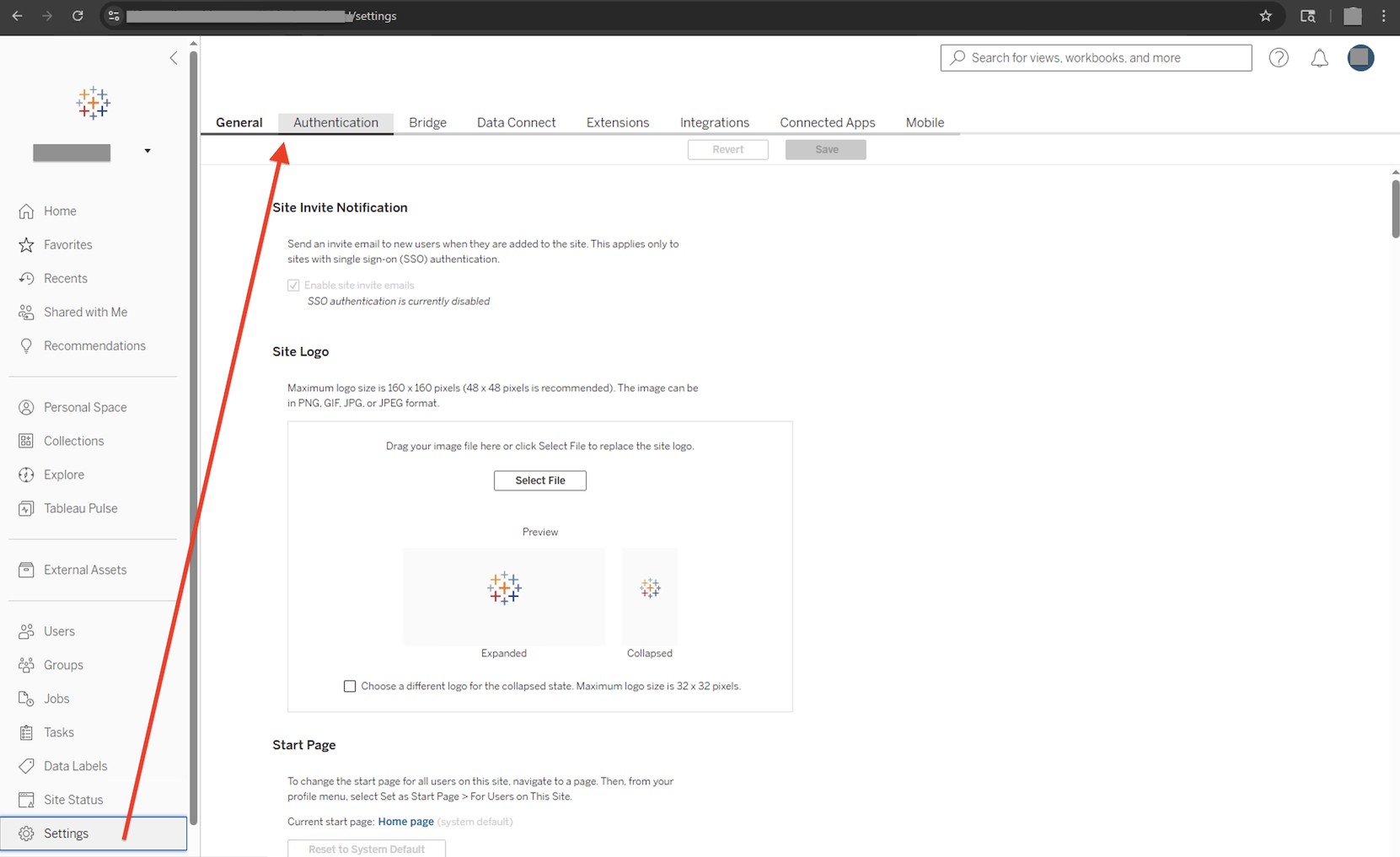
- Settings > Authentication
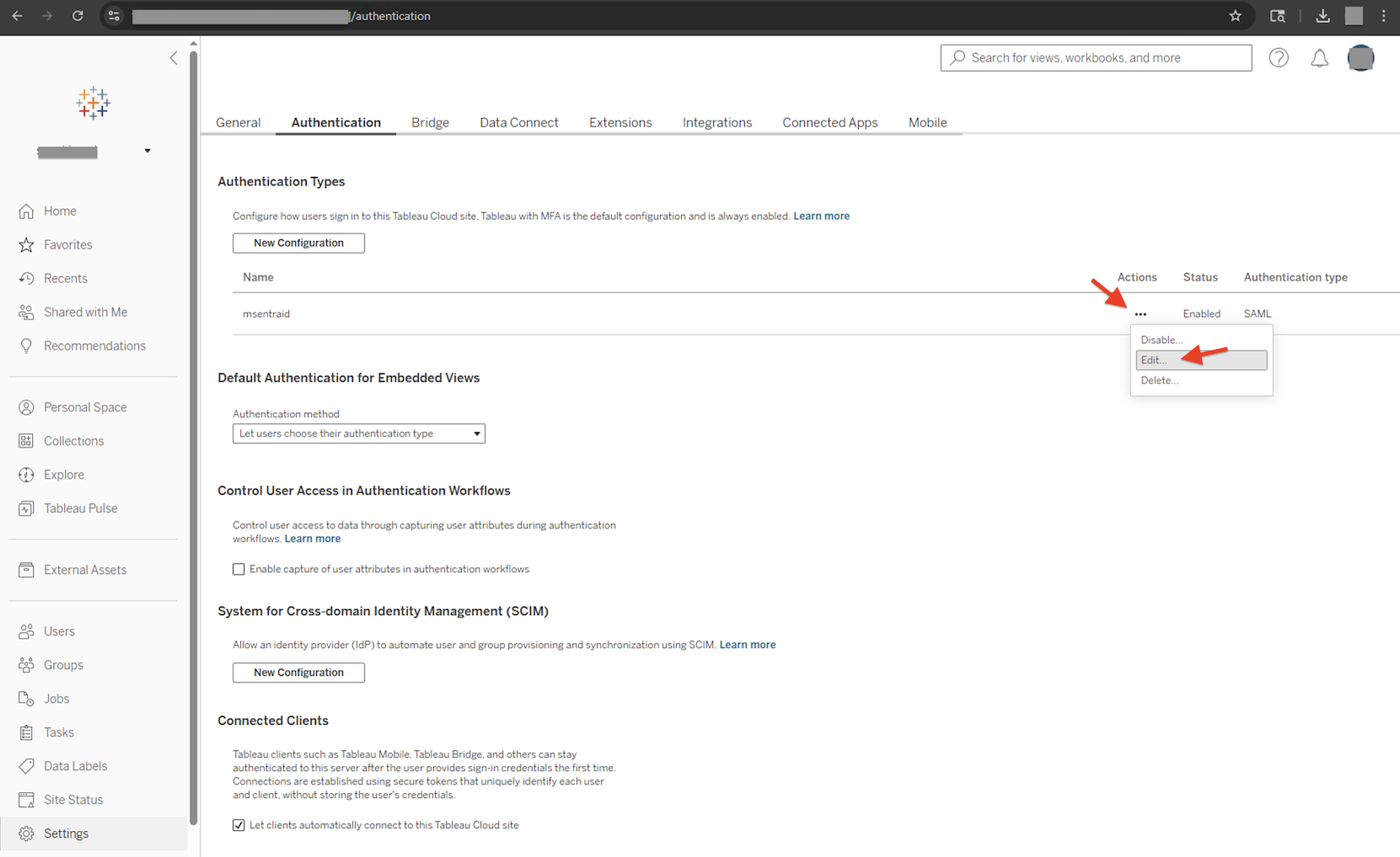
- Select SAML setting you'd like to manage. Click "Actions", then select "Edit".
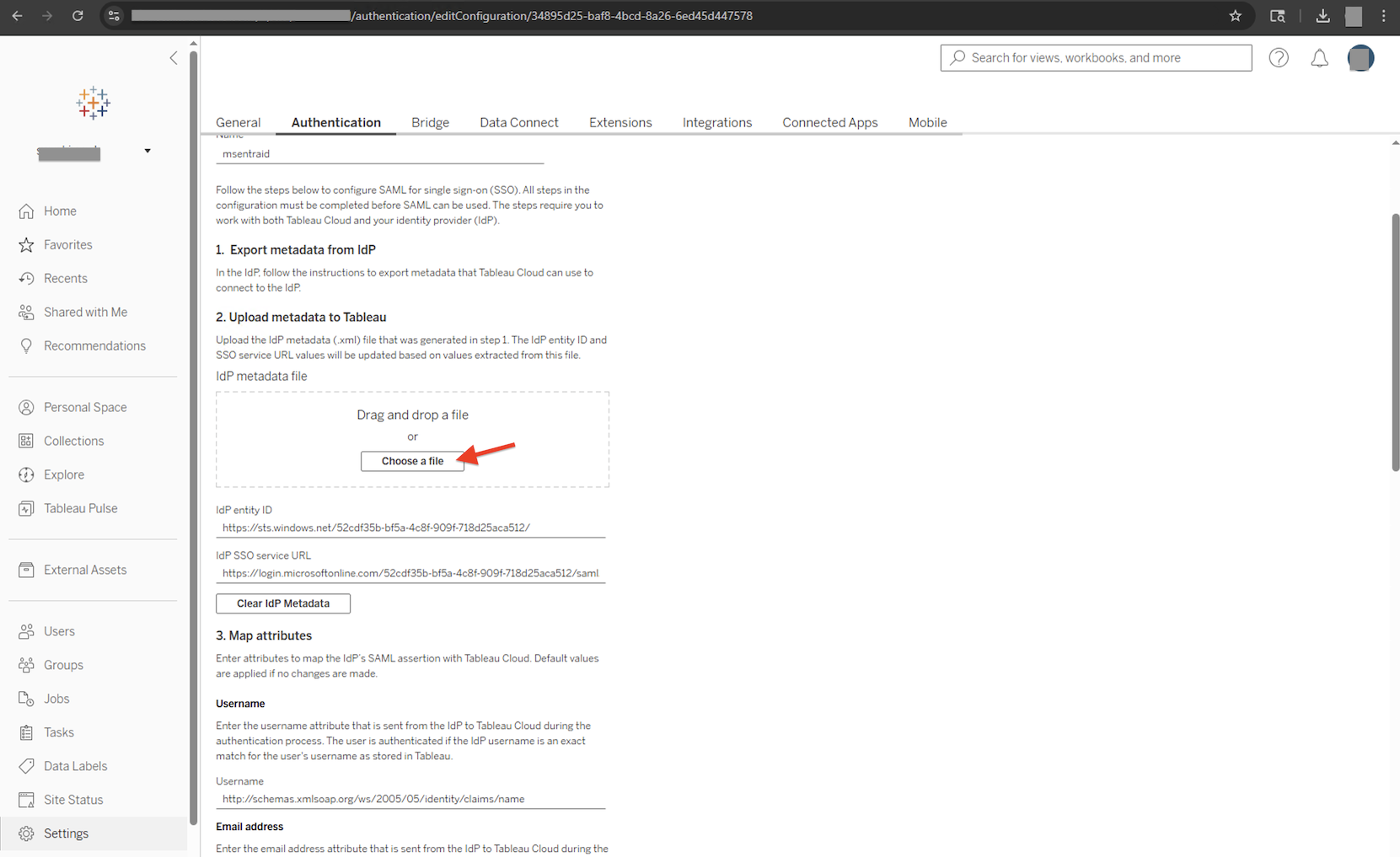
- Scroll down to “2. Upload metadata to Tableau”, click “Choose a file”, and upload the IdP metadata (.xml) file to Tableau Cloud. This step is required to update the configuration. After you do this, the “Save and Continue” button will appear at the bottom.
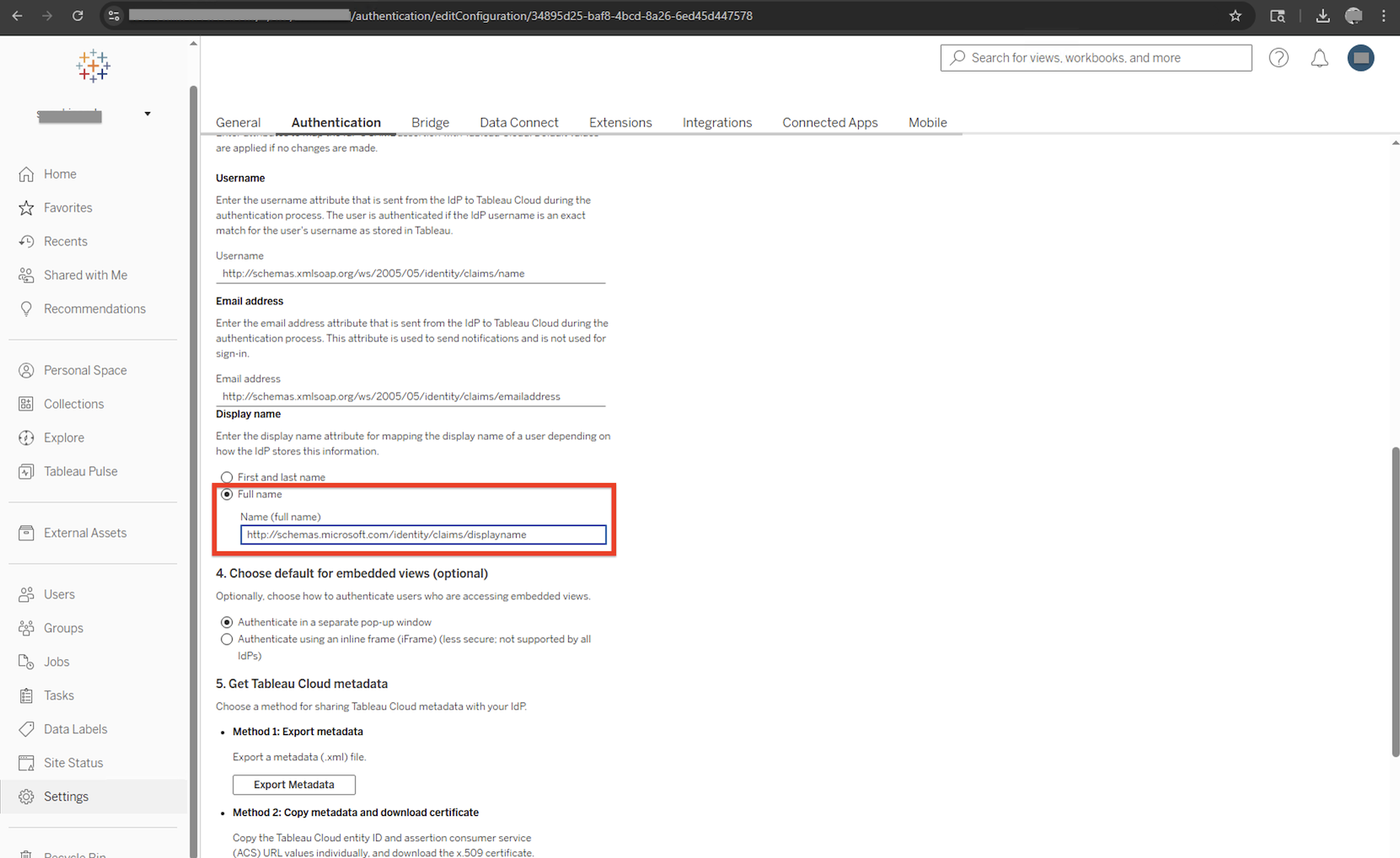
- Scroll down to "3. Map attributes" > "Display name" section,
Select "Full name" radio button. Fill in "http://schemas.microsoft.com/identity/claims/displayname" in "Name (full name)" field. Then press "Save and Continue" button at the bottom. - log out from Tableau Cloud, then log back in to see the change was reflected.
その他のリソース
- Configure SAML with Microsoft Entra ID
- Full Name field shows users’ email addresses
- Excerpt: For a SAML site, the Full Name field is populated with the email address if the assertions for first and last name or full name are not provided in step 3. Map attributes of the SAML settings in the Authentication page.
ナレッジ記事番号
005225094
この記事で問題は解決されましたか?
ご意見をお待ちしております。
