Välj en organisation
How to Leverage Prompt Templates to create Structured Outputs
Publiceringsdatum: Oct 24, 2025
Beskrivning
Customer Use Case:
Sales reps may need an agent to help them create new Opportunity records when certain files are uploaded to an Account, such as proposals, quotes, or invoices. These documents may contain valuable context that doesn't exist in Salesforce fields. By using a Prompt Template to analyze the file and extract structured values, an employee agent can populate record fields from unstructured data.
Lösning
In this article, you’ll learn how to use this pattern to turn unstructured content into structured data. This example demonstrates a Prompt Template that analyzes the contents of a PDF attached to an Account record and then returns suggested field values for a new Opportunity record. This same approach can be applied to many other objects and use cases.
At a high level, the solution follows three steps:
- Prompt Template – processes record data or related content and returns structured output in JSON or HTML format.
- Invocable Apex or the Atlas Reasoning Engine – parses the JSON/HTML into values that Flow, Apex, or subsequent Agent actions can use.
- Flow, Apex, or Agent action – uses those values to perform follow-up work, such as creating or updating records
Step 1
Begin by creating a flex prompt template. Add any input resources that are needed to ground the response from the model. This example prompt template has two input resources for an Account and a related file.
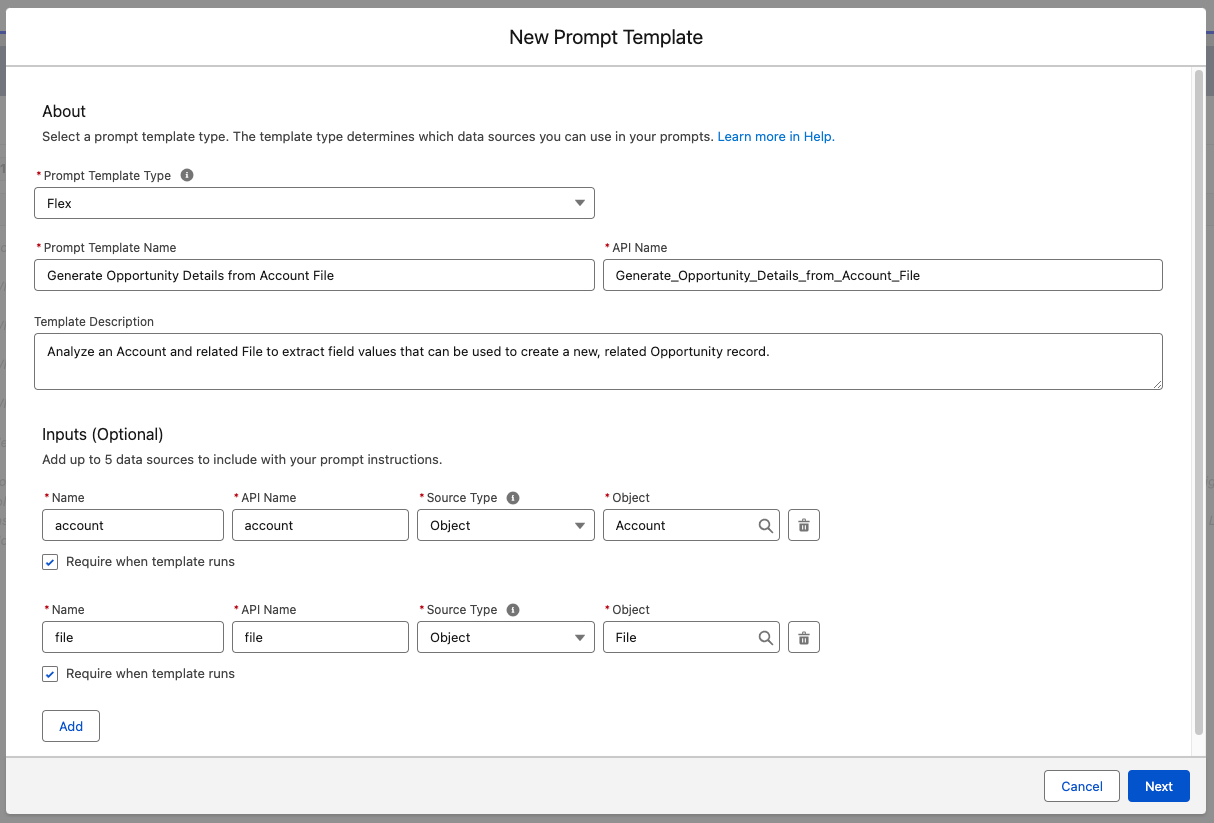
Here are the instructions for this example prompt:
You are a sales operations assistant. Your task is to review information about an Account and the contents of a related quote file. From that information, identify key details that should be used to create a new Opportunity record in the CRM.
INSTRUCTIONS:
Review the Account information in the ACCOUNT_INFORMATION section.
Review the text from the attached file, which represents a quote/proposal related to that Account.
Determine key Opportunity details such as:
Opportunity Name, should follow this naming convention: "[Acount Name] - [Account Type] - [Primary product/service] - [Amount] - [Close Date]"
Estimated Amount
Close Date (if mentioned)
Stage (if inferred, use STAGENAME_GLOSSARY)
Products or Services mentioned
Any notes or context that would help a sales rep understand the deal
Return your response only as a JSON object representing the Opportunity record.
Do not include explanations, introductions, or additional text.
Example Response:
{
"Name": "Acme Corp - Solar Panels - $50,000 - November 9, 2025",
"StageName": "Proposal/Quote",
"Amount": 12500.50,
"CloseDate": "2025-12-31",
"Description": "Based on the attached quote PDF outlining a 40 kW solar installation with 80 high-efficiency panels, inverter hardware, and on-site installation services."
}
ACCOUNT_INFORMATION:
{!$Input:account.Name}
{!$Input:account.Type}
STAGENAME_GLOSSARY
Qualification – Early-stage discussions to determine fit or potential interest.
Discovery – Gathering requirements and confirming customer needs.
Proposal/Quote – Presenting a formal quote or proposal to the customer.
Negotiation – Finalizing terms or addressing objections before closing.
Closed Won – The deal is confirmed and successfully closed.
Closed Lost – The opportunity did not close successfully.
This prompt includes a few key elements worth noting. It provides an example of the expected JSON output so the model understands the target structure. The grounding information is clearly separated from the instructions to keep context and tasks distinct. It also lists valid stage names and includes meaningful descriptions to help the model avoid ambiguity when generating its response.
When creating this prompt template, set Response → Format to JSON under Template Settings. Also ensure that the selected model supports multimodal input if your prompt is grounded by a File.
Once activated, the prompt template will be used as an agent action, allowing the Atlas Reasoning Engine to process its structured output in follow-up steps. Because the output is returned as predictable JSON, it can also be deserialized with Apex and used in record-triggered automation (refer to this blog post by Charles Watkins).
You can preview the response in Prompt Builder using sample Account and File records. Once you’re satisfied with the results, activate the prompt template.
Step 2
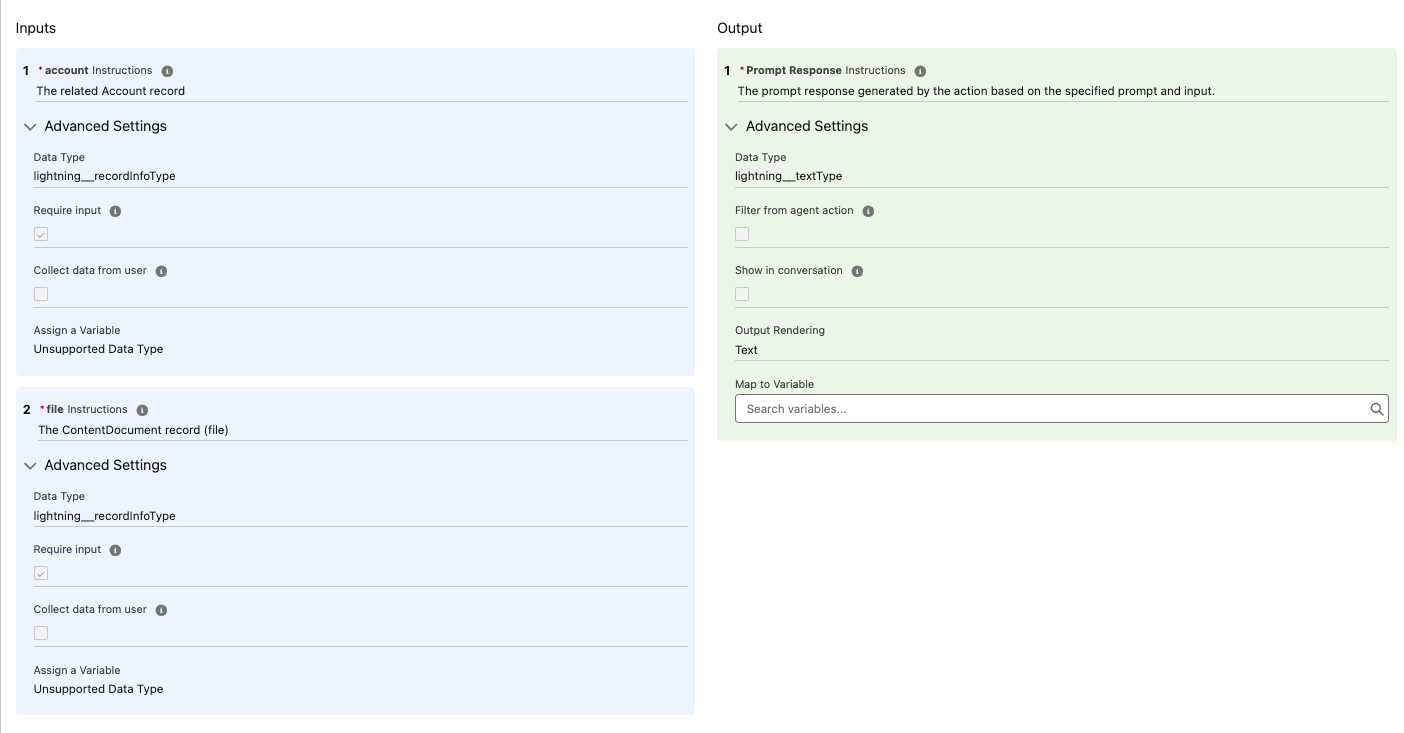
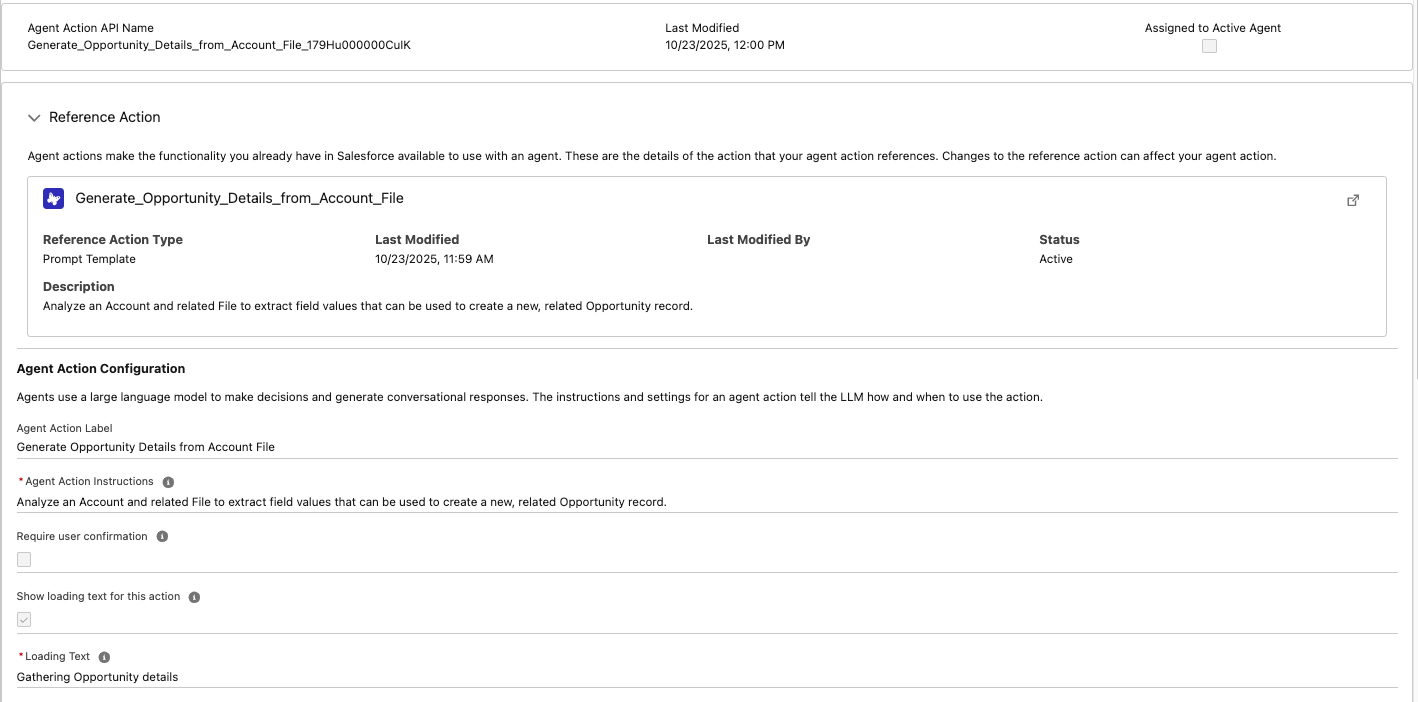
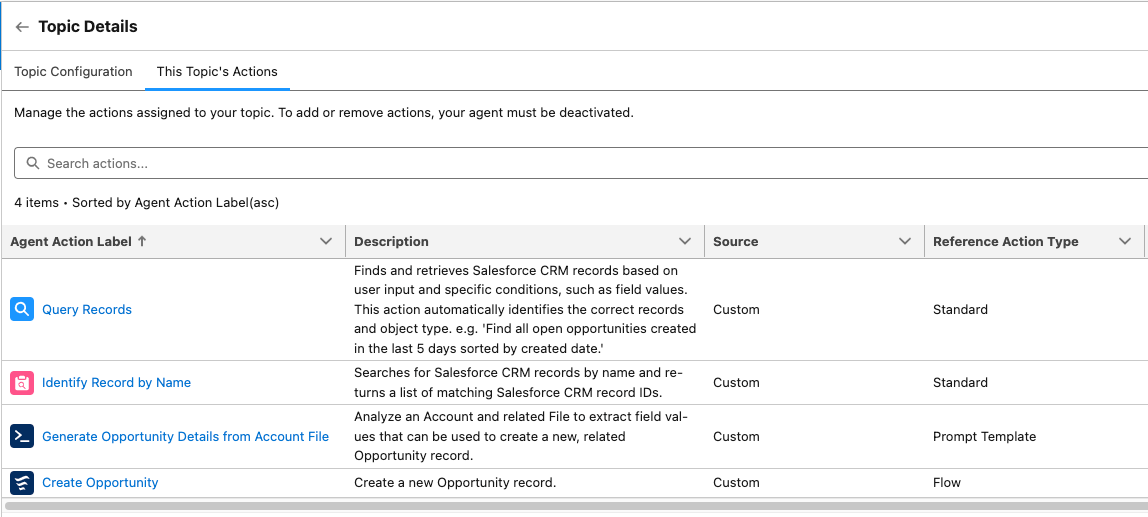
Create a new agent action using this prompt template as the reference action, and assign it to an agent. Because the prompt template requires two input records, you’ll need supporting actions - assigned to the same topic - that can retrieve those grounding resources before sending the prompt to the LLM.
The prompt template requires both an Account record and a ContentDocument record (File). The Account can be retrieved using the standard action, Identify Record by Name. The File record can be retrieved in the same way if the user is likely to reference the file by name. If not, or if you need to determine the correct file based on other criteria - such as retrieving the most recent File related to the Account - you can instead use the standard Query Records action.
Example Action Definition for the Prompt Template
Example topic
Name:
Account and CRM Management
Classification Description:
This topic covers managing accounts, creating opportunities, and performing general CRM activities.
Scope:
Your job is only to assist sales representatives in managing their accounts and related records, creating opportunities for accounts, and facilitating general CRM-related tasks.
Instruction:
Prior to running Generate_Opportunity_Details_from_Account_File:
1. Use IdentifyRecordByName to get an Account
2. Run QueryRecords once to retrieve the most recently created ContentDocumentLink related to the Account returned by IdentifyRecordByName.
3. Run QueryRecords a second time, using the ContentDocumentId to get a ContentDocument record (file).
Instruction:
Use Generate_Opportunity_Details_from_Account_File to get the input/field values for Create_Opportunity
You'll notice that the instructions for this topic are used exclusively to outline the sequence of actions. At the time of writing, Agent Script is not yet in beta. Once available, Agent Script will provide greater control over the deterministic execution of actions.
Topic Actions:
Step 3
Use the output from the prompt template action to create a new Opportunity record. In this example, a custom agent action, Create Opportunity, built on an autolaunched Flow consumes the structured output from the previous step to create the record. Let’s walk through how to create that action.
Example Flow
Create an autolaunched flow. In Flow Builder, create input variables for any field values that will be passed to the flow by the reasoning engine. Each variable must be marked "Available for input" and should be given a meaningful description.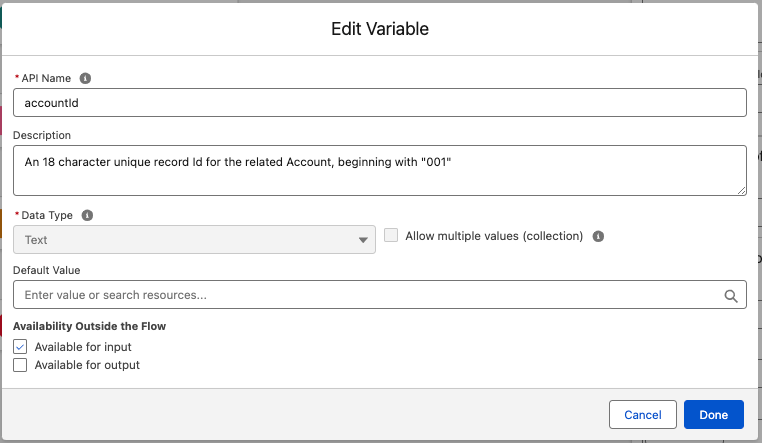
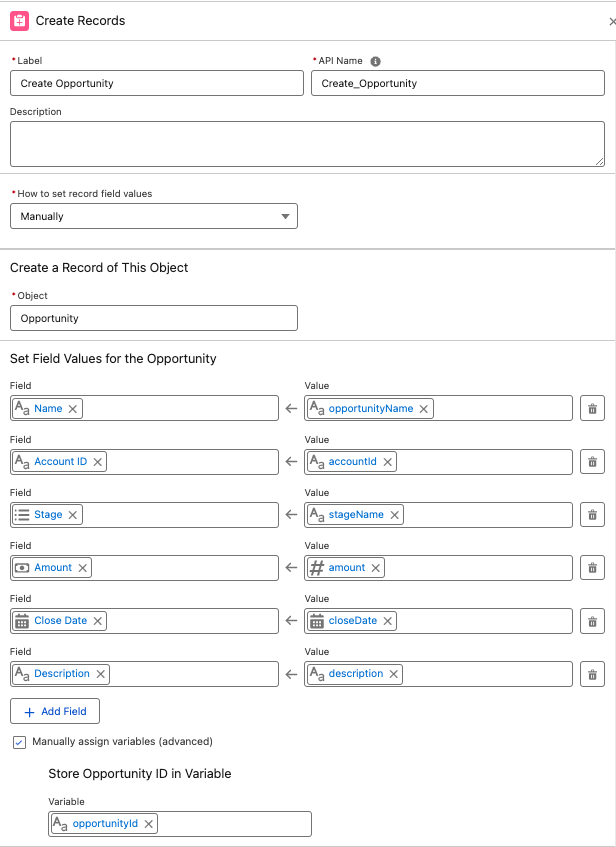
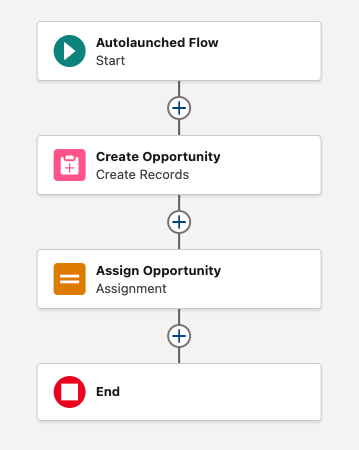
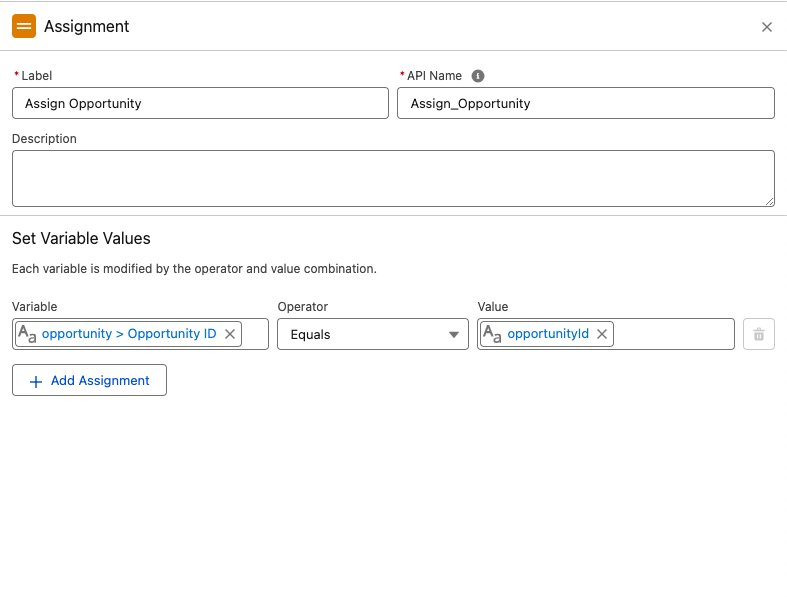
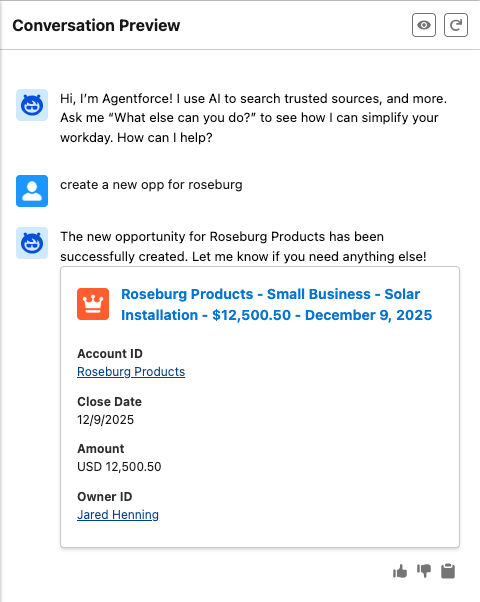
The opportunity record variable is marked "Available for output" - which means that the result of the operation will be passed back to the reasoning engine and displayed to the end user in the conversation panel.
Similar Use Cases
- Using Prompt Builder, Flows, and Apex to Summarize and Classify Cases Faster by Charles Watkins
- Sentiment Analysis for a Messaging Session by Sarah Khalid
Knowledge-artikelnummer
005226796
Löste denna artikel ditt problem?
Berätta för oss vad vi kan förbättra!
