Organisation auswählen
How to conditionally show Screen Component Using Dependent Picklist in Salesforce Flow
Veröffentlichungsdatum: May 4, 2026
Beschreibung
In this article, we'll explore how to create a Screen Component in Salesforce Flow that behaves dynamically by showing a Text box only when a specific value is selected in a Dependent Picklist and hiding it for other selections. This helps improve user experience by displaying only the relevant fields.
For example, a customer intake form shows an 'Explain if Other' text box only when the user selects 'Other' from a category dropdown — improving form clarity and reducing data entry errors.
Lösung
Step 1: Create a new Screen Flow and add a Variable
- Go to Setup
- In the Quick Find box, type Flows and select Flows from the results
- Click New Flow
- Choose Screen Flow and click Create. The Flow Builder will open
- Click on the Toggle Toolbox icon
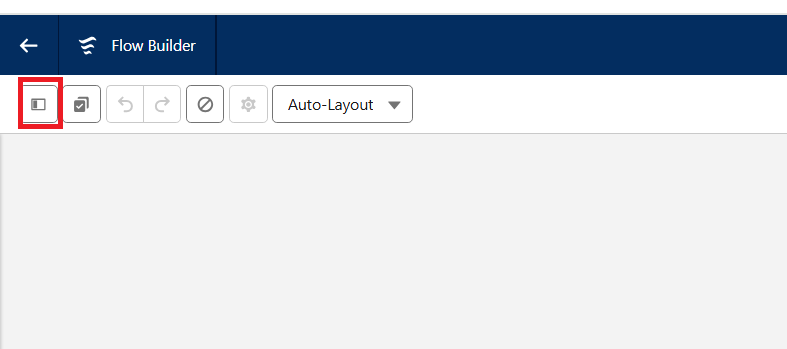
- Click New Resource, and select Variable
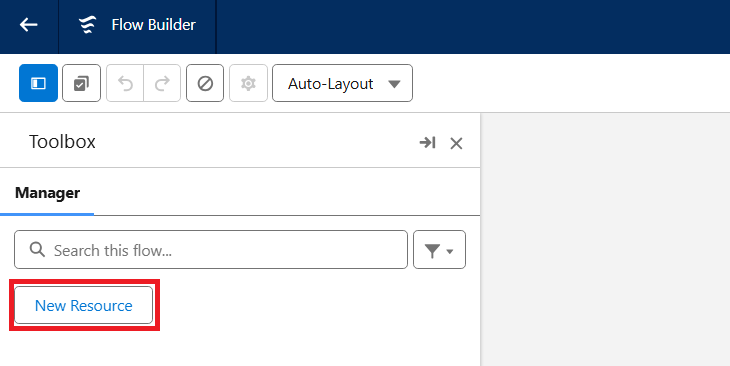
- Enter the following details
| API Name | recordId |
| Data Type | Record |
| Available for input | Check this box |
Note: The name of the Variable must be exactly recordId without any quotation mark or spaces
Step 2: Add a Screen Element and insert the Dependent Picklist Component
- In the Flow Builder, click the + icon on the canvas
- Select Screen from the list of elements
- Give your Screen a clear Label
- In the Screen Component panel on the left, find and drag the Dependent Picklist Component onto your Screen
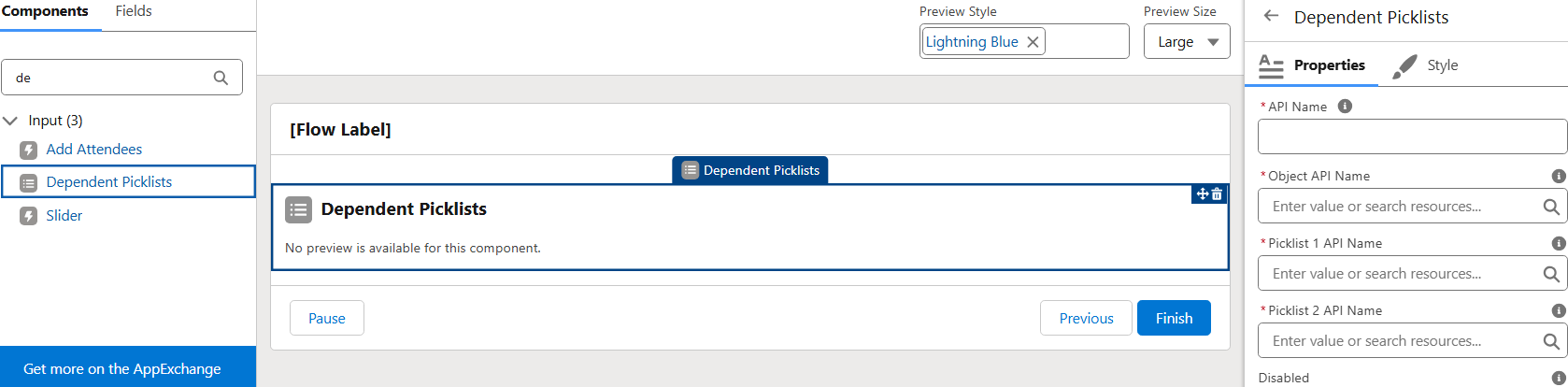
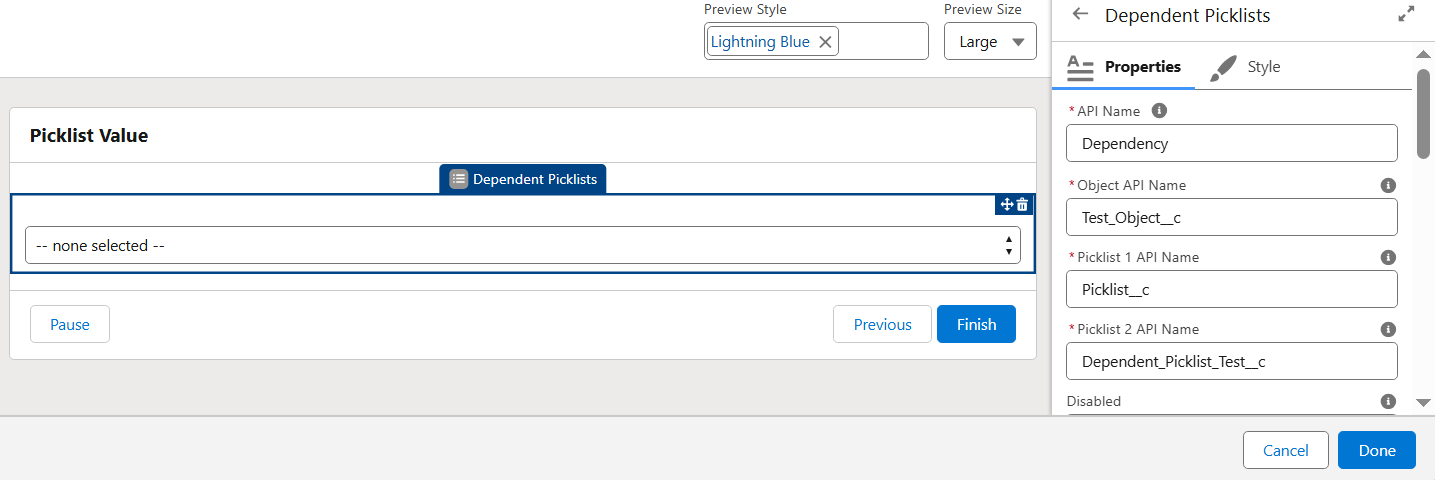
- Then, use the Configuration Panel on the right to fill in the required details and click Done
- For this example, the object API Name is Test_Object__c, the Controlling Picklist Field is Picklist__c and Dependent Picklist Field is Dependent _Picklist__c
Note: Update these values to match the object and field API names based on the org setup
Step 3: Add a Text Component and set Conditional Visibility
- On your Screen Element, drag a Text Component from the left panel and drop it onto the Screen
- In the right-hand panel, enter a Label for the component
- For this example, let's Label it Explain if Other
- The API Name will auto populate based on the Label
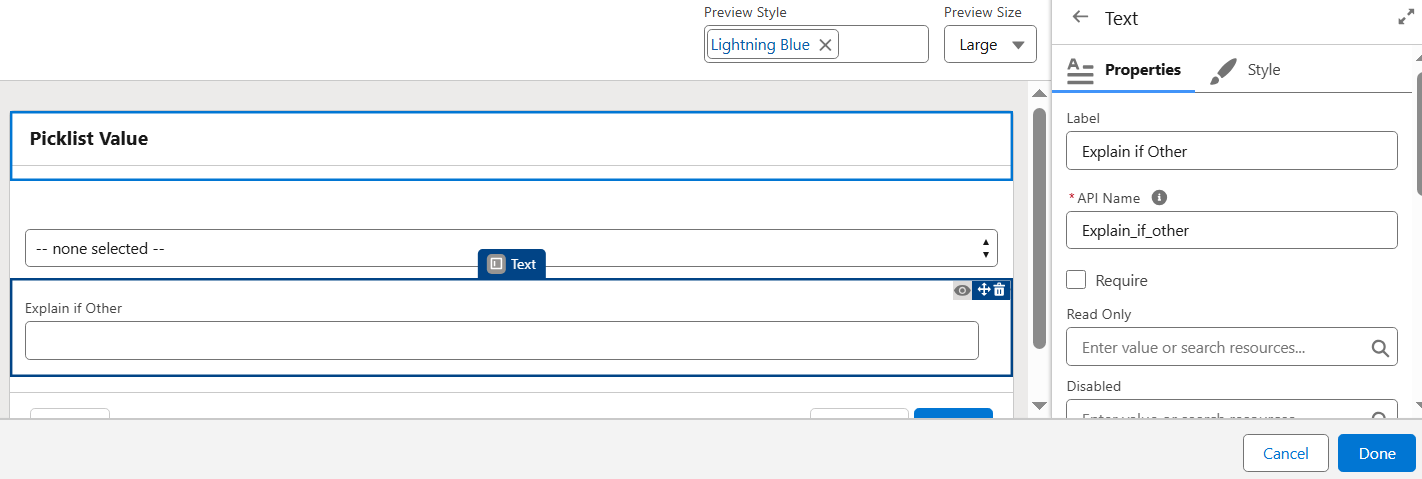
- Still in the right-hand panel, scroll down to the Set Component Visibility section and expand it
- Under When to Display Component, choose All Conditions Are Met (AND)
- Click Add Condition, and in the Resource field, select the Dependent Picklist Component added earlier
- In Resource, select the Dependent Picklist value and configure as shown below
| Resource | {!Dependency.middleValue} |
| Operator | Equals |
| Value | Other |
Step 4: Test and Save the Flow
- Click Run on the Flow Builder canvas to test
- In the Screen, select Other from the Dependent Picklist
- The Text field should appear
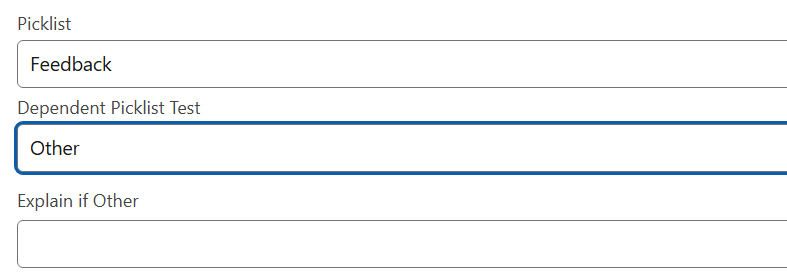
- Change the Dependent Picklist to any other value
- The Text field should disappear
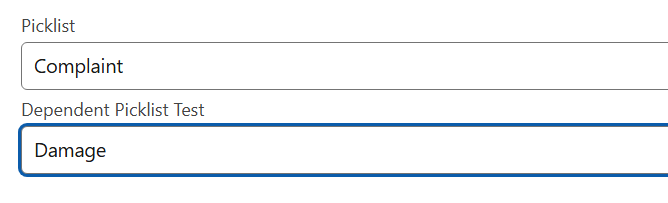
- Once the visibility works as expected, click Save, then Activate
____________________________________________________________________________________
Zusätzliche Ressourcen
- Salesforce Help: Screen Flows
https://help.salesforce.com/s/articleView?id=sf.flow_concepts_type_screen.htm
- Salesforce Help: Conditional Visibility for Screen Components
https://help.salesforce.com/s/articleView?id=sf.flow_ref_elements_screen_visibilityrules.htm
- Salesforce Help: Dependent Picklist Fields
https://help.salesforce.com/s/articleView?id=sf.fields_defining_field_dependencies.htm
- Trailhead: Flow Builder
https://trailhead.salesforce.com/content/learn/modules/flow-builder
- Salesforce Help: Add a Screen to a Flow
https://help.salesforce.com/s/articleView?id=sf.flow_build_add_element_screen.htm
Nummer des Knowledge-Artikels
005227554
Konnten Sie Ihr Problem mithilfe dieses Artikels lösen?
Geben Sie uns Feedback, damit wir uns verbessern können.
