Valitse organisaatio
Disconnect MFA & Generate Temporary Codes (Essentials/Starter)
Julkaisupäivä: Nov 18, 2025
Kuvaus
This article explains how system administrators for Salesforce Essentials Edition and Salesforce Starter can perform two key operations:
- Disconnecting a user's MFA (multi-factor authentication) verification method
- Generating a temporary verification code.
Use these steps if a user loses their device or needs access.
Ratkaisu
▼To Disconnect an MFA Verification Method
|
Note: If a user accidentally deletes their MFA authenticator app or changes their smartphone, their MFA connection must be disconnected in Salesforce. This guide outlines the steps for a system administrator to disconnect a user's MFA. Examples of when this disconnection is necessary include:
|
-
Log in to Salesforce as a system administrator.
-
-
If using Salesforce Essentials Edition: Click the gear icon in the upper right, then click [Setup].
-
If using Salesforce Starter: Click the gear icon in the upper right, then click [Open Advanced Setup].
-
-
In the Quick Find box on the left, enter "Users" and click [Users].
-
Identify the target user's "Name". In the Setup search box at the top, enter the user's "Name" to search, and click the user's link when it appears.
-
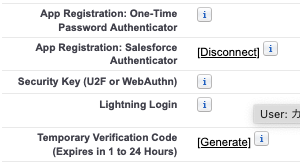
On the user's detail page, the MFA connection status is displayed on the left side. In the sample below, Salesforce Authenticator is connected. Click [Disconnect] to remove the MFA registration.
-
Note: If other MFA methods are registered, click [Disconnect] or [Remove] as needed.
-
If using an Built-in Authenticator, the registration status is listed in the "Built-in Authenticator" section at the bottom of the user detail record. Click [Del] to disconnect MFA.

▼To Generate a Temporary Verification Code
-
Log in to Salesforce as a system administrator.
-
-
If using Salesforce Essentials Edition: Click the gear icon in the upper right, then click [Setup].
-
If using Salesforce Starter: Click the gear icon in the upper right, then click [Open Advanced Setup].
-
-
In the Quick Find box on the left, enter "Users" and click Users.
-
Identify the target user's "Name". In the Setup search box at the top, enter the user's "Name" to search, and click the user's link when it appears.
-
On the user's detail page, click [Generate] next to "Temporary Verification Code (Expires in 1-24 hours)" on the left side.
-
Note: Authenticate if prompted for identity verification.
-
-
Select the code's expiration time and click [Generate Code].
-
Share the "Temporary Code" displayed on the screen with the user, then click [Done].
-
Note: The generated temporary verification code will not be emailed or otherwise automatically sent to the user.
-
Lisäresurssit
Common multi-factor authentication (MFA) troubleshooting
Temporary Verification Code for Salesforce Multi-Factor Authentication
Knowledge-artikkelin numero
005228222
Ratkaisiko tämä artikkeli ongelmasi?
Anna palautetta, jotta voimme kehittyä!
