Organisation auswählen
Use Dynamic Zone Visibility to Show or Hide Sheets Based on a Filter
Veröffentlichungsdatum: Nov 19, 2025
Voraussetzung(en)
Aufgabe
Control the dynamic display of sheets on a dashboard so that sheets with no data are hidden, and sheets with data are visible, based on a filter selection.
Schritte
The Dynamic Zone Visibility feature uses a parameter to control the visibility of objects placed on a dashboard. This procedure details how to dynamically show and hide sheets in response to filter selections.
- Create Base Worksheets
In this step, create three sheets, Left, Center, and Right, containing sales data for specific years.- Create the Left Sheet
- Rename the worksheet to "Left".
- Create a calculated field: [Filter: OrderYear] with the formula YEAR([Order Date]).
- Add [Order Date] to the Rows shelf and change the format from "Custom" to "Month/Year".
- Add [Sales] to the Text mark on the Marks card.
- Add [Order Date] to the Filter shelf, select Years > 2022, 2023, then right-click the pill on the Filter shelf and add it as Context (the pill turns grey).
- Add [Filter: OrderYear] to the Filter shelf, select "Use all", then right-click the pill on the Filter shelf and add it as Context (the pill turns grey).
- Create the Center Sheet
- Duplicate the "Left" sheet and rename it to "Center".
- Edit the [YEAR(Order Date)] filter on the Filter shelf to select only 2024.
- Create the Right Sheet
- Duplicate the "Center" sheet and rename it to "Right".
- Edit the [YEAR(Order Date)] filter on the Filter shelf to select only 2025.
- Create the Left Sheet
- Create the Control Worksheet for Dynamic Zone Visibility
This step creates the control sheet "Show/Hide" and the necessary parameters and calculated fields for the dashboard action trigger.- Add a new worksheet and rename it to "Show/Hide".
- Create the following three Boolean parameters and set the Current Value to True for all of them.
- [PRM_Left]
- [PRM_Center]
- [PRM_Right]
- Create the following three calculated fields.
Adjust these formulas to return True if at least one piece of data is displayed when the filter is used.- [DZV_Left_DataCheck] : {FIXED : MAX(IF YEAR([Order Date]) = 2022 OR YEAR([Order Date]) = 2023 THEN 1 ELSE 0 END)} = 1
- [DZV_Center_DataCheck] : {FIXED : MAX(IF YEAR([Order Date]) = 2024 THEN 1 ELSE 0 END)} = 1
- [DZV_Right_DataCheck] : {FIXED : MAX(IF YEAR([Order Date]) = 2025 THEN 1 ELSE 0 END)} = 1
- Double-click the Rows shelf and type "Show/Hide", and add it as a Text mark on the Marks card.
- Add the three calculated fields ([DZV_Left_DataCheck], [DZV_Center_DataCheck], [DZV_Right_DataCheck]) to Detail on the Marks card.
- (Option) Adjust the text formatting.
- Configure the Dashboard
- Add a dashboard sheet.
- Drag a Horizontal Container onto the dashboard sheet.
- Arrange the Left, Center, and Right sheets inside the Horizontal Container in three columns.
- Add the [Filter: OrderYear] as a filter.
- Add the "Show/Hide" sheet below the filter.
- From the [Filter: OrderYear] filter's menu, select Apply to Worksheets > Selected Worksheets and choose the Center, Right, and Show/Hide sheets.
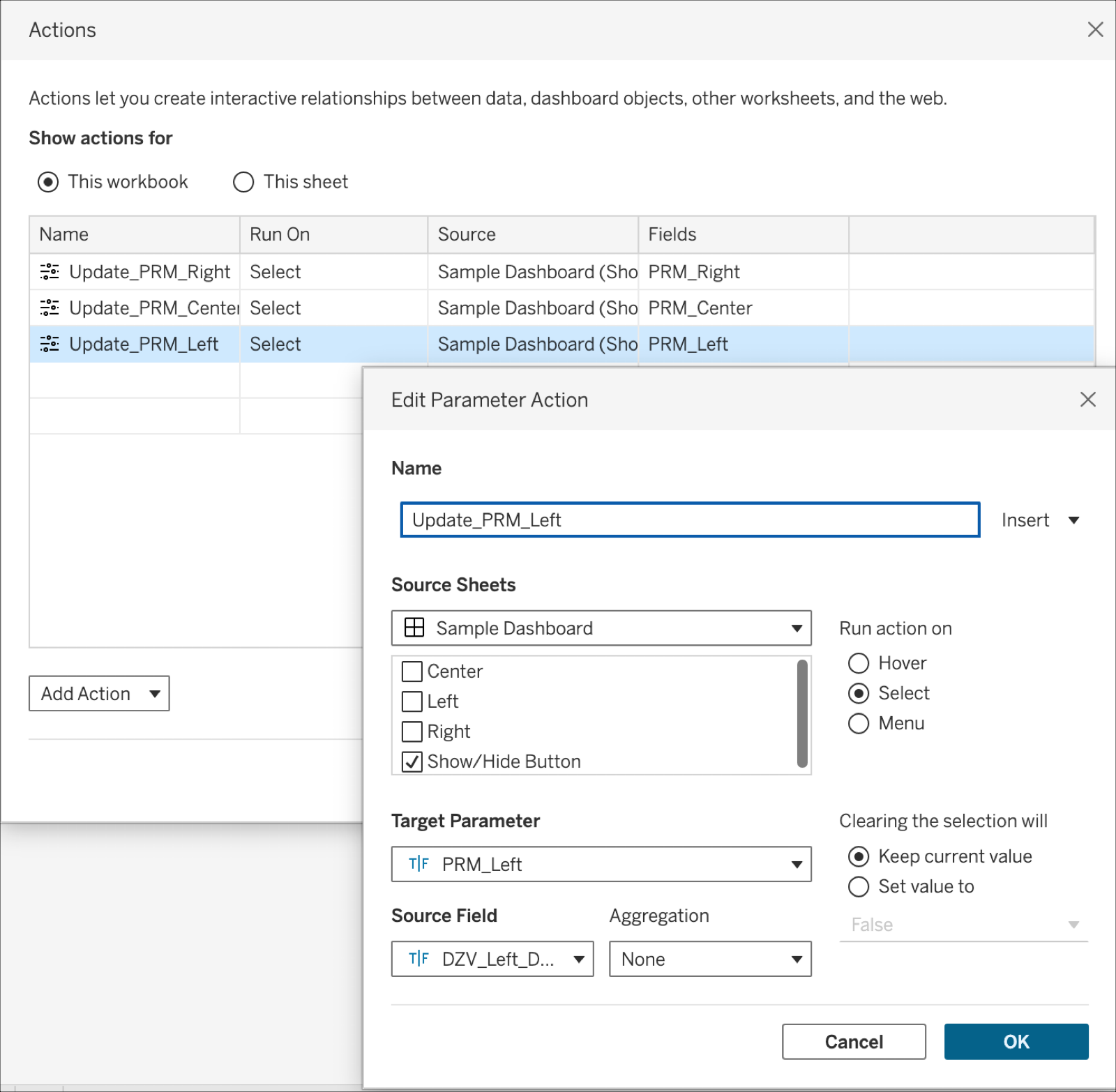
- In the menu bar, go to Dashboard > Actions and create the following three "Change Parameter" actions:
- Action 1: Source Sheets: [Sample Dashboard] > "Show/Hide" | Target: [Parameter: [PRM_Left] | Source Field: [DZV_Left_DataCheck]
- Action 2: Source Sheets: [Sample Dashboard] > "Show/Hide" | Target: Parameter: [PRM_Center] | Source Field: [DZV_Center_DataCheck]
- Action 3: Source Sheets: [Sample Dashboard] > "Show/Hide" | Target: Parameter: [PRM_Right] | Source Field: [DZV_Right_DataCheck]
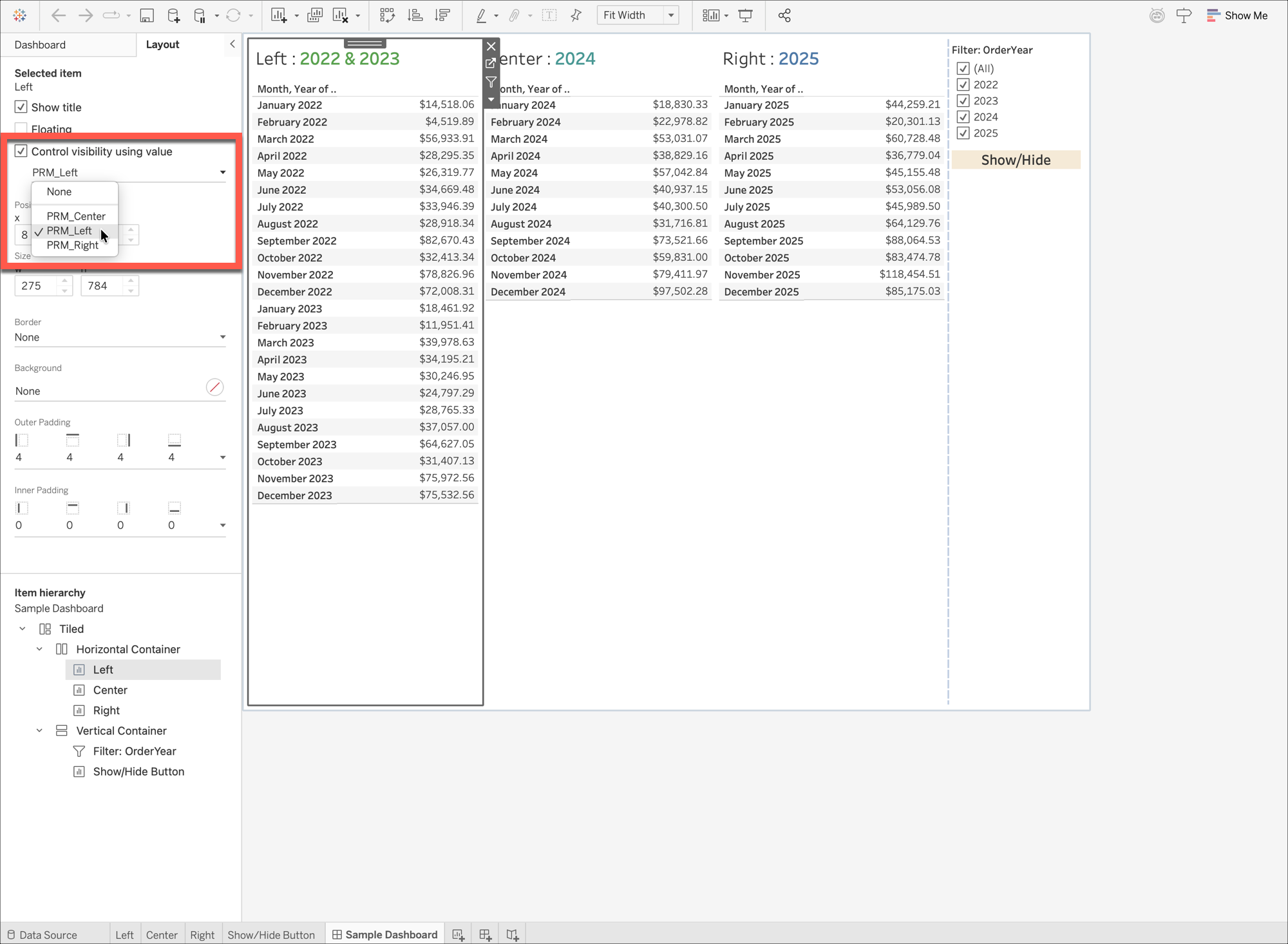
- Select the Left sheet within the Horizontal Container. In the Layout pane, turn ON "Control visibility using value" and select [PRM_Left].
- Repeat the step for the Center and Right sheets, selecting [PRM_Center] and [PRM_Right] respectively.
Zusätzliche Ressourcen
Nummer des Knowledge-Artikels
005228886
Konnten Sie Ihr Problem mithilfe dieses Artikels lösen?
Geben Sie uns Feedback, damit wir uns verbessern können.
