Vælg en organisation
How to Display Different Salesforce Sales Paths on Opportunities Based on Field Values
Udgivelsesdato: Apr 3, 2026
Beskrivelse
In this article, we will demonstrate how to use Record Types, Sales Processes, and Sales Path to support different guided experiences on the Opportunity. A Record-Triggered Flow is used to automatically update the Opportunity's record type when its Stage or another relevant field changes. This allows Salesforce to switch between Paths and display the appropriate guidance based on the Opportunity's context.
The example uses two record types and two Sales Processes, which must be created first before building and configuring the Paths.
Løsning
Step 1: Create the Required Sales Processes
a. Create the first Sales Process
-
- From Setup, go to Feature Settings > Sales > Sales Processes
- Click New to create a new Sales Process

-
- Select an Existing Sales Process as the Master to include all Opportunity stage values automatically
- Give an appropriate Sales Process Name. In this example, we have named it NewCustomer
- Keep all Selected Values unchanged to ensure the process contains the full set of Stages
- Click Save

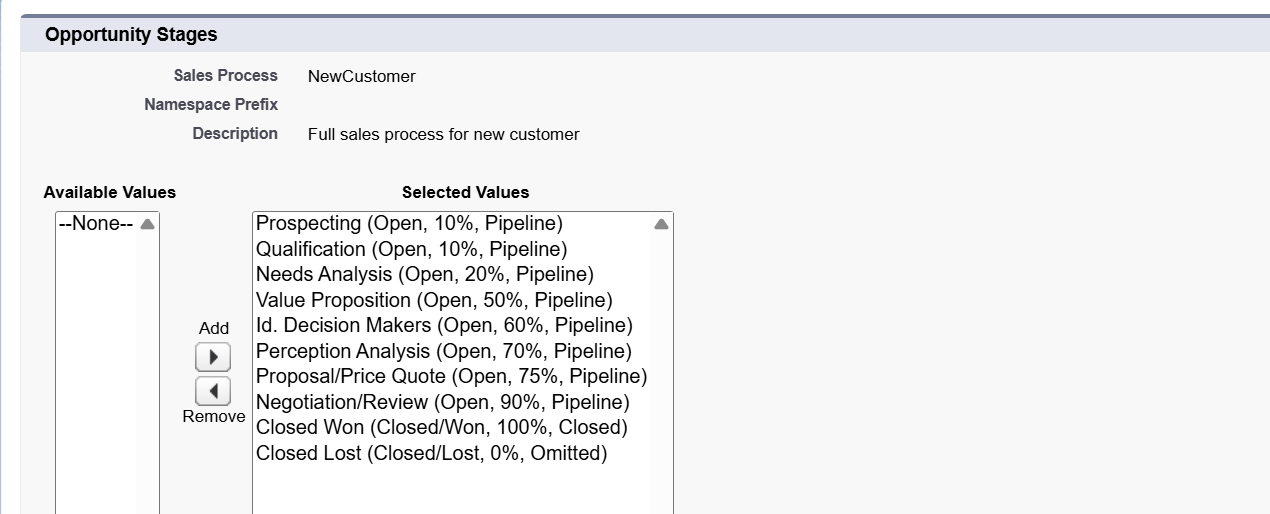
b. Create the second Sales Process, which is shorter than the first one
-
- Repeat the same steps to create a second Sales Process and name it Renewal
- Select NewCustomer as the Existing Sales Process
- Adjust the Selected Values to create a shorter stage path for existing customers
- Move the stages you do not need, such as Prospecting or Qualification/Analysis, from Selected Values back to Available Values by clicking the left arrow button

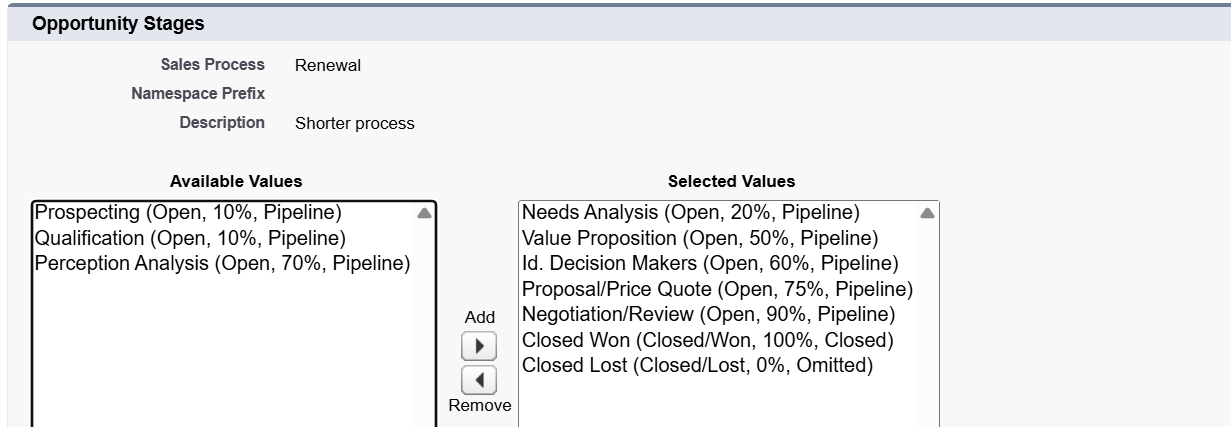
-
- Click Save to confirm the updated Stage list
- Confirm that both Sales Processes are Active in the Sales Processes list
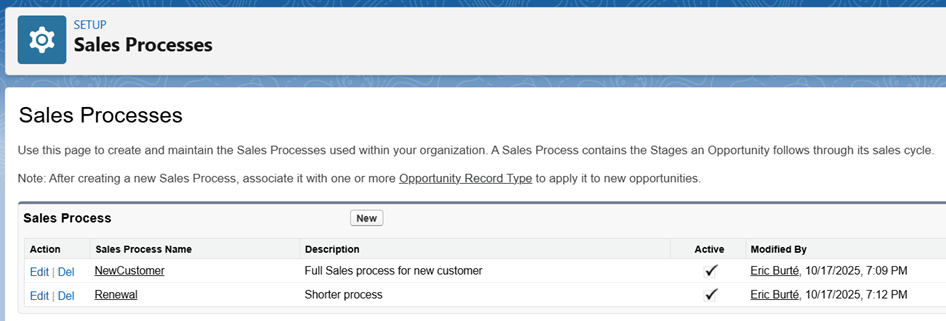
Step 2: Create the Opportunity Record Types
Create two new Opportunity Record Types as outlined below
- Go to Setup, open Object Manager, and select Opportunity
- Click Record Types, then click New
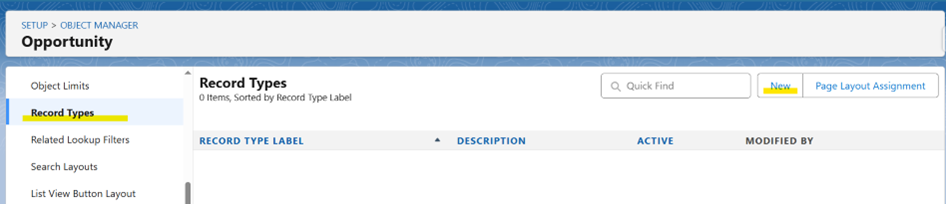
a. Create the first Record Type
-
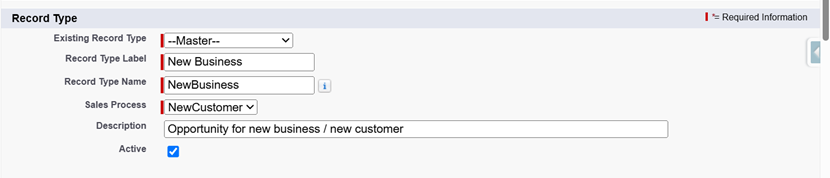
- Select the Existing Record Type as Master
- Enter an appropriate Record Type Label, and the Record Type Name will be auto-populated
- For this example, we are using the Record Type Label as New Business
- For the Sales Process, assign NewCustomer
- Make it Active
-
- Make the Record Type available for all relevant Profiles
- Apply the same Opportunity Layout to all Profiles

-
- Make it the default Opportunity Record Type and Save
b. Create the second Record Type
-
- From the Opportunity Record Types list in Object Manager, click New
- Select the Existing Record Type as Master
- Enter an appropriate Record Type Label, and the Record Type Name will be auto-populated
- For this second Record Type, we are using the Record Type Label as Renewal Opportunity
- Select the Sales Process as Renewal
- Make it is as Active

-
- Make the Renewal Record Type available for all relevant Profiles
- Assign the same Opportunity Page Layout to all Profiles
- Do not set this Record Type as the Default since New Business is already Default
- Click Save
Notes:
- Set Opportunity Page Layout access for each Profile based on your business needs or specific use case
- In this example, we are using the same Page Layout for both Record Types
- If different pages are required for different Opportunity types, an additional Page Layout can be created, customized and assigned to the appropriate Record Type during configuration
- When creating a Record Type, the available Picklist Values can be adjusted. For this example, the Picklist values are kept the same
Step 3: Configure the Opportunity Sales Paths
- Each Path applies to a single Record Type
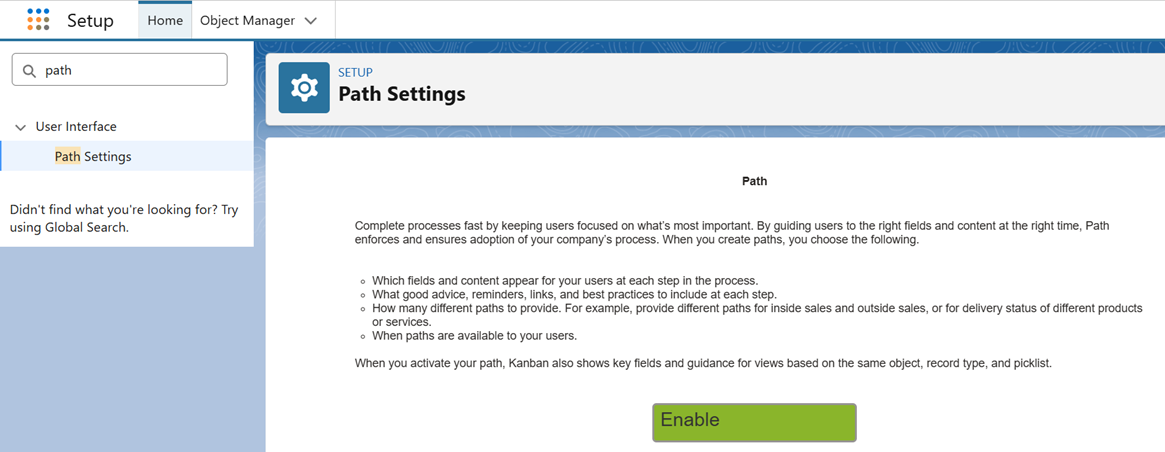
- Navigate to Setup, and search for Path in the Quick Find box
- Select Path Settings
- Click Enable
- As a Path can be linked to only one Record Type, the setup must be completed twice
a. Configure Path for the New Business Record Type
-
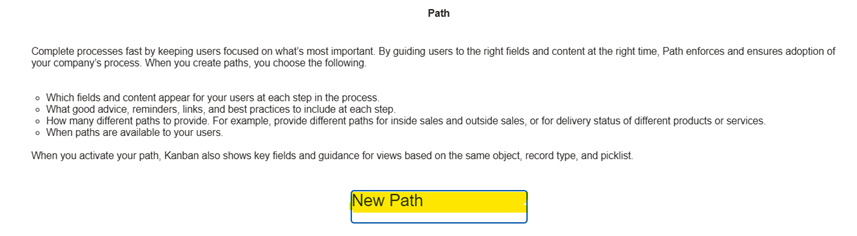
- Start by creating the first Path for the New Business Record Type by clicking the New Path button
-
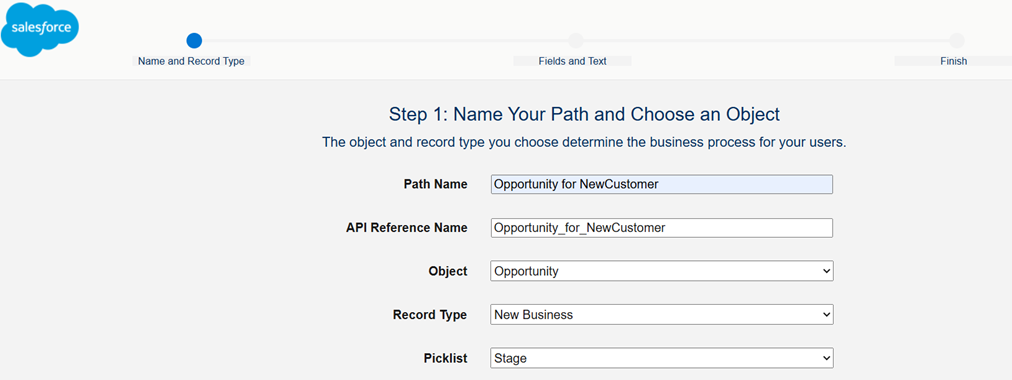
- Enter a unique Path Name, which automatically generates the API Reference Name
- Select the Object as Opportunity
- Select the Record Type as New Business
- Select the Picklist as Stage
- Click the Next button
-
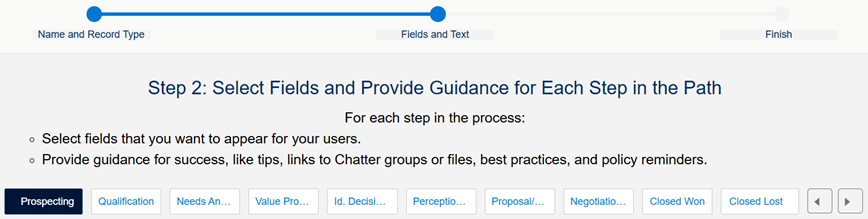
- After that, select each Stage according to the Picklist and Record Type values chosen on the previous screen
-
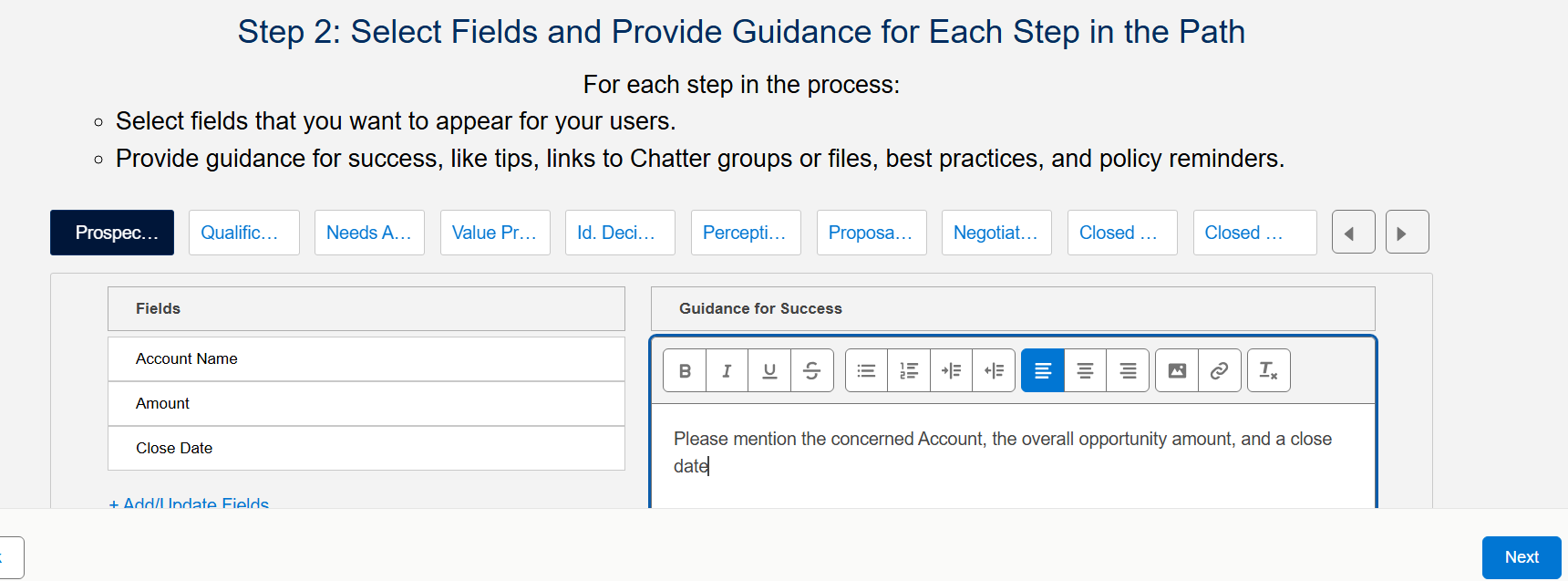
- For each Stage, choose the Opportunity fields and the Guidance Text that should appear at that step
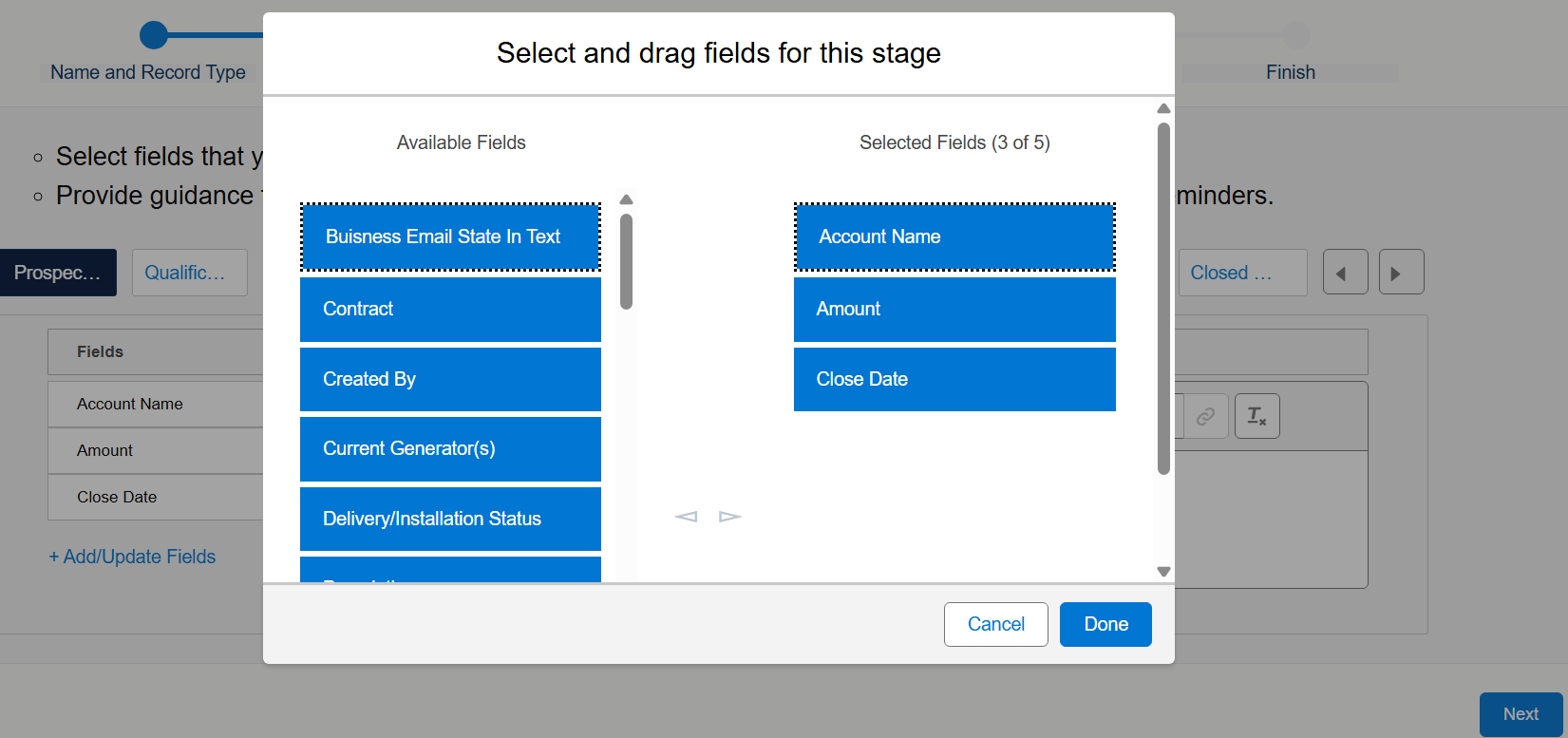
- To include fields in the Path, select them from the Available Fields list and move them to the Selected Fields list
- When all Stages are configured, click Next
-
- Turn on the Activate Your Path toggle, then click Finish to complete the setup
- The first Path for the New Business Record Type is now successfully created
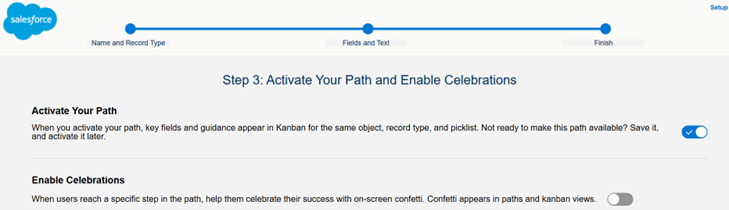
Note: Only one Path can be created per Record Type. If another Path is created for the same Object and Record Type, the system will decline the creation
b. Configure the second Path for the Renewal Opportunity Record Type
-
- Go back to Setup, search for Path in the Quick Find box
- Select Path Settings
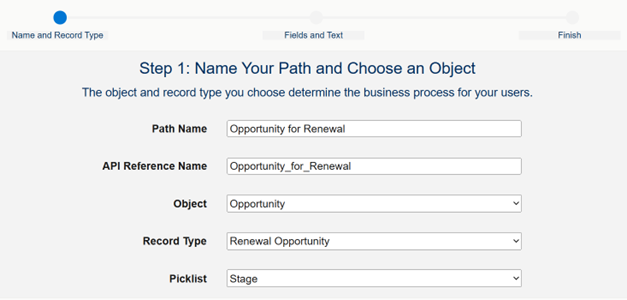
-
- Repeat the same configuration steps to define Available Fields for Stages and Guidance Text to be displayed in this Path for Renewal Opportunity records
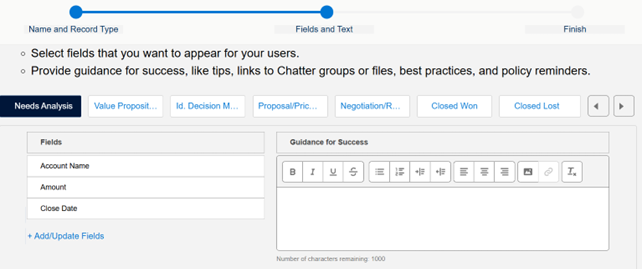
-
- Activate this second Path by toggling on the Activate Your Path option
- Save by clicking the Finish button
- Check that the two Paths are correctly configured and Active by going back to the Path Settings menu item
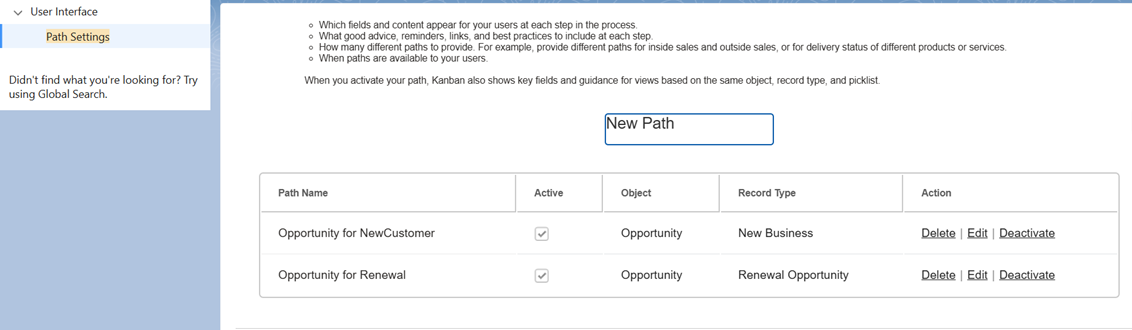
Step 4: Test the Path updates
- After completing configuration steps, the Path behavior can be tested by manually updating the Record Types on an Opportunity
- Below is an example of a New Business Opportunity that displays the full New Business process and Path
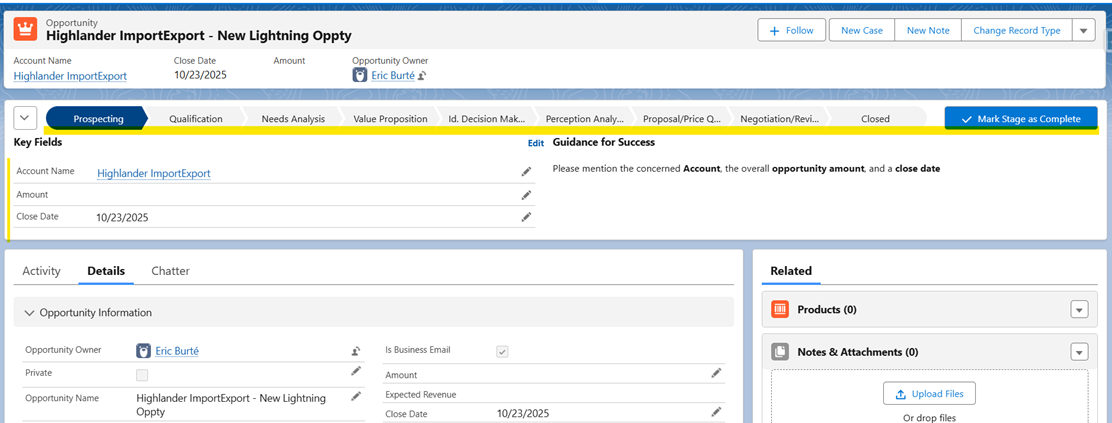
- From the New Business Opportunity record page, click Change Record Type from the top-right corner of the highlight panel
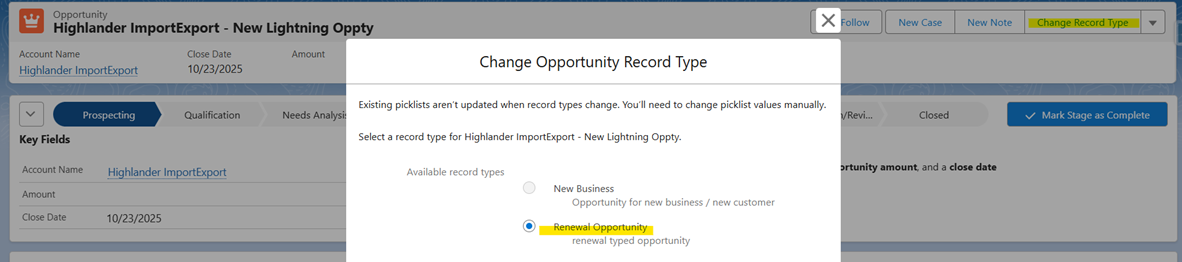
- Update the Record Type to Renewal and Save the changes
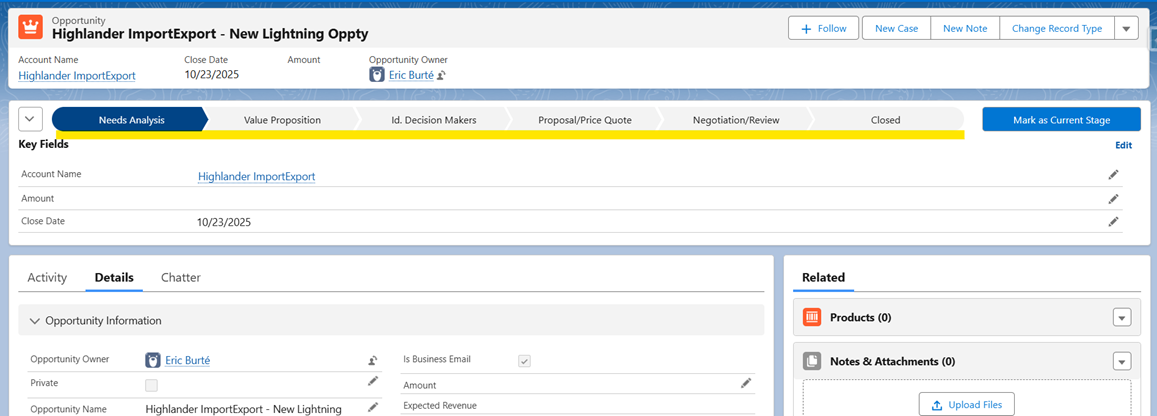
- The Opportunity now reflects the updated Record Type, and the Path automatically switches to display the shorter Renewal Path, as defined in our configurations
-
This operation was manual, as the Record Type was changed using the standard button
- However, the Record Type can also be updated dynamically when another field on the same Opportunity changes. To enable this, a Fast-Update Record-Triggered Flow is required on Opportunity update
Step 5: Create the Record-Triggered Flow
In our example, we will handle the Record Type change, based on Type field value:
- IF the Type contains the text existing, then the Opportunity will be considered as a Renewal Opportunity
- ELSE, the Opportunity will be considered as New Business. This condition branch handles both New Business and the Blank text option
a. Create a Record-Trigger Flow and configure Start element
-
- To create this Flow, please navigate to Flow Builder
- Go to Setup, type Flows in the Quick Find Box > Select Flows from left-hand navigation pane
- Click New Flow
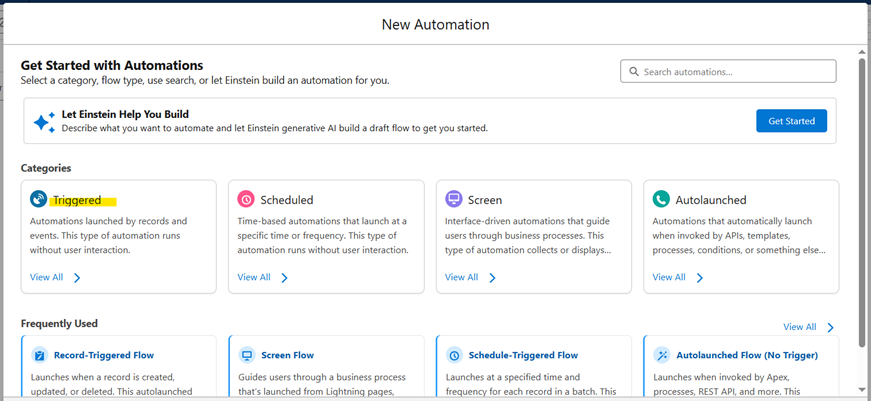
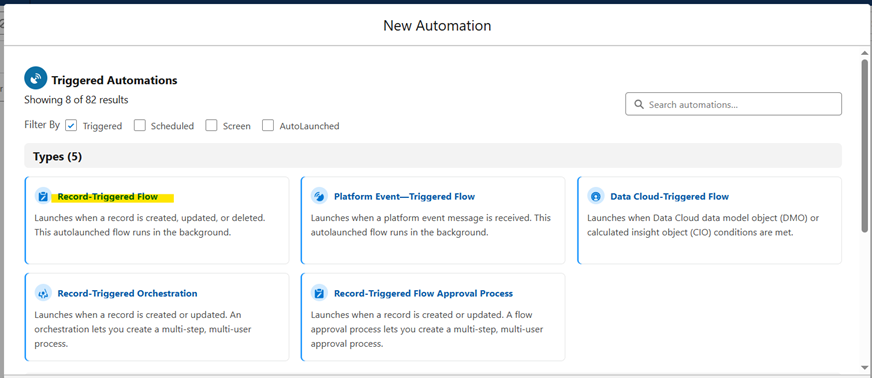
- Select Triggered, then Record-Triggered Flow
-
- Configure the Start element as shown below:
- Object: Opportunity
- Optimize flow for: Fast Field Updates
- Trigger the flow when: A record is updated
- Entry Condition: All Conditions Are Met (AND)
- Clearly define your specific entry conditions as follows:
| Field | Operator | Value |
| Opportunity Type | Is Changed | True |
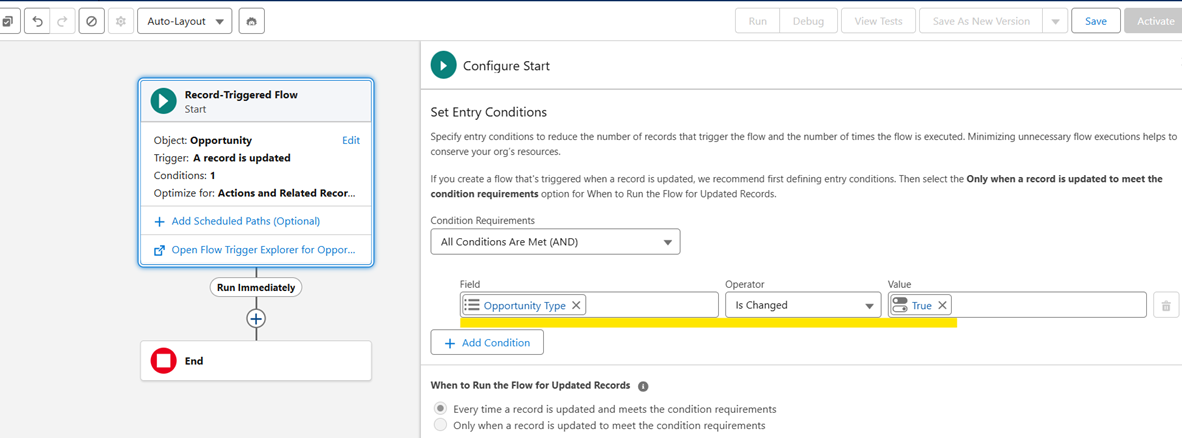

Notes:
- As you have selected IsChanged in entry conditions, the Flow will fire for every Type change
- This Flow should run exclusively on Update, not on Create
b. Add a Decision Element
-
- In the Flow Canvas, click the + symbol below the Start element
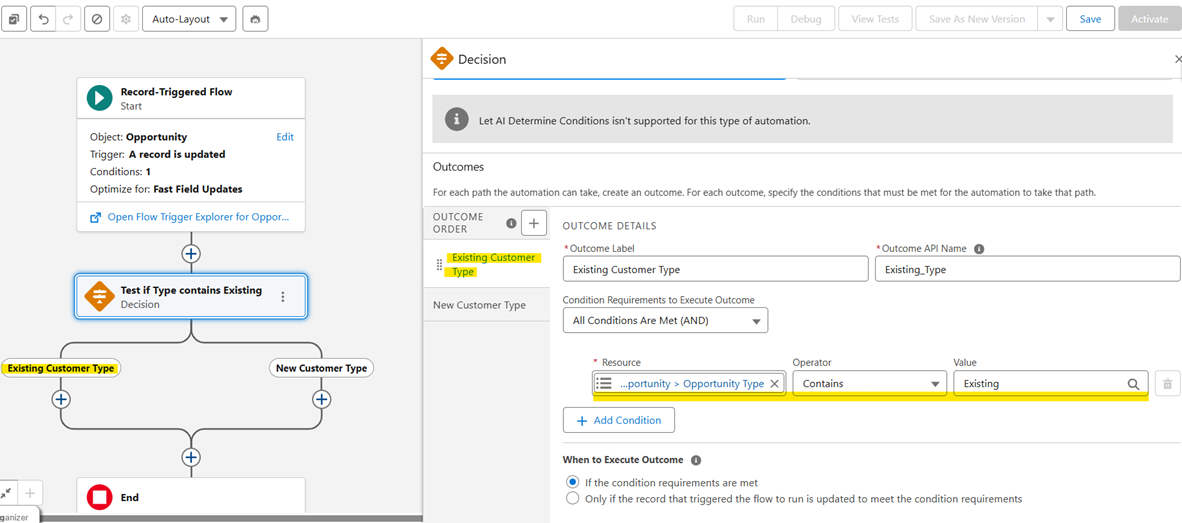
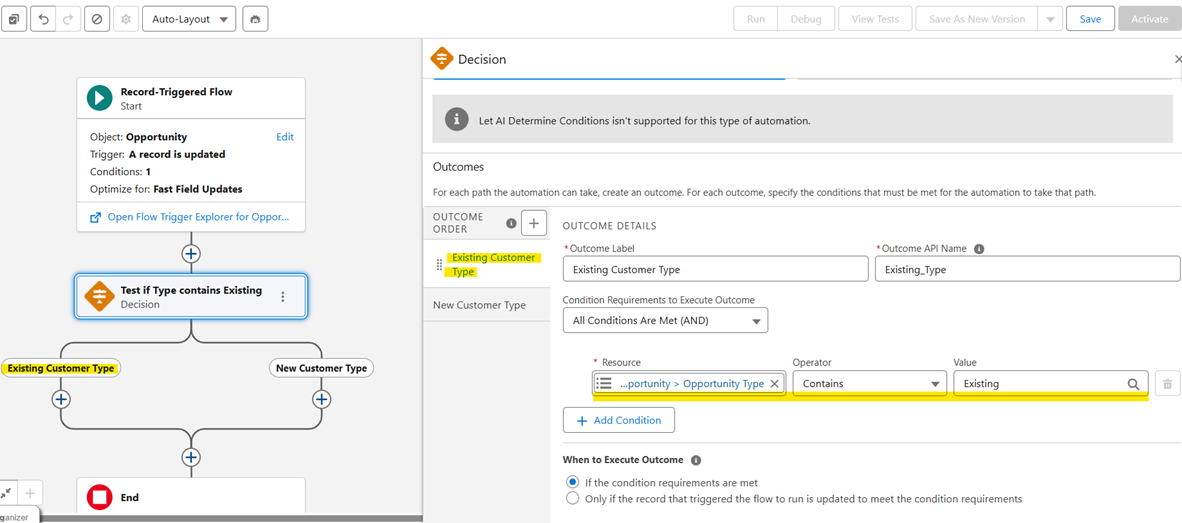
- Select the Decision element and give it an appropriate Label
- In the Outcomes section of the Decision properties pane, click + to create a new Outcome Branch
- Rename the new Outcome to Existing Customer Type
- Condition Requirement to Execute Outcome set as All Conditions Are Met(AND) and the condition is defined as below:
| Resource | Operator | Value |
| Opportunity>Opportunity Type | Contains | Existing |
-
- Rename the Default Outcome Branch from New Customer Type to specify its purpose
c. Configure Outcome Branches of Decision Element
-
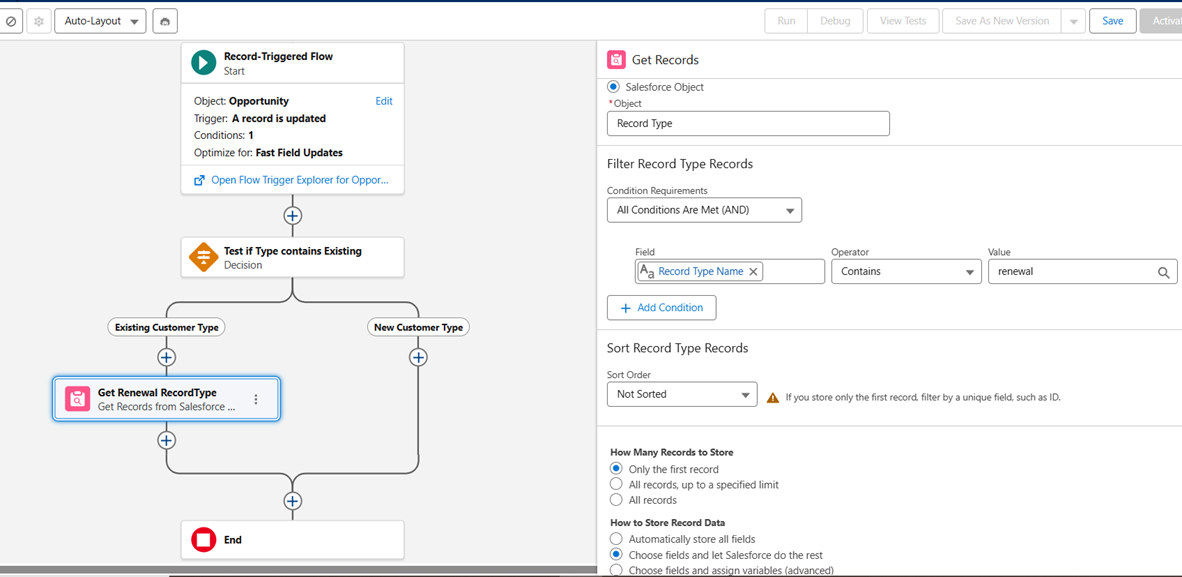
- In the Existing Customer Type outcome branch, click the + symbol located below the Decision element
- Add a Get Records element to retrieve the Record Type ID value based on the Record Type Label
-
- Configure the Get Record Element as below:
- Select the Object as Record Type
- Condition Requirements set to All Conditions Are Met(AND), and the entry conditions is set as shown below
| Field | Operator | Value |
| Record Type Name | Contains | renewal |
-
- Select How Many Records to Store as Only the first record
- Select to How to Store Record Data as Choose fields and let Salesforce do the rest
c. Add an Update Triggering Record Element
-
- Click the + symbol just after the Get Renewal RecordType Get Records element
- Add an Update Triggering Record Element and configure it to update the Triggering Opportunity with the Record Type Id information retrieved from the previous element
- Configure it as shown in the picture below
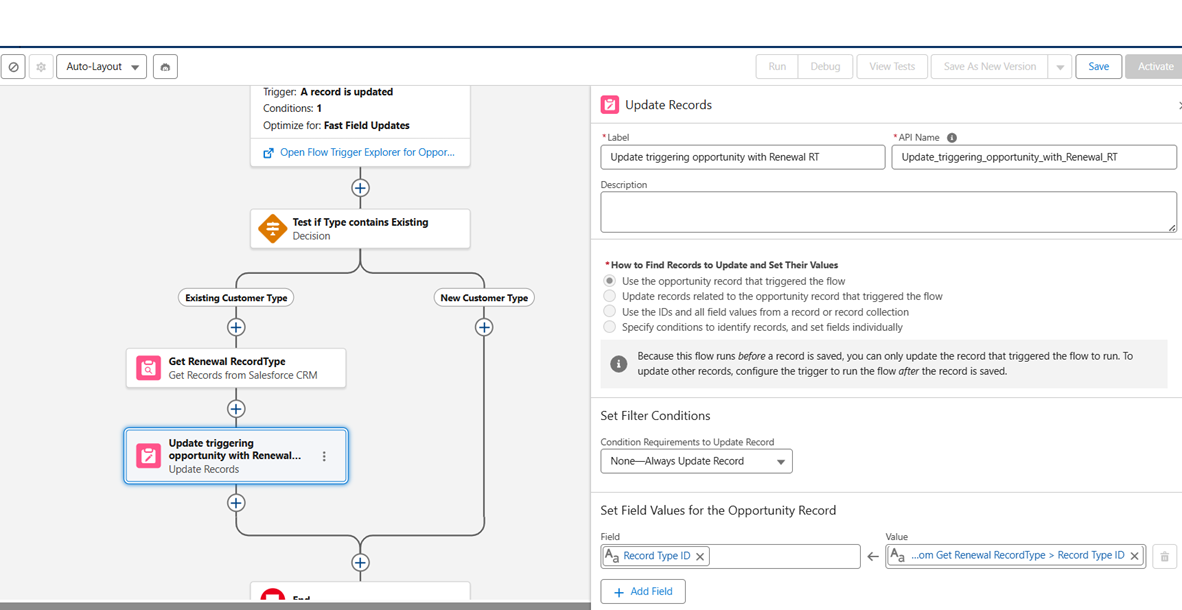
d. Add the same elements on the second Outcome branch, New Customer Type
-
- Create the same elements on the second branch, except that
- In the Get Records, to get the concerned New Business Record Type, do not forget to change the expected value to test with
- In the Update Triggering Record element, make sure to reference the Get Records element from the second branch
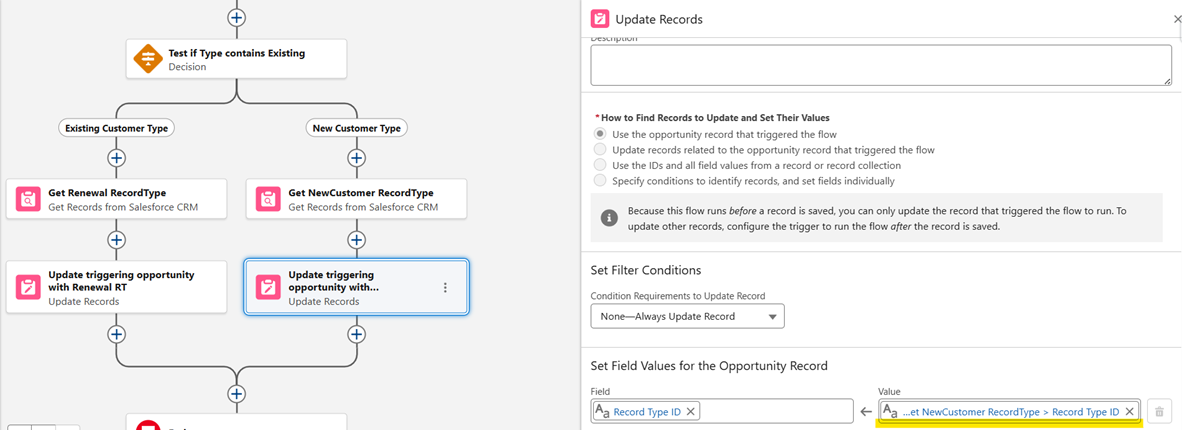
-
- Save and Activate the Flow
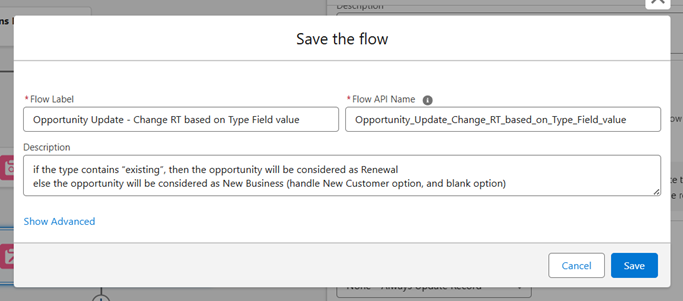
e. Test the Flow
-
-
Test the Flow with the Opportunity record that was previously changed to Renewal Opportunity Type
- The short Renewal path is adapted to the Renewal Sales Process/Renewal Opportunity Record Type
- In the example, the Type field is not filled in. As it has not been changed yet, the Flow had no reason to fire
-

-
- If I change the Opportunity Type field to New Business, it will fire the Record-Triggered Flow
- The Opportunity record type will automatically be updated to New Business
- The Path will adapt to this Record Type and Sales Process, and will display the longer Opportunity Sales Path
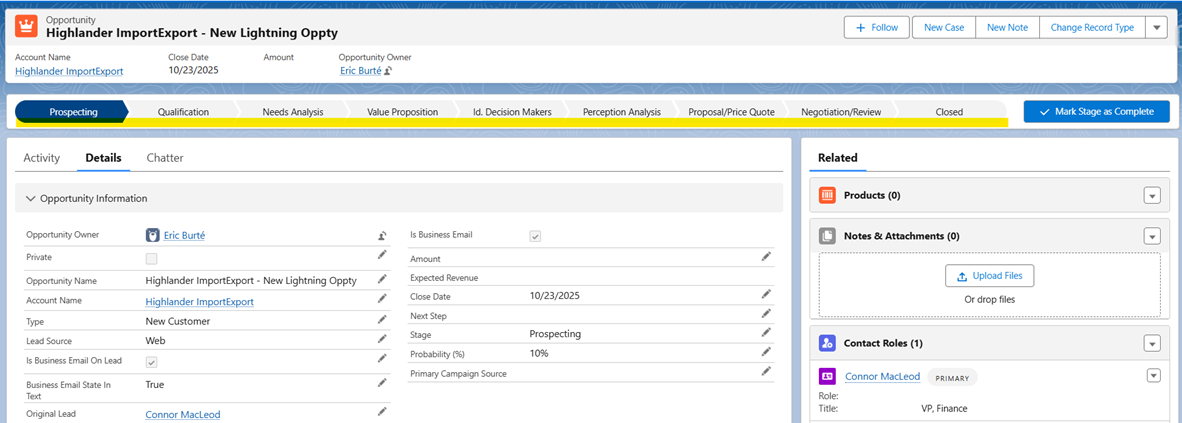
-
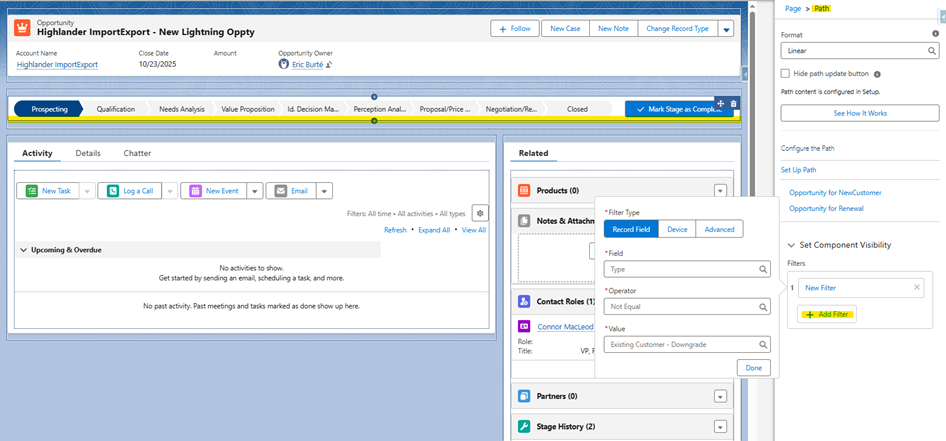
- In addition, be aware that it is also possible to control Path visibility through the Lightning Page configuration
- From the Opportunity record detail page, please click on the Setup icon and then select Edit Page
- In the Lightning Page Builder, on the Opportunity record Lightning Page, select the Path component
- Choose the +Add Filter option to add visibility criteria, for example as shown below:
| Field | Operator | Value |
| Type | Not Equal | Existing Customer - Downgrade |
-
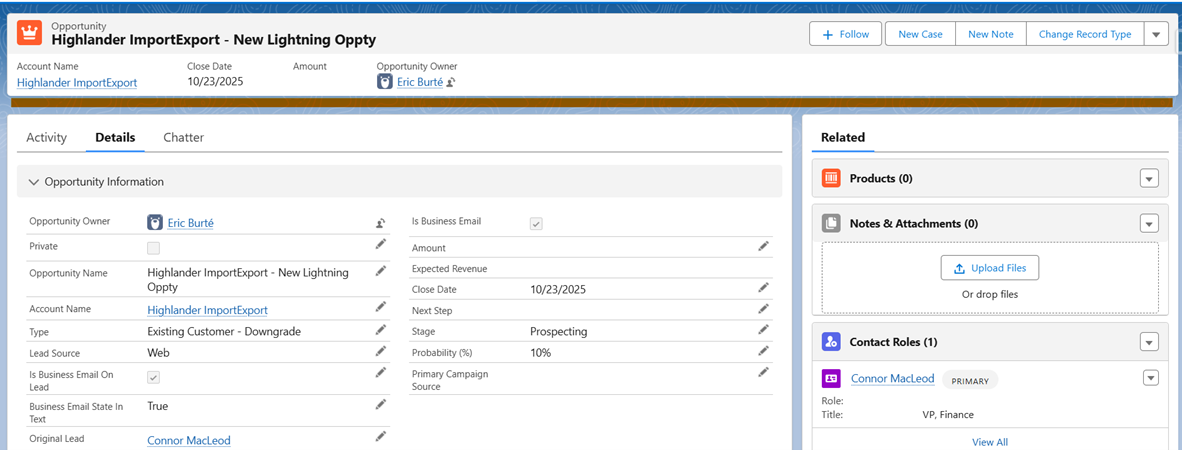
- Now, test the Page configuration
- Go back to the previously updated Opportunity
- Switch its Type to Existing Customer - Downgrade in order to test our last change
-
- The Path is no longer displayed, which aligns with the visibility criteria configured on the Path component
With these configurations, Opportunity Paths will dynamically adjust based on the record type and visibility rule, ensuring a cleaned and more guided experience
Yderligere ressourcer
Vidensartikelnummer
005228988
Løste denne artikel dit problem?
Giv os besked, så vi kan forbedre os!
