Vælg en organisation
Google Drive Unstructured Data Connection Setup
Udgivelsesdato: Dec 15, 2025
Beskrivelse
Prepare Your Google Drive Unstructured Data Connection (Beta)
Before you connect Google Drive to Data 360, gather the required information and perform these preliminary actions in Google Console and Google Drive.
Authorize Access to Google Drive and Service Account Setup
-
In the Google Cloud Console, turn on the Google Drive API.
-
Service accounts are special Google identities used by applications to securely access Google APIs. For this connector, authentication will be service account–based, allowing the connector to read files from Google Drive and access user information in your Google Workspace domain. Please note that an admin account is required to perform these steps. Perform the following steps to set up service accounts in Google Console.
-
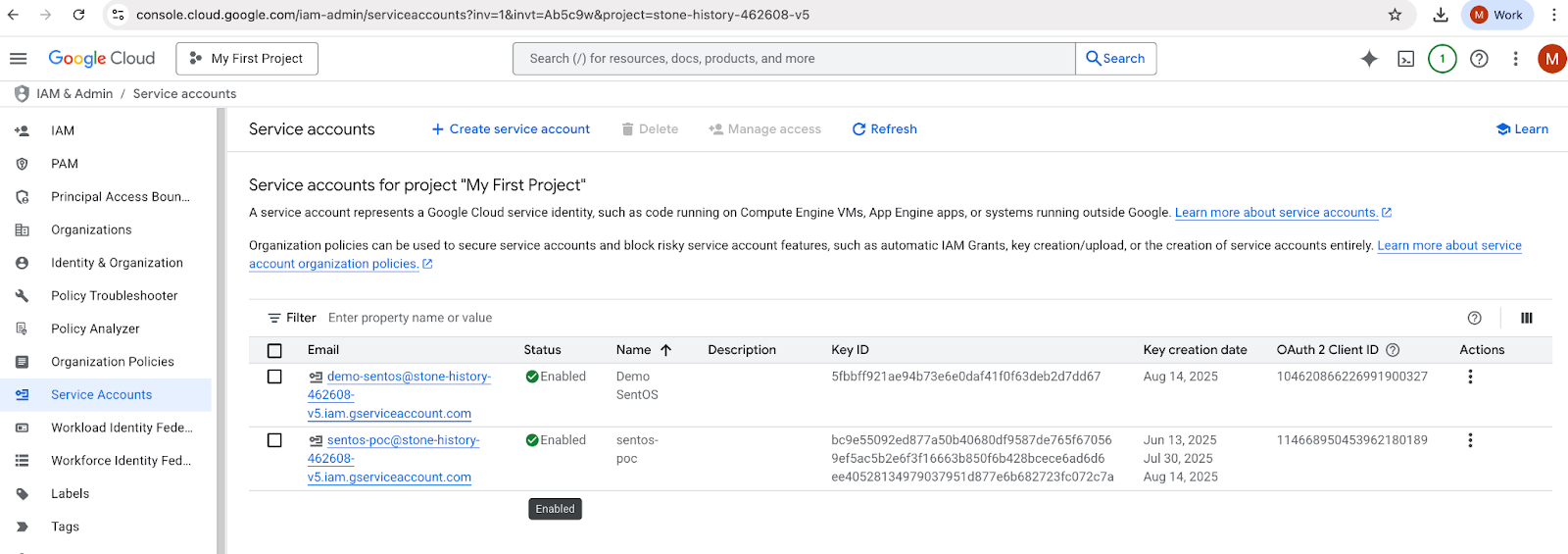
Step 1 - Go to https://console.cloud.google.com/ -> IAM & Admin -> Service Accounts. Click on Create service account.
-
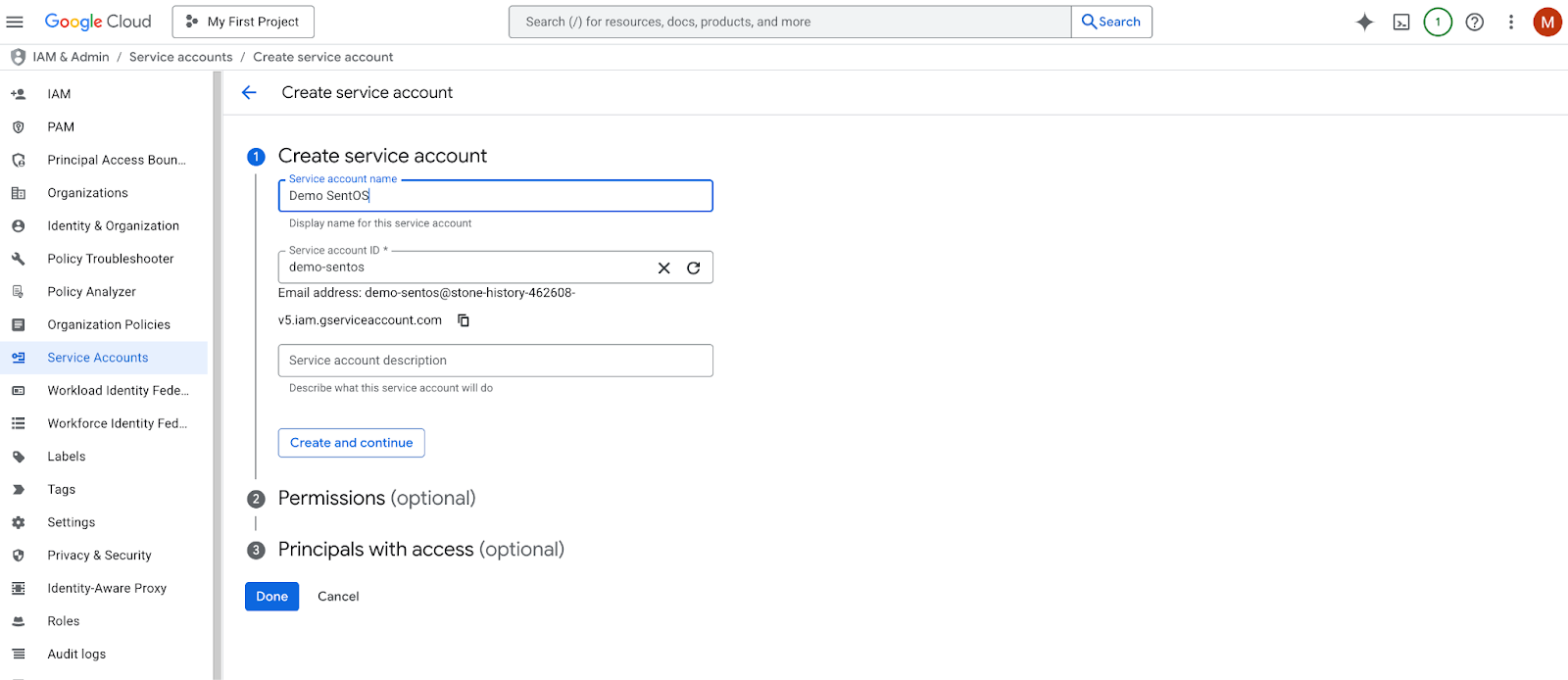
Step 2 - Add Service account name and click on Create and continue. This will create a service account in Google.
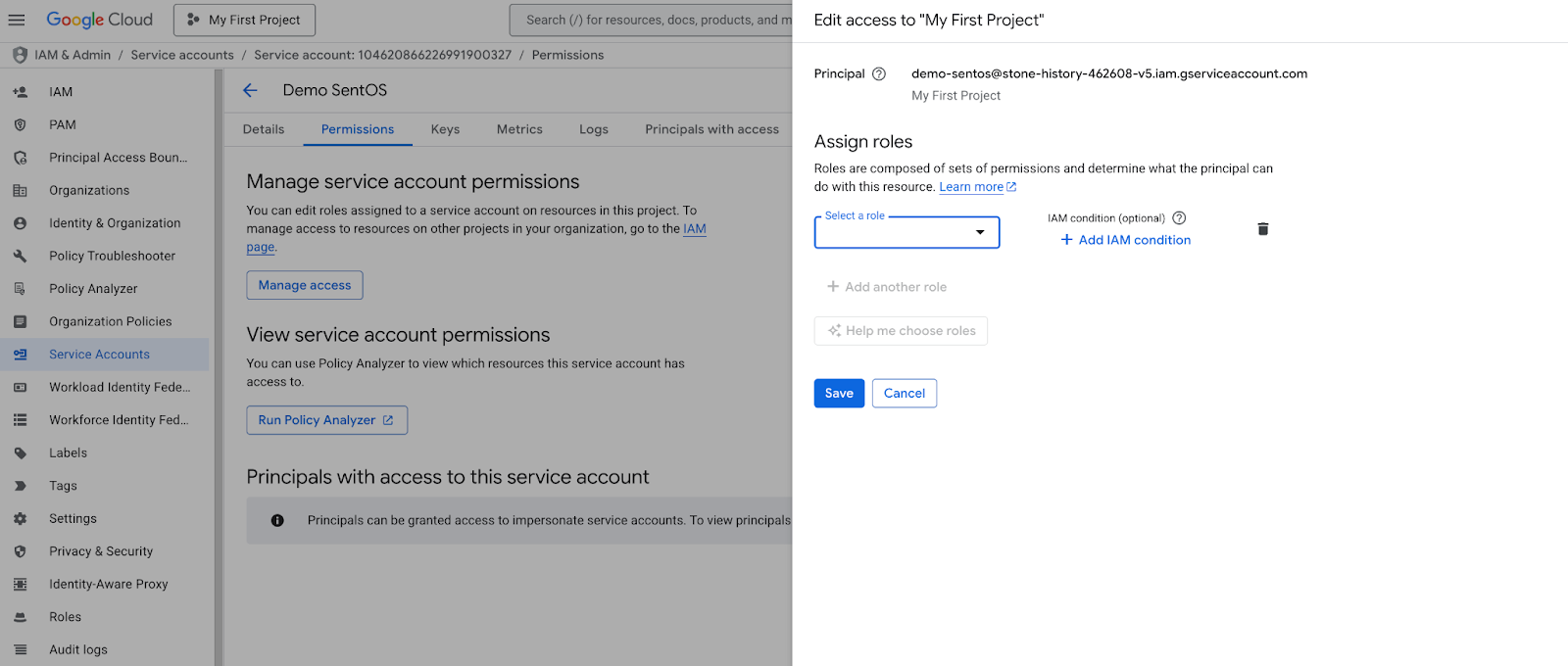
- Step 3 - To delegate required permissions for service account, go to permissions->Manage access and add role as Service Account token creator and save it.
-
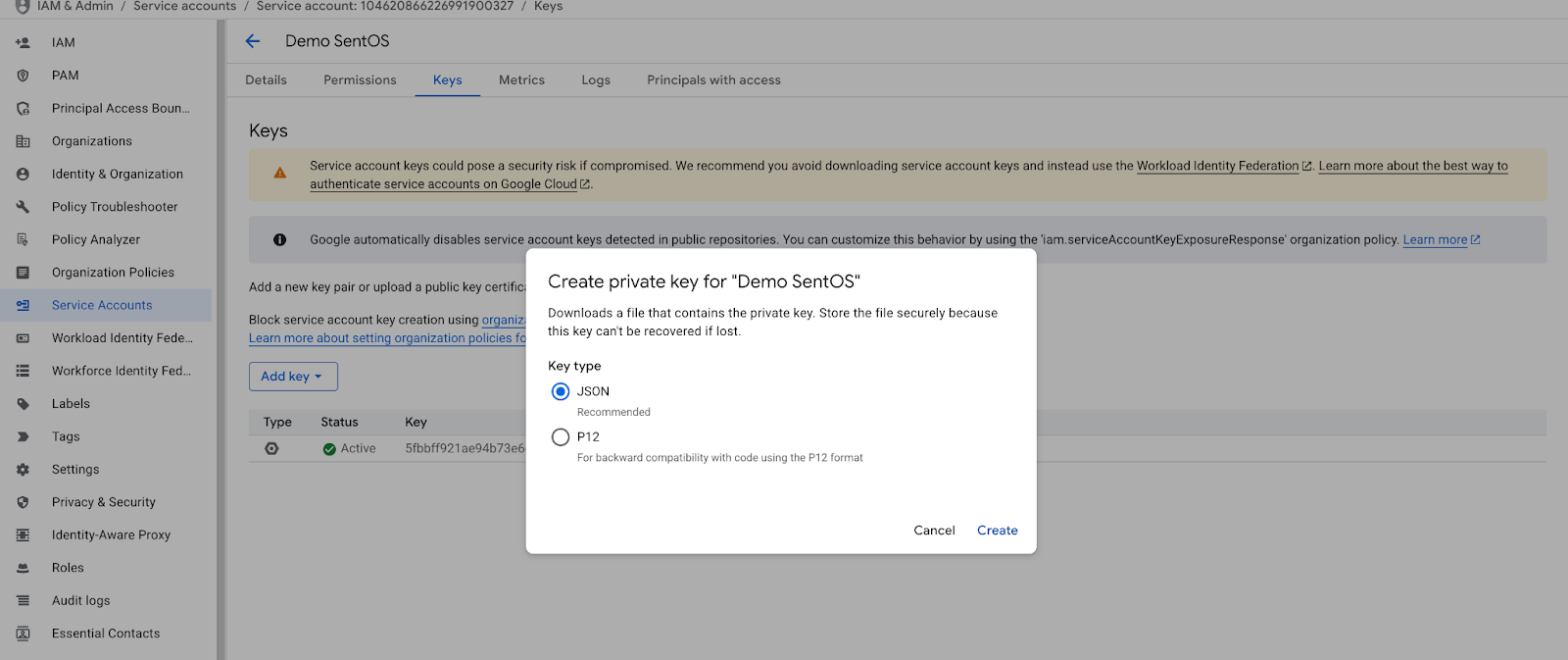
Step 4 - To create a key under service account, Go to Keys -> Add key -> create new key. Select Key type as a JSON and click on create.
This will save a json file having client_email, scope, private_key and token_url which we will use for the Google Drive connector to authorize users.
Below is how the private key json file will look like:
-
{
"type": "service_account",
"project_id": "stone-history-462608-v5",
"private_key_id": "ee40528134979037951d877e6b682723fc072c7a",
"private_key": "-----BEGIN PRIVATE KEY-----<private key>\n-----END PRIVATE KEY-----\n",
"client_email": "sentos-poc@stone-history-462608-v5.iam.gserviceaccount.com",
"client_id": "114668950453962180189",
"auth_uri": "https://accounts.google.com/o/oauth2/auth",
"token_uri": "https://oauth2.googleapis.com/token",
"auth_provider_x509_cert_url": "https://www.googleapis.com/oauth2/v1/certs",
"client_x509_cert_url": "https://www.googleapis.com/robot/v1/metadata/x509/sentos-poc%40stone-history-462608-v5.iam.gserviceaccount.com",
"universe_domain": "googleapis.com"
}
Note - Now we can use our service account for Agentic use cases. To use this account for accessing data for multiple users we will need to get domain wide delegation for the service account which is explained in step 5.
Step 5 and Step 6 are needed if you want to bring in all shared drives/personal drives. These steps are not needed for a specific shared drive ID.
-
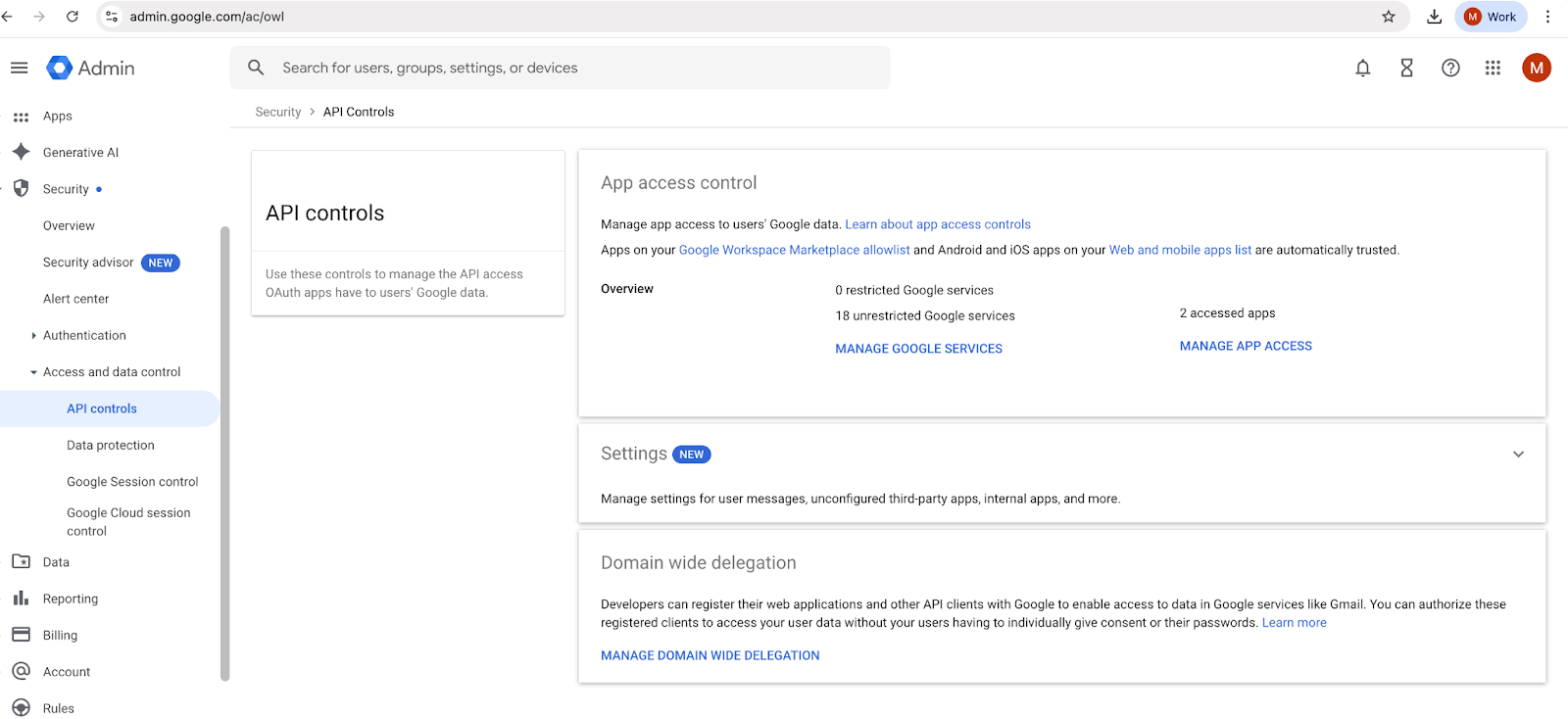
Step 5 - Go to https://admin.google.com/, then Security -> API controls -> Domain-wide delegation.
-
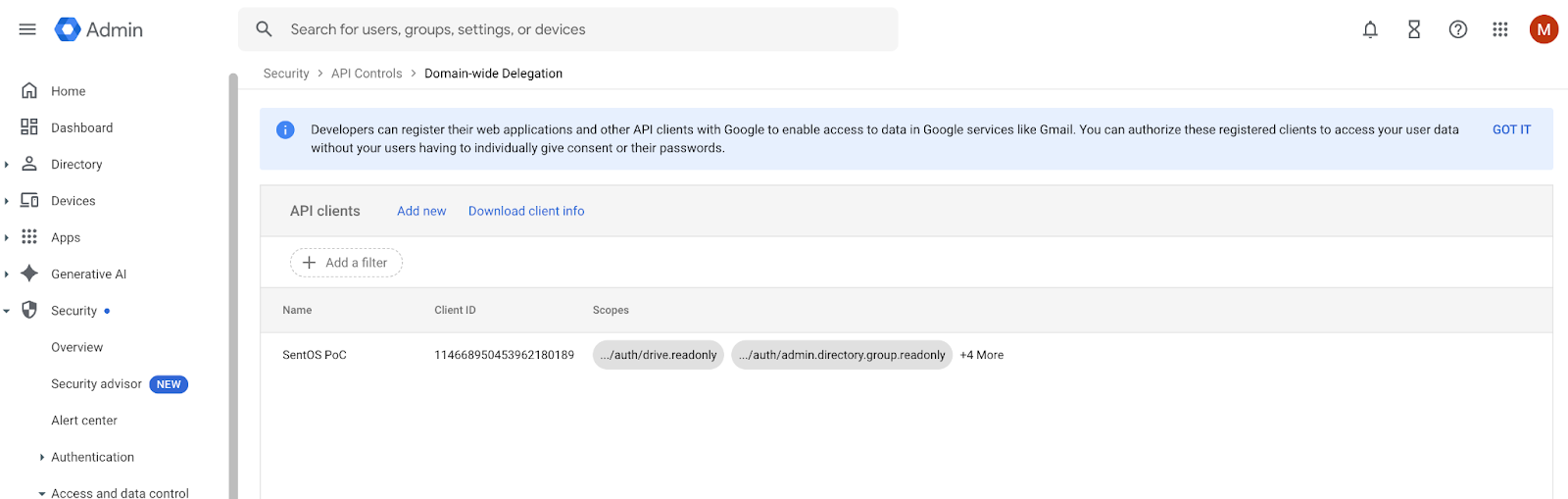
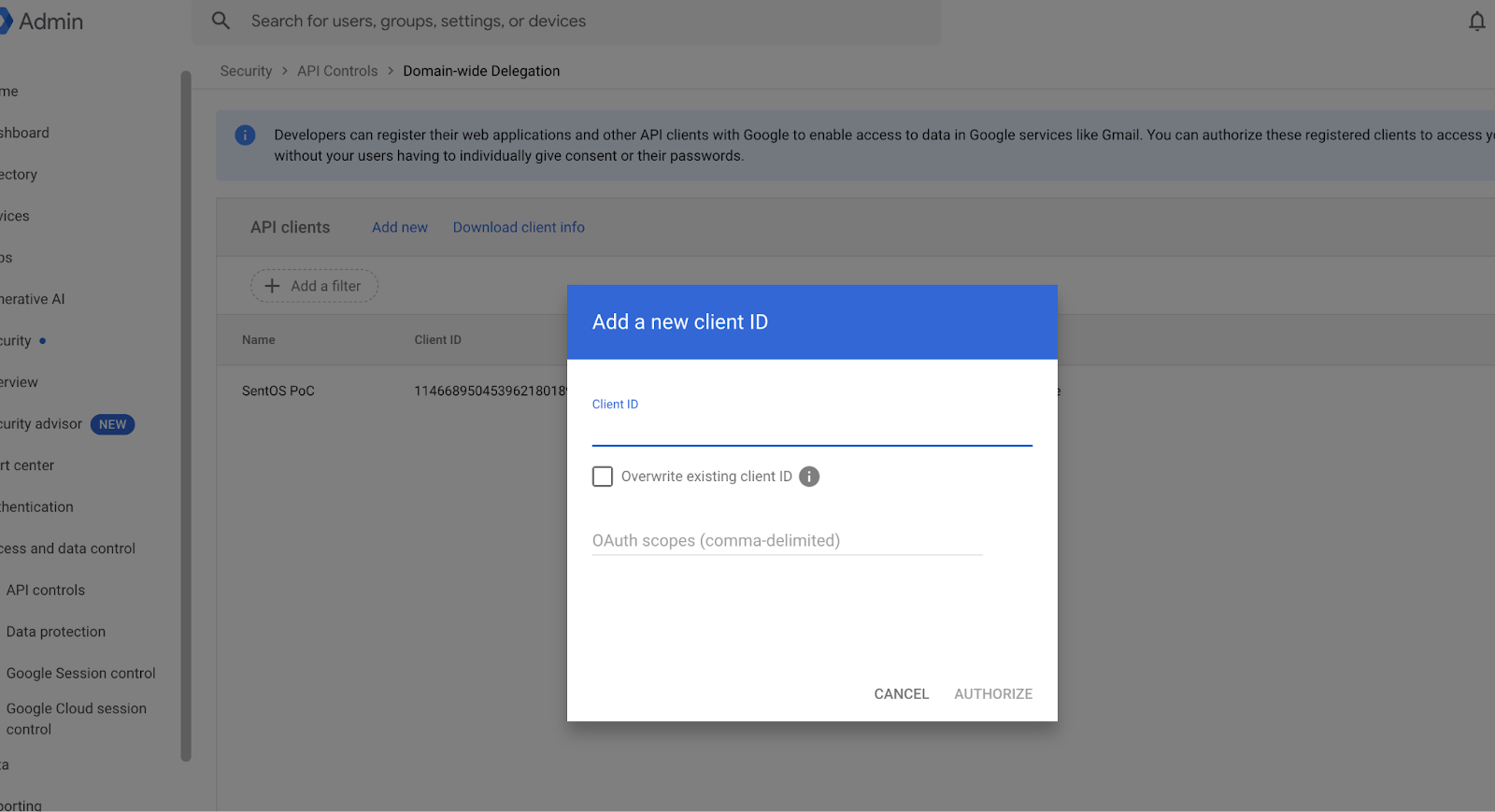
Step 6 - Click on Add new to create a new domain wide delegation for our client_id. Add Client ID which we got in the private key json file. Add the following scopes:
https://www.googleapis.com/auth/drive.readonly https://www.googleapis.com/auth/admin.directory.user.readonly
Once you click on authorize, your service account will be ready to get authorization.
Gather Info in Google Drive
-
Make sure you complete these steps using a Google account that has access to the files and folders you want to connect to Salesforce.
-
To ingest unstructured data, identify the shared drive or folder in Google Drive that contains the relevant files. Find the Google Drive folder containing the relevant files. Identify the ID at the end of the folder’s URL. Example: https://drive.google.com/drive/folders/{id}.
-
If you are ingesting a specific shared drive ID (and not all shared or personal drives), ensure that the admin account email used during connection creation has access to that drive.
Set Up a Google Drive Unstructured Connection (Beta)
Set up the Google Drive connection to start the flow of data into Data 360.
Note
This feature is a Beta Service. A customer may opt to try a Beta Service in its sole discretion. Any use of the Beta Service is subject to the applicable Beta Services Terms provided at Agreements and Terms. If you have questions or feedback about this Beta Service, contact the Data 360 Connector team at datacloud-connectors-beta@salesforce.com.
|
User Permissions Needed |
|
|
To create a connection: |
System Admin profile or Data Cloud Architect permission set |
Before you begin:
-
Enable the Beta connector through the feature manager. See Enable Data 360 Features.
-
Verify your admin has enabled firewalls on the system you want Data 360 to connect to by including these IP addresses to your allowlists.
-
In Salesforce, click Setup, and select Data Cloud Setup.
-
Under External Integrations, select Other Connectors.
-
Click New.
-
On the Source tab, select Google Drive Unstructured Data (Documents) and click Next.
-
Enter a connection name, connection API name, and provide the authentication details.
-
Client ID - Client ID from the private key JSON
-
Service Account Email ID - Enter the service account’s email (example: service-account@project-id.iam.gserviceaccount.com).
-
Private Key - Provide the private key value from private key json
-
Scopes - https://www.googleapis.com/auth/drive.readonly https://www.googleapis.com/auth/admin.directory.user.readonly
-
Admin Email Address - Enter the Google Workspace admin’s email
-
-
To review your configuration, click Test Connection.
-
Click Save.
After the connector details are accepted, the connection is created and listed under Connectors. You can now create data streams.
Create an Unstructured Data Lake Object (Beta)
Use the Google Drive unstructured connector to ingest PDFs and other supported file types from your Google Drive into Data 360.
See the Unstructured Data Formats for a list of support file formats for unstructured data.
Note
This feature is a Beta Service. A customer may opt to try a Beta Service in its sole discretion. Any use of the Beta Service is subject to the applicable Beta Services Terms provided at Agreements and Terms. If you have questions or feedback about this Beta Service, contact the Data 360 Connector team at datacloud-connectors-beta@salesforce.com.
To ingest unstructured data, you create an unstructured data lake object (UDLO) to reference the data from the external source. Data 360 automatically creates a data stream to ingest data from the UDLO.
|
User Permissions Needed |
|
|
To connect unstructured data: |
Data Cloud Architect |
Before you begin:
-
Make sure you've set up a connection to Google Drive.
-
Gather the ID for the shared drive in Google Drive that contains the files you want to ingest. To find the ID, select a drive, and copy the ID at the end of the URL. For example: https://drive.google.com/drive/folders/{drive_id}.
-
From App Launcher, select Data Cloud.
-
Click Data Lake Objects and then click New.
-
From the New Data Lake Object menu, select From External Files, and click Next.
-
Select the Google Drive connector for unstructured data and click Next.
-
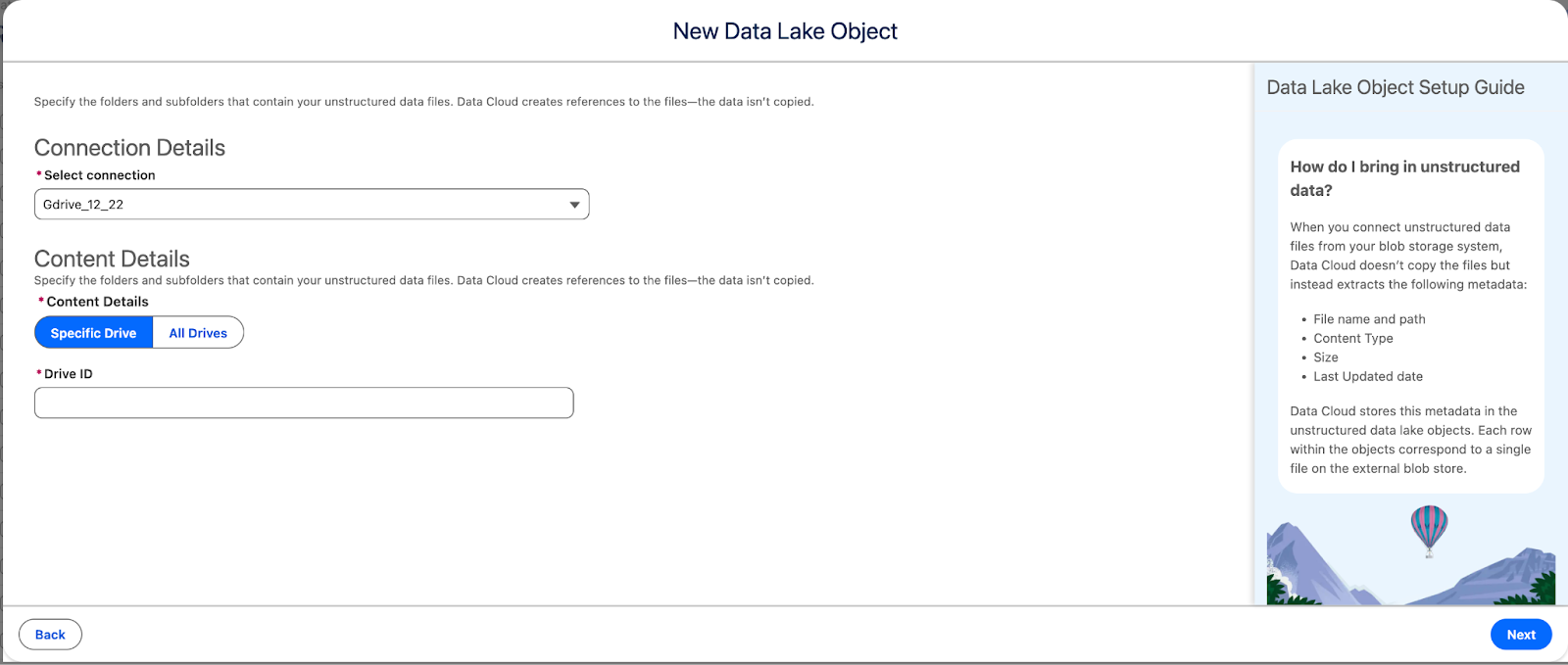
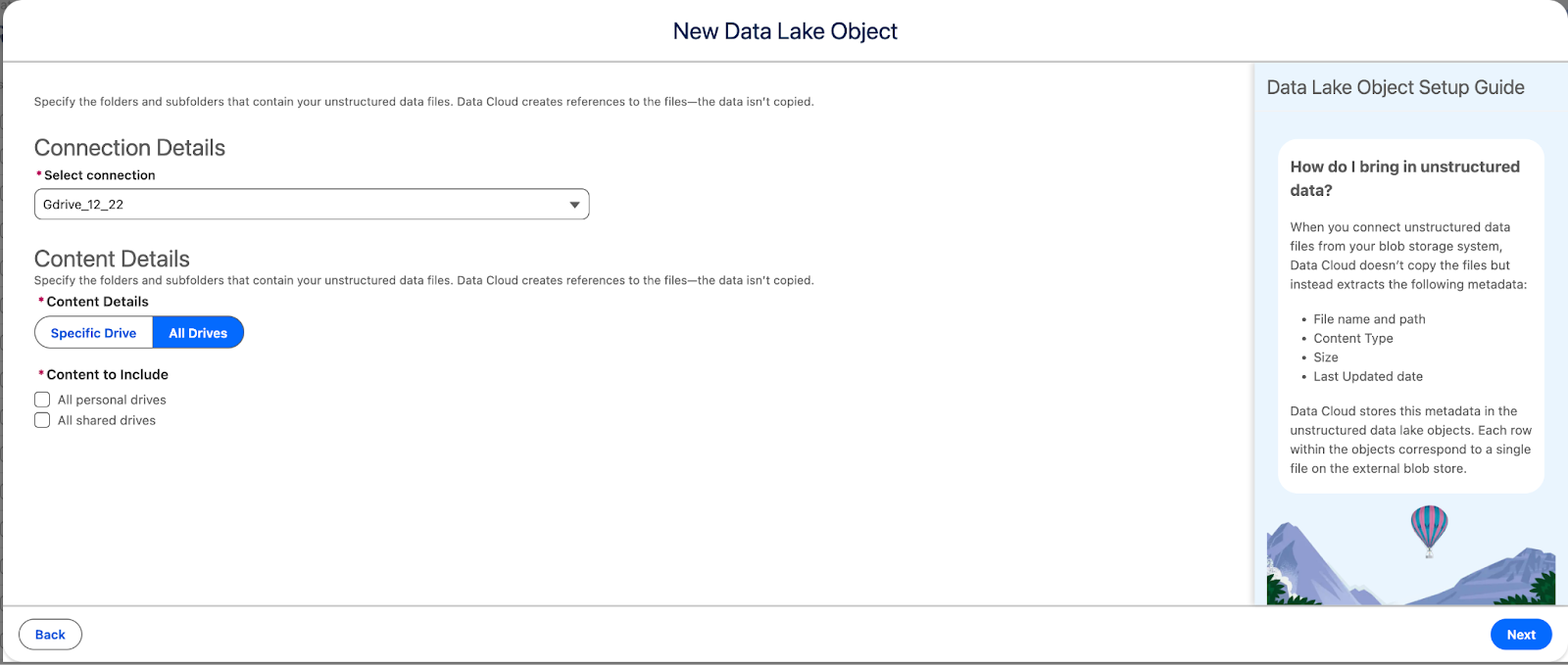
From the Select Connection dropdown list, select a connection. Data Cloud auto-populates the source based on the connection that you select.
-
You can either add the folder ID to ingest data from a specific shared drive or alternatively bring in all shared and/or personal drives from your Google Workspace.
-
Click Next.
-
Add an Object Name and an Object API Name for the UDLO. See Data Lake Object Naming Standards.
-
From the Data Space dropdown list, select a data space in which to create the new UDMO or a data space from which to select an existing UDMO.
-
Map the UDLO to a UDMO.
-
To create a new UDMO, click New.
-
To use an existing UDMO, click Existing, and select a UDMO from the list.
-
Leave the checkbox selected to create a search index configuration for the UDMO using system defaults that automatically selects text fields and a chunking strategy for each field. You can deselect the checkbox and create a search index configuration later if you choose not to do so now.
-
Select the checkbox to enable content harmonization (Beta) for the UDMO. You can leave it deselected and enable content harmonization later if you choose not to do so now. To enable this Beta feature, you need to Select the checkbox to enable content harmonization (Beta) for the UDMO. You can leave it deselected and enable content harmonization later if you choose not to do so now. To enable this Beta feature, you need to enable content harmonization and rendering on the feature manager.
-
Note
-
When you enable content harmonization, you enable collection of Content Viewer engagement data.
-
Click Next, or if you created a search index configuration, review the details, and save your work.
Data 360 automatically creates a data stream, and it refreshes the stream every hour. Currently, only incremental refresh is supported, and it can’t be modified.
See Also
Guardrails
The Google Drive unstructured data connector enforces specific guardrails concerning file format compatibility, size limits, and content age during data ingestion. Files that don’t meet these criteria are automatically skipped, and their status is logged in UDLO for auditing and review.
1. Guardrail 1 - Supported File Formats & Regex Patterns
The connector is configured to process the following explicit MIME types and matching file patterns. This includes a wide range of documents, images, and text formats.
Supported MIME Types
|
Category |
Supported MIME Types |
|
Documents & Spreadsheets |
application/msword, application/rtf, application/vnd.openxmlformats-officedocument.wordprocessingml.document, application/vnd.oasis.opendocument.text, application/vnd.sun.xml.writer, application/vnd.ms-excel, libre/doc, text/csv, application/json |
|
|
application/vnd.pdf, application/acrobat, application/pdf, application/x-pdf, text/pdf, text/x-pdf |
|
Google Workspace |
application/vnd.google-apps.document, application/vnd.google-apps.presentation, application/vnd.google-apps.spreadsheet |
|
Images |
image/bmp, image/gif, image/jpeg, image/png, image/svg+xml, image/tiff, image/webp |
|
Web & Text |
html, htm, text/html, text/markdown, text/x-markdown, text/plain |
Supported Regex Patterns
The following regular expressions are used to capture supported file types that match broad patterns in their MIME type or file extension:
|
Regex Pattern |
Description | |
|
`"/^(?!.*google).doc. |
.-doc./i` |
Matches MIME types containing .doc or -doc anywhere, excluding Google Docs formats. |
|
`"/.html. |
.-html./i` |
Matches MIME types containing .html or -html anywhere. |
|
`"/.image. |
.-image./i` |
Matches MIME types containing image or -image anywhere. |
|
`"/.md. |
.markdown./i` | Matches MIME types containing .md or markdown anywhere. |
|
"/.*pdf.*/i" |
Matches MIME types containing pdf anywhere. |
application/pdf; application/x-pdf; text/pdf |
|
"/^application\\/vnd\\.google-apps\\..*/i" |
Matches MIME types starting with application/vnd.google-apps. |
application/vnd.google-apps.document; application/vnd.google-apps.spreadsheet; application/vnd.google-apps.presentation |
2. Guardrail 2 - Unsupported File Patterns
The following Google Workspace MIME types are explicitly excluded from ingestion and will be skipped:
-
application/vnd.google-apps.shortcut
-
application/vnd.google-apps.script
-
application/vnd.google-apps.site
-
application/vnd.google-apps.form
-
application/vnd.google-apps.vid
3. Guardrail 3 - File Size Limitations
To maintain processing stability and efficiency, the connector enforces maximum file size limits. Files are categorized, and a maximum size check is performed based on the content type. Any file exceeding its category limit will be skipped.
|
File Type |
Size Limit |
MIME types & Regex Patterns |
|
PDF, CSV & similar formats |
100MB |
MIME Types: application/pdf, application/x-pdf, application/acrobat, applications/vnd.pdf, text/pdf, text/x-pdf, text/csv, application/vnd.openxmlformats-officedocument.wordprocessingml.document Regex Patterns: ^application\/vnd\.google-apps\..*, .*pdf.* |
|
Image & Similar format |
20MB |
MIME Types: image/jpeg, image/png, image/gif, image/bmp, image/tiff, image/webp, image/svg+xml Regex Patterns: .*image.*|.*x-image.* |
|
All other supported Formats |
4 MB |
Any supported file format that does not fall into the PDF or Image categories will be checked against the 4 MB maximum size limit. |
4. Guardrail 4 - Last Modified Time
Content deemed stale based on its age is skipped to maintain relevance.
Rule: Any content where the last modified time is more than 2 years before the current sync time will be skipped.
Handling of Skipped Files (UDLO Reporting)
When a file fails any guardrail check (Format, Size, or Last Modified Time),it is skipped. The outcome is recorded in the Unstructured Data Lake Object (UDLO). The UDLO will have below fields to detail the failure.
|
Field |
Value |
Description |
|
Sync Status |
SKIPPED |
Indicates that the file was not processed and ingested. |
|
Sync Status Detail |
Detailed Error Message |
Provides the explicit reason why the file was skipped. |
|
File Path |
NULL or Empty String |
The file path field is explicitly cleared for all skipped records to mark them as non-ingested. |
Reasons for Skipping (Sync Status Detail)
Files are processed through a series of checks. If a check fails, the file is immediately skipped and the appropriate reason is logged in UDLO.
|
Failure Condition |
Status Details Message |
|
Unsupported Format |
Explicitly Unsupported: If the file's MIME type matches an unsupported pattern (e.g., application/vnd.google-apps.shortcut). Unsupported content type: %s (Eg., Unsupported content type: audio files) |
|
Default Format Skip |
Implicitly Unsupported: If the file's type does not match any supported format or regex patterns, it will be skipped. Unsupported content type: %s (Eg., Unsupported content type: audio files) |
|
Content Age |
Last modified time %s is older than %d years (e.g., Last modified time 2022-01-15T10:30:00Z is older than 2 years) |
|
Size Exceeded (PDF,CSV & Similar) |
%s must be less than %d MB (found %.2f MB) (e.g., PDF must be less than 100 MB (found 204.20 MB)) |
|
Size Exceeded (Image & Similar) |
%s must be less than %d MB (found %.2f MB) (e.g., IMAGE must be less than 20 MB (found 25 MB)) |
|
Size Exceeded (All Other) |
%s must be less than %d MB (found %.2f MB) (e.g., Text/other files must be less than 4 MB (found 30 MB)) |
Ingestion Size Limits and Timeout
Google Drive supports ingestion of drives up to 270 GB in a single ingestion job.
Note: Timeout Guidance
Ingestion jobs that run for longer than 24 hours may time out depending on system execution limits. Please plan accordingly.
Vidensartikelnummer
005232581
Løste denne artikel dit problem?
Giv os besked, så vi kan forbedre os!
