Velg en organisasjon
How to fix Slack CRM Analytics App Connection Errors: "431 Request Header Too Large" & "Authorization Failure"
Publiseringsdato: May 27, 2026
Beskrivelse
Errors while connecting the Slack CRM Analytics App to Salesforce.
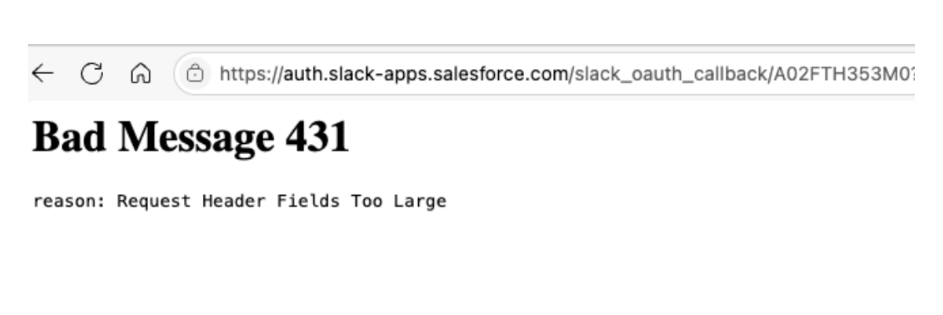
- 431 – Request Header Fields Too Large: This error occurs when the required CRM Analytics and Slack integration permissions have not been assigned to the user. The oversized request header is a symptom of missing permission configuration.
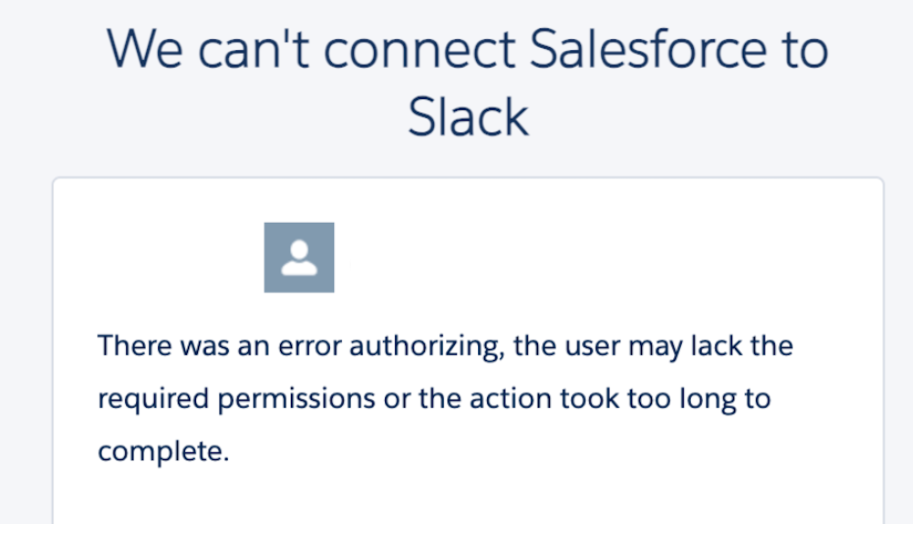
- Authorization failure ("We can't connect Salesforce to Slack..."): This error indicates that the user may lack required permissions, an existing Slack workspace mapping or previously connected app is interfering with the connection, or the connection attempt timed out. Disconnecting existing workspace mappings or reinstalling the CRM Analytics app typically resolve.
Løsning
1. Resolving the Error: “431 – Request Header Fields Too Large”
This error occurs when the required CRM Analytics and Slack integration permissions are not assigned to the user.
-
Create or update a custom permission set that includes all required CRM Analytics and Slack integration permissions.
-
After assigning the permission set to the affected user, enable Salesforce for Slack integrations for the CRM Analytics App, and then retry connecting the CRM Analytics Slack App with Salesforce.
2. Resolving the Error: “We can't connect Salesforce to Slack. There was an error authorizing; the user may lack the required permissions or the action took too long to complete.”
Step 1: Verify Required Permissions
-
Ensure all required Slack and CRM Analytics permissions are assigned to the affected user, as per Salesforce documentation.
Step 2: Check for Slack User Mappings or Existing Workspace Connections
-
Go to Slack User Mappings in Salesforce and check for any existing mappings or previously connected Slack workspace apps.
-
If any are found, disconnect or remove these mappings/workspace connections and then retry connecting the CRM Analytics Slack App with Salesforce.
Step 3: Reinstall the CRM Analytics Slack App (If Issue Persists)
-
If the error still occurs, request your Slack workspace administrator (the person in your organization who manages Slack app installations and workspace settings) to remove/delete the CRM Analytics App from the Slack workspace. .
-
After removal, retry connecting the Slack App with Salesforce again.
Knowledge-artikkelnummer
005232678
Hjalp denne artikkelen med å løse problemet ditt?
La oss få vite det slik at vi kan forbedre!
