Sélectionner une organisation
Basic Configuration of Gateway API with NGINX Gateway Fabric and HTTPRouteTemplate for Runtime Fabric
Date de publication: Jan 11, 2026
Tâche
Disclaimer: This article involves products and technologies which do not form part of the MuleSoft product set. Technical assistance for such products is limited to this article.
NOTE: According to the Shared Responsibility, configuring the Ingress controller and external load balancing are part of customers' responsibility. The instructions may vary per different ingress types. This article is for your reference only.
Basic Configuration of Gateway API with NGINX Gateway Fabric and HTTPRouteTemplate for Runtime Fabric
Étapes
Step 1: Install Gateway API CRDs
Install the standard Gateway API CRDs.
kubectl apply --server-side -f \
https://github.com/kubernetes-sigs/gateway-api/releases/download/v1.4.1/standard-install.yaml
Reference:
Step 2: Install a Gateway Controller (NGINX Gateway Fabric)
Install the NGINX Gateway Fabric controller using Helm.
helm install ngf oci://ghcr.io/nginx/charts/nginx-gateway-fabric \
  --create-namespace \
  -n nginx-gateway
References:
Step 3: Create TLS Secret for the Gateway
Create a Kubernetes TLS secret containing the certificate and key.
kubectl create secret tls aq-muley-tls \
  -n nginx-gateway \
  --cert=/path/to/cert.pem \
  --key=/path/to/key.pem
Step 4: Define the Gateway Resource
Create a Gateway with an HTTPS listener and TLS termination.
gateway.yaml
apiVersion: gateway.networking.k8s.io/v1
kind: Gateway
metadata:
  name: cluster-gateway
  namespace: nginx-gateway
spec:
  gatewayClassName: nginx
  listeners:
    - name: https
      protocol: HTTPS
      port: 443
      hostname: gateway.aq.muley.io
      allowedRoutes:
        namespaces:
          from: All
      tls:
        mode: Terminate
        certificateRefs:
          - kind: Secret
            name: aq-muley-tls
Apply:
kubectl apply -f gateway.yaml
Step 5: Resolve Gateway External Address
Retrieve the Gateway address and resolve it to an IP.
Example:
$ kubectl get gateway cluster-gateway -n nginx-gateway

cluster-gateway   nginx   abcd.us-west-2.elb.amazonaws.com   True         1h
Resolve:
nslookup <elb-hostname> 8.8.8.8Use this IP for validation or DNS mapping.
Step 6: Define HTTPRouteTemplate for Runtime Fabric
Create an HTTPRouteTemplate
Reference documentation: https://docs.mulesoft.com/runtime-fabric/latest/configure-ingress-http-resource#example-for-kubernetes-gateway-api
http_template_gateway.yaml
apiVersion: rtf.mulesoft.com/v1
kind: HTTPRouteTemplate
metadata:
  name: example-template-gateway
  namespace: rtf
spec:
  baseEndpoints:
    - https://gateway.aq.muley.io
  resources:
    - |
      apiVersion: gateway.networking.k8s.io/v1
      kind: HTTPRoute
      metadata:
        name: {{ .ResourceName }}
        namespace: {{ .Namespace }}
      spec:
        parentRefs:
          - kind: Gateway
            name: cluster-gateway
            namespace: nginx-gateway
        hostnames:
          - {{ .Host }}
        rules:
          - matches:
              - path:
                  type: PathPrefix
                  value: {{ .Path }}
            filters:
              - type: URLRewrite
                urlRewrite:
                  path:
                    type: ReplacePrefixMatch
                    replacePrefixMatch: /
            backendRefs:
              - kind: Service
                name: {{ .Service.Name }}
                port: {{ .Service.Port }}
Apply:
kubectl apply -f http_template_gateway.yamlOn Runtime Manager:

Step 7: Deploy an application using the endpoint configured with HTTPRouteTemplate for Runtime Fabric
After deployment, check for the HTTPRoute resource creation:
$ kubectl get httproutes.gateway.networking.k8s.io \
  -n <app-namespace>

$ kubectl describe httproute <route-name> -n <app-namespace>
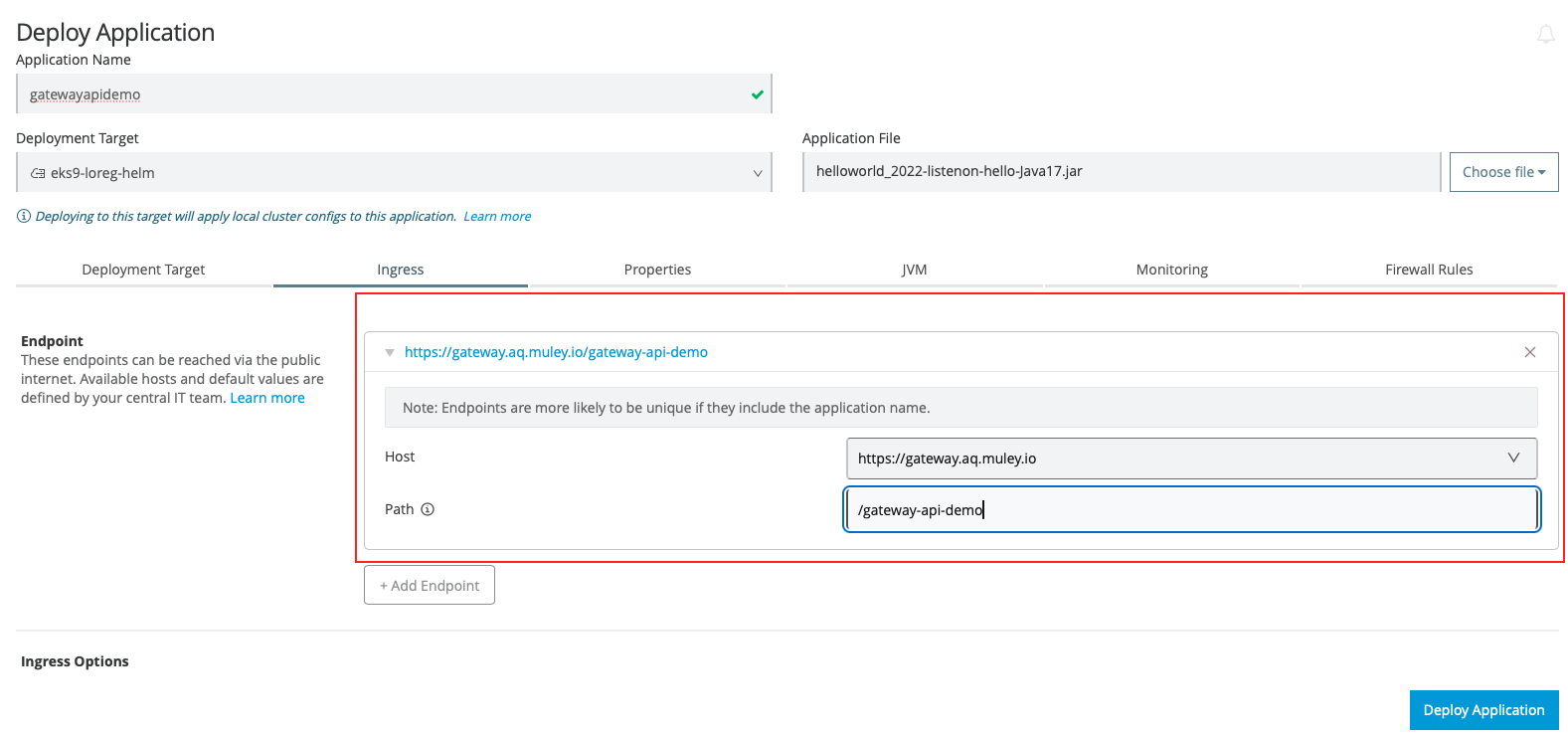
Validate:
$ kubectl get httproutes.gateway.networking.k8s.io -n b55de03e-f012-4f04-88bb-eeeed4b169df| grep demo
gatewayapidemo-2948462308    ["gateway.aq.muley.io"]   3m23s
Step 8: Test End-to-End Traffic
Test using curl
$ curl  https://gateway.aq.muley.io/gateway-api-demo/hello --resolve gateway.aq.muley.io:443:44.235.248.204
{ "payload": ""
}%
References
-
Gateway API:
-
NGINX Gateway Fabric:
-
Ingress Migration:
Numéro d’article de la base de connaissances
005239352
Cet article a-t-il résolu votre problème ?
Dites-nous ce que nous pouvons améliorer !
