Seleccionar una organización
Schedule an Online-Proctored Salesforce Certification Exam

Congratulations on taking the next step in becoming a Salesforce certified professional! All proctored Salesforce certification exams can be taken online with a remote proctor or onsite at a testing center. Select the option that works best with your schedule.
To request accommodations in Trailhead Academy, go to your Trailhead Academy Account and scroll down to the bottom. Under Accommodations, please use the link to Request Accommodations and create a case with your request.
- Visit this article, to find out how to schedule a Salesforce certification exam onsite at a testing center.
- Watch this video, to get a walkthrough of how to schedule an online-proctored Salesforce certification exam.
Schedule an Online-Proctored Salesforce Certification Exam
-
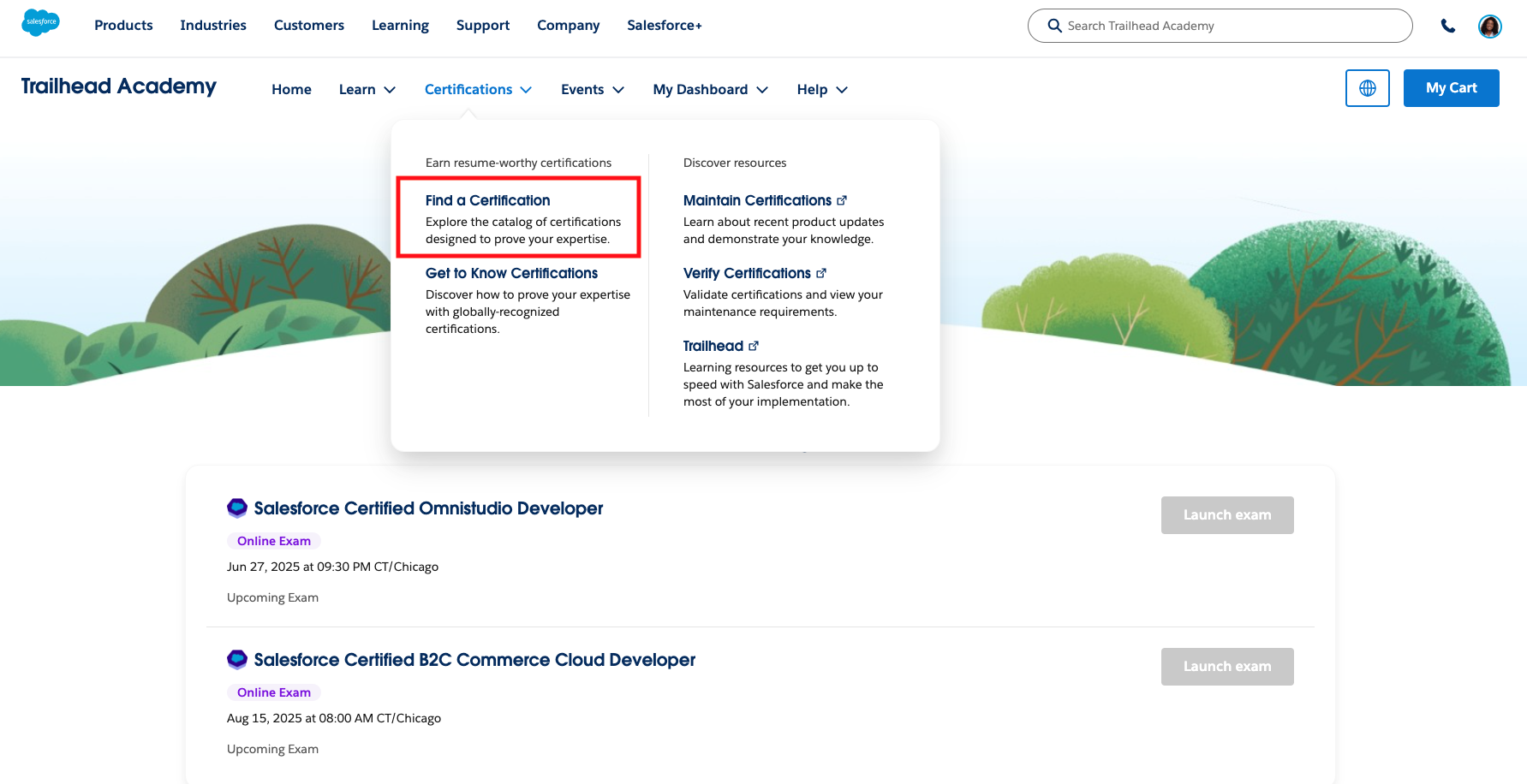
At the top of the Trailhead Academy homepage, click Certifications and then select Find a Certification to get to the Salesforce certification catalog.
-
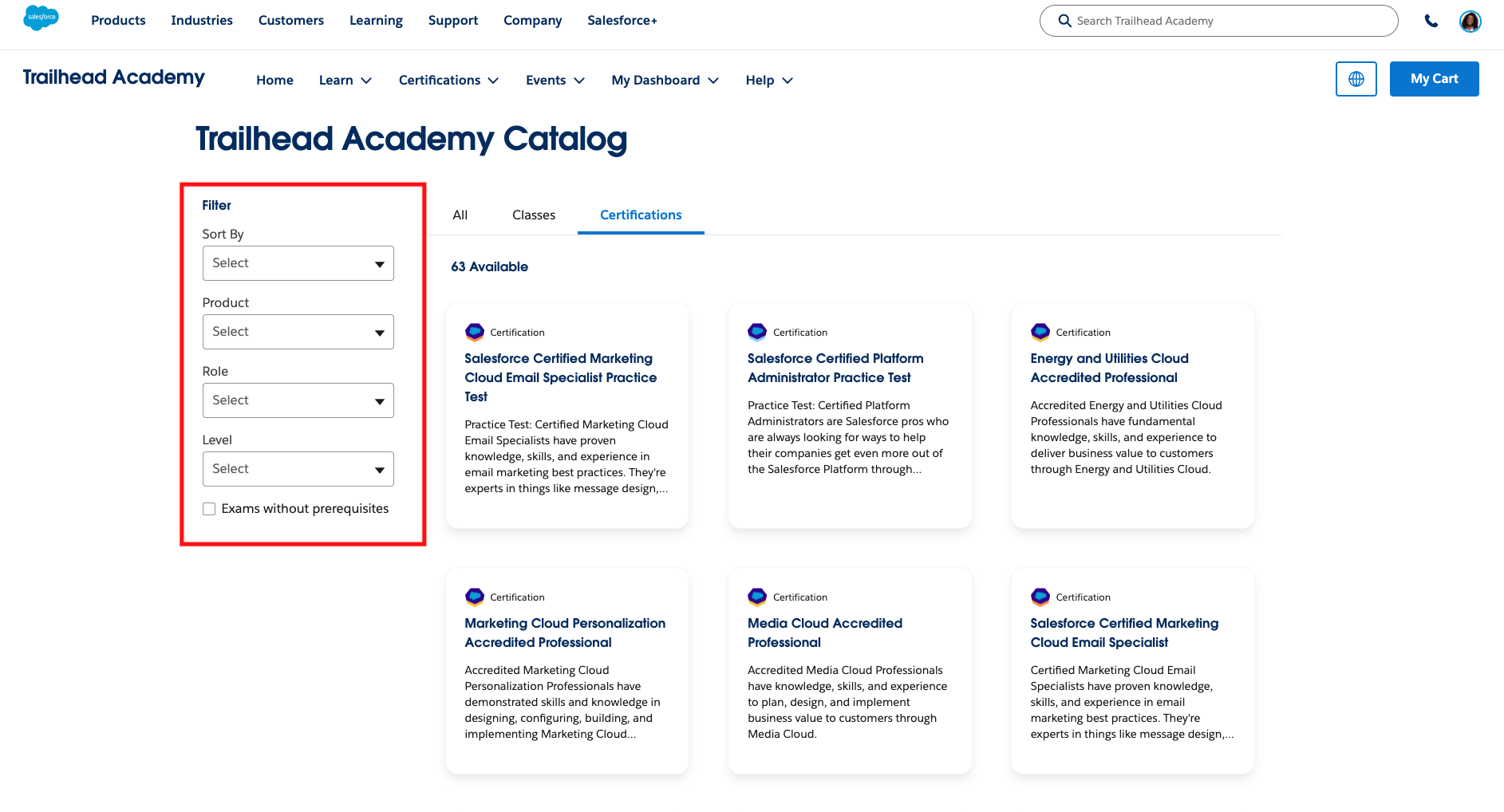
Use the Product, Role, or Level filters to find the certification you’re looking for.
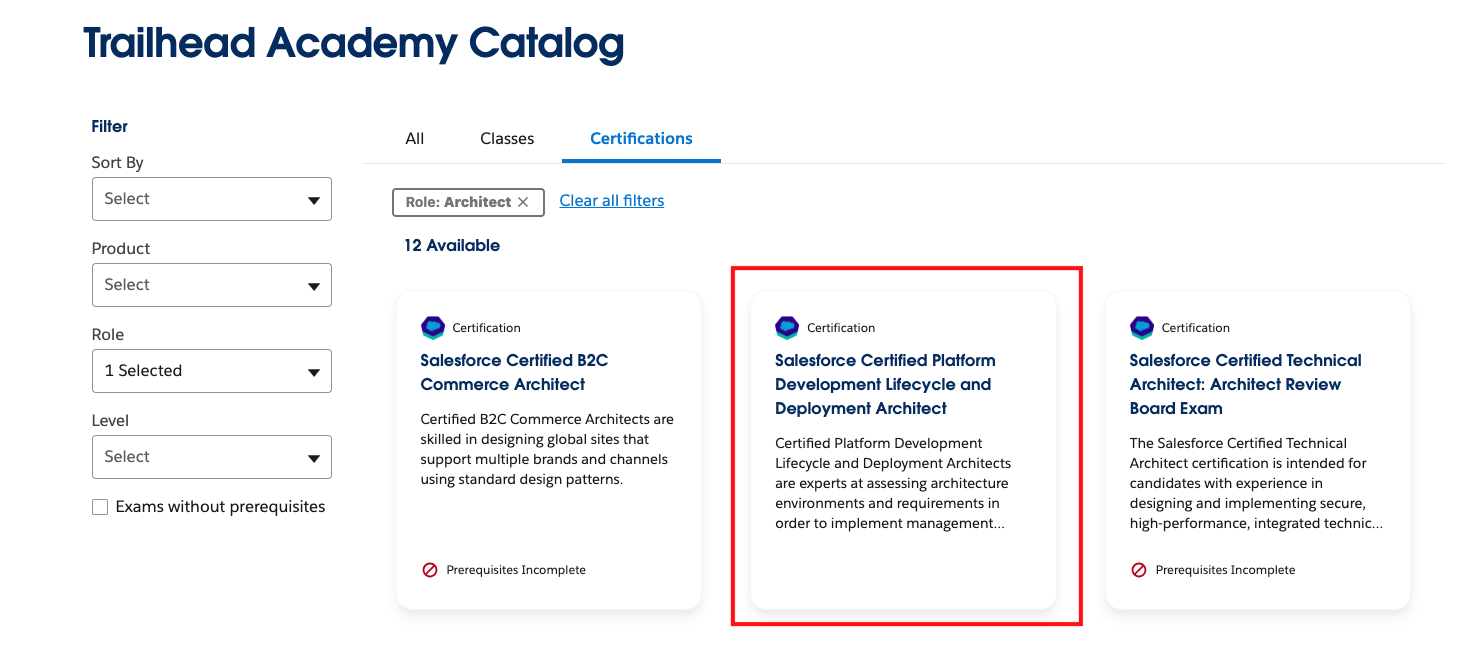
- Once you find the certification you want, click on the tile to view its exam detail page.
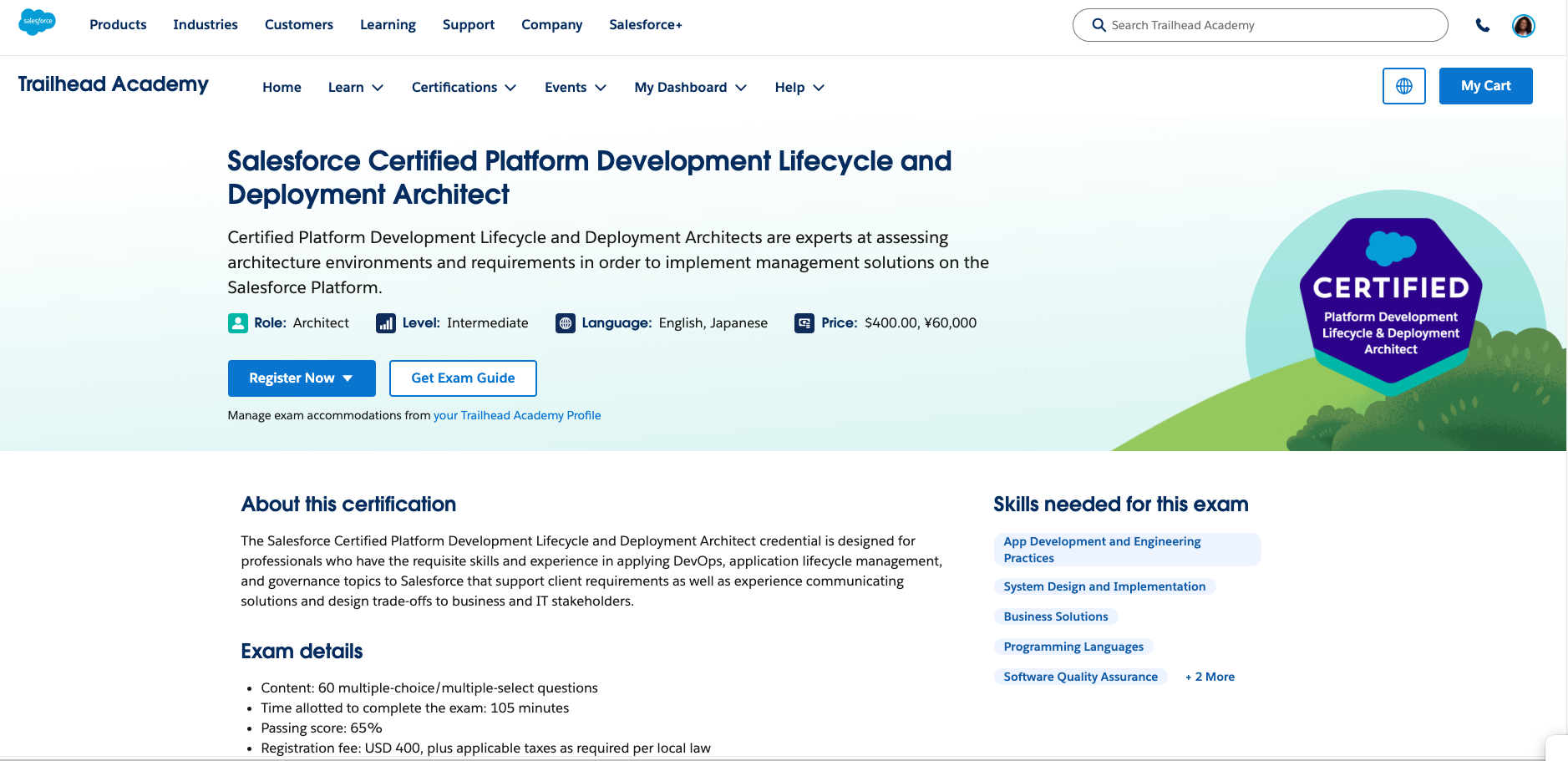
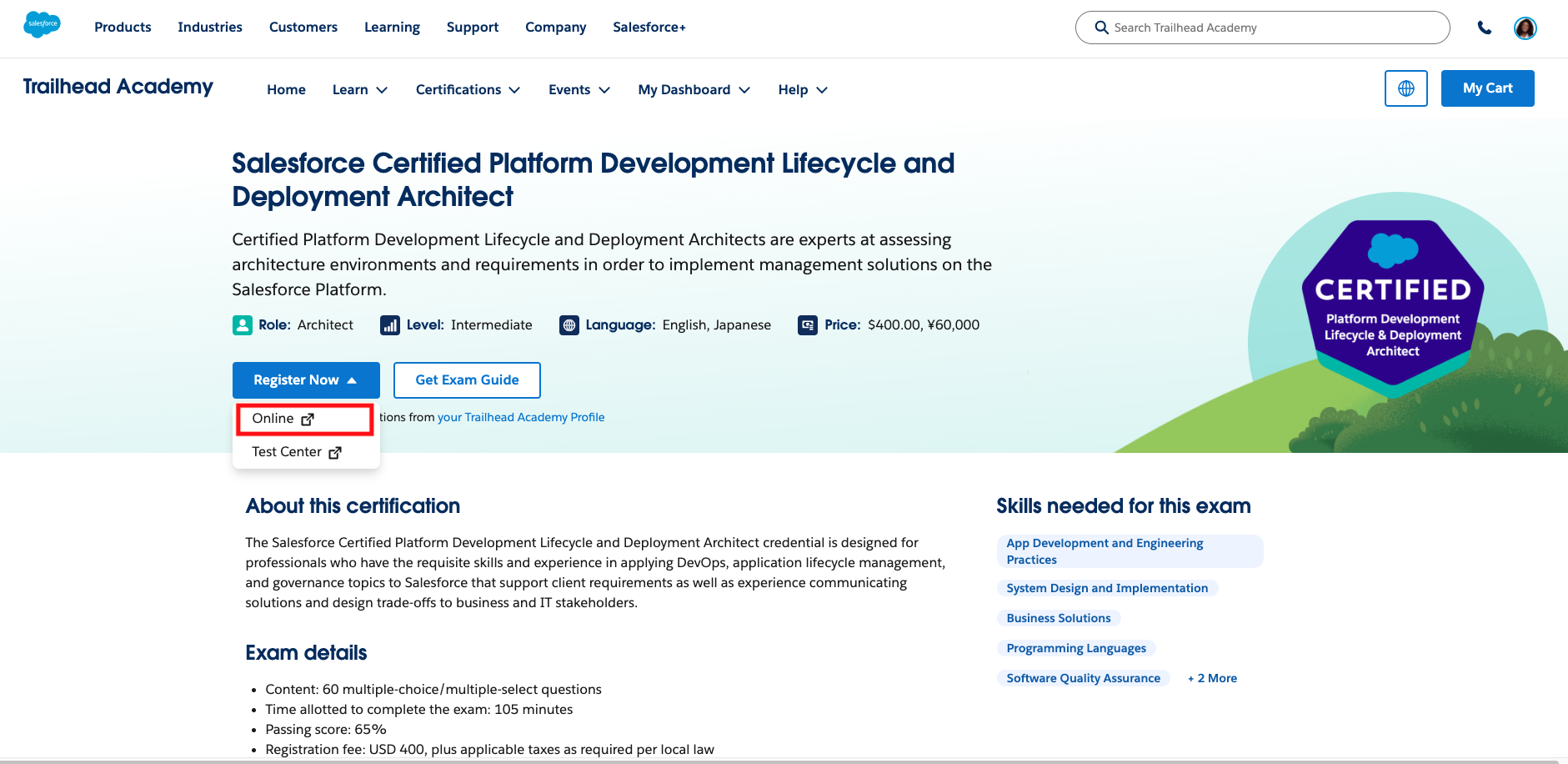
On the exam detail page you’ll find what topics it covers, eligibility, and the role and level it's designed for. - From the exam’s detail page, click Register Now and choose the Online option. Make sure you’re logged in to your Trailblazer profile and you have set up your Trailhead Academy Account.
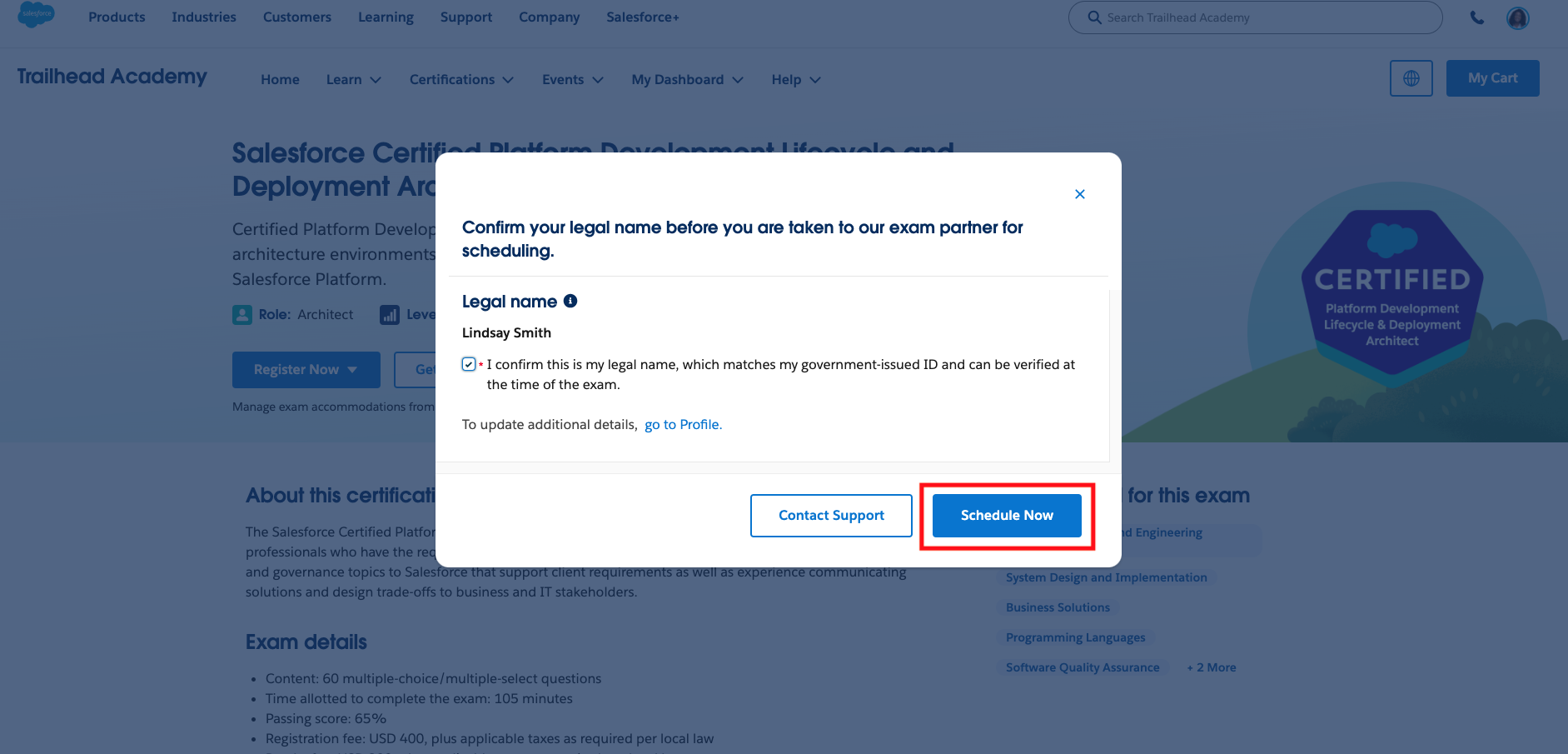
- Once you select your delivery mode, you will be asked to verify your legal name. Your legal name must match the name listed on your driver's license or government-issued ID that you will use during the exam pre-check process. This cannot be changed once you have completed scheduling your exam, so double-check your name before submitting. Once you verify your legal name, click Schedule Now.
⚠ Verify your legal name matches your government-issued ID before continuing.
Your name in Trailhead Academy must exactly match the name on the ID you'll present on exam day. If they don't match, update your name before registering — see Request a Legal Name Change in Trailhead Academy. Name mismatches after registration require a support case to resolve.
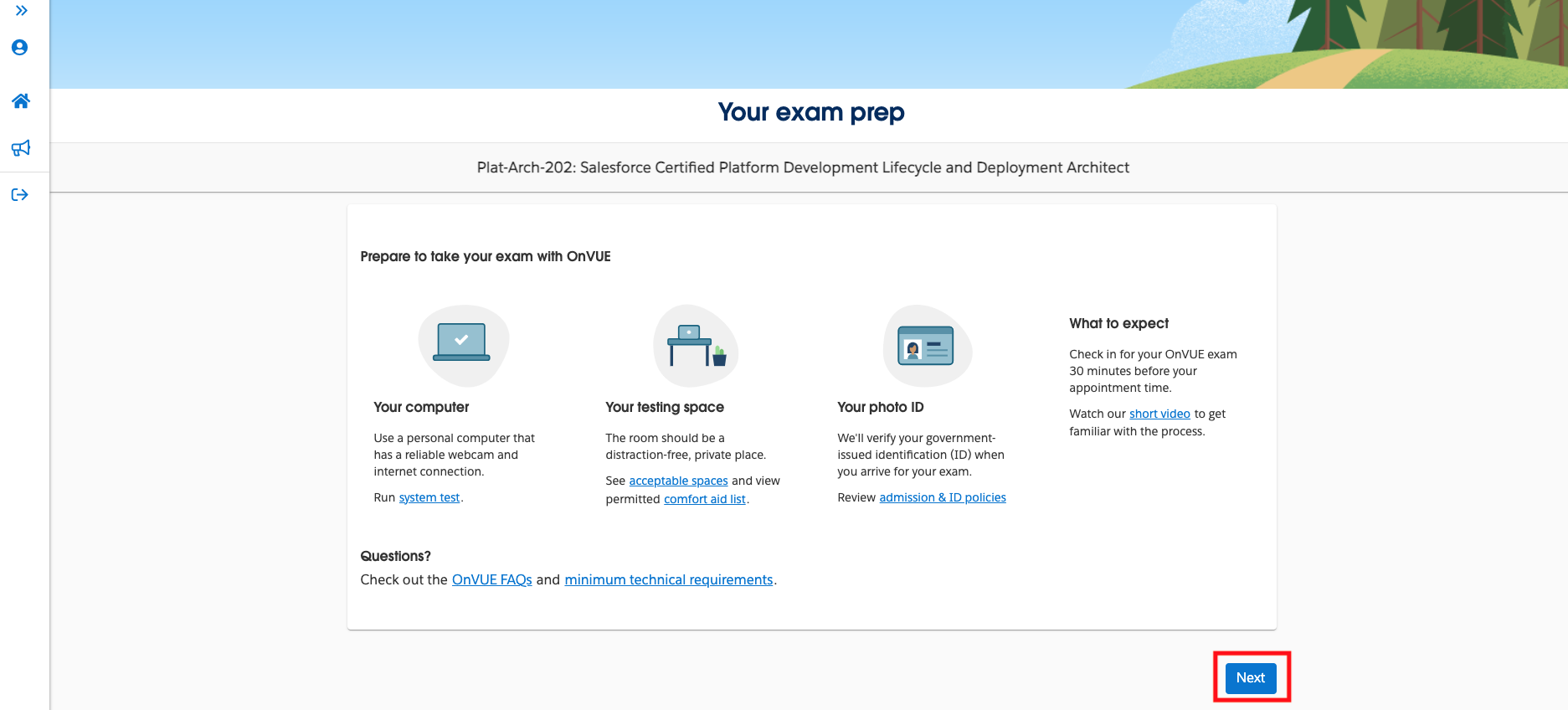
- Next you’ll automatically be taken to Pearson, our exam delivery provider, to complete your exam registration, schedule, and pay. Click Next to continue.
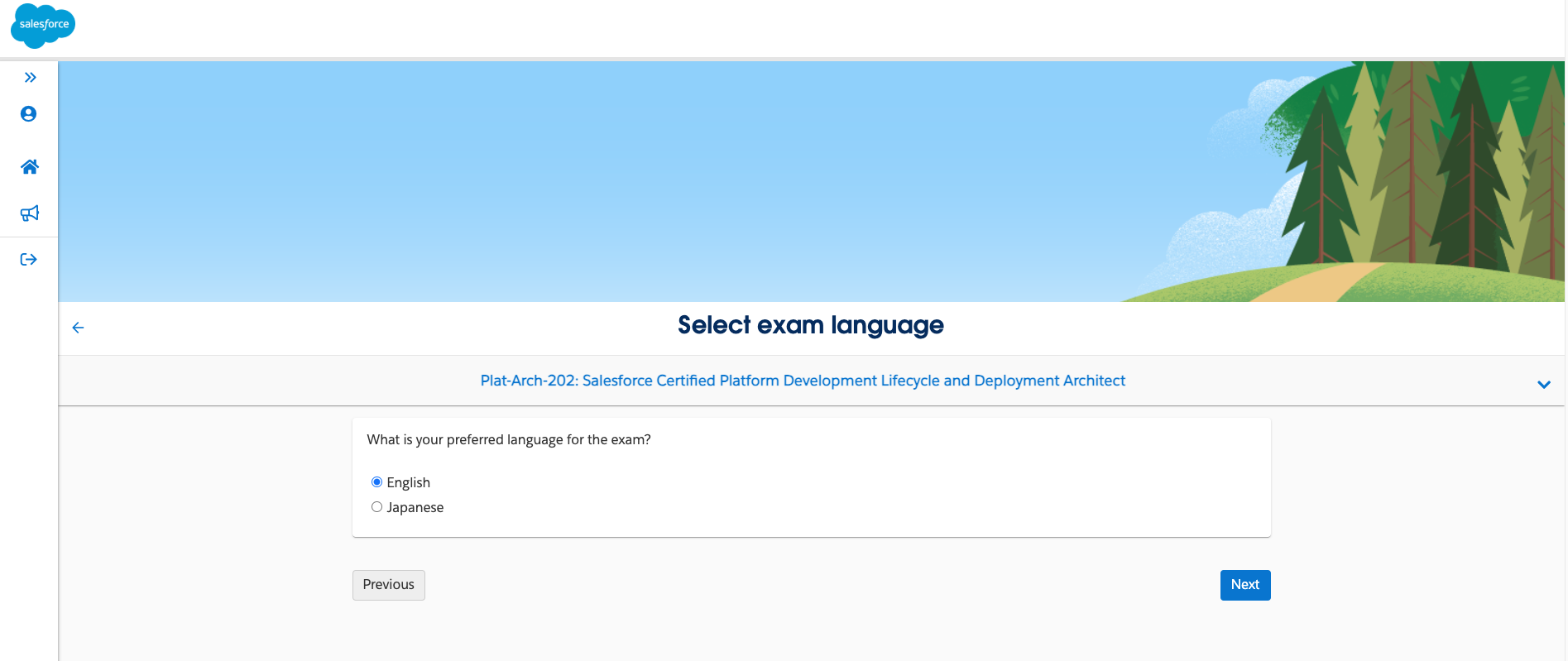
- Select your preferred exam language: English or Japanese. This scheduling process is only offered for localized Salesforce certification exams.
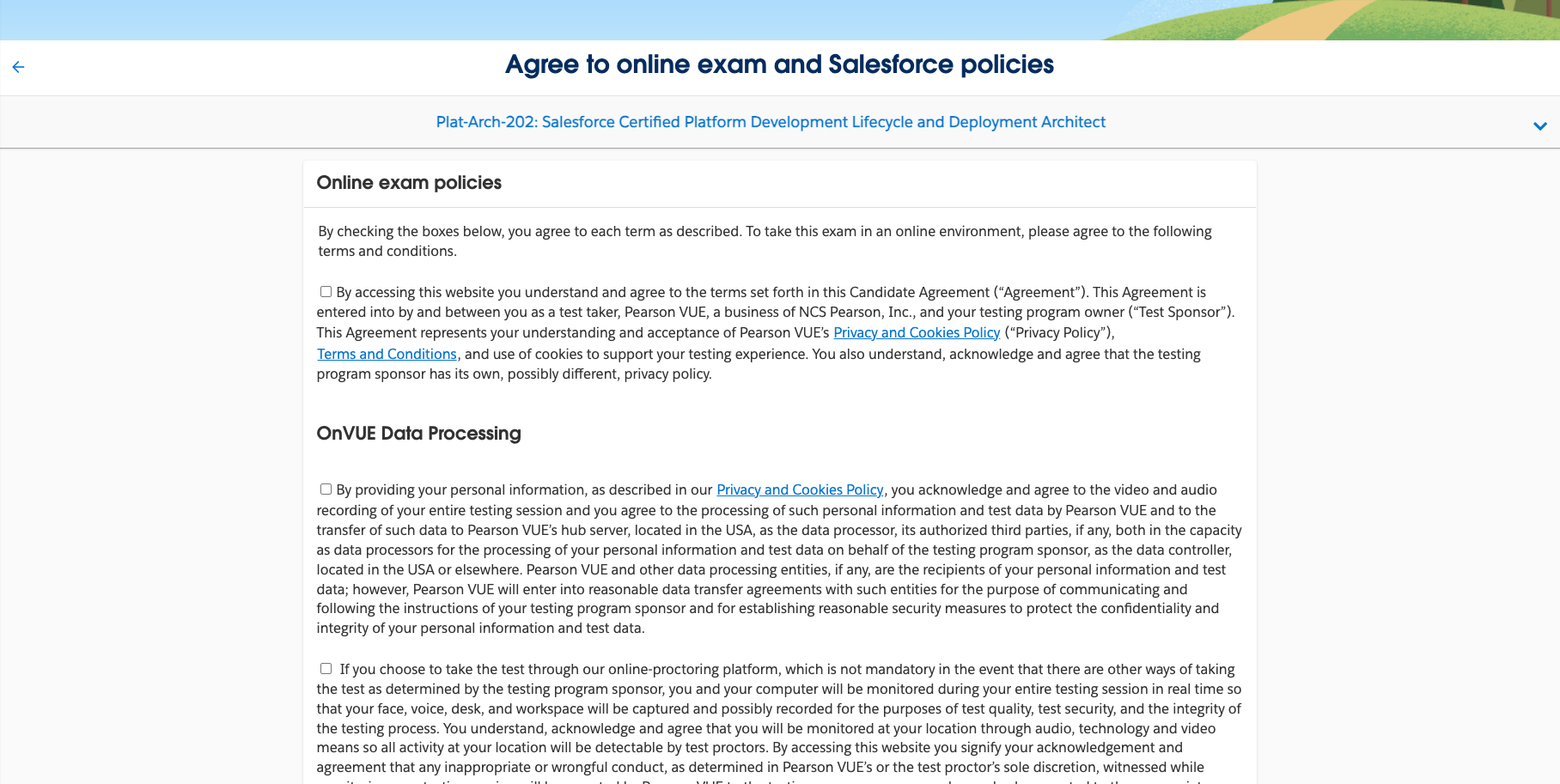
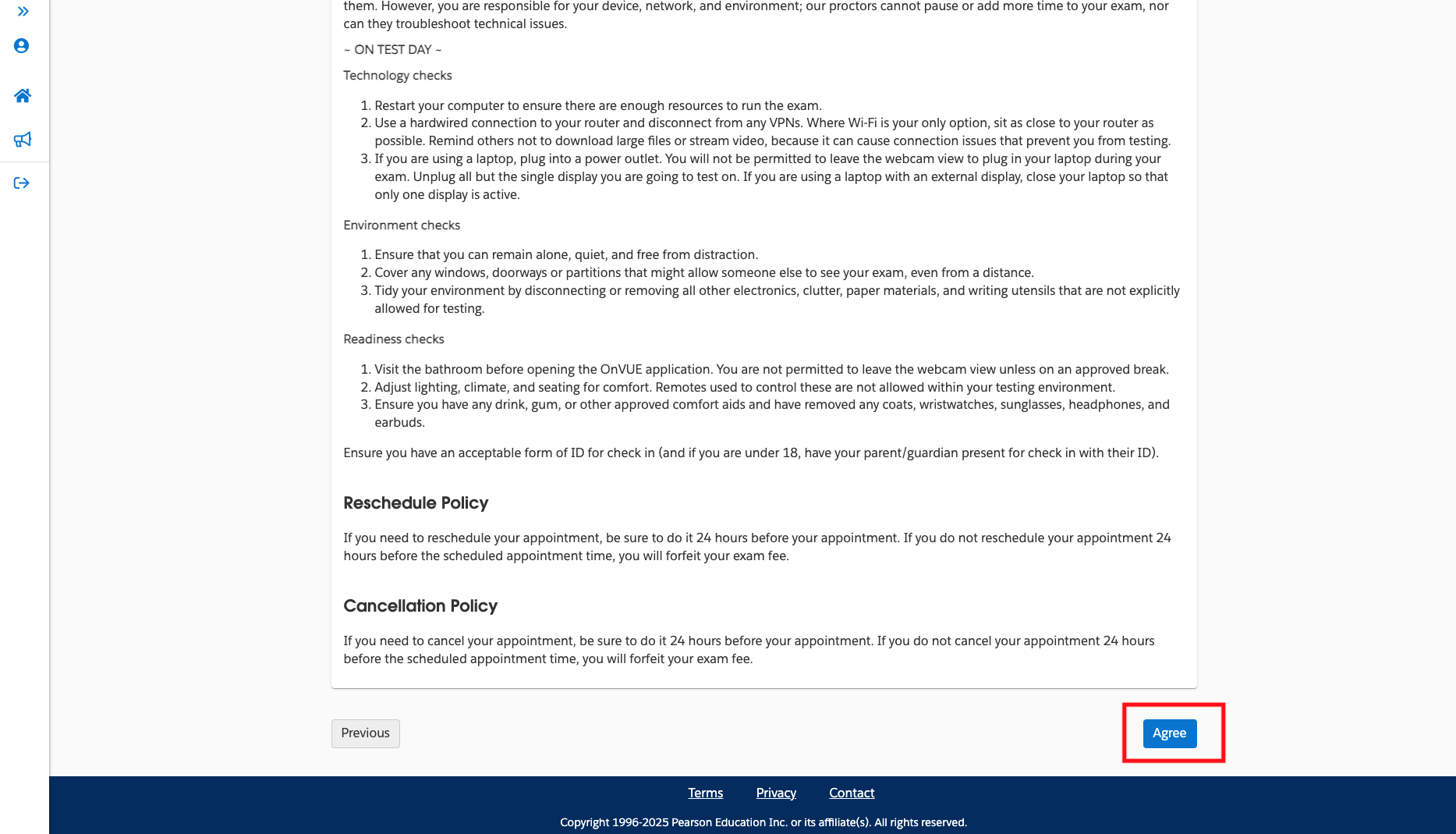
- Review and accept the online exam and Salesforce policies by clicking the check mark next to each policy. Next, navigate to the bottom of the page and click Agree.
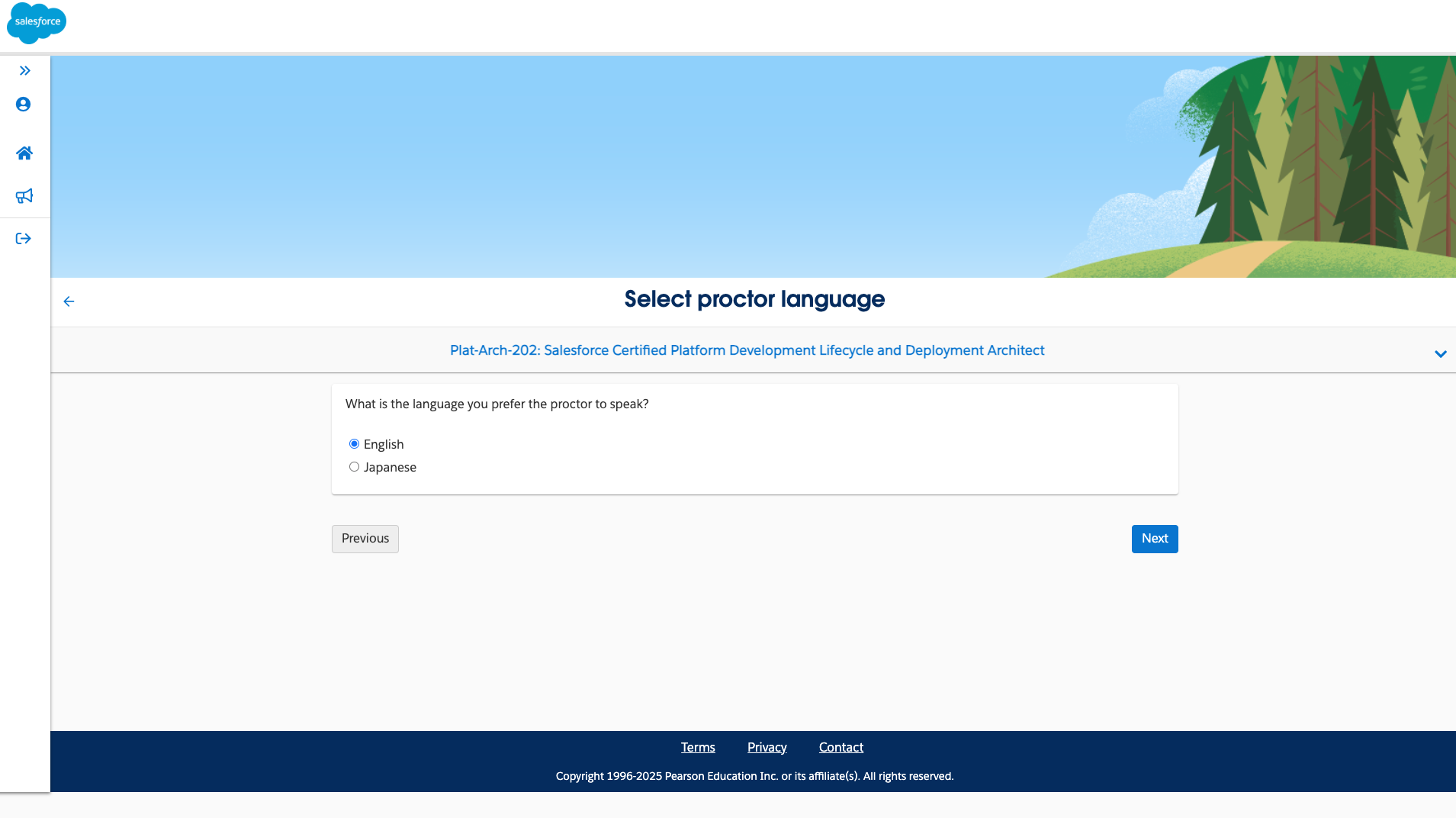
- Select your preferred language spoken by the proctor: English or Japanese.
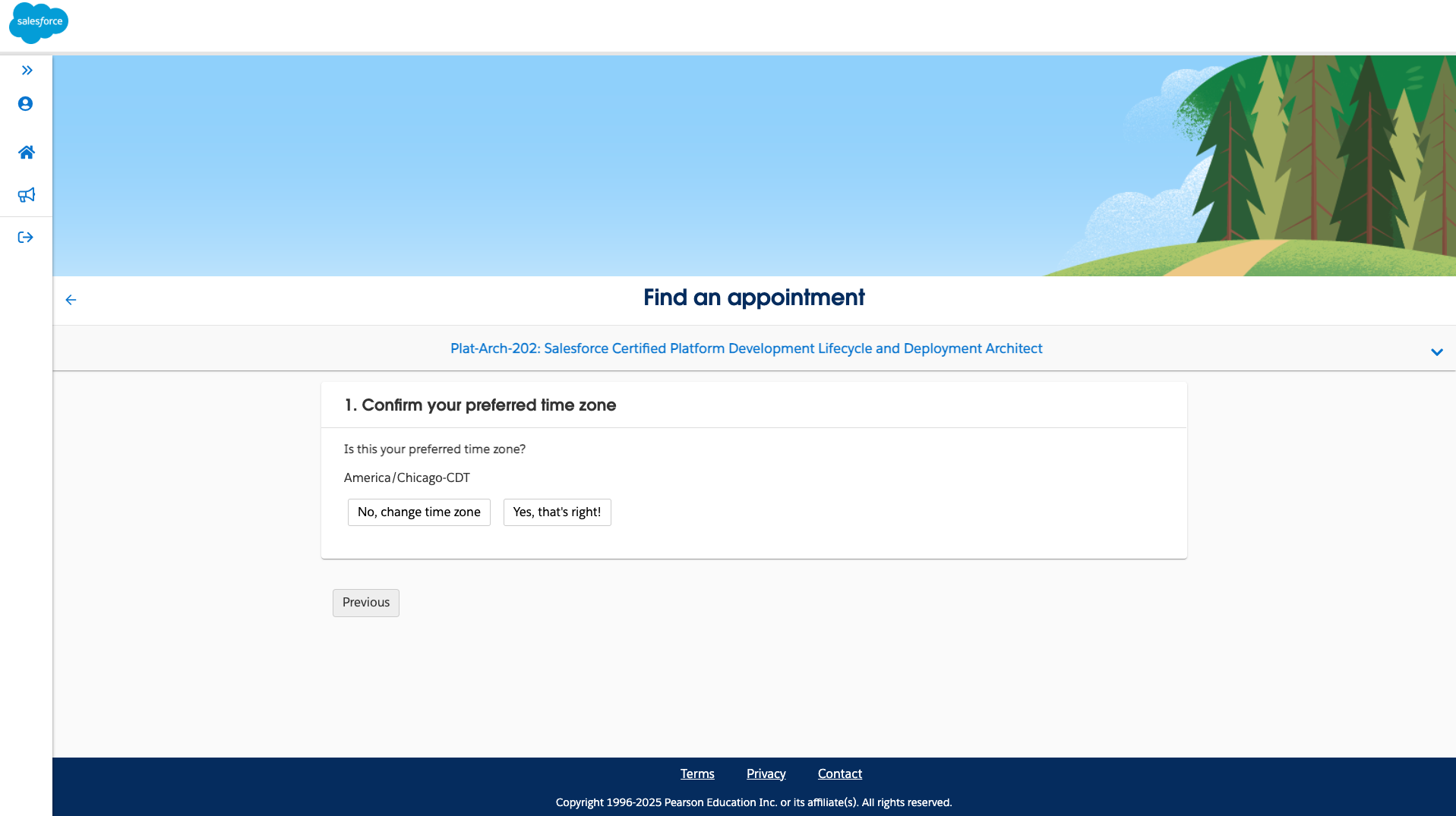
- Confirm your preferred time zone. Please note, if you select a time zone different from your physical location time, the appointment will follow the time zone selected.
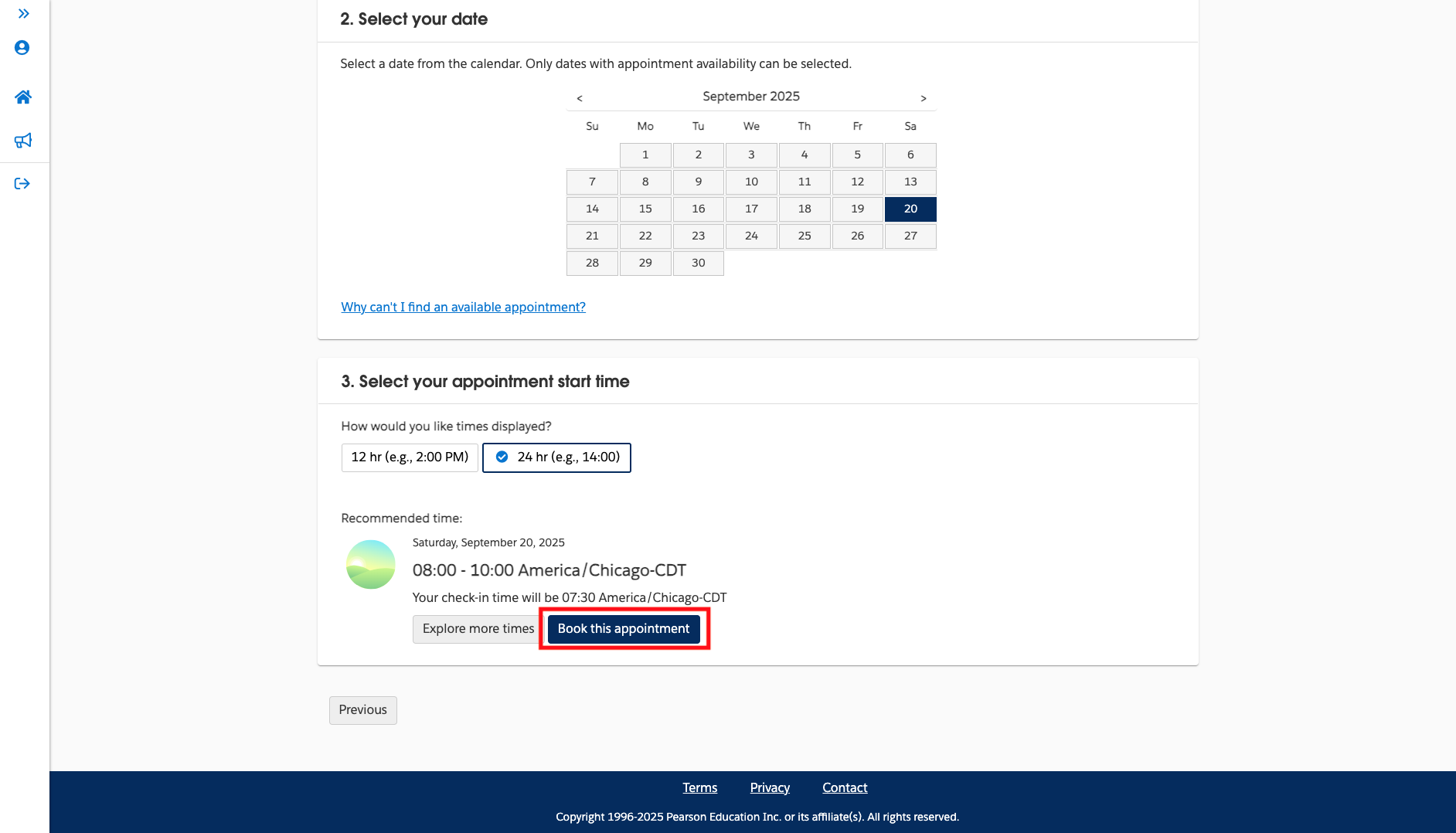
- Select a date and appointment start time for your exam. Once you have made your selection, click Book this appointment.
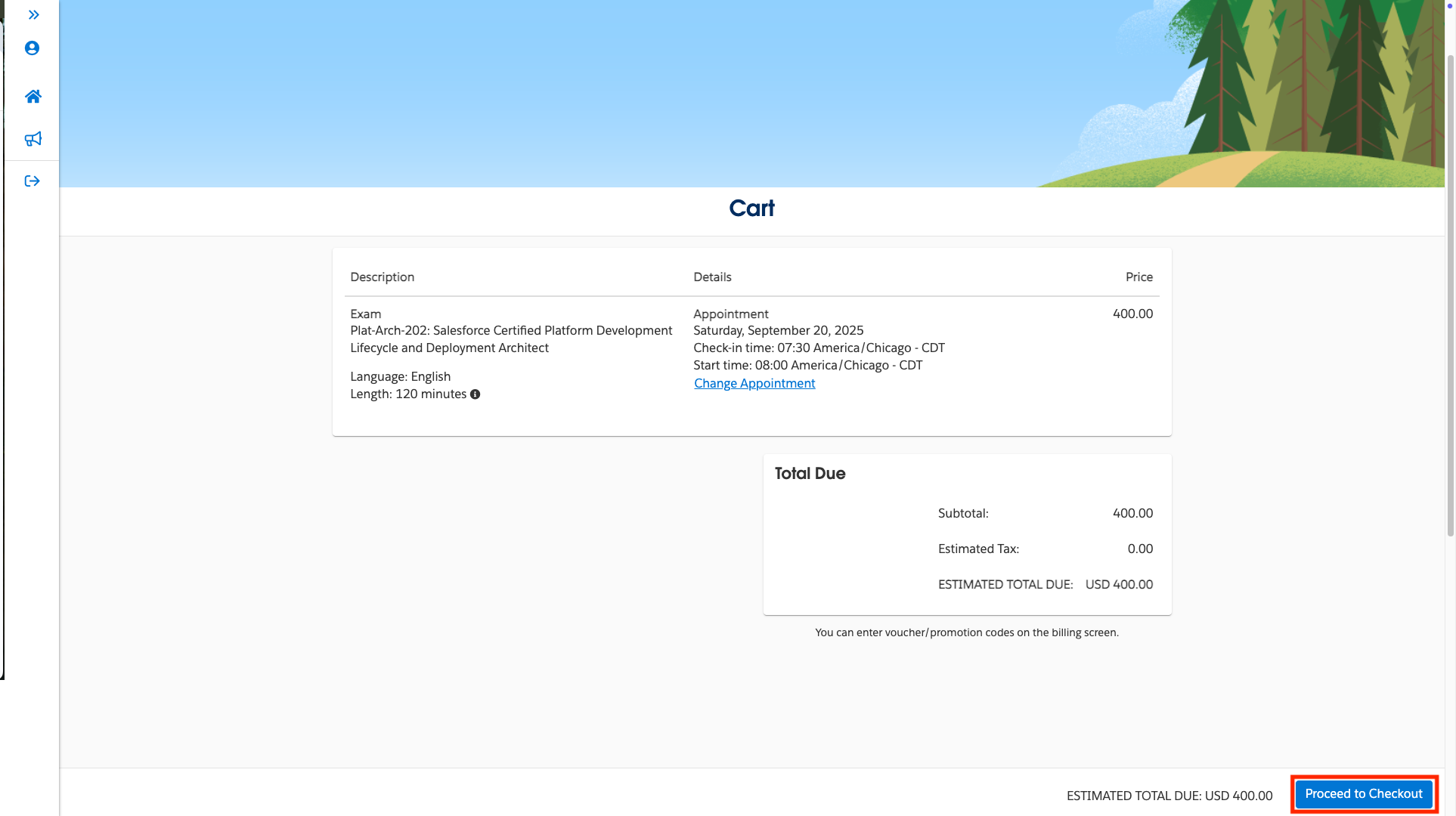
- Next, you’ll land in your cart where you’ll see your exam details including the exam name, language, length, date and start time, and price. Click Proceed to Checkout if all the details look accurate. You also have the option here to Change Appointment.
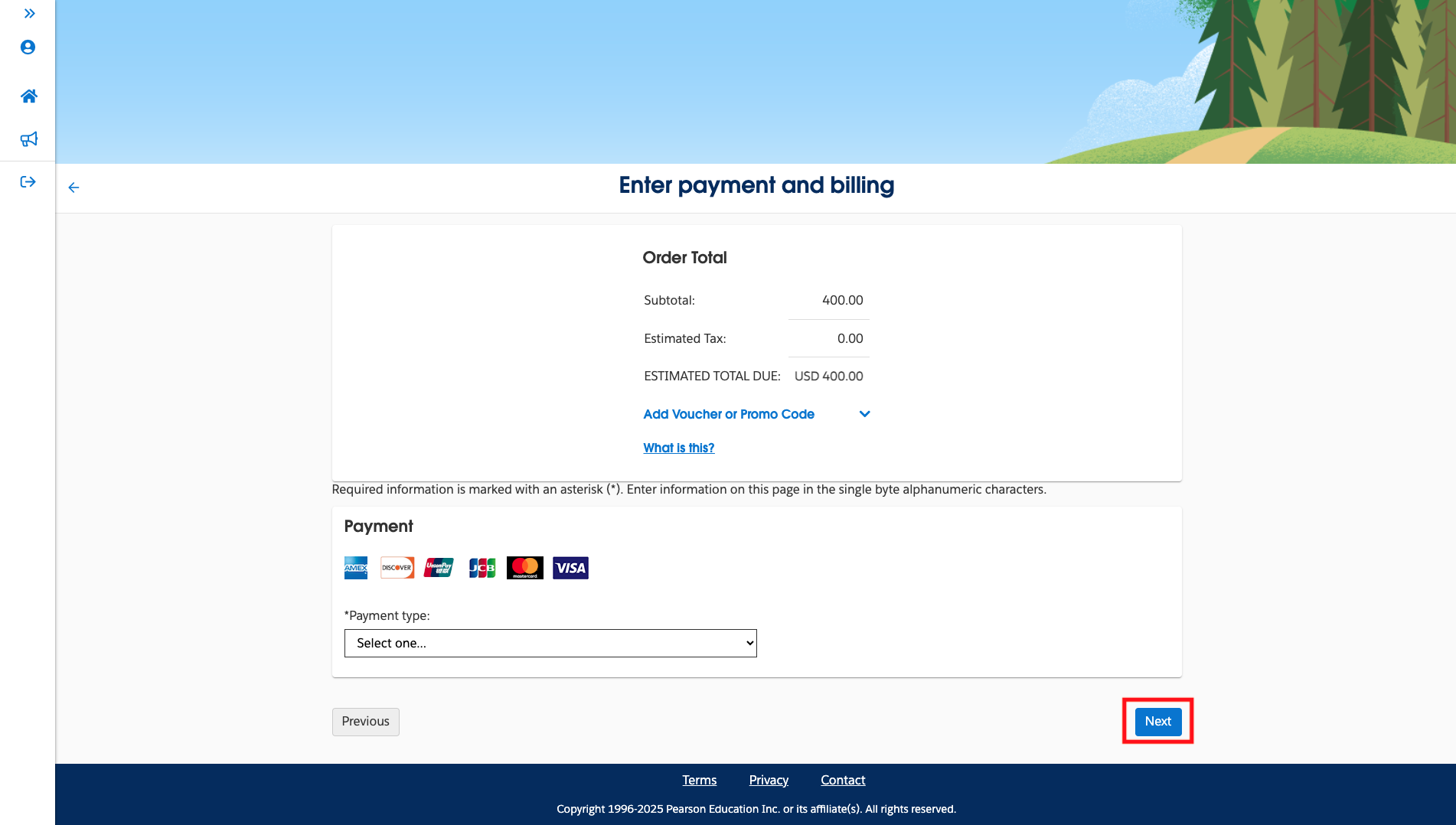
- Enter your payment and billing information. You can also add a voucher or promo code here. After completing all fields, click Next.
If your voucher code isn't accepted at checkout:
1. Check the expiration date on the voucher email.
2. Verify you selected the correct exam — vouchers are exam-specific.
3. Confirm the voucher hasn't already been redeemed — each code is single-use.
4. If the code is valid and not working, open a support case with the voucher code
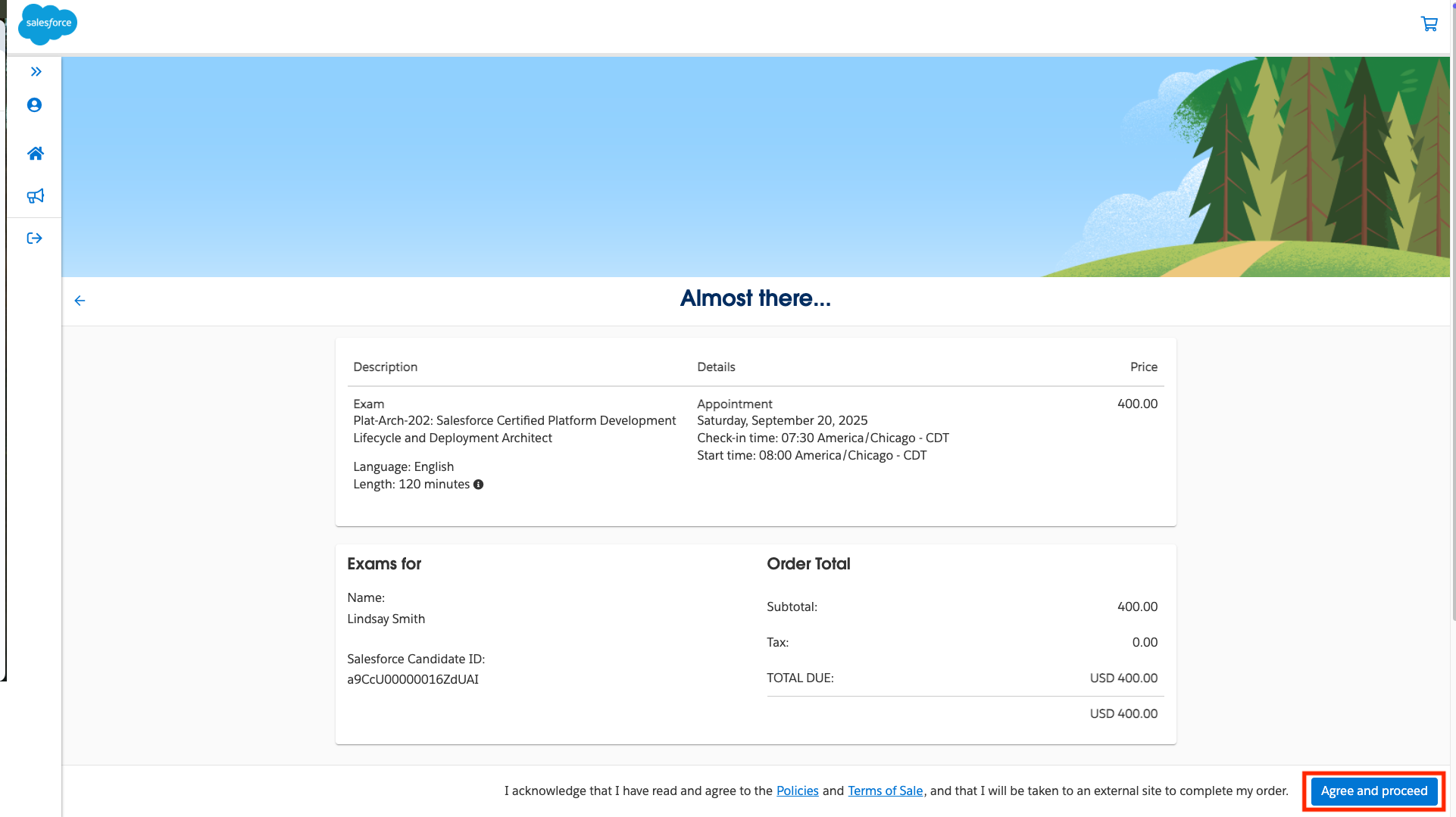
and the exam you're registering for. - A confirmation page will display the details of your exam registration. Please ensure you include the correct billing address that you would like to have associated with your exam’s invoice. Click Agree and proceed if all the details look accurate.
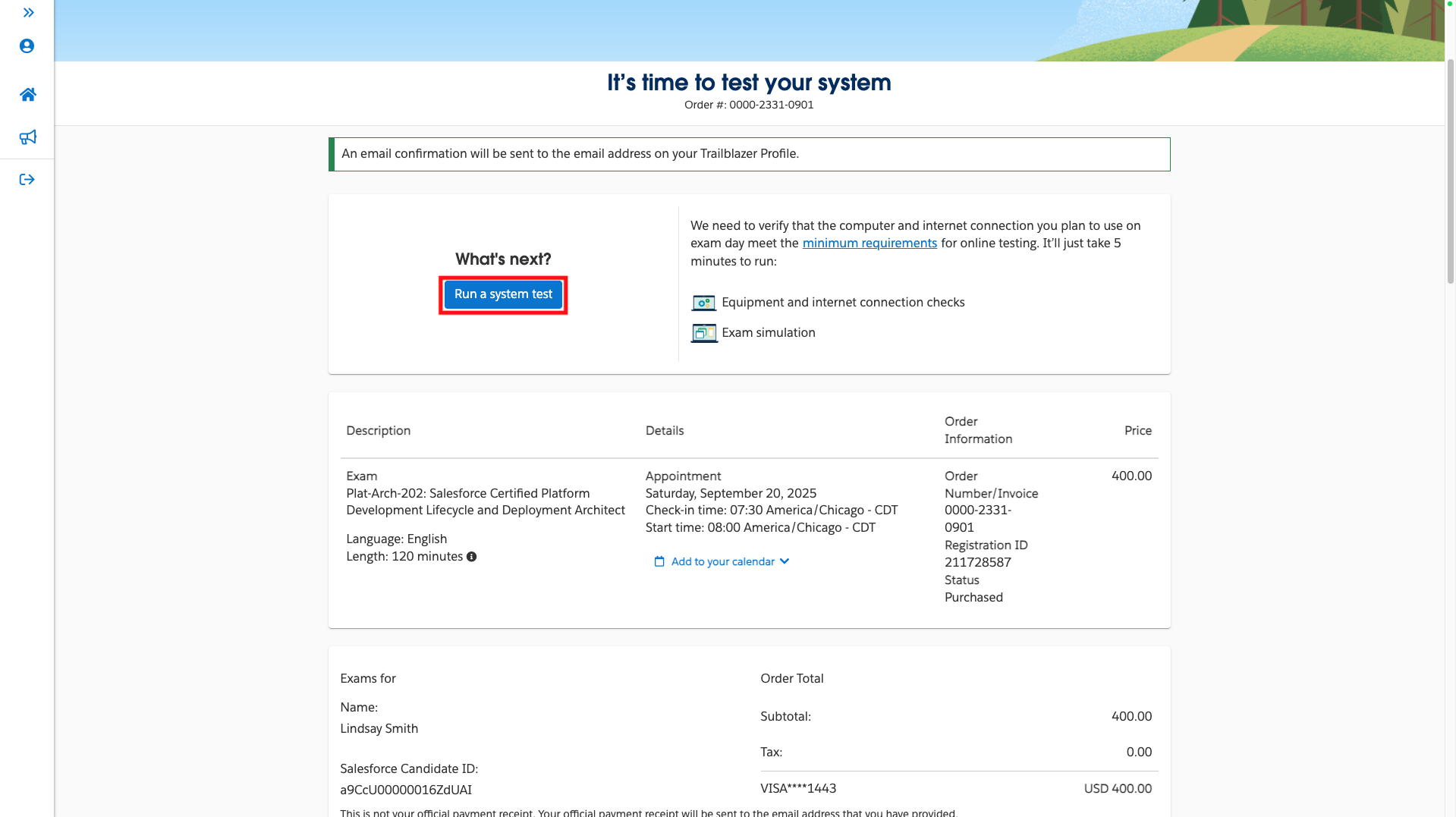
15. For online exams, you must complete a system check to ensure you can successfully launch your exam. To complete a system check on your device, click Run a system test. If you switch to a different device on exam day, you are highly encouraged to re-run the system test under the new device. The system test access code will be different from your scheduled exam session.
NOTE: Your computer must run on Windows 10, MacOS 14, or higher.
To conduct an additional system test, please visit https://www.pearsonvue.com/us/en/salesforce/onvue.html.
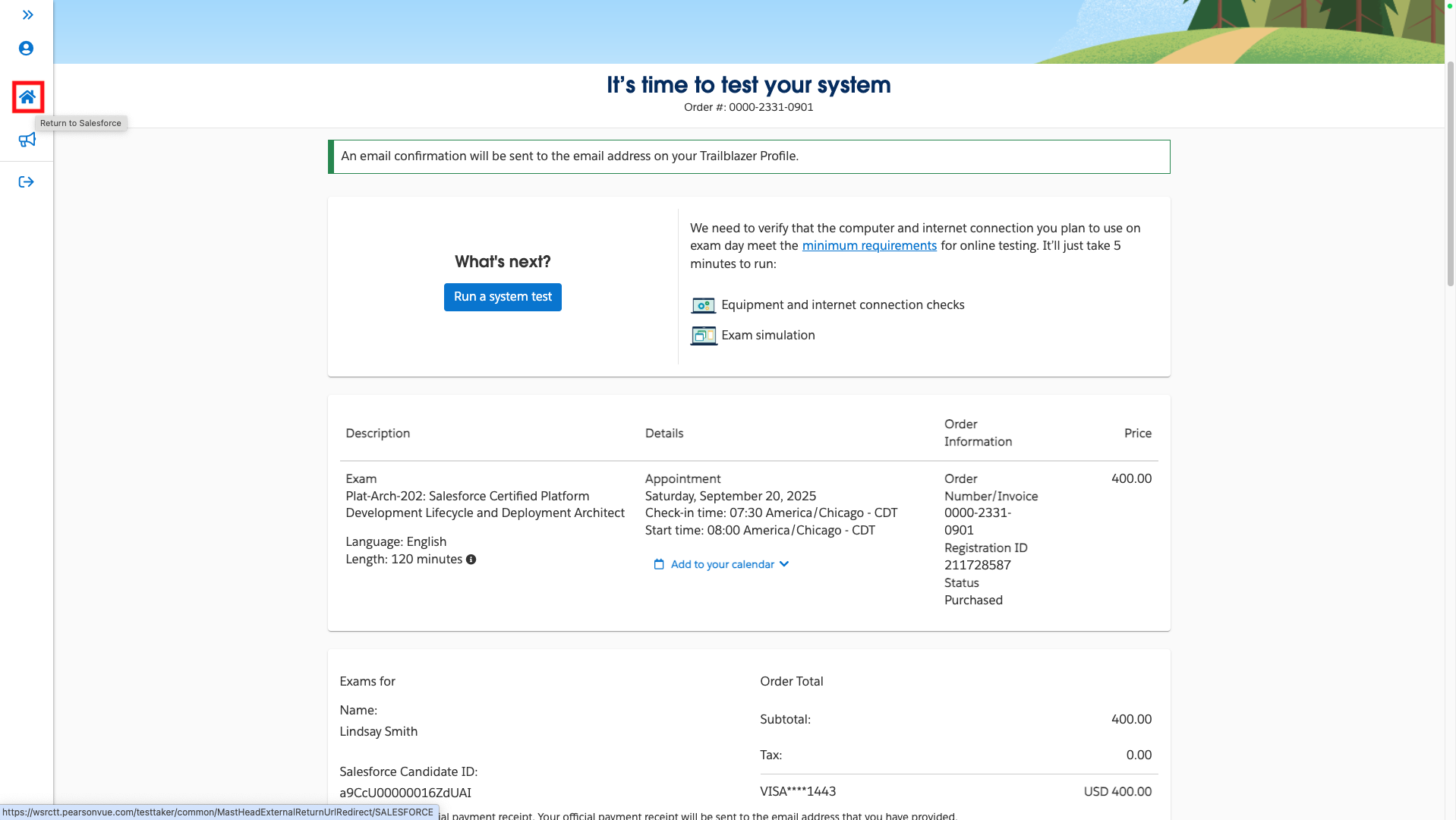
16. Once you complete the system check, click the Home icon to be taken back to your Trailhead Academy homepage.
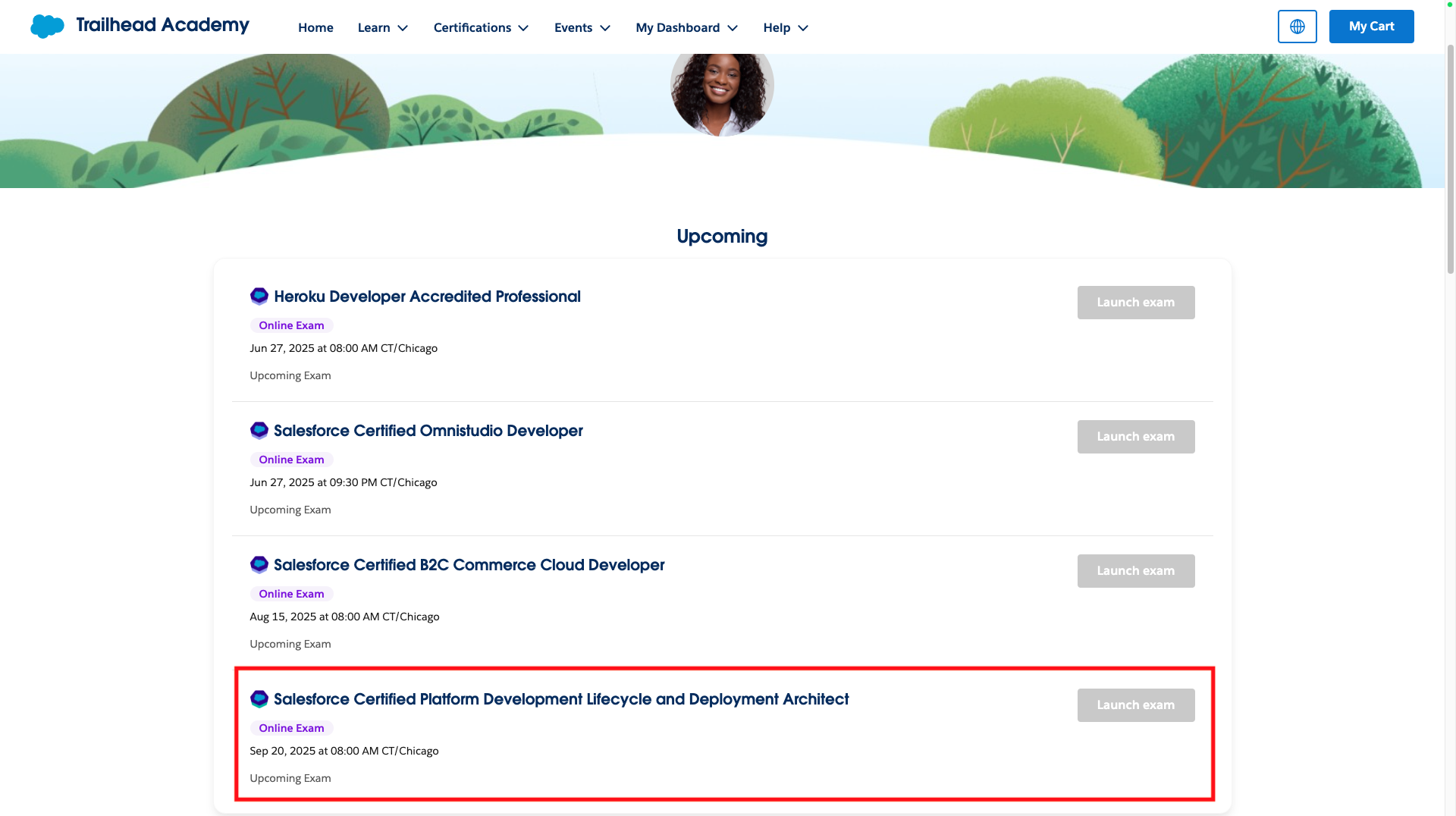
17. Your scheduled exam will show on your Trailhead Academy homepage in the Upcoming section. You will also receive a confirmation email with your scheduled exam's details.
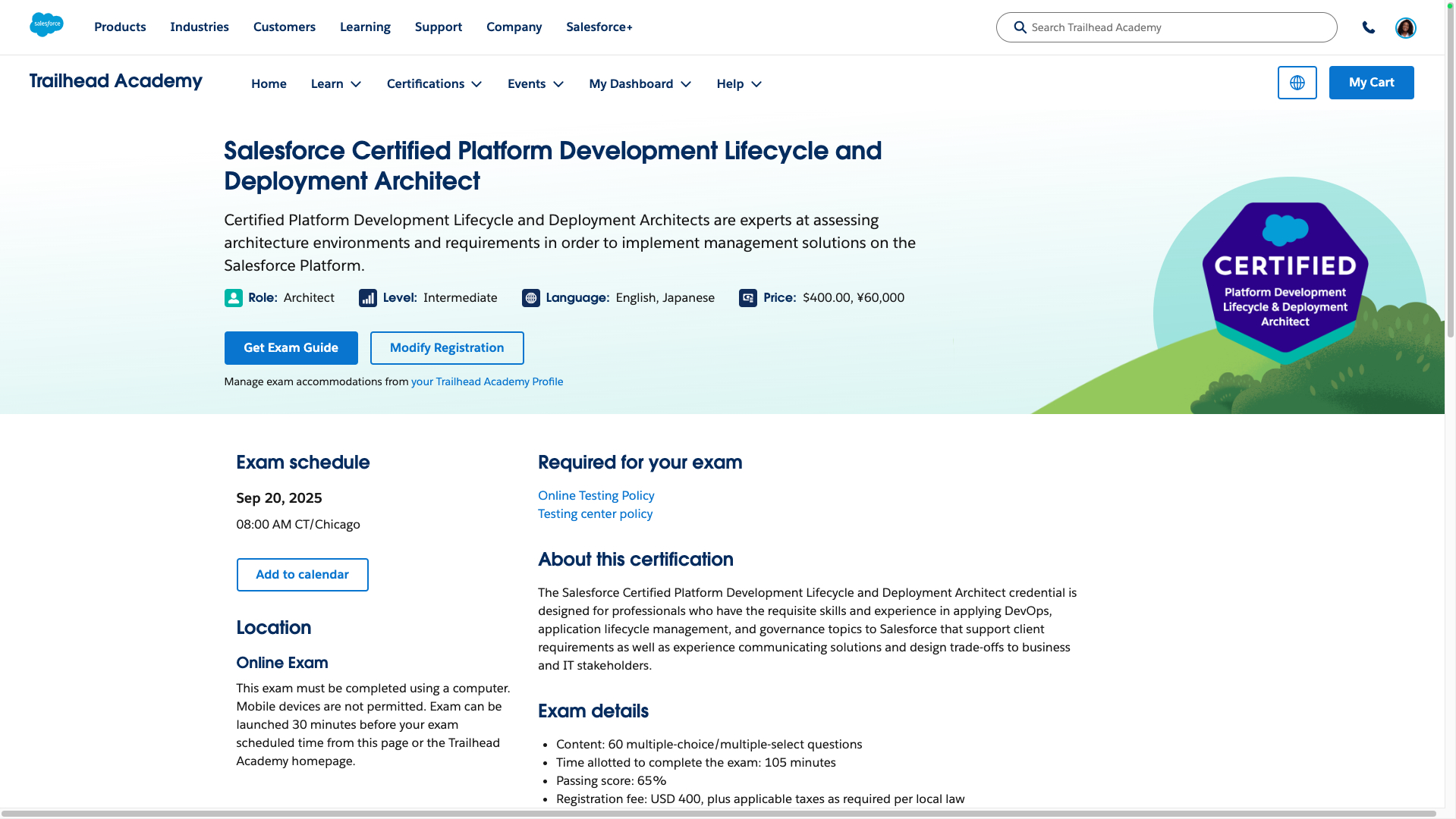
Another way to review your scheduled exam’s details is to click on the exam name in the Upcoming section of your Trailhead Academy homepage. This takes you to the exam detail page where you can see your scheduled exam's details and the exam guide to help you prepare.
¿Resolvió este artículo su problema?
¡Háganos saber cómo podemos mejorar!
