組織を選択
How to Display a Clickable Hyperlink in Salesforce Flow Emails
公開日: Aug 18, 2026
説明
When sending emails from a Salesforce Flow, hardcoding record URLs can lead to broken links when moving between environments such as Sandbox and Production.
This article explains how to use the Partner Server URL global variable to dynamically generate record links. By using this approach, you can create clean, reliable, and clickable hyperlinks that display as anchor text within rich-text Flow, ensuring consistency across all environments.
解決策
To ensure your link works correctly across all environments such as Sandbox, Developer, and Production, use the Partner Server URL global variable. This allows Salesforce Flow to dynamically resolve the correct My Domain URL for the current Salesforce organization, eliminating environment-specific hardcoding.
The Partner Server URL follows a consistent structure that includes the My Domain, the standard SOAP path, the API version, and your Salesforce Organization ID. When these elements are combined dynamically, Flow can generate a valid record link regardless of the environment.
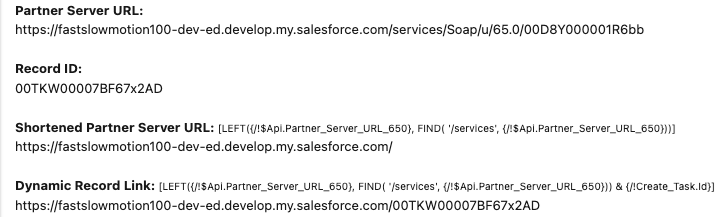
For example, a dynamically generated Partner Server URL may look like this:
`[https://fastslowmotion100-dev-ed.develop.my.salesforce.com][/services/Soap/u/][65.0/][00D8Y000001R6bb]
[Your Company's My Domain URL][Standard Path][API Version][Your Salesforce Organization ID]`
To create a dynamic link to a record within a Salesforce Flow, we need to combine three elements: your company's My Domain URL, a forward slash, and the record's ID.
Step 1: Implement a Create Records or Get Records Element
- In the Flow, use a Create Records or Get Records element. The output of this element provides the unique ID needed to build your dynamic link.
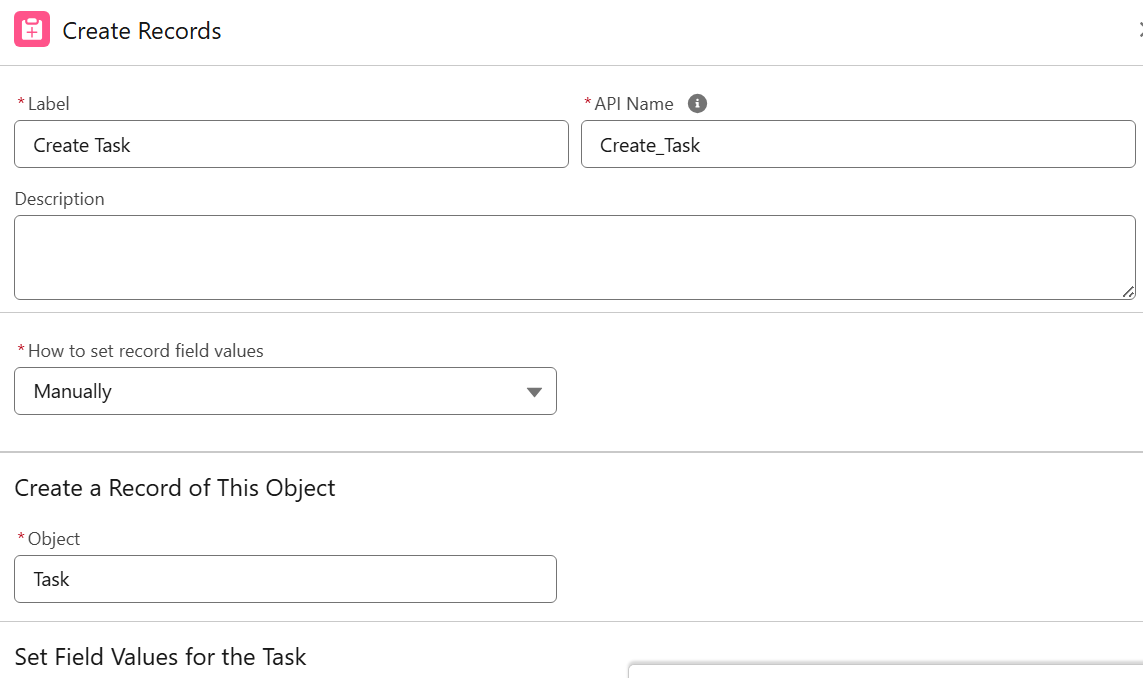
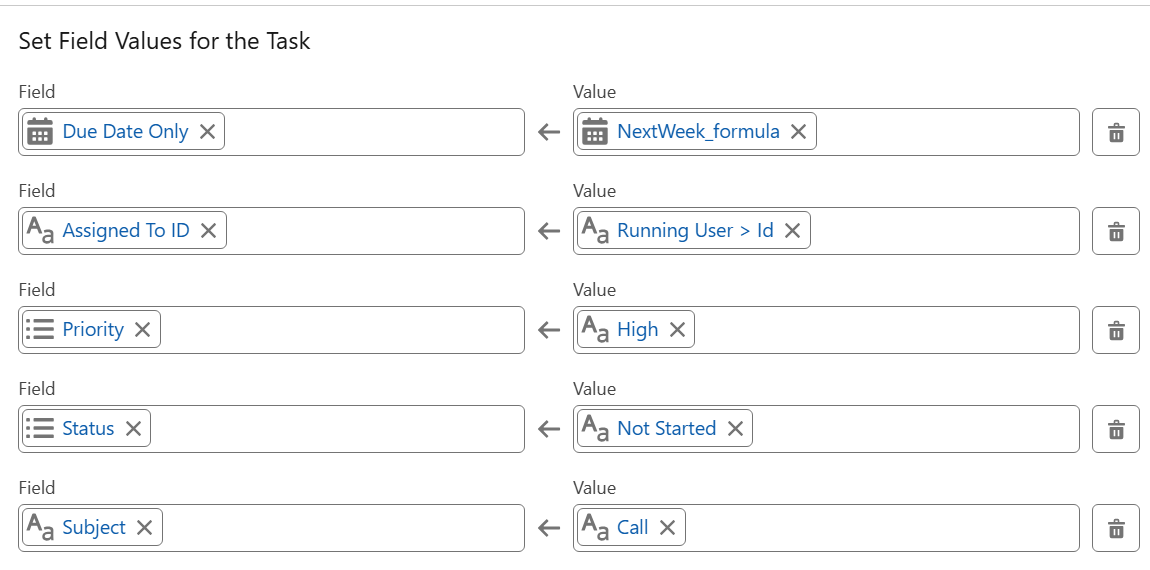
Step 2: Create a New Formula Resource
- Create a new Formula Resource with the Data Type set to Text. This formula extracts the base My Domain URL from the Partner Server URL and then appends the record ID to generate a clean, dynamic link.
`LEFT({!$Api.Partner_Server_URL_650}, FIND( '/services', {!$Api.Partner_Server_URL_650}))`This expression trims the Partner Server URL just before the word "Services," while keeping the trailing forward slash — the result is the base My Domain URL.
- '&' allows concatenating another string of text
- {!Create_Task.Id} then adds the ID of the specific Task record we just created
`LEFT({!$Api.Partner_Server_URL_650}, FIND( '/services', {!$Api.Partner_Server_URL_650})) & {!Create_Task.Id}`This second expression appends the Task record ID to the base domain, producing the complete dynamic link. Note: The number 650 in {!$Api.Partner_Server_URL_650} corresponds to API Version 65.0. Use the most recent API version available in your Formula builder.
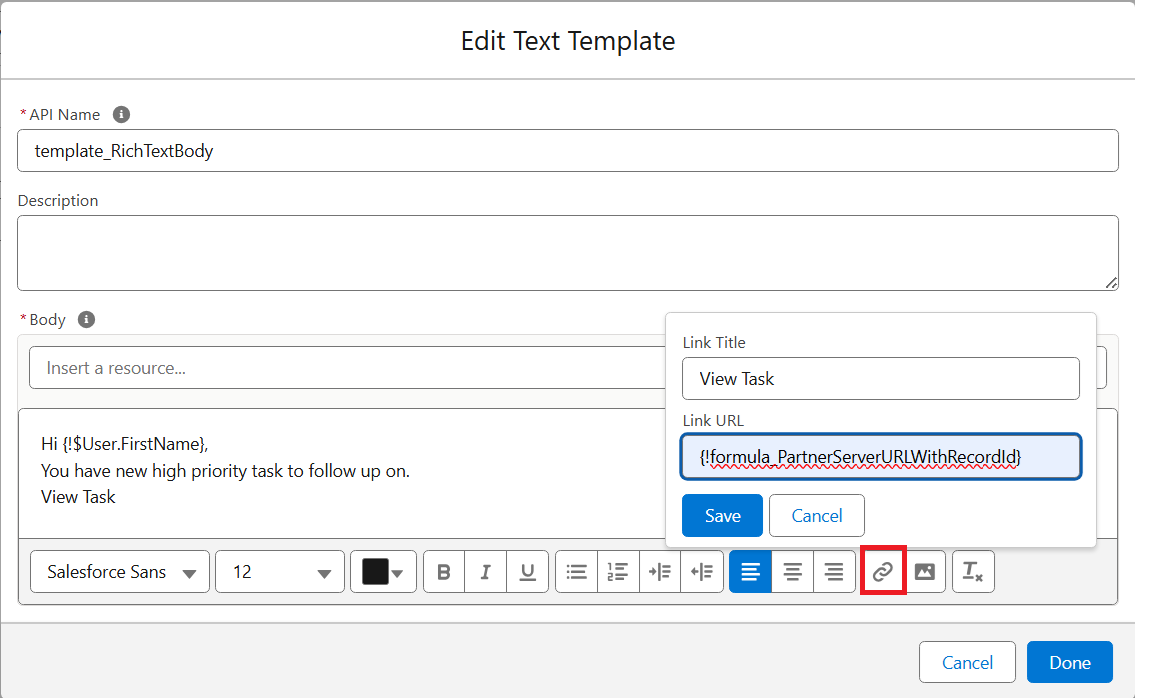
Step 3: Create a Text Template Resource
- In the Edit Text Template, highlight the text you want to make clickable and use the link icon to paste the Formula Resource into the Link URL field. In this example, the text View Text becomes the clickable hyperlink. Click Done to save it.
Step 4: Configure the Send Email Action
- When setting up the Send Email action, update the following settings to ensure the link displays correctly:
- Body: select the Text Template resource
- Rich-Text-Formatted-Body: set this to True. If this isn't enabled, the recipient will see raw HTML code instead of a clickable link
- Use Line Breaks: set to True or False depending on the preferred style
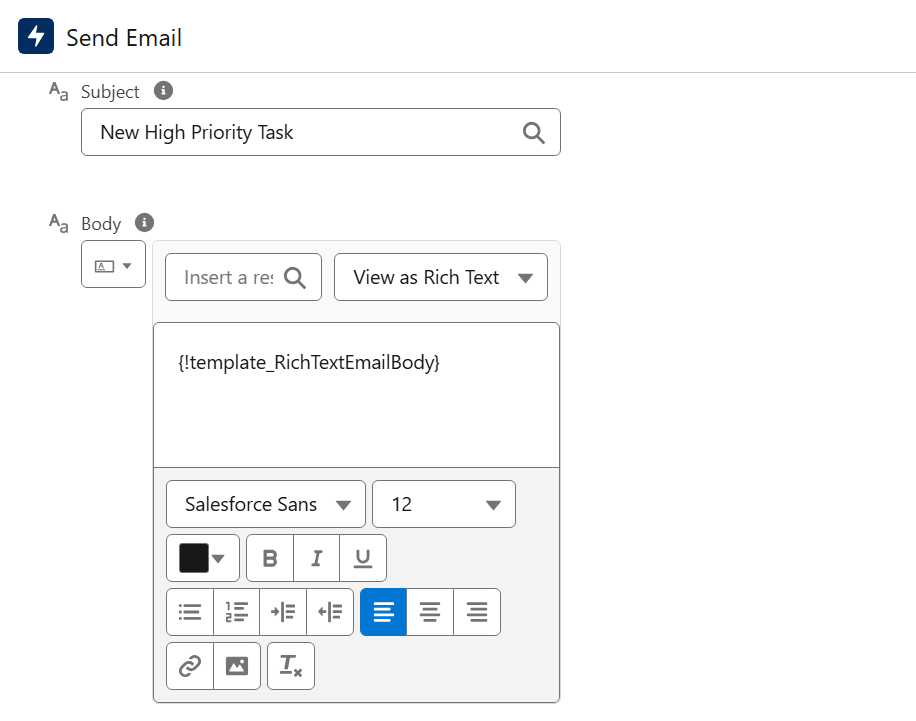
To see everything together, here is a screenshot showing the different components. A forward slash with a smaller font was added inside the merge fields to prevent it from displaying in email content.
Step 5: Verify the Output
- Review the email output to confirm that the hyperlink displays correctly and navigates to the intended record. This ensures the dynamic link is generated properly and works across all environments.
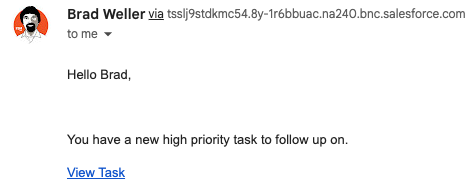
- Below is an example of the email output:
- This approach works for nearly any Salesforce object and record, and can also be used to generate dynamic links in other areas of Salesforce, such as Formula fields or clickable links within Rich-text fields.
________________________________________________________________________________
Written by: Brad Weller | Forum Ambassador
I'm Bradley Weller, a Senior Solution Architect at Fast Slow Motion and a passionate Flow Fanatic, holding the title of a prior Salesforce FlowFest Champion. I focus on building impactful, scalable Salesforce solutions for businesses. Outside of work, I enjoy spending time with my family and staying active, particularly playing volleyball.
Submissions reflect only the opinions of the user who made available the Submission and not the opinions of Salesforce, regardless of whether the user is affiliated with Salesforce, and may contain or constitute products, services, information, data, content and other materials made available by or on behalf of third parties ("Third Party Materials"). Salesforce neither controls nor endorses, nor is Salesforce responsible for, any Third Party Materials, including their accuracy, validity, timeliness, completeness, reliability, integrity, quality, legality, usefulness or safety, or any applicable intellectual property rights. Any Submissions made available through any message board or forum in response to posted questions, or that otherwise purports to answer any questions, including any questions about Salesforce or Programs, are made available for your general knowledge only and should never be relied upon as answers to your specific questions (even if an answer is marked as a "best" answer or with any similar qualifications). You should always contact Salesforce support for answers to your specific questions. Salesforce has no control over Submissions, and is not responsible for any use or misuse (including any distribution) by any third party of Submissions.
If you have questions, tap into the wisdom of our entire Trailblazer Community here: https://trailhead.salesforce.com/trailblazer-community/feed
その他のリソース
ナレッジ記事番号
005299186
この記事で問題は解決されましたか?
ご意見をお待ちしております。
