Valitse organisaatio
Composer flow using Salesforce Connector reports errors in Run History "AccessToken expired . Refresh token workflow was attempted but failed."
Julkaisupäivä: Feb 3, 2026
Kuvaus
Users getting error messages in MuleSoft Composer flow run history while connecting to Salesforce connector.
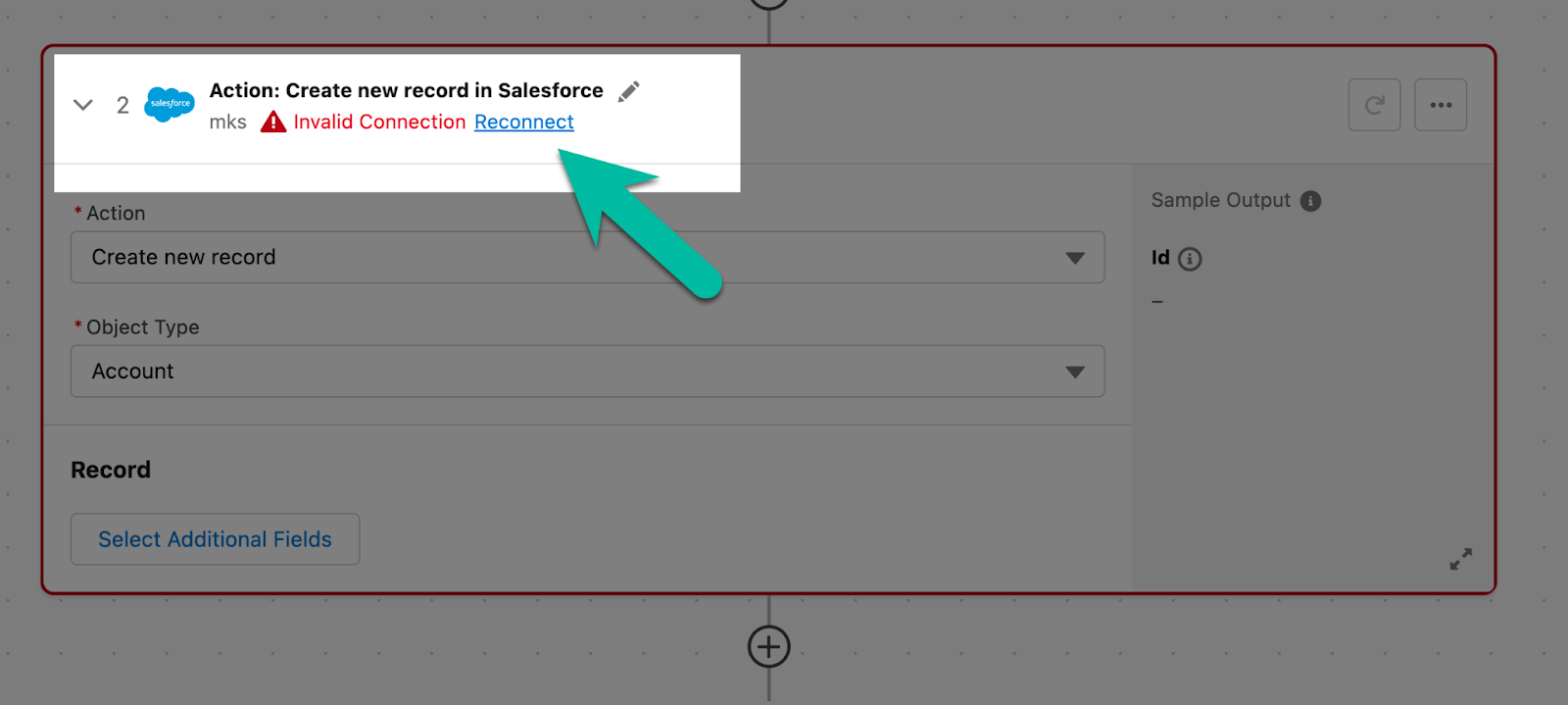
-At design time, a red rectangle is displayed with the error label “Invalid Connection” and a “Reconnect” link.
-At runtime, the flow fails with the error message: “AccessToken expired. Refresh token workflow was attempted but failed.”
Ratkaisu
1.Click the “Reconnect” link and follow regular steps for creating OAuth connection
2.Login page will open in a popup OR on in the next tab
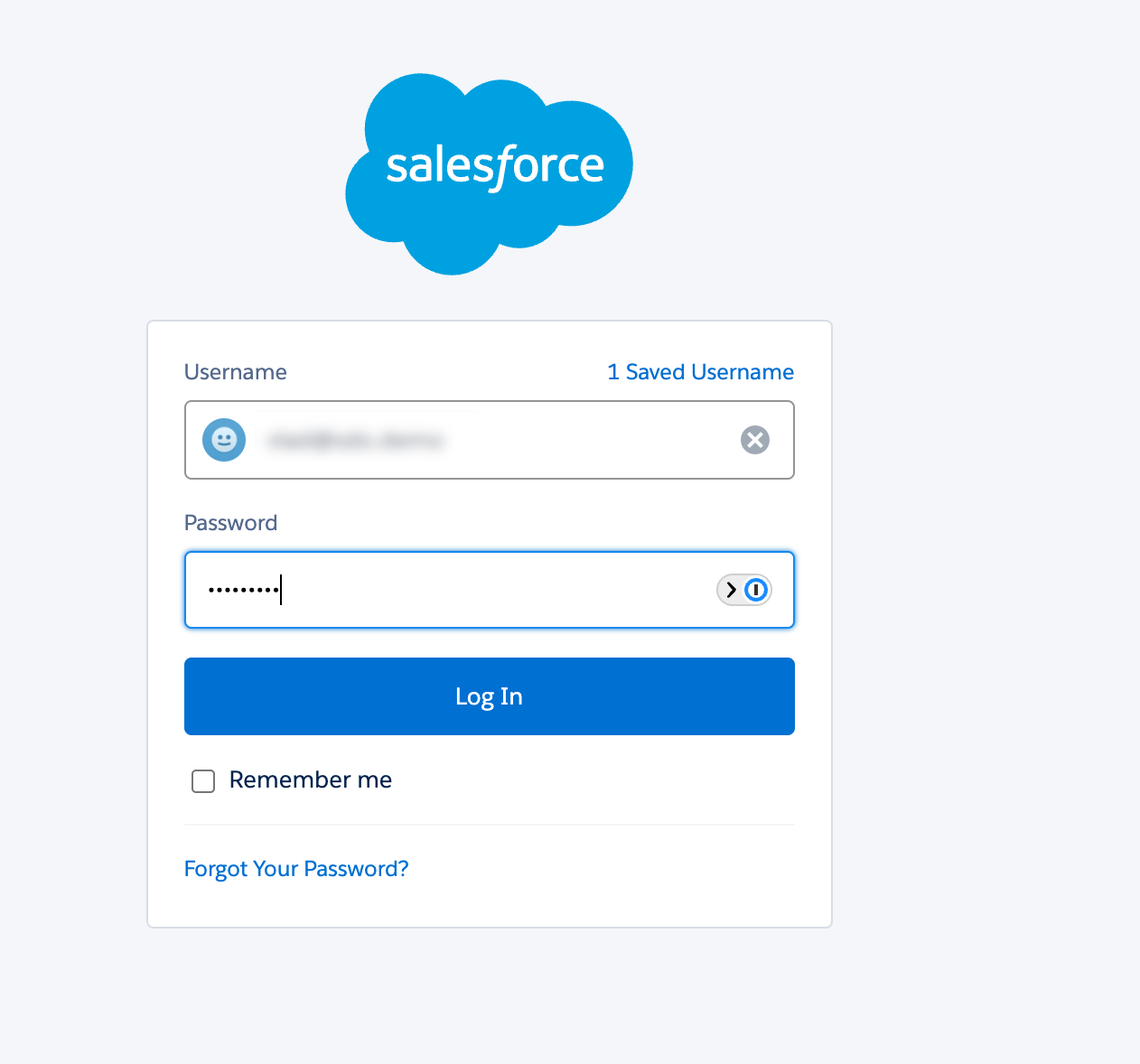
3. Enter Login and Password for the user you plan to use for Salesforce Connector and click “Log In”
4. Click “Allow” to authorize the connected app access
5.Upon success you will be redirected back to the Composer
6.Please wait for some time for connection to complete (it may take up to 10-20 seconds)
Additional considerations
If your org has additional configuration that may prevent Connected App from establishing connection and authorizing requests (like a limited list of allowed IP addresses, session security enhancements like MFA or other configuration) - you may need to do extra steps to make it work.
Example of an error users may see:
OAUTH_APPROVAL_ERROR_GENERIC : An unexpected error has occurred during authentication. Please try again.
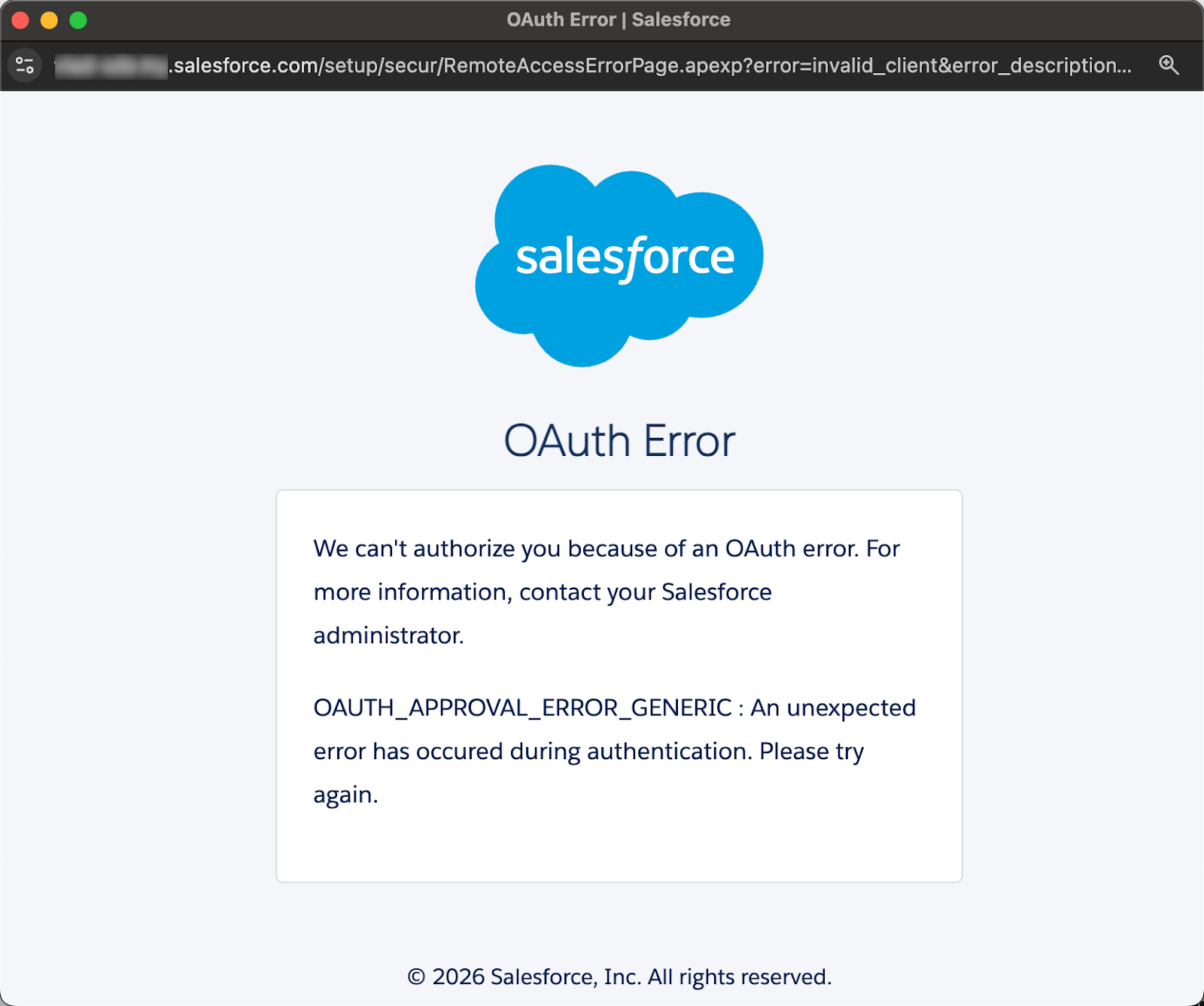
This is related to the enhanced security configuration mandated recently - please check this article for al details:
-
Prepare for Connected App Usage Restrictions ChangeLink: https://help.salesforce.com/s/articleView?id=005132365&type=1
Note: our legacy application was allow-listed and did not require extra approval, however since we had to re-create the org and the application from scratch during the icc-87525480 incident – it is not applicable anymore
To remediate the issue customers should follow the steps:
-
Create a new Connection using user with System Administrator profile or with “Approve Uninstalled Connected Apps” permission
-
This typically can done following usual steps mentioned in section -> Steps to Authenticate Salesforce Connector
-
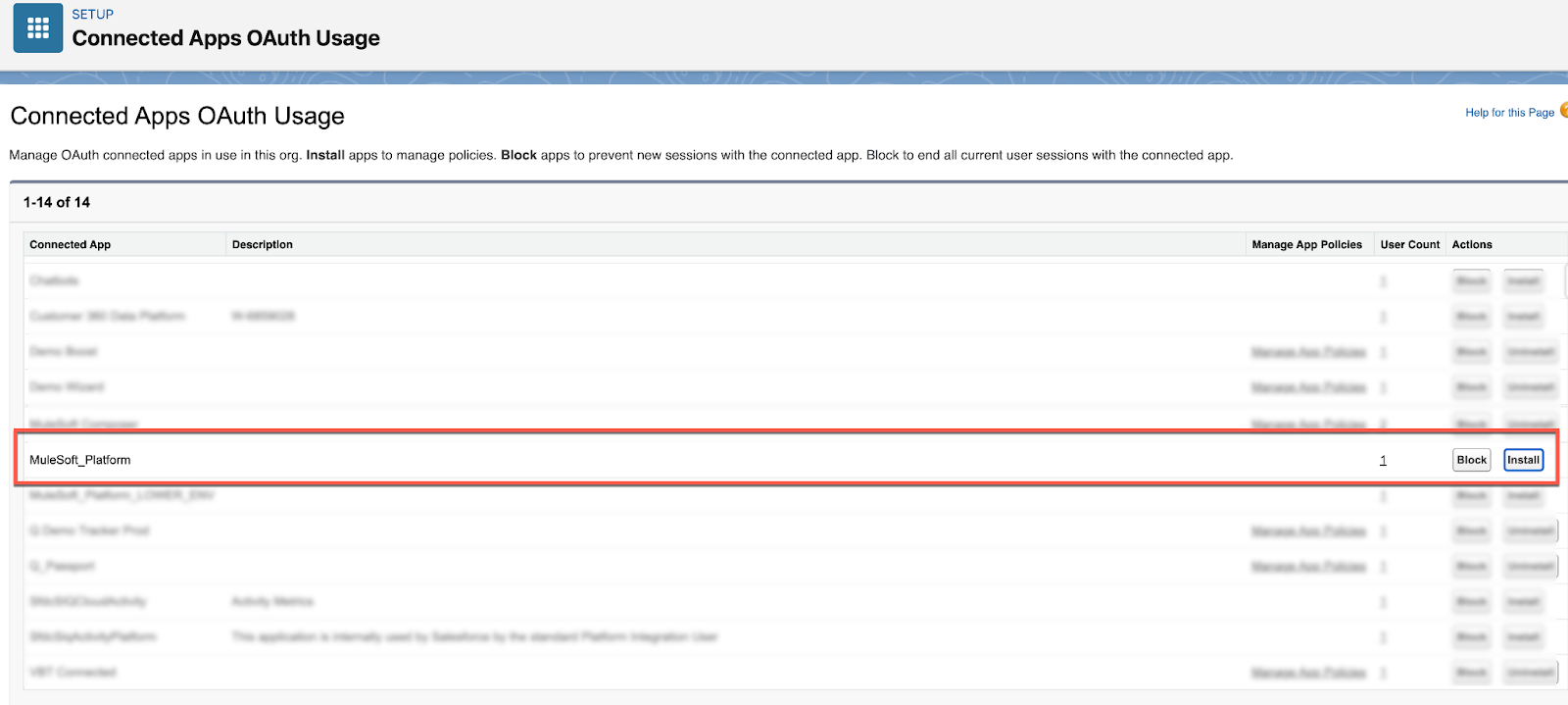
Once completed - there will be a connected app with name “MuleSoft_Platform” created (but not installed)
-
-
Install the app and click “Edit Policies” - make sure to set the following policies:
-
All users may self-authorize
-
Relax IP restrictions
-
High assurance session required is unchecked
-
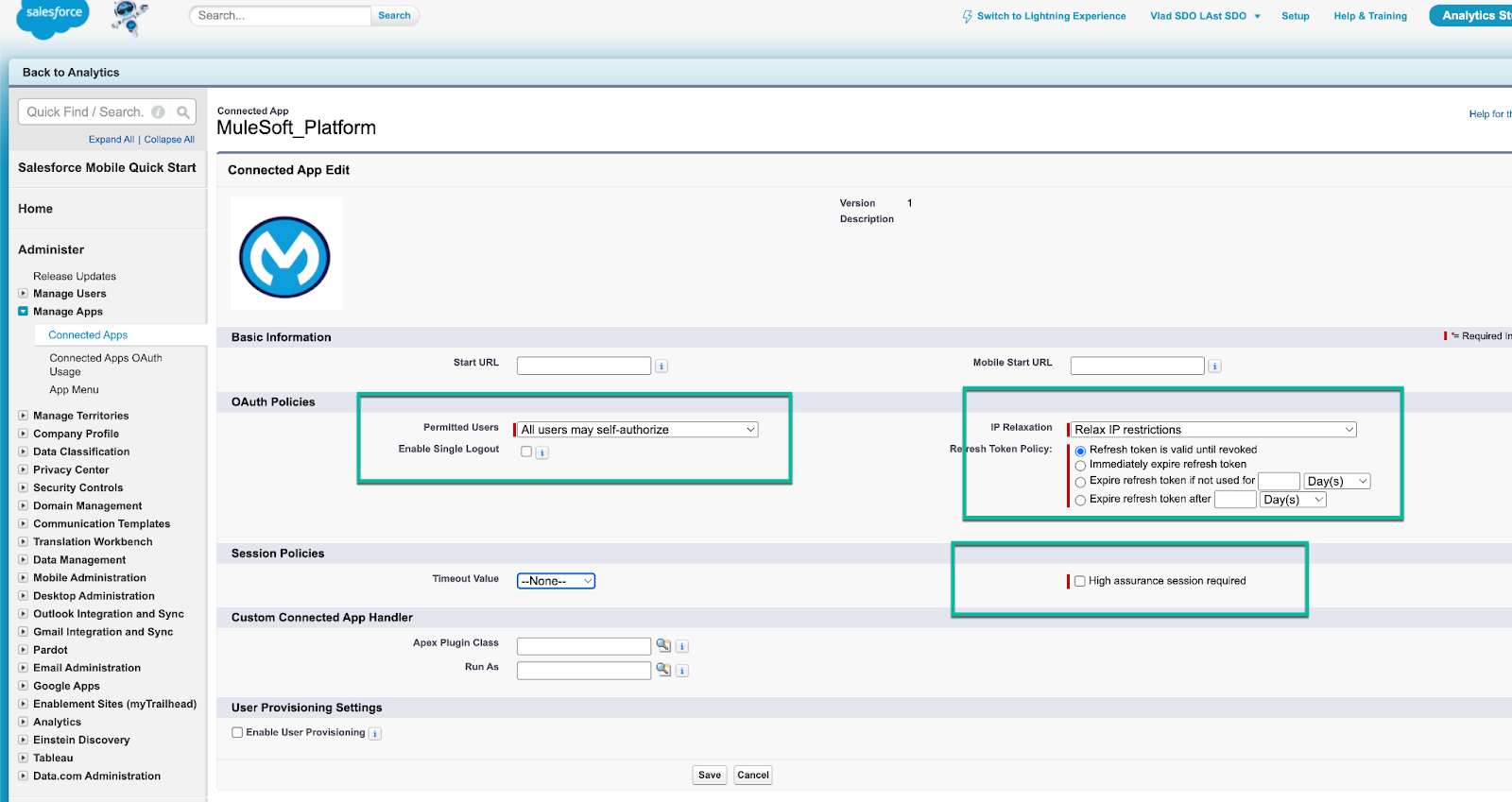
3. If user needs to use Standard or integration user for establishing connection - user can now create a new connection using non-Admin user, it should work the same as it did for Admin user (thanks to installed and properly configured Connected app)
Lisäresurssit
Mule Doc link for reference: https://docs.mulesoft.com/composer/ms_composer_salesforce_reference
Knowledge-artikkelin numero
005305463
Ratkaisiko tämä artikkeli ongelmasi?
Anna palautetta, jotta voimme kehittyä!
