Выбрать организацию
Build a Salesforce Dashboard with Fixed Filters
Дата публикации: Aug 21, 2026
Описание
This article explains how to create a Salesforce Dashboard with fixed Filters applied at the Dashboard level. By adding predefined Filters, all Dashboard components display consistent data, improving usability and reducing setup time. The steps include creating a new Dashboard, adding Reports as components, configuring Filters, and saving the Dashboard for use.
Решение
This article explains how to build a Salesforce Dashboard with fixed filters so every component on the dashboard shows consistent, predefined data without requiring viewers to set filters manually. Applying filters at the dashboard level streamlines the user experience and reduces the setup time needed for each report.
Step 1: Create a New Dashboard
- From your Salesforce org, navigate to the Dashboards section.
- Click the New Dashboard button to start creating a dashboard.
- Enter the Name, Description, and relevant Folder, then click Create.
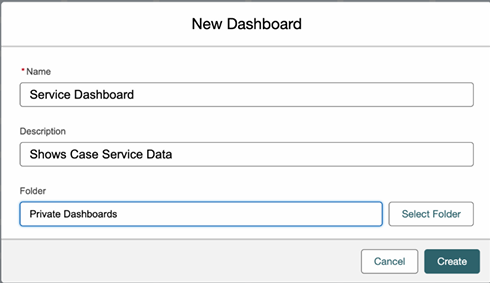
Step 2: Add Dashboard Components
- Click the + Widget button and select Chart or Table from the drop-down to add a chart to your dashboard.
- Select the report that you want to add.
- Choose your chart type and click Add.
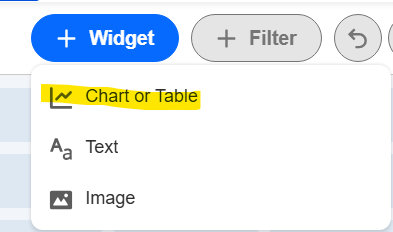
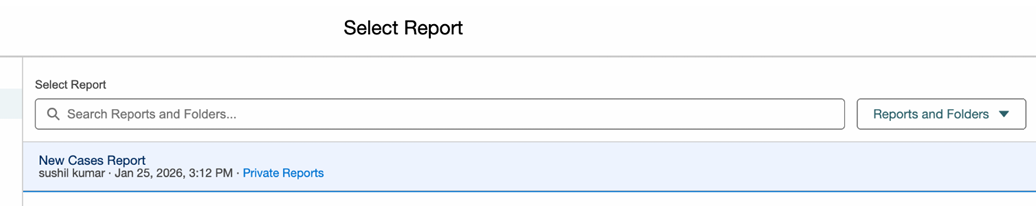
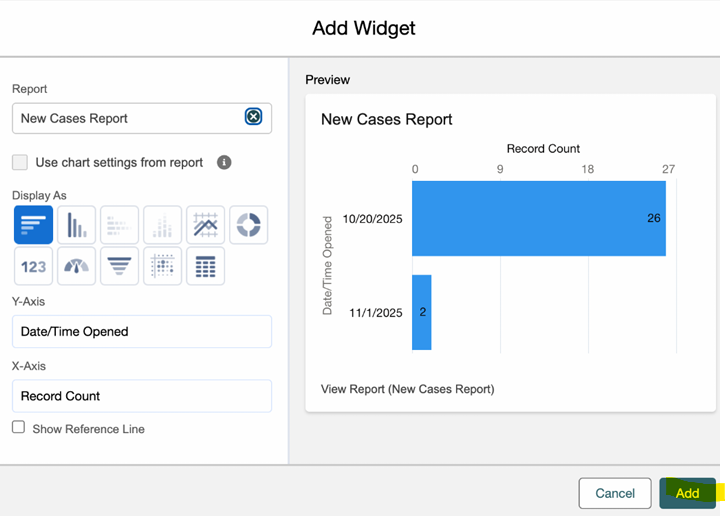
Note: Adding a report as a dashboard component links the report's data to a visual widget. For example, you can add a pipeline report and a case-volume report as two separate components on the same dashboard. You can add multiple components from different reports to a single dashboard.
Step 3: Add Filters
- Click the + Filter button.
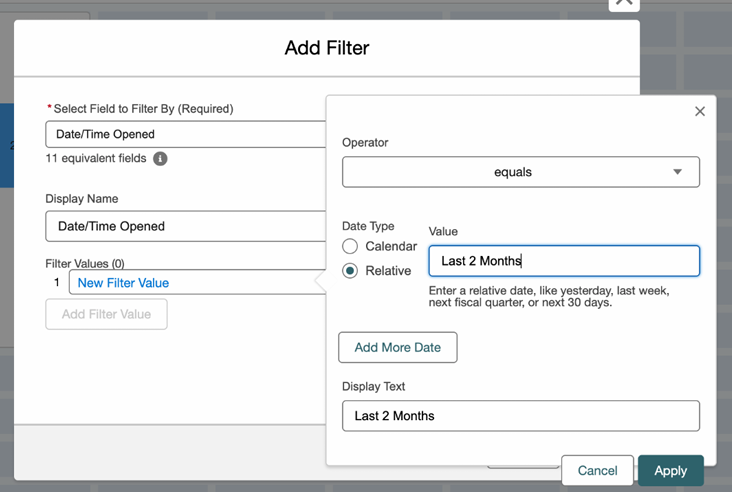
- Select the field to filter by and choose the filter values. In the relative text box, enter values as needed. Refer to Salesforce's documentation for a list of supported date filter values.

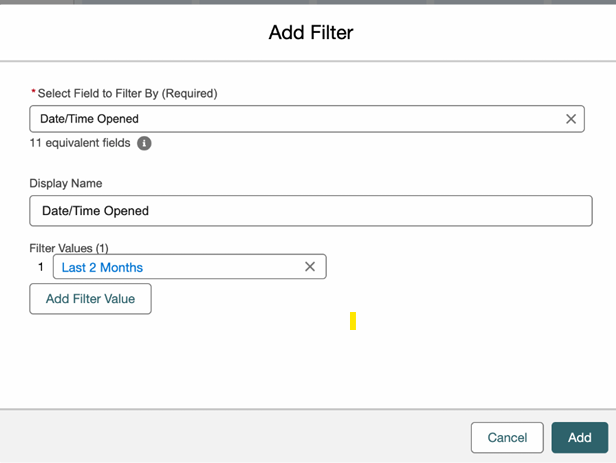
- The filter gets added to Filter Values as shown below. Add more filters as needed by clicking Add Filter Value, then click Add.
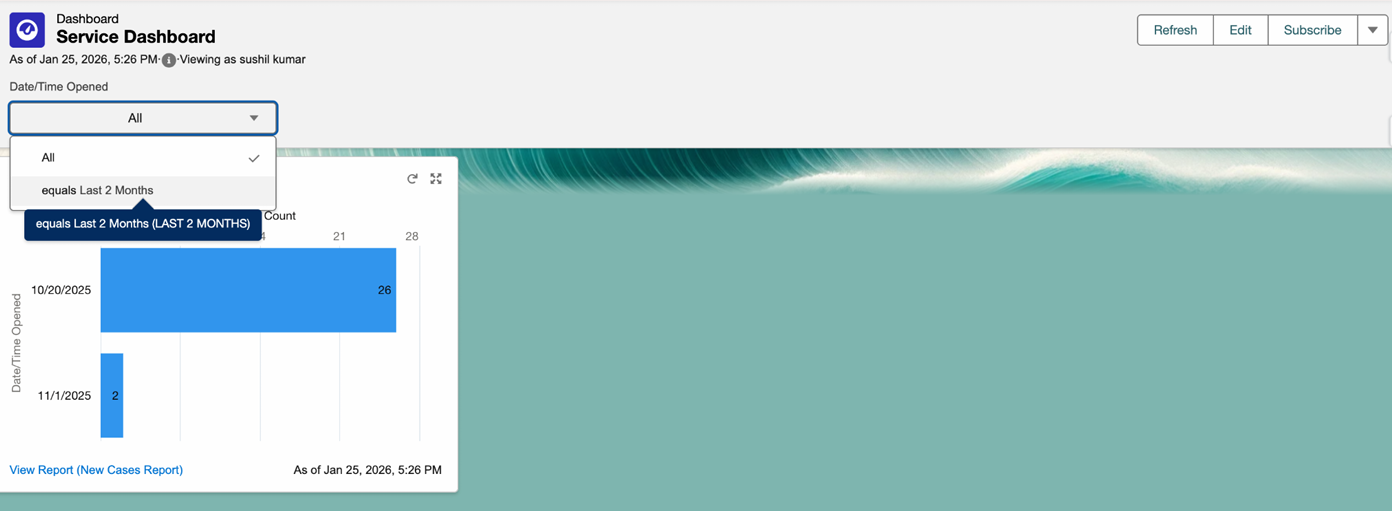
- Once you save the dashboard, the filters are available for use.
Дополнительные ресурсы
- Users with "Manage Dashboards in Public Folders" Permission Cannot Edit Dashboards Created by Another User
- Salesforce Dashboard: Legend Colors and Sort Order Are Inconsistent Across Components
- Duplicate Object Names Displayed in Report Cross Filter Secondary Object
- Create a Salesforce Report for Accounts with No Activities Using Cross Filters
Номер статьи базы знаний
005306445
Эта статья решила вашу проблему?
Оставьте свой отзыв, чтобы мы могли стать лучше!
