Sélectionner une organisation
LWC Component Variables appearing as "Undefined" in Field Service Mobile App
Date de publication: May 20, 2026
Description
A custom Lightning Web Component (LWC) used for image capture and data overlay displays undefined for certain fields (e.g., Beneficiary Name, Address, ID) when used on the Field Service Mobile App.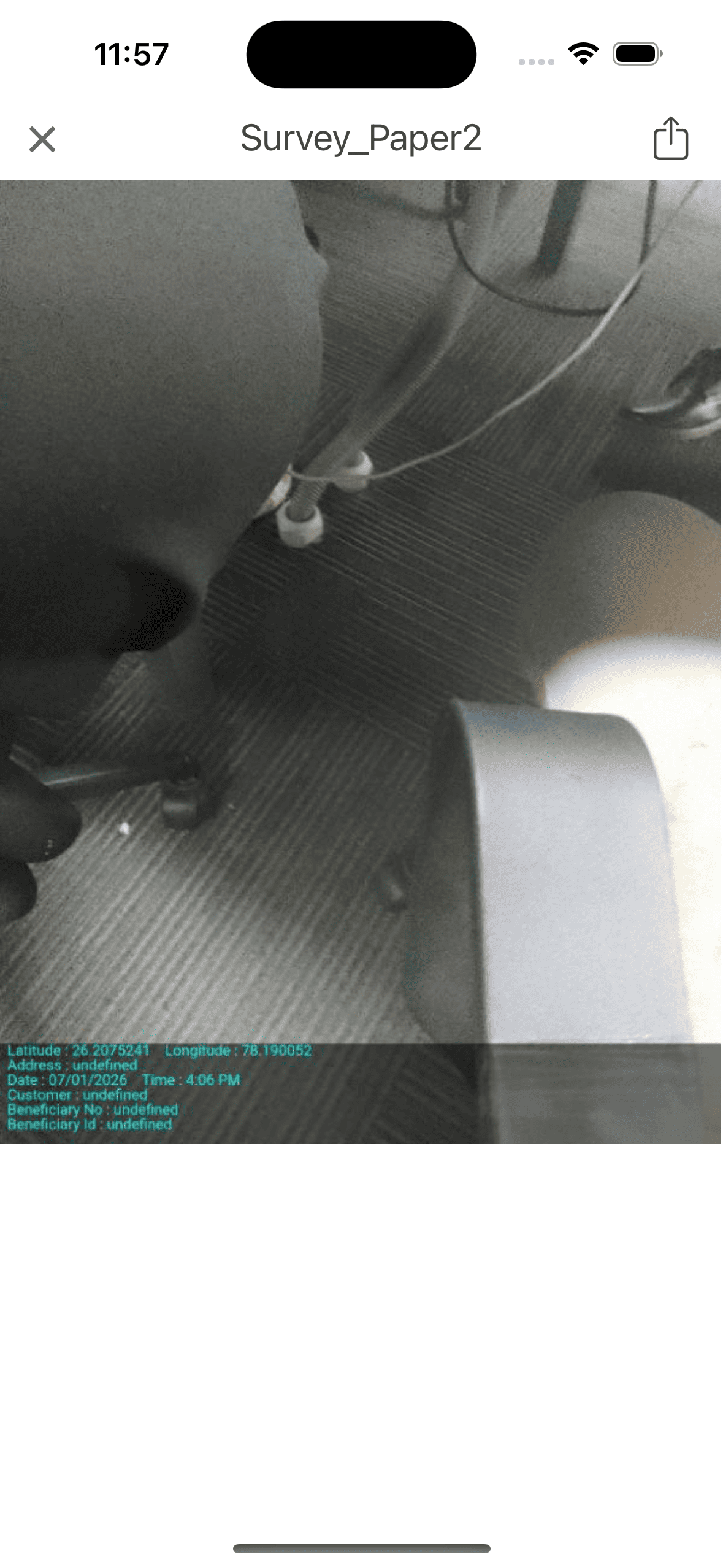
-
Desktop Behavior: The same component works perfectly, and all fields populate correctly.
-
Mobile Behavior: Fields sourced from related records or lookups appear as
undefinedon the captured image/record. -
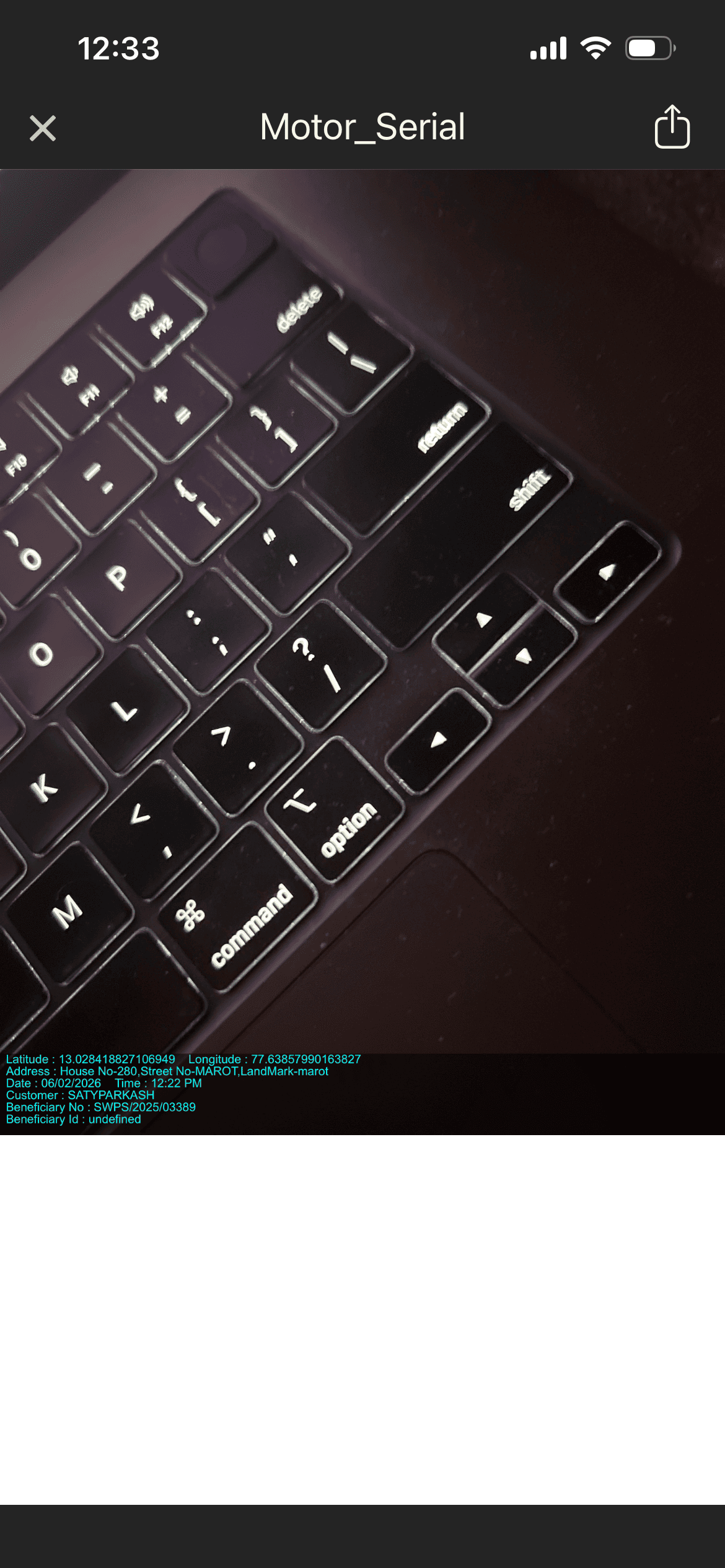
Global Variables: Latitude, Longitude, and Timestamps populate correctly on both platforms.
Résolution
Cause
The issue is caused by a combination of Mobile Metadata Caching and Data Visibility constraints specific to the FSL Mobile offline prime engine:
-
-
Missing Lookup Fields: If a lookup field (e.g.,
Beneficiary__c) is not present on the Page Layout assigned to the mobile user, the mobile app does not prime the related record's data into the local offline database. -
Record Sharing: Even if the field is on the layout, the mobile user must have explicit sharing access to the related record (the "Beneficiary" record) for the Apex controller to retrieve the data while offline or during a mobile sync.
-
Step 1: Update Mobile Page Layouts
The FSL Mobile app uses the Page Layout to determine which records to "prime" (download) for offline use.
-
Navigate to Setup > Object Manager > Service Appointment.
-
Locate the Page Layout assigned to the Technician/Service Resource profile.
-
Ensure the Lookup Field to the related object (e.g.,
Beneficiary__c) is added to the layout. -
Ensure any fields being used by the LWC are also present on the layout.
Step 2: Configure Record Sharing
Ensure the Mobile User has "Read" access to the related records.
-
Check Organization-Wide Defaults (OWD) for the related object (Beneficiary).
-
If Private, implement Sharing Rules based on Roles, Public Groups, or Manager Hierarchies to ensure the technician owns or is shared the records related to their Service Appointments.
-
Validation: Test by providing Manual Sharing to a specific record for the affected user to see if the data appears.
Step 3: Refresh Mobile App
For the changes to take effect on the mobile device:
-
In the FSL Mobile App, navigate to Settings > Advanced Settings.
-
Select Clear Cached Metadata.
-
Close the app completely (swipe up from the app switcher) and re-open it.
-
Allow the Initial Sync to complete fully before testing the image capture.
Numéro d’article de la base de connaissances
005316355
Cet article a-t-il résolu votre problème ?
Dites-nous ce que nous pouvons améliorer !
