Valitse organisaatio
Build an Activity Report Grouped by Day of the Week
Julkaisupäivä: May 5, 2026
Kuvaus
This knowledge article walks you through creating a custom Formula field on the Activity object that determines the day of the week from an activity date. The field can then be used in a Matrix report to display activities, such as calls and emails, broken out by each weekday, along with weekly grand totals, all within a single report.
Ratkaisu
This can be achieved by creating a custom Formula field on the Activity object and using it as a column grouping in a Matrix Report.
Step 1: Create a custom Formula field on Activity
- Navigate to Setup
- Go to Object Manager
- Select Activity
- Go to Fields & Relationships
- Click New
- Select Formula
- Give it an appropriate Field Label. The Field Name will be auto-populated based on the label
- Choose Text as the return type
- Click Next
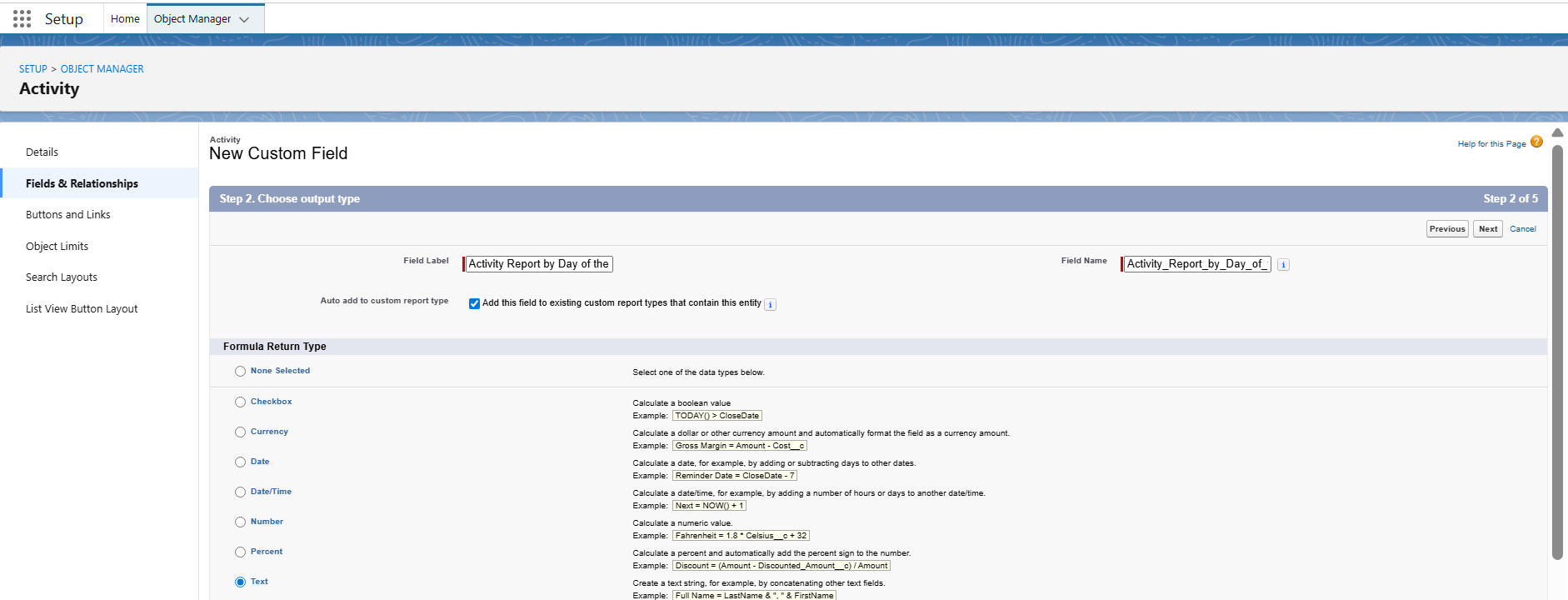
Step 2: Enter the Formula
- In the Formula editor, enter the following Formula
CASE( WEEKDAY( ActivityDate),1, '1. Sunday',2, '2. Monday',3, '3. Tuesday',4, '4. Wednesday',
5, '5. Thursday',6, '6. Friday',7, '7. Saturday',NULL)
- In the above Formula, ActivityDate is the date field typically used for Task
- You can replace this field with any other activity date field based on your business requirements
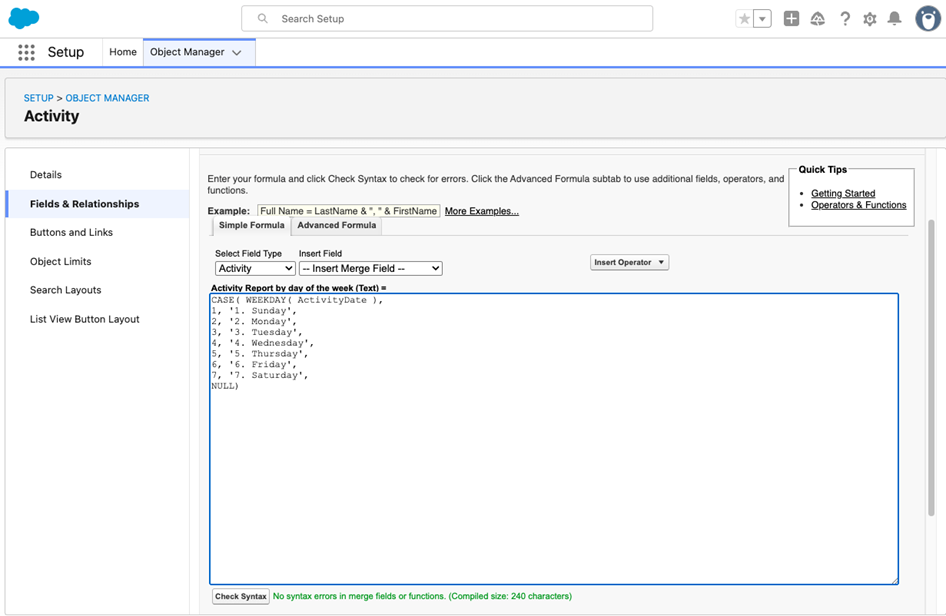
Note: The numeric prefix ensures that the days are sorted in the correct chronological order in the Report. Without numbering, the report will sort the days alphabetically, which can place Friday before Monday
- Click Next
- Click Next again
- Click Save
Step 3: Create the Report
- Navigate to Reports > New Report
- Select Tasks and Events Report Type
- Click Start Report
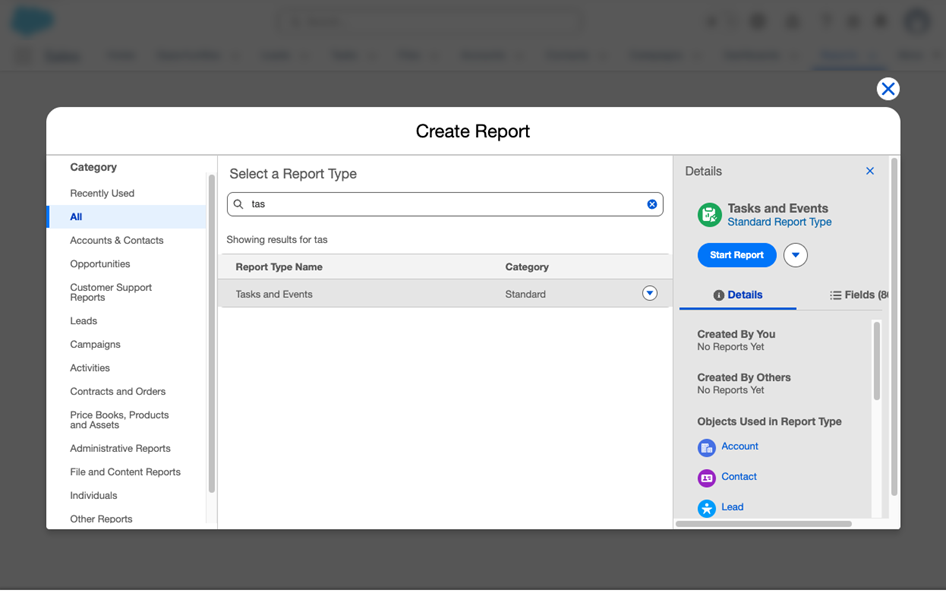
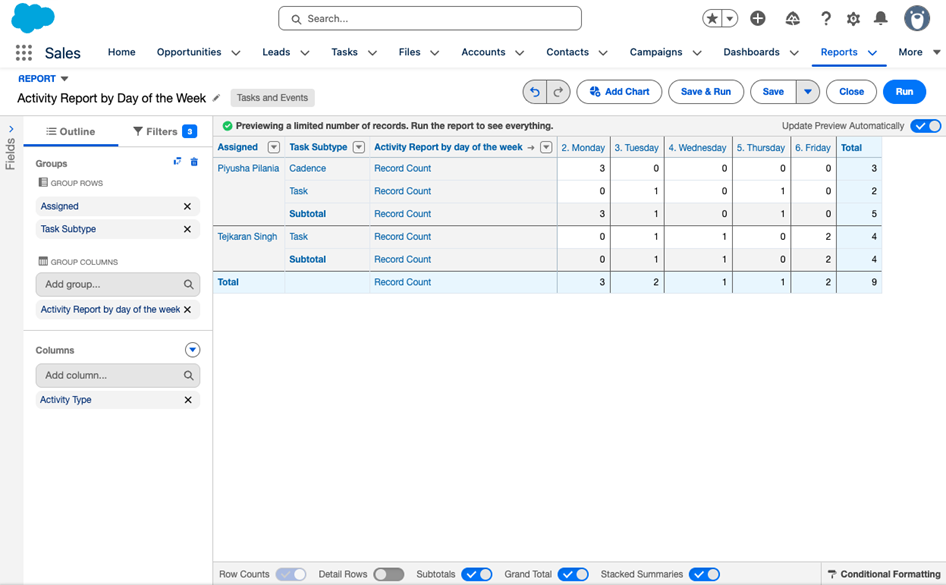
Step 4: Build The Report
- Group Rows by Assigned and Task Type/Sub-Type based on requirement
- Group columns by the new Formula field created in the previous steps
- Add Activity Type under Columns
- Enable Show Grand Totals and Sub Totals, if needed. This will display:
- Each day of the week as a column
- Activity counts under each day
- Grand Total for the week
- Breakdown by Activity Type
Lisäresurssit
- Considerations:
-
- The Formula field must be created on Activity before it becomes available in Reports
- Ensure field-level security and Report Type visibility are properly configured
- Alternative enhancements:
- Add filters for Date Range = THIS WEEK
- Add filters for specific Task Subtype
- Add Dashboard visualization for weekly performance tracking
Knowledge-artikkelin numero
005316399
Ratkaisiko tämä artikkeli ongelmasi?
Anna palautetta, jotta voimme kehittyä!
