Valitse organisaatio
Salesforce File Storage Limit – Understanding and Reducing File Storage Usage
Julkaisupäivä: Apr 3, 2026
Kuvaus
Before we start with Salesforce files storage, you can refer to the link to understand the Differences Between Files, Salesforce CRM Content, Salesforce Knowledge, Documents, and Attachments & Understanding Salesforce Files
Users may encounter scenarios where the Salesforce Org File Storage limit is exceeded or nearing its limit. In such situations, administrators often need to understand what data contributes to file storage usage and how to reduce the storage consumption.
When navigating to Setup → Storage Usage, users may notice that file storage is distributed across several objects which is listed under Current File Storage Usage. The most common contributors to file storage are:
-
Document, Photos, Attachments and Content Bodies etc.
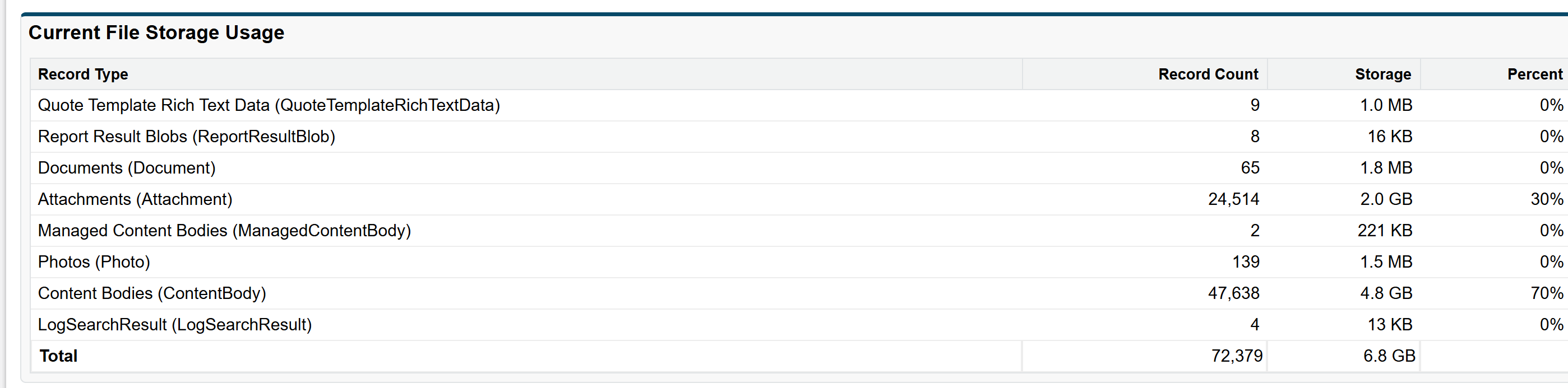
Among these, Content Bodies typically contributes the largest portion of file storage usage.
However, identifying and removing the data that contributes to this storage usage can be confusing, especially since Content Body records cannot be directly accessed or deleted.
Understanding Content Body:
Content Body represents the body of a file in Salesforce CRM Content or Salesforce Files. Cannot be queried, inserted, updated, or deleted directly. ContentBody is intended for internal Salesforce use. If you need to access the file content body, please use ContentVersion.
To manage file storage associated with ContentBody, administrators must interact with related objects. Instead of attempting to delete ContentBody directly, Users must delete records from: ContentDocument and ContentVersion Deleting these records removes the associated file content and reduces the storage usage.
Administrators sometimes query the following objects to estimate file storage usage:
-> ContentDocument and ContentVersion
Below are the sample queries to check the overall data space consumed. The result of this will be displayed in Byte, You can convert them into Megabyte or Gigabyte.
SELECT SUM(BodyLength) FROM Document
SELECT SUM(BodyLength) FROM Attachment
SELECT SUM(ContentSize) FROM ContentVersion
SELECT SUM(ContentSize) FROM ContentDocument
Use the following SOQL (Salesforce Object Query Language) queries to calculate storage consumed by each object type. Results are returned in bytes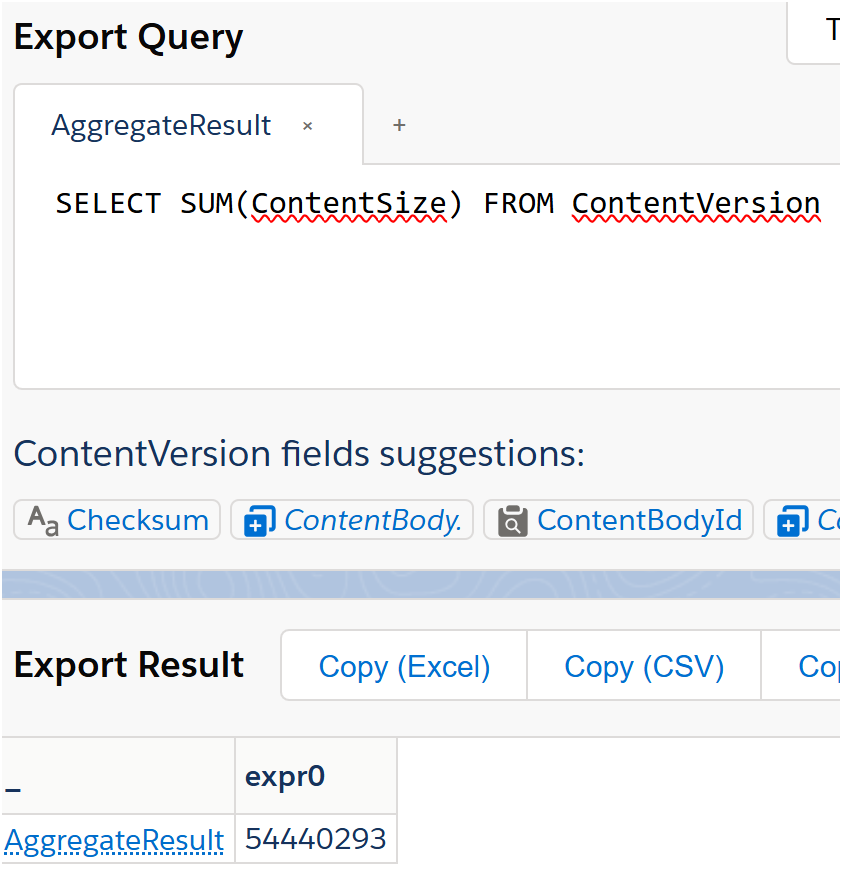
Data size converted from Byte to Megabyte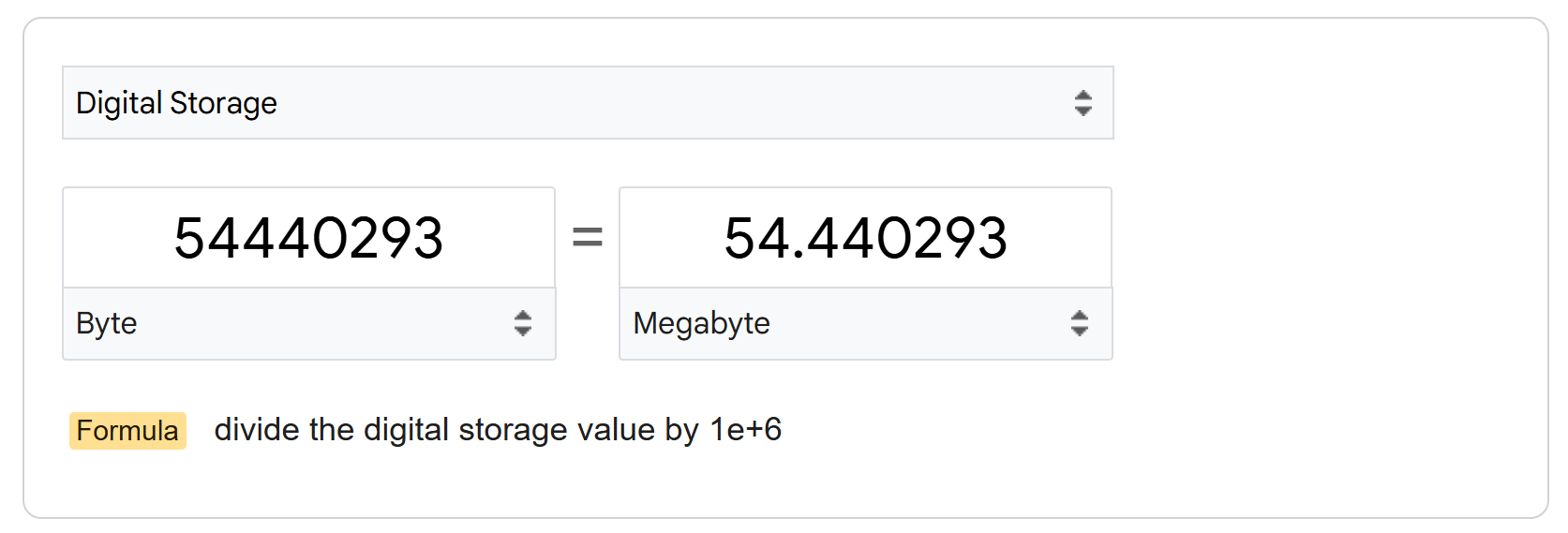
However, the number of records and total file size returned by queries may appear lower than the storage values shown in the Storage Usage page. This discrepancy typically occurs because:
-> Not all files are visible to the querying user.
-> Some files exist in libraries or groups where the user is not a member.
-> The user lacks the necessary permissions to query all files.
Document: It represents a file that a user has uploaded. Unlike Attachment records, documents are not attached to a parent object.
Attachment: It represents a file that a User has uploaded and attached to a parent object.
Ratkaisu
In such scenario, the System Admin should add Query All Files permission Query All Files Salesforce Permission
The Query All Files user permission requires the View All Data and View All Records permissions. Users with the Query All Files permission can query all files in the org with SOQL, including files in nonmember libraries and unlisted groups. Users can’t edit, upload new versions, or delete files that they don’t have access to.
Users can query the APIs for ContentDocument and ContentVersion, and retrieve all files in the org, including files in nonmember libraries and files in unlisted groups. Users can query ContentDocumentLink without a filter on Id, LinkedEntityId, and DocumentId.
Once the Query All Files permission is enabled, administrators can run SOQL queries to determine how much storage is used by different objects.
Recommended Approach to Reduce File Storage:
-> Navigate to Setup → Storage Usage to identify major contributors.
-> Ensure the administrator has Query All Files permission.
-> Run SOQL queries to identify storage consumption by objects.
-> Review large or unnecessary files using: ContentDocument, ContentVersion, Attachments, Documents.
-> Use tools such as: Developer Console, Workbench, Data Loader orelse any Other API tools to delete those data.
-> Cleanup unnecessary files or old versions to reduce storage usage, - Mass Delete Content and Libraries with Data Loader
If the org expects high file uploads regularly, administrators should perform periodic cleanup of file records to prevent storage limits from being exceeded.
Lisäresurssit
Understanding Salesforce Files
Set Up Users to Query Salesforce Files
File Storage Usage - Content Bodies & Attachments - Trailhead/Trailblazer community discussion
How to bring down the storage used by Content Bodies Under File Storage Usage - Trailhead/Trailblazer community discussion
What are content bodies? and how do I find them? - Trailhead/Trailblazer community discussion
Knowledge-artikkelin numero
005316439
Ratkaisiko tämä artikkeli ongelmasi?
Anna palautetta, jotta voimme kehittyä!
