Välj en organisation
Enabling PKCE for OAuth for Salesforce External Client and Connected Apps
Publiceringsdatum: Mar 13, 2026
Beskrivning
Original Publication Date - March 12, 2026
Updated -March 13, 2026
The use of PKCE to protect OAuth Authorization Code login flows is now required for all ISV Salesforce client apps. This feature has been supported by Salesforce for many years as an optional feature, but it is now considered an essential industry security practice for OAuth 2.0.
To enable this feature, you will make configuration changes in Setup in your Salesforce org. You will also need to update the application configuration of your External Client App or Connected App.
Lösning
Planning
First, read the Proof Key for Code Exchange (PKCE) Extension guide, which explains the motivation and Salesforce implementation of PKCE in detail.
Next, consider if the integrations in your org are in scope of this guidance:
-
This guidance applies if you are using any flow that supports PKCE:
-
All variations of the Authorization Code and Credentials Flow, including headless registration, headless passwordless login, and headless guest flows. See Headless Identity Flows.
- This guidance applies to both public and confidential clients.
-
If the External Client App or Connected App is added to your org via a Managed Package, these updates will need to be implemented by the author of the package. For packages installed from the App Exchange, the ISV vendor will perform these steps.
Caution: These steps may require some limited downtime for the impacted integrations, as enabling PKCE requires a coordinated change on both the server and clients. It is essential that these changes be tested and validated in a staging environment prior to roll out in production.
Client App Configuration
The set of steps listed here will reconfigure your client apps to use PKCE. These steps will be performed for each inbound connection. You will need to perform these actions in the listed order to limit service impacts. This change must be performed by the owner of the connection - which is either the org owner or the ISV providing the Managed Package.
Step 1: Client Application Updates
You need to redeploy your client application with code configured to employ PKCE because the client now needs to send a code_challenge query parameter. For this, your client application will need redeployment.
The PKCE extension will come from your chosen OAuth library. The instructions for configuration will therefore be specific to your chosen OAuth library used in your application.
Examples:
-
Java Spring Security: Proof Key for Code Exchange (PKCE) in Web Applications with Spring Security
-
Python oauthlib: Authorization Code Grant
-
Go oauth2: OAuth PKCE with Go
Step 2: Update the Connection Settings in Salesforce
After the client application is redeployed, enable PKCE for the connection in Setup, to force the client to use it. When testing in your staging environment, be sure to restart the client app after changing these settings to verify that the connection is working.
Salesforce External Client App Configuration
Enabling PKCE for an External Client App requires setting an option on the connection in the org settings. For information on the configuration steps to follow for each External Client App, please consult the detailed Configure the External Client App OAuth Settings guide.
Salesforce Connected App Configuration
Salesforce recommends migrating from Salesforce Connected Apps to External Client Apps. But you may still be running Connected Apps in your environment. For information on the configuration steps to follow for each Connected App, please consult the detailed Configure a Connected App for the Authorization Code and Credentials Flow guide.
Salesforce Org Configuration
This step will change your org to require PKCE for all inbound OAuth connections that support it. This can only be done by the org owner, not an ISV or Managed Package publisher.
It is important to do this change only after all of the client apps have been individually upgraded to use PKCE as shown above. Making this change will then prevent new client apps from deploying without PKCE. As stated above, this roll out must be tested in a staging environment prior to production deployment.
Follow these steps to enable PKCE for your Salesforce org:
-
From Setup, in the Quick Find box, enter OAuth, and then select OAuth and OpenID Connect Settings.
-
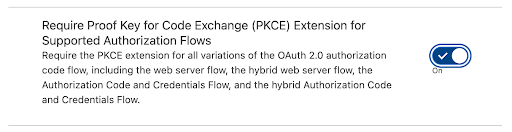
Turn on Require Proof Key for Code Exchange (PKCE)
Knowledge-artikelnummer
005316703
Löste denna artikel ditt problem?
Berätta för oss vad vi kan förbättra!
