Sélectionner une organisation
Sales Insight Integration User in Sales Cloud Einstein Features
Date de publication: Apr 30, 2026
Description
Sometimes Sales Cloud Einstein Features like Lead Scoring, Opportunity Scoring, and Einstein Conversation Insights will be stuck on Analyzing and will not finish the analyze step. You may see the following behavior:
-
- Feature will be stuck on calculating scores status; no scores are available after 48 hours.
- Feature disabled by itself.
There are many factors causing the above issue, such as minimal data present for the org, as mentioned in articles like Considerations for Setting Up Einstein Opportunity Scoring and Considerations for Setting Up Einstein Lead Scoring.
However, in this article, we are focusing on Sales Insight Integration User.
Résolution
This Sales Cloud Einstein Features is managed by the Sales Insights Integration User. Sales Cloud Einstein creates an integration user and assigns it an integration user profile.
However, sometimes this user can be in a frozen status because there is a behavior in Salesforce that if users have not logged in to a Developer or Developer Pro sandbox within the first 60 days based on the time the user was created, they are frozen.
Since this user is frozen, the Sale Cloud Einstein Features will not be enabled properly. Here are the steps to resolve this issue:
Step 1: Unfreeze the Sales Insights Integration User
Go to Setup → Users → Insights Integration User → Click on "Unfreeze." Once we unfreeze the user, we need to disable and re-enable Einstein features again.
Step 2: Also check if the connected app was installed by the auto-installer.
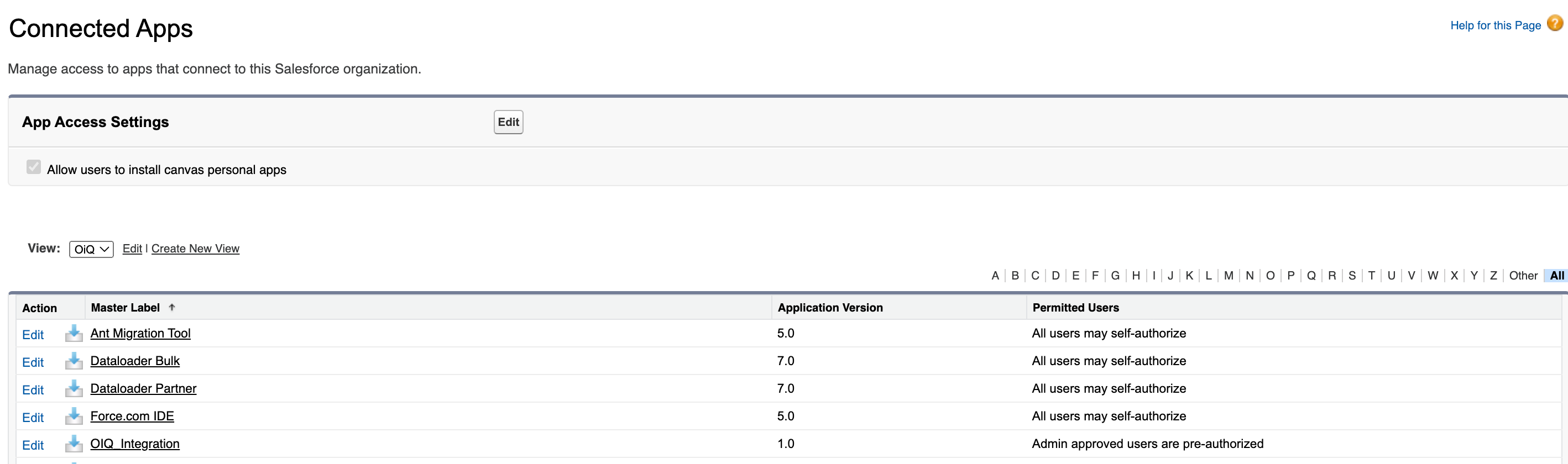
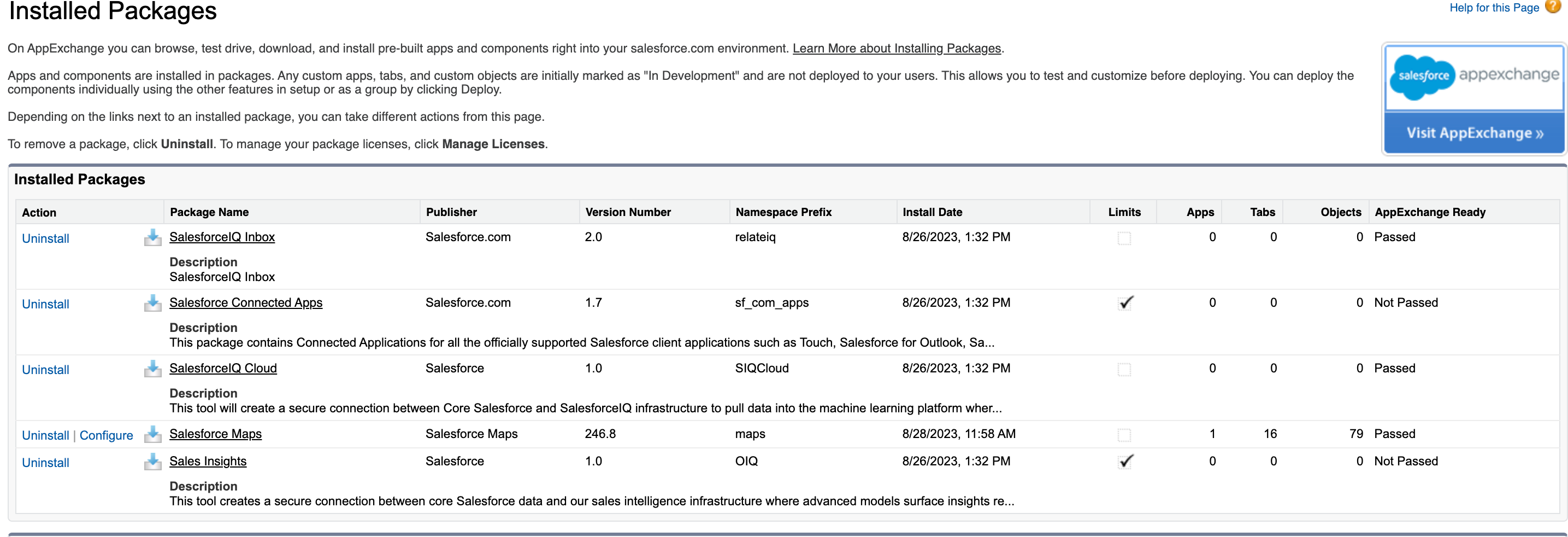
The happy path is the connected app using the packages above to auto-install the connected app. The result of a correctly installed connected app should look like below. The OIQ_Integration app is displayed in connected apps and the Sales Insights package with the OIQ name prefix created in the installed packages.
If auto-install succeeds, but there are still issues with the connection to the backend:
Step 1:
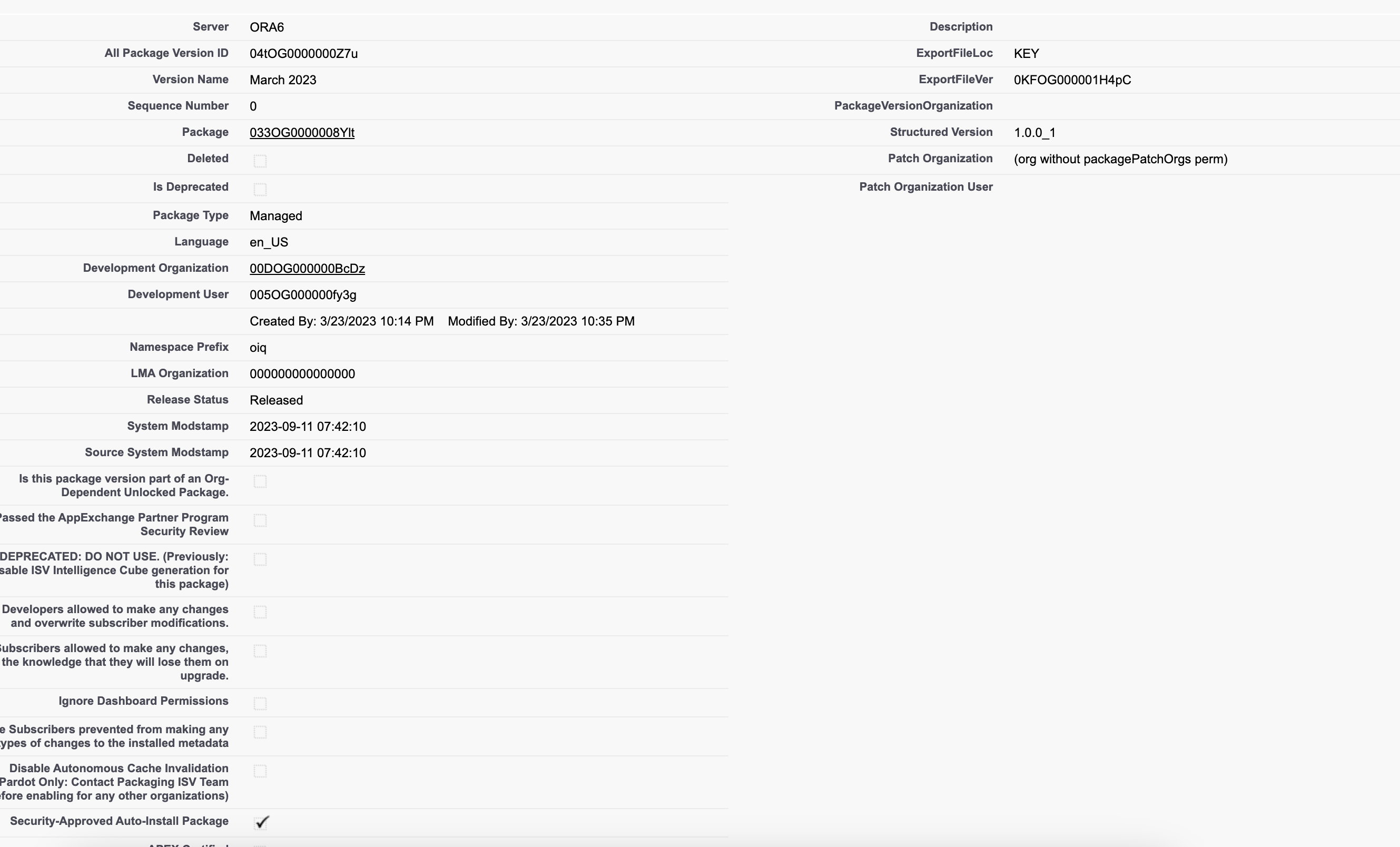
Check that the package is created correctly. Check that the namespace is OIQ. The autoinstaller looks for a direct string comparison to “OIQ.” It is not case sensitive, but if it is named anything other than OIQ, auto-install will fail.
Step 2:
Check that the “Security approved auto-install packages” is checked.
Step:
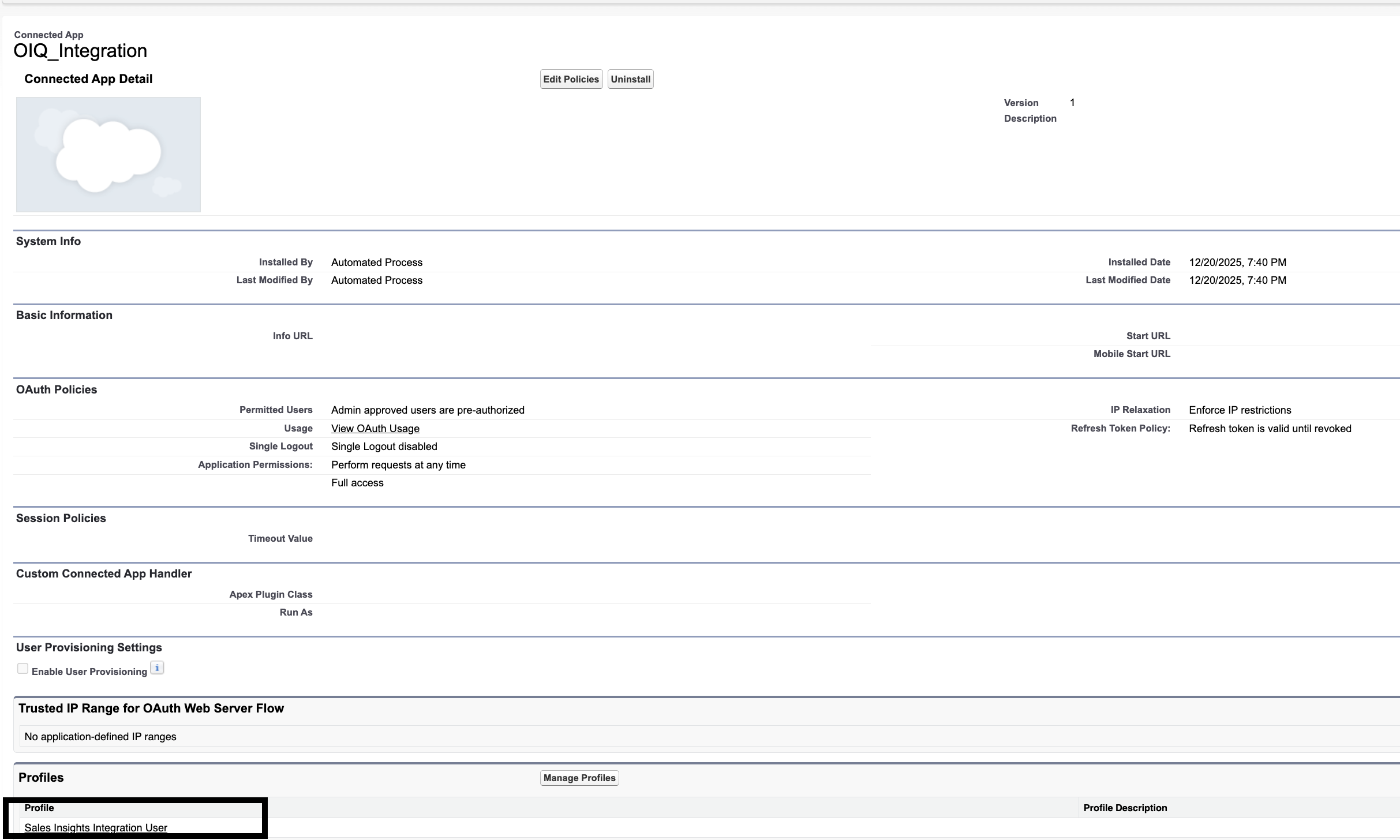
Check the OAuth policy; it must be set to “Admin approved users are pre-authorized.” If it is set to “All users may self-authorize,” the app will install correctly, but the off-core logs will show a user access error.
Step 4:
‘Sales Insights Integration User’ profile should be associated with the connected app.
Ressources supplémentaires
See Also:
Numéro d’article de la base de connaissances
005317460
Cet article a-t-il résolu votre problème ?
Dites-nous ce que nous pouvons améliorer !
