조직 선택
Add the Chatter Component to a Record Page
게시 일자: Apr 23, 2026
상세 설명
This article explains how to enable and add the Chatter component to Lightning record pages. It covers how to activate feed tracking for an object and use the Lightning App Builder to add Chatter, enabling real-time collaboration through posts, feeds, and interactions directly on record pages.
솔루션
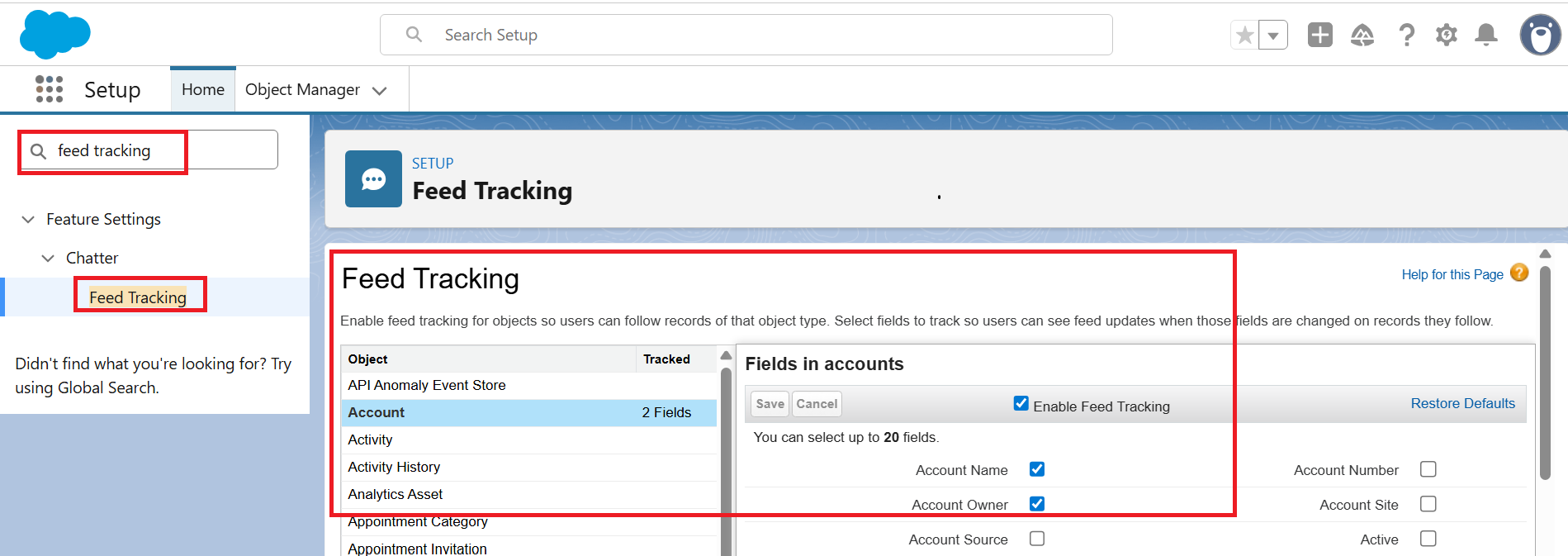
Step 1: Enable Feed Tracking
- Before adding the Chatter component, ensure that feed tracking is enabled for the required Object
- Go to Setup
- In Quick Find, search for Feed Tracking
- Select the required Object, for example Account
- Enable Feed Tracking
- Select the Fields to track
- Click Save
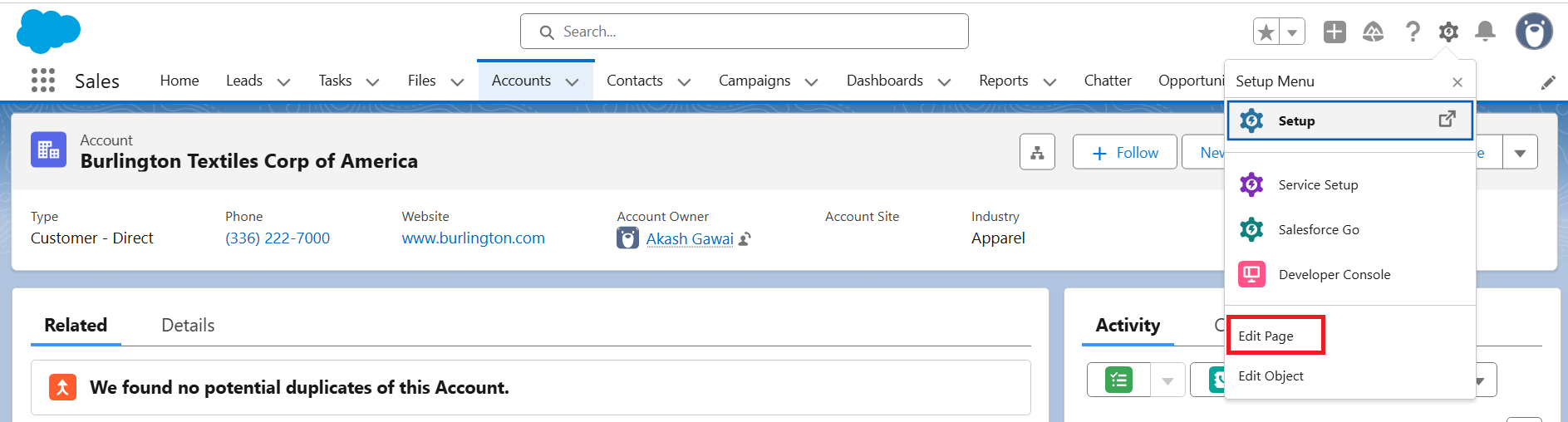
Step 2: Open Lightning App Builder
- Navigate to a record page of the required Object, for example, Account
- Click the Setup
- Select Edit Page
- This opens the Lightning App Builder
Step 3: Add the Chatter Component
- In the Lightning App Builder, locate the components panel on the left
- Search for Chatter or Feed component
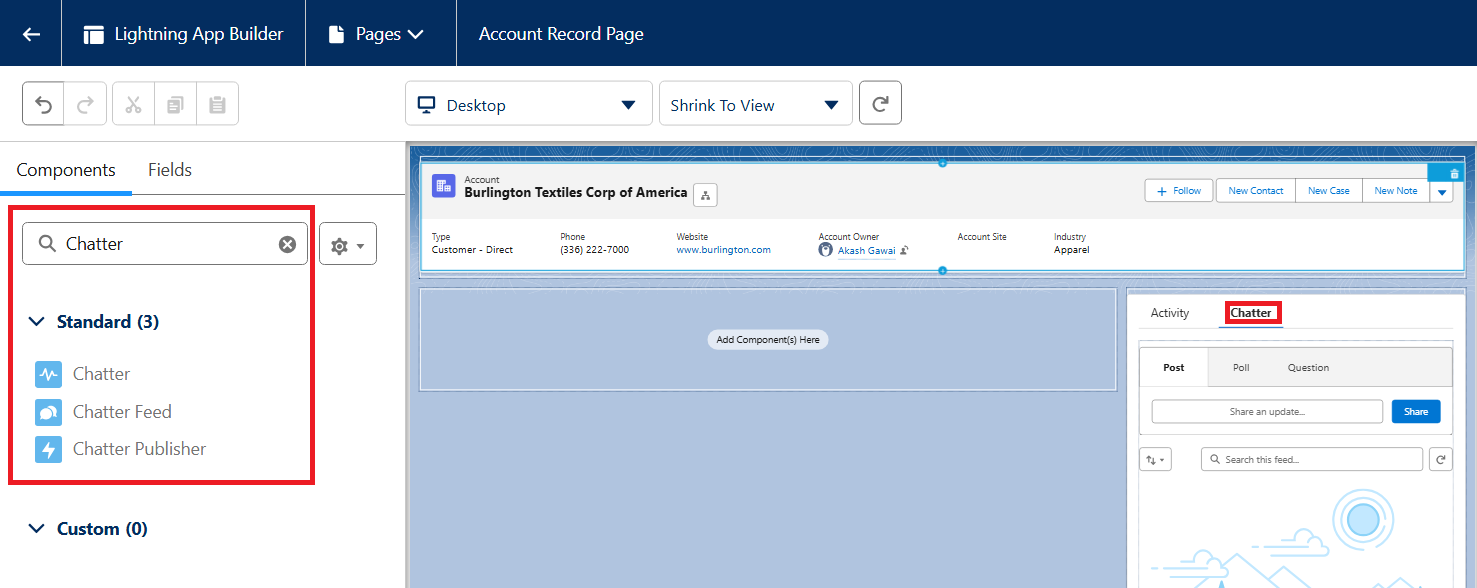
- Drag and drop the component into the desired section of the Page Layout
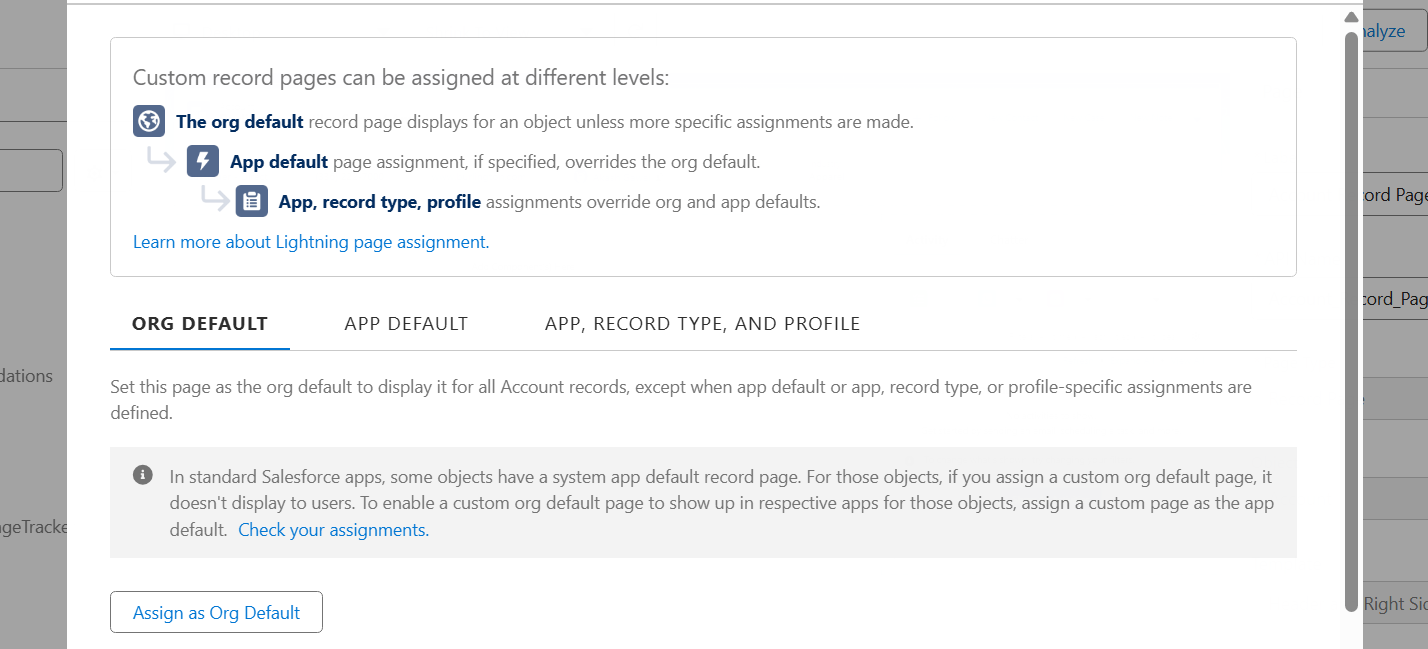
Step 4: Save and Activate the Page
- Click Save in the top-right corner
- Click Activate if not already Active
- Assign the page as needed:
-
- Org Default
- App Default
- App, Record Types and Profile-specific assignment
- Validate the Chatter feed component on the page layout
Note: Ensure the page layout includes the Chatter related lightning actions like Post, Poll, and Question in the Mobile & Lightning Actions section
___________________________________________________________________
Written by: Smitha Thomas | Forum Ambassador
Smitha is a Salesforce Consultant and Trailhead Forum Ambassador who is passionate about supporting Trailblazers and contributing to the community. She is continually inspired by the rapid evolution of the Salesforce ecosystem and enjoys exploring its powerful automation features and Agentforce capabilities.
Submissions reflect only the opinions of the user who made available the Submission and not the opinions of Salesforce, regardless of whether the user is affiliated with Salesforce, and may contain or constitute products, services, information, data, content and other materials made available by or on behalf of third parties ("Third Party Materials). Salesforce neither controls nor endorses, nor is Salesforce responsible for, any Third Party Materials, including their accuracy, validity, timeliness, completeness, reliability, integrity, quality, legality, usefulness or safety, or any applicable intellectual property rights. Any Submissions made available through any message board or forum in response to posted questions, or that otherwise purports to answer any questions, including any questions about Salesforce or Programs, are made available for your general knowledge only and should never be relied upon as answers to your specific questions (even if an answer is marked as a “best” answer or with any similar qualifications). You should always contact Salesforce support for answers to your specific questions. Salesforce has no control over Submissions, and is not responsible for any use or misuse (including any distribution) by any third party of Submissions.
If you have questions, tap into the wisdom of our entire Trailblazer Community here: https://trailhead.salesforce.com/trailblazer-community/feed
Knowledge 기사 번호
005318589
이 기사를 통해 문제를 해결했습니까?
개선을 위한 의견을 보내주세요.
