Seleziona un'organizzazione
Validate Readiness for Omni-Channel Voice and Blended Presence Status
Data pubblicazione: Jul 21, 2026
Descrizione
As a Salesforce administrator who uses Salesforce Voice with presence statuses that span voice and other channels, learn how to confirm your Salesforce Voice setup is ready so reps can access presence statuses reliably.
Starting in Summer '26, Salesforce Voice introduces an Omni-Channel Voice Readiness Check that impacts voice presence status and blended presence status behavior. A blended presence status is a status that applies to more than one channel, for example, voice and messaging or voice and case.
For all contact centers, regardless of whether the Voice Readiness check is on, Summer '26 adds base-level checks for reps. If the checks fail, reps cannot access a voice presence status or blended presence status.
- For Salesforce Voice with Amazon Connect, Salesforce Voice with Partner Telephony, and Salesforce Voice with Partner Telephony from Amazon Connect, reps must have permission sets assigned and must be users in the contact center.
- For Salesforce Voice (Native Telephony), reps must have permission sets assigned and there must be a voice channel set up for Salesforce Voice.
When the Omni-Channel Voice Readiness check is turned on, Omni-Channel waits for the telephony connector to report readiness before allowing reps to accept inbound work or to make a call. During SSO login, reps see a Connecting badge next to their Omni-Channel presence status to indicate they are not yet available for calls.
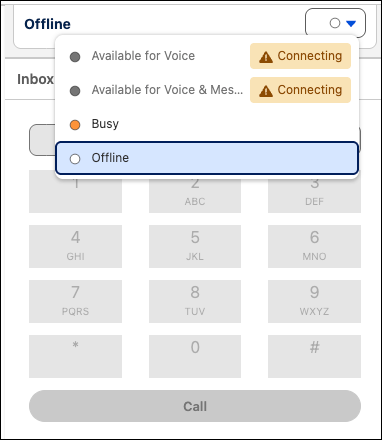
After SSO is complete and the voice connector finishes loading, the badge disappears and reps are available for calls or other work associated with the status.
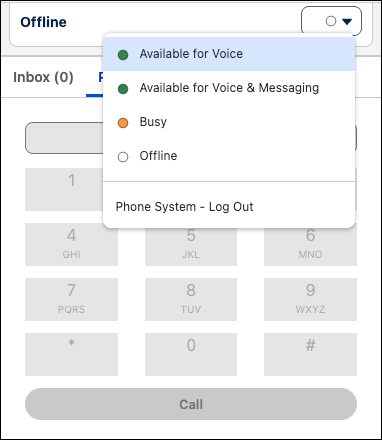
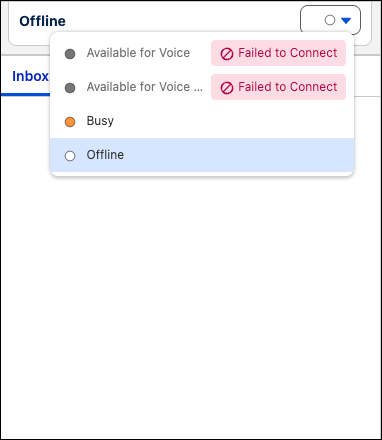
For that model to work end-to-end, the Salesforce Voice integration must be in a ready state that matches how Omni-Channel presence and routing are set up. If Voice is not ready, reps may be unable to use the blended status as intended. For example, if a rep selects a status that covers voice and messaging and the voice connector is not ready, the rep cannot access the presence status. Additionally, if the rep or contact center does not pass the base-level checks, reps cannot access voice presence statuses or blended presence statuses.
Default Behavior by Telephony Model
The Voice connector readiness check feature impacts any presence status associated with a Salesforce Voice channel, but the default behavior differs by telephony model.
- For Salesforce Voice (native telephony): Voice connector readiness check is on by default and cannot be turned off.
- For Salesforce Voice with Amazon Connect, Salesforce Voice with Partner Telephony, and Salesforce Voice with Partner Telephony from Amazon Connect: Voice connector readiness check is on by default in contact centers using Omni-Channel Unified Routing and cannot be turned off.
- For contact centers using blended (federated) routing: the feature is off by default.
To turn on Omni-Channel Voice Readiness check for Amazon contact centers using blended routing:
- From Setup, in the Quick Find box, enter Contact Center, then select Amazon Contact Centers.
- Select the contact center.
- In the Contact Center Details, turn on Voice Connector Readiness Check.
Risoluzione
Complete the following steps before using blended or voice-only presence statuses in Summer '26 to ensure your Salesforce Voice configuration passes all required readiness checks.
Note the default behavior for your telephony model. If needed, plan to turn on the Omni-Channel Voice Readiness check for your contact center with blended routing.
-
Make sure that your configuration will pass base-level checks. Check that reps have permission sets assigned. For Salesforce Voice with Amazon Connect, Salesforce Voice with Partner Telephony, and Salesforce Voice with Partner Telephony from Amazon Connect check that reps are users in the contact center. For Salesforce Voice (Native Telephony) check that there’s a voice channel set up.
-
Clarify your presence model. Document which presence statuses are voice-inclusive versus those that don’t include voice. Confirm that supervisors and reps understand what each status means across channels.
-
Confirm that voice is fully configured for your telephony model. Verify that Salesforce Voice (or your supported Voice integration) is implemented according to Salesforce and partner guidance for your org: routing design, connector or partner integration, and rep login flow are complete.
-
Test the feature. Reps sign in, set each blended status they will use in production, and accept voice work. Confirm there are no unexpected blocks and that routing matches the documented behavior.
-
If reps report issues, update your voice configuration to make sure that reps can sign into Omni-Channel successfully when Voice Connector readiness is turned on.
Risorse aggiuntive
See Also
Salesforce Help: Create Presence Statuses
Salesforce Help: Troubleshoot Salesforce Voice (How Do I Troubleshoot Omni-Channel Login and SSO Issues section)
Numero articolo Knowledge
005318906
Questo articolo ha risolto il problema?
Facci sapere, così possiamo migliorare!
