Seleccionar una organización
Report on Cadence Step Overdue Time Using Cadence Tracker Reports
Fecha de publicación: Aug 18, 2026
Descripción
This article explains how cadence reporting works in Salesforce by enhancing the Leads with Cadence Trackers report type. It shows how to customize reports to track cadence step performance, including on-time completion and delays. It also highlights how these insights help improve visibility, measure effectiveness, and optimize engagement strategies.
Solución
You can build Reports in Salesforce to show cadence details, such as step completion status, timeliness, next step date, and current cadence state, by customizing the Leads with Cadence Trackers report type that comes with Sales Engagement.
Steps to Create the Report
Step 1: Modify the Report Type Layout
To report on overdue Cadence Steps in hours, we need to:
- Modify the Report Type Layout to expose required fields
- Add Cadence Step fields via Lookup Fields
- Create or Update a Report
- Add a Row-Level Formula to convert seconds into hours
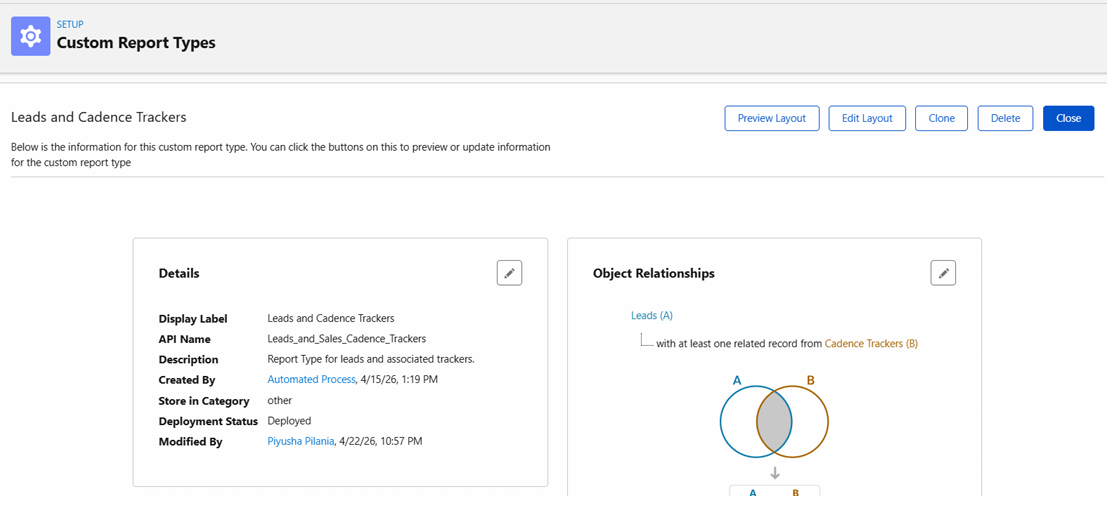
Step 2: Edit the Report Type
- Navigate to Setup
- Search for Report Types in the Quick Find box
- Locate and click Leads with Cadence Trackers
- Click Edit Layout
Step 3: Add Cadence Step Fields via Lookup
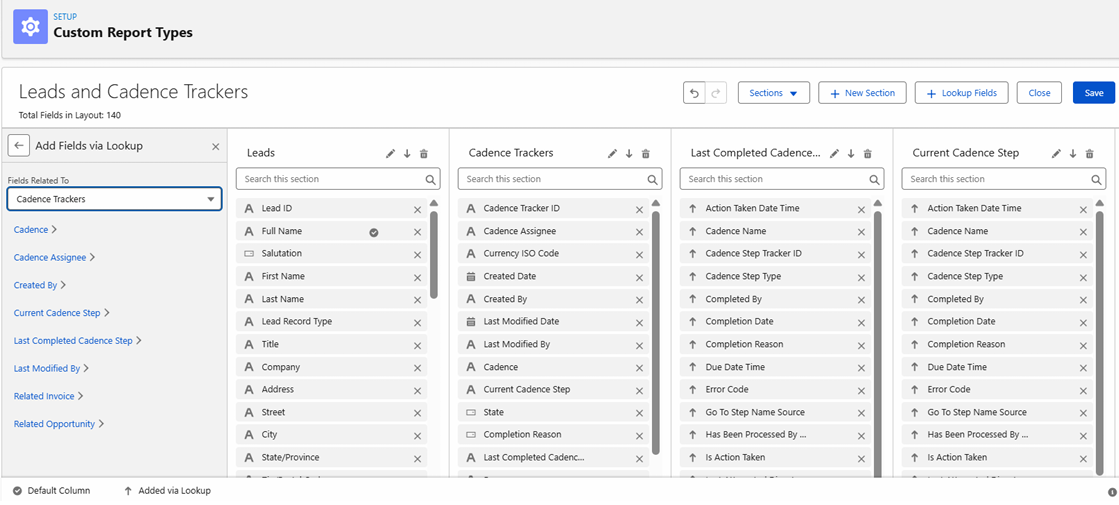
To expose additional Cadence Step data:
- In the Layout Editor, click Lookup Fields
- In the left panel, select Cadence Trackers
- Choose Last Completed Cadence Step & Current Cadence Step
- From available fields, select Seconds Overdue
- Click Apply
Optional: Organize Fields into sections
For better usability:
- Create new sections such as Last Completed Cadence Step & Current Cadence Step
- Drag and drop the newly added Fields into these Sections
Step 4: Create or Edit the Report
- Navigate to Reports from the App Launcher
- Go to All Folders -> Sample Sales Reports -> Sales Engagement Dashboard Reports
- Locate Leads with Cadence Trackers
- Click Edit or Clone the Report
Step 5: Create a Row-Level Formula
To convert seconds into hours:
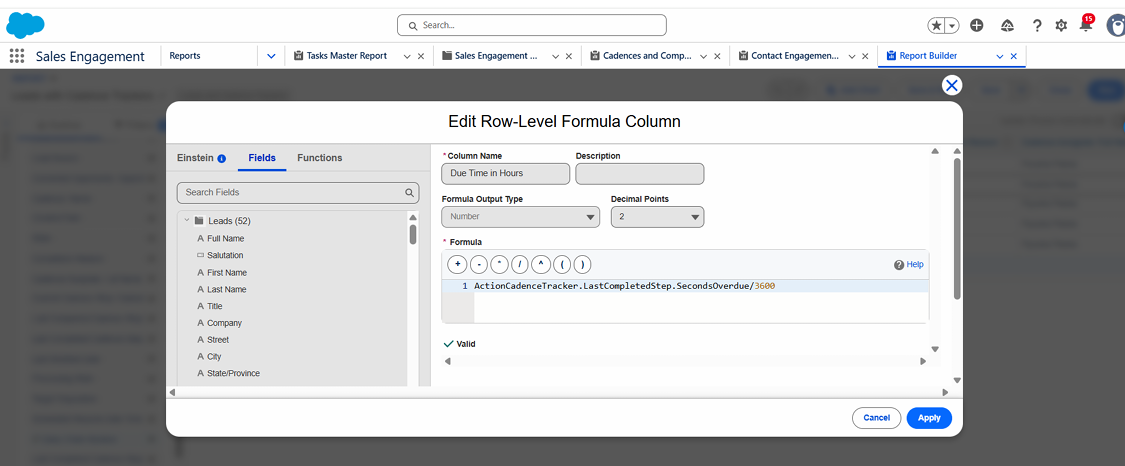
- Click Add Row-Level Formula
- Enter a Formula such as:
`ActionCadenceTracker.LastCompletedStep.SecondsOverdue / 3600`- Set output type to Number, with desired decimal places
How It Works
- Salesforce stores overdue time in seconds
- Dividing by 3600 converts seconds into hours
Interpreting the Values
- Negative Value - Step completed on time or early
- Positive Value - Step completed late or overdue
This helps quickly identify performance trends.
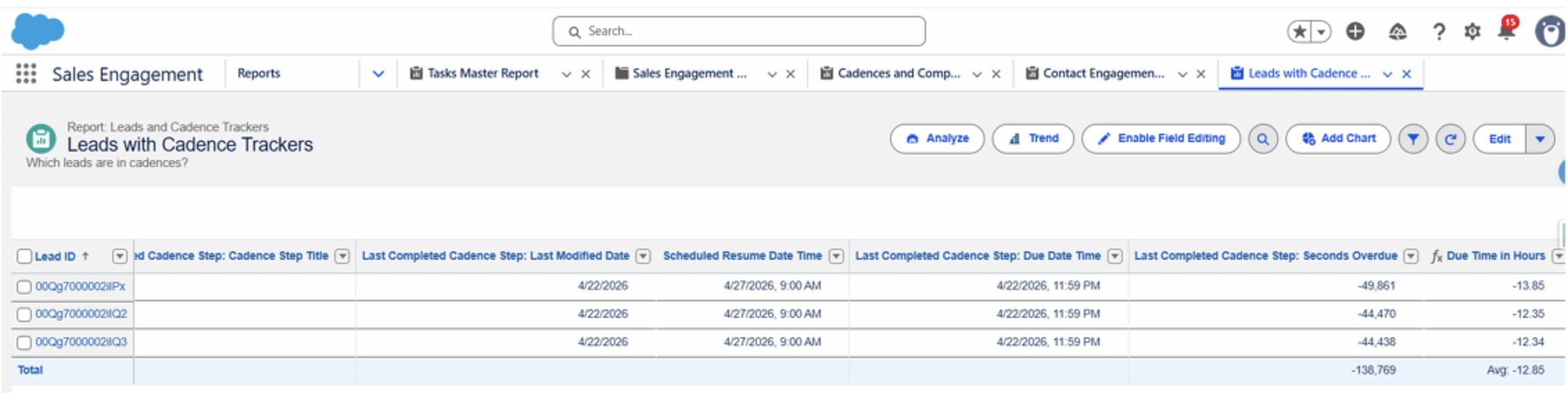
Step 6: Final Report Output
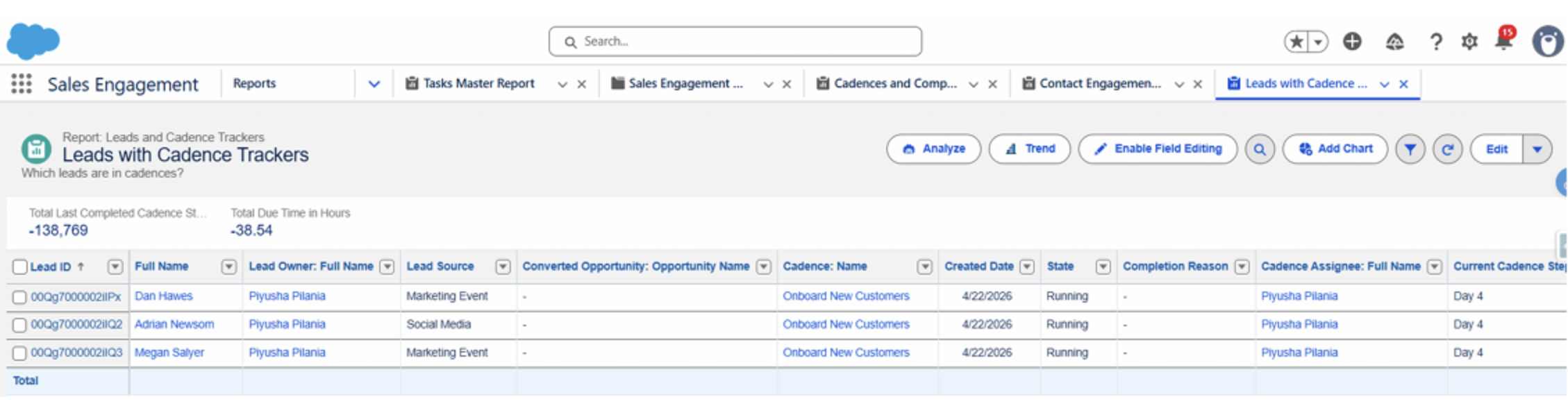
Your final Report will now include:
- Cadence details
- Last and current step information
- Overdue time in hours instead of seconds
- Clear visibility into step performance
Considerations
- Row-level formulas must be enabled in your org
- You cannot create custom fields directly on Cadence Tracker objects
- This approach leverages Report-level calculations instead
Best Practices
- Group reports by Cadence Name, Owner & Step State
- Add filters such as Active Cadences, Completed Steps, Date ranges like This Week or Last Month
______________________________________________________________________________________________________
Written by: Piyusha Pilania | Forum Ambassador
Piyusha is a Salesforce MVP and Golden Hoodie Recipient. She is a seasoned Salesforce consultant with 13 years of experience. She has a wealth of experience and knowledge in Martech, data, and Salesforce, and she has a deep interest in the convergence of data, AI, and Salesforce. She also leads the Slack and Salesforce community groups. Her mission is to elevate the knowledge and skills of trailblazers and to grow the Salesforce community.
Submissions reflect only the opinions of the user who made available the Submission and not the opinions of Salesforce, regardless of whether the user is affiliated with Salesforce, and may contain or constitute products, services, information, data, content and other materials made available by or on behalf of third parties ("Third Party Materials). Salesforce neither controls nor endorses, nor is Salesforce responsible for, any Third Party Materials, including their accuracy, validity, timeliness, completeness, reliability, integrity, quality, legality, usefulness or safety, or any applicable intellectual property rights. Any Submissions made available through any message board or forum in response to posted questions, or that otherwise purports to answer any questions, including any questions about Salesforce or Programs, are made available for your general knowledge only and should never be relied upon as answers to your specific questions (even if an answer is marked as a "best" answer or with any similar qualifications). You should always contact Salesforce support for answers to your specific questions. Salesforce has no control over Submissions, and is not responsible for any use or misuse (including any distribution) by any third party of Submissions.
If you have questions, tap into the wisdom of our entire Trailblazer Community here: https://trailhead.salesforce.com/trailblazer-community/feed
Recursos adicionales
Número del artículo de conocimiento
005321421
¿Resolvió este artículo su problema?
¡Háganos saber cómo podemos mejorar!
