組織を選択
ケイデンストラッカーレポートを使用したケイデンスステップの超過時間のレポート
公開日: May 28, 2026
説明
この記事では、[Leads with Cadence Trackers] (ケイデンストラッカー付きリード) レポートタイプを拡張した、Salesforce のケイデンスレポートの仕組みを説明します。レポートをカスタマイズして、予定どおりの完了や遅延など、ケイデンスステップのパフォーマンスを追跡する手順を解説します。またこれらのインサイトが、可視性の向上、効果の測定、エンゲージメント戦略の最適化にどのように役立つかについても説明します。
解決策
Salesforce でレポートを作成し、ステップの完了状況、タイムライン、次のステップの日付、現在のケイデンスの状態など、ケイデンスの詳細を表示することができます。これを行うには、Sales Engagement に付属する [Leads with Cadence Trackers] (ケイデンストラッカー付きリード) レポートタイプをカスタマイズします。
このレポートを作成する手順は、次のとおりです。
ステップ 1:超過時間のケイデンスステップを時間単位でレポートするには、次の作業を行います。
- [Report Type Layout] (レポートタイプレイアウト) を変更して、必須項目が表示されるようにする。
- [Lookup Fields] (参照項目) を使用して [Cadence Step] (ケイデンスステップ) 項目を追加する。
- レポートを作成または更新する。
- 行レベル数式を追加して秒を時間に変換する。
ステップ 2:レポートタイプを編集します。
- [設定] に移動します。
- [クイック検索] ボックスでレポートタイプを検索します。
- [Leads with Cadence Trackers] (ケイデンストラッカー付きリード) を探してクリックします。
- [レイアウトの編集] をクリックします。
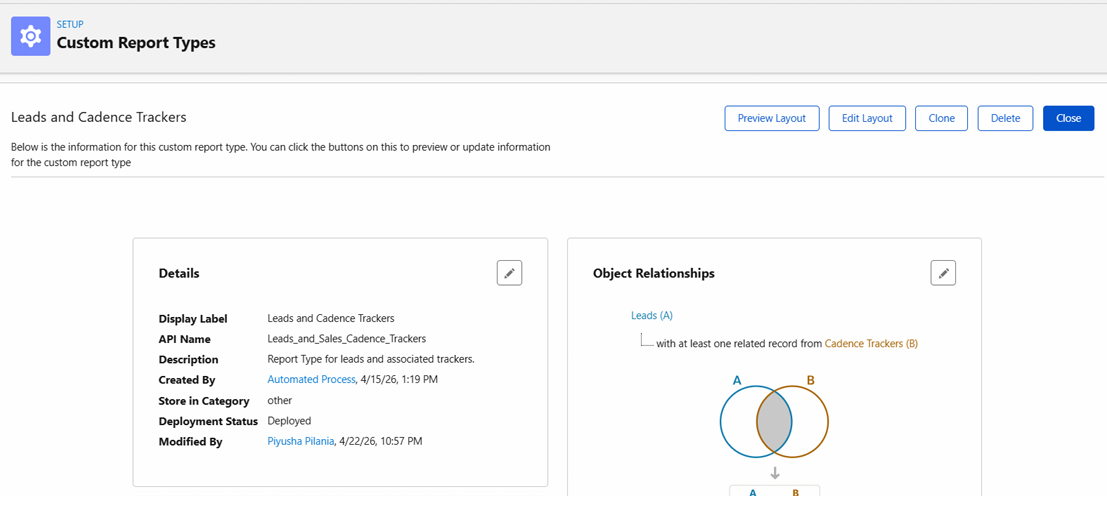
ステップ 3:検索を使用して、[CadenceStep] (ケイデンスステップ) 項目を追加します。
追加のケイデンスステップデータを公開するには、次の手順を実行します。
- レイアウトエディターで、[Lookup Fields] (参照項目) をクリックします。
- 左側のパネルで、[Cadence Trackers] (ケイデンストラッカー) を選択します。
- [ Last Completed Cadence Step] (最後に完了したケイデンスステップ) と [Current Cadence Step] (現在のケイデンスステップ) を選択します。
- 使用可能な項目から、[Seconds Overdue] (超過秒数) を選択します。
- [適用] をクリックします。
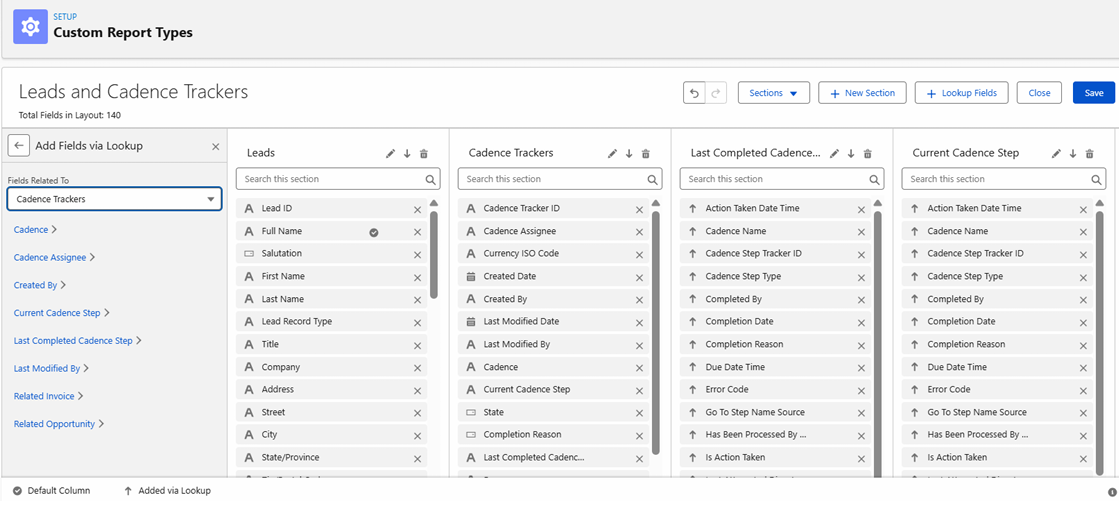
オプション:項目をセクションに整理する
使いやすさを向上させるため、次の手順を実行します。
- [最後に完了したケイデンスステップ] や [現在のケイデンスステップ] など、新しいセクションを作成します。
- 新しく追加した項目をこれらのセクションにドラッグアンドドロップします。
ステップ 4: レポートを作成または編集します。
- アプリケーションランチャーから [レポート] に移動します。
- [All Folders] (すべてのフォルダ) -> [Sample Sales Reports] (売上レポートのサンプル) -> [Sales Engagement Dashboard Reports] (Sales Engagement ダッシュボードレポート) に移動します。
- [Leads with Cadence Trackers] (ケイデンストラッカー付きリード) を探します。
- レポートの [編集] または [ コピー] をクリックします。
ステップ 5: 行レベル数式を作成します。
秒を時間に変換するには、次の手順を実行します。
- [Add Row-Level Formula] (行レベル数式を追加) をクリックします。
- 次のような数式を入力します。
ActionCadenceTracker.LastCompletedStep.SecondsOverdue / 3600 - 出力種別を [Number] (数値) に設定し、任意の小数部の桁数を指定します。
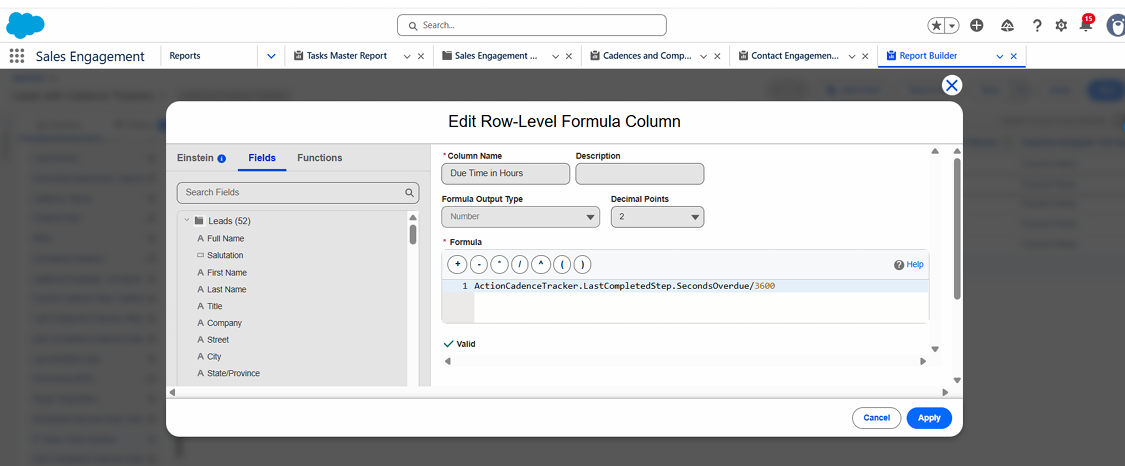
仕組み
- Salesforce は超過時間を秒単位で保存します。
- 3600 で割ると、秒が時間に変換されます。
値の解釈
- 負の値 - ステップが予定どおりまたは予定より早く完了したことを表します。
- 正の値 - ステップの完了が遅れた、または期限を超過していることを表します。
これにより、パフォーマンスの傾向をすばやく特定できます。
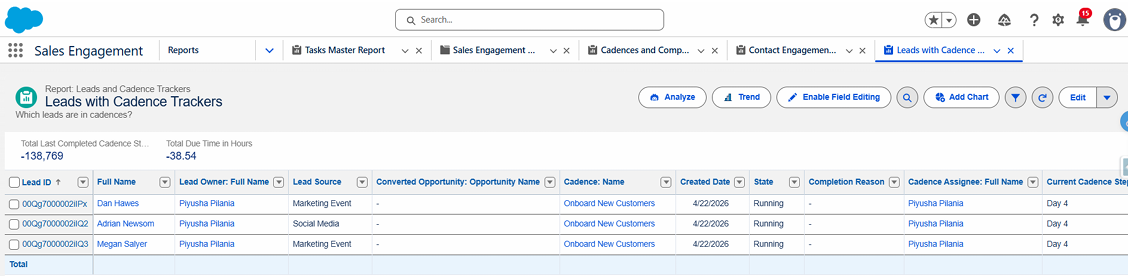
ステップ 6:最終レポートを出力します。
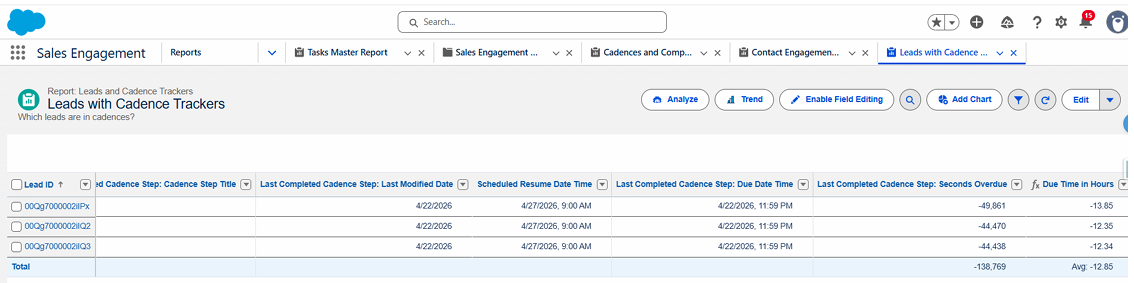
最終レポートには次の内容が含まれます。
- ケイデンスの詳細
- 最後のステップと現在のステップの情報
- 超過時間 (秒単位ではなく時間単位)
- ステップのパフォーマンスの明確な把握
考慮事項
- 行レベル数式が組織で有効になっている必要があります。
- カスタム項目は [Cadence Tracker] (ケイデンストラッカー) オブジェクトに直接作成できません。
- この方法では、代わりにレポートレベルの計算を使用しています。
ベストプラクティス
- [Cadence Name] (ケイデンス名)、[Owner] (所有者)、[Step State] (ステップの状態) でレポートをグループ化します。
- [Active Cadences] (有効なケイデンス)、[Completed Steps] (完了したステップ)、[This Week] (今週) や [Last Month] (先月) などの日付範囲など、検索条件を追加します。
関連情報
- 標準の Sales Engagement レポートに関する記事
https://help.salesforce.com/s/articleView?id=sales.hvs_reports_standard_reports_folders.htm&type=5 - カスタムの Sales Engagement レポートに関する記事
https://help.salesforce.com/s/articleView?id=sales.hvs_reports_custom.htm&type=5
______________________________________________________________________________________________________
作成者: Piyusha Pilania | フォーラムアンバサダー
Piyusha は、Salesforce の MVP であり Golden Hoodie 受賞者です。彼女は 13 年の経験を持つベテランの Salesforce コンサルタントです。マーテック、データ、Salesforce に関する豊富な経験と知識を持ち、データ、AI、Salesforce の融合に深い関心を持っています。また、Slack および Salesforce コミュニティグループのリーダーも務めています。彼女の目標は、Trailblazer の知識とスキルを高め、Salesforce コミュニティを成長させることです。
これらの回答は回答を提供したユーザーの意見のみを反映したものであり、ユーザーが Salesforce と提携しているか否かにかかわらず Salesforce の意見ではありません。第三者によって、または第三者に代わって提供された商品、サービス、情報、データ、コンテンツ、その他の資料 (以下「第三者資料」) が含まれる場合があります。 Salesforce は第三者資料の正確性、有効性、適時性、網羅性、信頼性、完全性、品質、適法性、有用性、安全性、該当する知的財産権について、管理も支持もしておらず、それに関する責任を負いません。投稿された質問に対してメッセージボードやフォーラムで提供された回答、Salesforce やプログラムに関する質問などに答えることを意図した回答は、一般的な知識としてのみ利用でき、特定の質問に対する回答として捉えないでください (「最良」な回答または同様の評価がされた回答としてマークされている場合でも同様です)。特定の質問に対する回答は、必ず Salesforce サポートにお問い合わせください。Salesforce は回答を管理しておらず、回答の第三者による使用または誤用 (共有を含む) について一切責任を負いません。
ご質問がある場合は、こちら (https://trailhead.salesforce.com/trailblazer-community/feed) から Trailblazer Community 全体の英知を活用してください。
ナレッジ記事番号
005321421
この記事で問題は解決されましたか?
ご意見をお待ちしております。
