Sélectionner une organisation
Prepare for MFA Enforcement for All Employee Users
Date de publication: Jul 24, 2026
Description
This article addresses MFA requirements for users without privileged or admin permissions, as defined in “Who’s Affected”). While privileged users and admins are required to use phishing-resistant MFA, Salesforce strongly recommends that all users adopt phishing-resistant MFA methods (security keys and built-in authenticators), to ensure the highest level of protection against identity-based threats.
For more info on the roadmap of upcoming targeted Security changes for the Salesforce Platform, see: Security-Related Product Updates to the Salesforce Platform.
|
July 6 Update: To provide more transparency on the rollout, we have published a detailed enforcement schedule organized by Release Groups and target instances. Refer to the Release Group Enforcement Schedule to determine the specific timeline for your org. |
Watch: Video Resource
To get an overview of the MFA for All requirement, watch this video below or click the link to open the video a new tab: Get Ready for MFA for All
What’s Changing
Salesforce is enforcing Multi-Factor Authentication (MFA) for all employee logins, including direct UI and Single Sign-On (SSO), across both production and sandbox orgs.
Supported MFA verification methods in Salesforce are categorized by their security strength:
-
Phishing-Resistant MFA (Recommended): The most secure and seamless experience. This includes Built-in Authenticators (e.g.,Touch ID, FaceID, Windows Hello) and Security Keys (e.g.,YubiKey from Yubico and the Titan Security Key from Google). We highly recommend adopting Passwordless login via Passkeys to provide users with the fastest and most secure authentication flow available.
-
Standard MFA: Includes the Salesforce Authenticator mobile app and third-party TOTP Authenticator Apps.
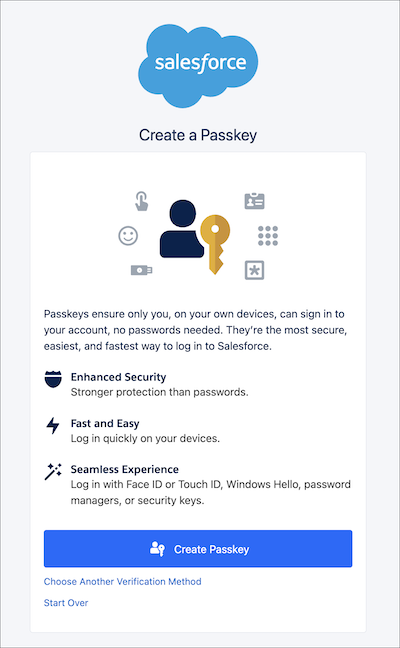
Non-Privileged Users will begin seeing this prompt to Create a Passkey when the MFA enforcement changes happen. See Release Note for details (note: the UI labels for the passkey-first MFA registration flow are only available in English. Other supported languages are scheduled for a later patch release).
Why Is Salesforce Making This Change?
To increase security and better protect your org, Salesforce is moving toward a stronger baseline by technically enforcing MFA for all employees. This change helps to mitigate account takeover (ATO) risks stemming from stolen credentials, credential stuffing, and phishing.
When Does This Change Take Effect?
Sandboxes: starting July 10, 2026.
Production: starting July 20, 2026.
Release Group Enforcement Schedule
To determine the specific start and end dates for your org, take these steps.
-
Identify your Salesforce instance. See View Instance Information for Your Salesforce Organization.
-
In the Release Group Instance Mapping table located in the Additional Resource section of this article, find the release group for your instance.
-
Find the enforcement dates for your release group in the Release Group Enforcement Schedule below.
Note: The release timing for Non-Preview Sandbox orgs is different from Preview Sandbox orgs. Check the Release Groups by target instances for your org's to confirm the release timing.
|
Release Group |
Start Date |
End Date |
|
Sandboxes [Preview] |
July 10, 2026 |
July 10, 2026 |
|
R0 |
July 20, 2026 |
July 20, 2026 |
|
R1 |
July 27, 2026 |
July 28, 2026 |
|
R2a |
August 10, 2026 |
August 17, 2026 |
|
R2b |
August 10, 2026 |
August 13, 2026 |
|
Japan & Korea |
September 1, 2026 |
September 1, 2026 |
|
All others not listed |
September 3, 2026 |
September 3, 2026 |
Who’s Affected?
This change affects all users logging into Salesforce (direct UI or SSO logins) in production or sandbox orgs who meet the following conditions:
-
Any user who does not possess any one of these privileges: System Administrator profile, Modify All Data, View All Data, Customize Application, or Author Apex. Note: Users with these privileges are subject to stricter Phishing-Resistant MFA requirements.
Note:
-
This requirement applies to internal users (that is, anyone with a standard user license) who log in to your company's Employee Community or other Experience Cloud sites.
-
Chatter Plus users are considered internal users and are subject to this requirement.
-
Who’s Not Affected?
Users who meet these criteria are already compliant, or exempt, and will experience no change:
-
Experience Cloud or Experience Site Logins are not forced to use MFA, and continue to be an optional setting configurable by org Admins. This exclusion applies to external users with Experience Cloud User Licenses.
-
Chatter External and Chatter Free users are excluded from MFA.
-
Direct UI logins where users have a registered MFA verifier already and either the user is assigned the "Multi-Factor Authentication for User Interface Logins" permission or where the org setting “Require multi-factor authentication (MFA) for all direct UI logins to your Salesforce org” is active.
-
SSO logins where users whose SSO IdP already successfully passes a standard MFA or phishing-resistant MFA signal (AMR/ACR) to Salesforce.
Note for SSO logins, we rely on the customer’s Identity Provider (IdP) sending industry standard signals in the ID token or SAML response: ACR (Authentication Context Class Reference) and AMR (Authentication Methods Reference, RFC 8176).
What to Expect
Administrative & Policy Changes
-
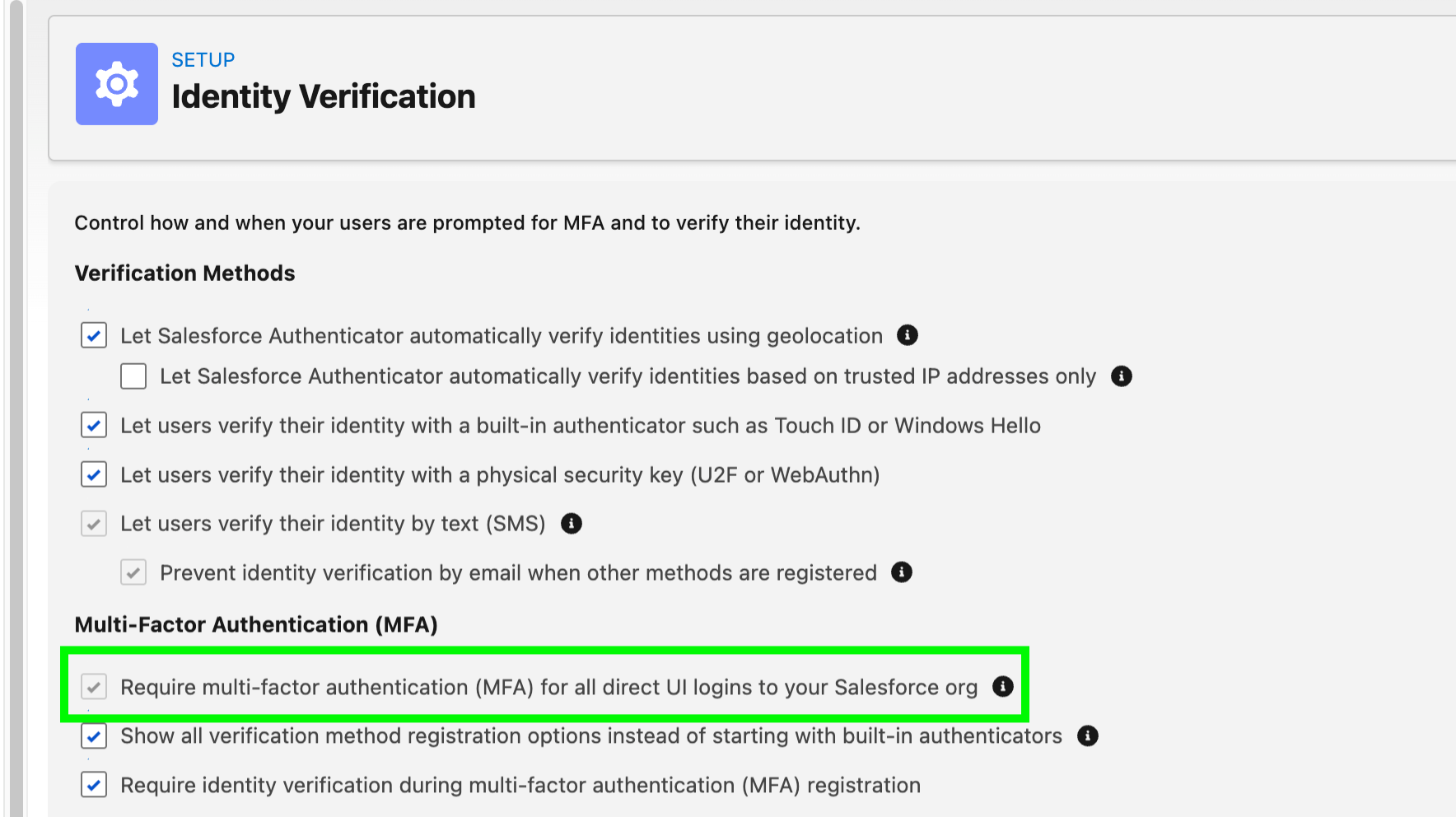
Enforcement of Org-Wide MFA Setting: “Require multi-factor authentication (MFA) for all direct UI logins to your Salesforce org” setting becomes active, and Admins will no longer have the ability to deselect or disable it.
-
Impact to MFA Exemptions: The "Waive Multi-Factor Authentication for Exempt Users" permission will no longer automatically exempt users from MFA. After this change, users with this permission will be prompted to enroll and use an MFA verifier at login. To restore this exemption for valid use cases (e.g., automated testing tools), you must contact Salesforce Support for approval.
-
Note: The PermissionsBypassMFAForUiLogins API field name for the "Waive Multi-Factor Authentication for Exempt Users" user permission is removed from the PermissionSet and Profile object schema, unless you have reached out to Salesforce Support for an extension to continue using it for valid exempt reasons. When removed, referencing this field by API name will cause compilation errors that block package installs or upgrades. Customers and partners must audit their code and metadata and remove all references to this field.
-
-
Trial Org Transition: Trial Orgs converted to a subscription will no longer be given a 30 day grace period for the MFA requirement.
User Login & Registration Experience
-
Direct UI Logins: users will be prompted to enroll a supported MFA verifier if they haven’t previously enrolled, and for all subsequent logins complete the MFA challenge to log in.
-
Enhanced "Passwordless" Login: The login.salesforce.com and My Domain pages will be updated to enable users to enter their username without a password. This change streamlines the user experience for users who log in with a passkey (built-in authenticator or security key) instead of a password. Test automations that use UI logins may need to be updated. Also note upcoming changes to the login experience in September.
-
Phishing-Resistant Defaults: When users are required to register a new MFA method, they will be prompted to register a Passkey (Built-in Authenticator or Security Key which are phishing-resistant options). Users that do not require a phishing-resistant MFA option will have the option to choose third party authenticator apps.
-
In-app Banner reminders will be shown to all users where:
-
Single-Sign-On (SSO) is configured or
-
“Require multi-factor authentication (MFA) for all direct UI logins to your Salesforce org” setting is disabled, or
-
“Waive Multi-Factor Authentication for Exempt Users" permission is assigned, or
-
Security Keys and Built-in Authenticators verifiers are not made available to users.
-
Single Sign-On (SSO) & Integration Requirements
-
SSO Requirements: SSO users whose identity provider does not transmit a valid AMR (Authentication Methods Reference) or ACR (Authentication Context Class Reference) signal will be required to enroll an MFA verifier in the Salesforce UI.
-
OAuth Web Server & Hybrid Token Flows: Connected Apps or External Client Apps using these flows require users to log in to the Salesforce UI to complete OAuth authorization, this login is subject to MFA enforcement. Apps using JWT Bearer or Client Credentials flows are unaffected, as no UI login is required.
Determining Authentication Strength & The Evaluation Logic
Authentication Strength Tiers
Salesforce evaluates every login based on its strength. Whether you log in directly to Salesforce or use a Single Sign-On (SSO) provider, your authentication is categorized into one of three tiers: Phishing-Resistant MFA, Standard MFA, or Weak MFA / No MFA, based on the login method (Salesforce as IdP or other SSO IdP) and what are the specific verifiers or signals present. The classification depends on whether you log in directly (Salesforce as IdP) or via SSO.
|
Tier |
Direct Salesforce Login (Salesforce MFA verifiers) |
SSO Authentication Method Reference (AMR) Signals |
SSO Authentication Context Class Reference (ACR) Signals |
Result |
|
Phishing- |
Security Keys (WebAuthn), Built-in Authenticators (Touch ID, Windows Hello), Admin-Generated Temporary Verification Codes | cert, face, fido, fido2, fpt, hwk, iris, passkey, phr, pki, pop, pwlesspasskey, retina, sc, smartcard, smartcardpki, softwarepki, swk, tlsclient, x509 |
fido, fido2, fpt, hwk, passkey, phr, pki, pwlesspasskey, retina, smartcard, smartcardpki, softwarepki, swk, tlsclient, x509 |
Successful login. |
|
Standard MFA |
Salesforce Authenticator, TOTP Apps (Google/Microsoft Auth) |
mfa, mobiletwofactorcontract, okta_verify, pin, pgp, publickey, rsa, timesynctoken, user, vbm |
mfa, mobiletwofactorcontract, okta_verify, pgp, publickey, rsa, timesynctoken, vbm |
Successful login |
|
Weak / No MFA |
No MFA |
pwd, sms, tel, email |
Login blocked until enrollment and use of standard MFA verifiers | |
These values are subject to change.
How Salesforce evaluates AMR and ACR signals from an SSO IdP to determine if Standard MFA or Phishing-Resistant MFA requirements are met
Salesforce evaluates signals from your SSO Identity Provider (IdP) differently depending on whether you use OIDC or SAML, and whether the signal is an AMR or ACR value. AMR and ACR have separate accepted signal values (refer to list of values in the table above). To satisfy the requirement, the SSO IdP must send at least one value that matches an entry in the appropriate AMR or ACR column for the required tier. Any value in the Phishing-Resistant list automatically satisfies the Standard MFA check as well.
Additional evaluation criteria:
SAML AMR
-
Salesforce parses and evaluates any IdP attribute value whose attribute name contains amr or authnmethodsreferences as an AMR signal
-
Attribute values in a semicolon-separated string (e.g., hwk;face;mfa) will be parsed and evaluated, comma-separated values are not evaluated
-
URN/URL values are split on : or / so urn:custom:auth:hwk and https://example[.]com/auth/hwk both resolve to hwk
OIDC AMR
-
OIDC AMR is an array (e.g., [hwk, mfa]) matched with exact value comparison
ACR (both OIDC and SAML)
-
Uses a contains() check on the lowercased string, so short tokens like mfa match full URNs like urn:oasis:names:tc:SAML:2.0:ac:classes:mfa
Résolution
Before Enforcement: How to Prepare
-
Audit MFA Configurations and Users:
-
Verify the “Require multi-factor authentication (MFA) for all direct UI logins to your Salesforce org” setting status, and identify users with direct MFA permissions (via Profiles/Permission Sets).
-
Identify all users assigned the "Waive Multi-Factor Authentication for Exempt Users" permission. Because the effect of this permission will be disabled when the change is enforced, you must contact Salesforce Support to retain the exemption for valid use cases (e.g., automated testing tools).
-
-
Set Up Org Verification Options: Define the allowed MFA methods for your users and establish how they choose a method during initial registration.
-
Note: Salesforce requires Privileged Users including Admins users to use phishing-resistant MFA, which means that you must enable built-in authenticators or security keys. Once you enable these methods in Setup, they will be available for all org users. There is no ability to restrict their use to only admins.
-
[Recommended] Activate Passkeys: Enable faster, phishing-resistant logins by toggling on "Allow passwordless login with passkeys" in Identity Verification settings. Users can fulfill this requirement by logging in with just their username and a passkey, such as a built-in authenticator or security key. See Passwordless login using Passkeys.
-
-
Establish Access Recovery Procedures: Define internal processes for Admins to resolve login issues (e.g., generating temporary identity verification codes) to prevent reliance on Salesforce Support for routine resets. See Resolve MFA Access Issues for Your Users.
-
Configure SSO for MFA Compliance: You have two primary paths for SSO: either update your Identity Provider (IdP) to require standard MFA authentication and transmit the necessary AMR/ACR signals, or you may enable Salesforce MFA for your SSO logins. If leveraging your IdP’s MFA service, confirm that the ID token (for OpenID Connect) or the SAML response includes the required AMR/ACR signals.
-
Check via the Authentication Method Reference (AMR) field and Authentication Context Class Reference (ACR) field in LoginHistory.
-
Use the Salesforce SAML Validator tool, or a third-party SAML tracer to inspect responses.
-
-
Pre-Register Users: Proactively communicate the timeline to your users and encourage them to register their MFA methods before the enforcement date to avoid login disruptions. See Register an identity verification method
-
Test Your MFA Implementation: Enable MFA in a sandbox first to validate your configuration, and the user registration flow before the changes reach production. See Test Your MFA Implementation for Salesforce Orgs.
After Enforcement: Resolve Errors
The steps below resolve errors caused by the change.
-
Identify Blocked Users: Monitor login history for users unable to enroll in Salesforce MFA or complete their MFA challenge. Utilize your MFA Support & Access Recovery Procedures (e.g., for locked-out users, Admins can generate a one-time login code), and reference the Common Multi-Factor Authentication (MFA) Troubleshooting for additional help
-
SSO Signal Issues: If your SSO provider is using phishing-resistant MFA or standard MFA authentication, but doesn't pass required signals, you will be required to enroll in Salesforce MFA. To prevent prompts within Salesforce, coordinate with your SSO provider to ensure the ACR or AMR signals are correctly transmitted.
-
User Lockouts: if a user is locked out, a customer org Admin can generate a temporary identity verification code, disconnect old verification methods, and assist with re-registration. See Resolve MFA Access Issues for Your Users (Salesforce Orgs).
Common Questions
How are API logins affected?
This change targets UI-based employee logins only
How are logins via the Salesforce mobile app on Salesforce Mobile SDK logins affected?
- In Mobile SDK version 13.2.0 and earlier, the default Mobile SDK authentication mode (WebView) cannot support Phishing resistant MFA mechanisms such as Passkeys or hardware security keys (e.g., YubiKey). Users on versions prior to 13.2.0 who choose Passkeys (or another phishing resistant mechanism) as their MFA option will be blocked from logging in unless their organization pre-configures advanced authentication in the My Domain settings and uses the My Domain as their login server. Alternatively, advanced authentication can be configured using MDM. For some Android apps that don’t have an intent filter configured, the Login for Admin button doesn’t automatically enable advanced authentication. To add an intent filter, follow the steps in Configuring Advanced Authentication in Android apps. To configure a custom domain in the mobile app, tap the settings menu (gear icon) before logging in, select "Change Server", and enter your custom login host URL.
- Login UX Change for all users: Accompanying the phishing-resistant MFA requirement, Salesforce is changing the login flow so that it displays the username field first, then the password or passkey field after the user clicks Log In. This change works with existing Mobile SDK apps, which means it does not require code changes. However, the two-step flow requires updates to existing automated tests that are configured to handle the previous flow.
How do I check if the change has taken effect for my org or instance?
“Require multi-factor authentication (MFA) for all direct UI logins to your Salesforce org” is active and greyed out.
Does MFA now apply to sandbox orgs, not just production?
Yes. With these changes, Salesforce is requiring MFA for all employee (internal) users logging into both production and sandbox orgs. This is a change from prior MFA requirements, which excluded sandboxes.
Does MFA apply to Experience Cloud / Community users?
No. The MFA login requirement applies to employee (internal) users only. External users logging into Experience Cloud and Community users are not subject to the same MFA login mandate.
Note: that MFA is required for internal users (that is, anyone with a standard user license) who log in to your company's Employee Community or other Experience Cloud sites.
We already enforce MFA through our SSO provider (e.g., Okta, ADFS, Entra). Do we still need to configure Salesforce MFA?
SSO logins can satisfy the Salesforce MFA requirement — but only if your identity provider (IdP) sends valid AMR (Authentication Methods Reference) or ACR (Authentication Context Class Reference) signals proving MFA was used. By default, all SSO logins are treated as having no MFA until a recognized phishing-resistant MFA or standard MFA signal is received. If Salesforce cannot detect a valid signal from your IdP, users will be prompted to enroll in Salesforce MFA
Which MFA signal values are recognized by Salesforce from an SSO provider?
For the list of accepted values, see the table in the above section titled: Authentication Strength Tiers
If phishing-resistant MFA or standard MFA signals are detected, the user gains access immediately with no additional authentication requirements.
However, if Weak / No MFA signals are received then the user will then be prompted via the Salesforce UI to select a verification method and link it to their Salesforce account.
Can we still use the "Waive Multi-Factor Authentication for Exempt Users" permission?
After the enforcement date, this permission will no longer automatically waive MFA requirements. Users with this permission will be prompted to enroll and use MFA in the Salesforce UI. To restore the exemption for valid use cases (e.g., automated testing tools), you must contact Salesforce Support for approval.
What if a user or admin gets locked out?
If a user is locked out, their org Admin can generate a temporary identity verification code, disconnect old verification methods, and assist with re-registration. See Resolve MFA Access Issues for Your Users (Salesforce Orgs).
Does the MFA for All Employees requirement apply to Developer Edition, trial, scratch, or other non-paid orgs?
No. The MFA for All Employees requirement is scoped to paid Production and Sandbox orgs only. Developer Edition orgs, trial orgs, scratch orgs, and other non-paid org types are not subject to enforcement.
Is there a SOQL query for auditing users with the "Waive Multi-Factor Authentication for Exempt Users" user permission?
Option 1: Query via PermissionSetAssignment (finds users with the permission through permission sets)
SELECT AssigneeId, Assignee.Name, Assignee.Email, Assignee.Username,
Assignee.IsActive, PermissionSet.Name
FROM PermissionSetAssignment
WHERE PermissionSet.PermissionsBypassMFAForUILogins = true
Option 2: Query via Profile (finds profiles that have the permission enabled)
SELECT Id, Name, PermissionsBypassMFAForUILogins
FROM Profile
WHERE PermissionsBypassMFAForUILogins = true
Note: The PermissionsBypassMFAForUiLogins API field name for the "Waive Multi-Factor Authentication for Exempt Users" user permission is removed from the PermissionSet and Profile object schema, unless you have reached out to Salesforce Support for an extension to continue using it for valid exempt reasons. When removed, referencing this field by API name will cause compilation errors that block package installs or upgrades. Customers and partners must audit their code and metadata and remove all references to this field.
I have an temporary extension applied for my org. Why are my users still being prompted for MFA and seeing the "Create a Passkey" screen on login?
Having a temporary extension granted does not automatically stop the MFA "Create a Passkey" prompts. The MFA For All Employees Extension extension gives your org admin the ability to disable platform-enforced MFA, but the following must be true to suppress MFA prompts:
- The appropriate extension(s) are active:
- MFA For All Employees Extension, for non-privileged users. Privileged users are still required to use PRMFA.
- MFA For All Employees Extension and Phishing Resistant MFA (Passkeys) Extension, for all users
- The org admin has disabled the "Require multi-factor authentication (MFA) for all direct UI logins to your Salesforce org" setting in Setup → Identity Verification
If users are still being challenged after completing both steps above, check whether the Multi-Factor Authentication for User Interface Logins user permission is assigned. Remove it from the profile or permission set assignment to stop the MFA prompts.
If the above conditions are not met, users may continue to be prompted for MFA to "Create a Passkey" regardless of the extension. For a full breakdown of all extension combinations and their expected behavior, see: MFA and PRMFA Post-Enforcement: Passkey Prompts & Extension Behavior
If the above conditions are not met, users may continue to be prompted for MFA to "Create a Passkey" regardless of the extension. For a full breakdown of all extension combinations and their expected behavior, see: MFA and PRMFA Post-Enforcement: Passkey Prompts & Extension Behavior
Can we use the SAML Assertion Validator to check whether our SSO signals meet phishing-resistant MFA requirements?
Yes. the SAML Assertion Validator now classifies each AMR/ACR signal as phishing-resistant, standard, or weak — replacing the previous two-tier model (strong/weak). You can use it to directly confirm whether your IdP's signals satisfy the MFA requirement for standard users or the stricter phishing-resistant MFA requirement for privileged users.
For full details, see the Summer '26 release note: View Phishing-Resistant, Standard, and Weak MFA Methods in the SAML Assertion Validator
Can I see the authentication method and context my SSO identity provider is sending to Salesforce?
Yes. Salesforce provides two fields in Login History to help you understand how your SSO identity provider is authenticating users:
-
Authentication Method Reference (AMR) — available since Spring '21, this shows the authentication methods used during login (for example, password, MFA, hardware key). See the Spring '21 Release Note for details.
-
Authentication Context Class Reference (ACR) — new in Summer '26, this shows the authentication context class sent by your identity provider, indicating the overall strength of the authentication method used. See the Summer '26 Release Note for details.
Together, these fields help you determine whether your identity provider is sending strong or weak authentication signals — which is critical for understanding whether your SSO logins will satisfy MFA enforcement requirements. To view them, go to Login History in Setup and add the relevant columns to your view. Both values are also available in Event Monitoring via the LoginEvent and LoginEventStream objects.
Will users need to verify their identity before adding a new MFA method?
Yes. When MFA is enforced in your org, users who already have at least one MFA method registered must verify their identity before they can add a new one. Salesforce will prompt them to confirm using their most secure existing method (passkey, Salesforce Authenticator, or a TOTP app). Users with no MFA method on file will receive a one-time code via SMS or email instead. Note that this does not affect users registering an MFA method for the very first time.
For full details, see the Summer ‘26 release note: Identity Verification Is Required to Register New MFA Verification Methods
Change Log
|
Date |
Change |
|
July 24, 2026 |
|
|
July 20, 2026 |
|
|
July 16, 2026 |
|
|
July 14, 2026 |
|
|
July 10, 2026 |
|
|
July 8, 2026 |
|
|
July 6, 2026 |
Published Release Group Enforcement Schedule and Release Group Instance Mapping |
|
July 2, 2026 |
Salesforce determined the plan to resume the enforcement changes, and detailed the new schedule.
|
|
July 1, 2026 |
|
|
June 22, 2026 |
|
|
June 16, 2026 |
|
|
June 5, 2026 | Updates & Additions
New FAQs Added
|
|
May 5, 2026 |
Initial publication |
Ressources supplémentaires
Release Group Instance Mapping
Note: Release Group mapping is subject to change.
To learn how to identify your instance, see View Instance Information for Your Salesforce Organization.
Once you have determined the release group for your instance, find your detailed rollout timeline in the Release Group Enforcement Schedule mentioned above.
|
Release Group |
Instance |
|
Sandboxes |
cs340, stg3s, usa4s, usa6s, usa14s, usa16s, usa18s, usa12, usa10s, usa24s, usa196s, usa198s, usa222s, usa246s, usa794, usa796, usa998s, usa1096s, usa1106, air6s, iso9006, stg9006s, stg9406s, usa9906s, bra2s, bra6s, bra54s, can2s, can6s, can70s, can86s, che2s, che26s, deu2s, deu6s, deu12s, deu14s, deu16s, deu20s, deu48s, deu62s, deu114s, deu150s, fra2s, fra6s, fra12s, fra24s, fra96s, gbr2s, gbr42s, gbr44s, gbr90s, gbr92s, gbr106s, gbr108s, gbr110s, isr4s, ita2s, ita22s, ita52s, swe2s, swe6s, swe30s, swe60s, swe88s, swe90s, swe92s, swe94s, swe96s, usa3s, usa8s, usa20s, usa28s, usa30s, usa32s, usa80s, usa224s, usa240s, usa244s, usa250s, usa252s, usa254s, usa256s, usa258s, usa260s, usa262s, usa268s, usa270s, usa448s, usa534s, usa540s, usa542s, usa654s, usa656s, usa658s, usa660s, usa662s, usa664s, usa666s, usa668s, usa670s, usa672s, usa710s, usa752s, usa754s, usa756s, usa758s, usa760s, usa762s, usa764s, usa766s, usa768s, usa770s, usa772s, usa774s, usa870s, usa872s, usa932s, usa934s, usa936s, usa938s, usa940s, usa942s, usa944s, usa946s, usa954s, usa996s, usa1036s, usa1070s, usa1076s, usa1088s, usa1100s, usa1104, usa1136s, usa1148s, usa1154s, usa1156s, usa1178s, cs236, cs237, cs239, cs240, cs242, cs247, cs248, cs250, cs253, cs256, cs257, cs258, cs259, cs260, cs261, cs262, cs263, cs265, cs266, cs267, cs268, cs269, cs270, cs271, cs272, cs273, cs274, cs276, cs277, cs278, cs279, cs280, cs281, cs282, cs331, cs333, cs334, cs335, cs336, cs337, cs338, cs341, cs342, cs343, cs345, stg9002, stg9402, usa9006s, usa9012s, usa9018s, usa9024s, usa9028s, usa9406s, usa9904s, are2s, aus2s, aus14s, aus18s, aus20s, aus22s, aus24s, aus26s, aus36s, aus38s, idn2s, ind3s, ind4s, ind6s, ind8s, ind10s, ind12s, ind20s, ind22s, ind24s, ind142s, ind146s, jpn2s, jpn6s, jpn10s, jpn12s, jpn18s, jpn20s, jpn22s, jpn28s, jpn152s, jpn174s, jpn178s, jpn180s, kor2s, sgp2s, sgp6s, cs294, cs314, cs316, cs317, cs318, cs321 |
|
R0 |
bra30, ind54s, usa26, usa220, usa322, usa354, usa568, usa926, usa1000, usa1184, na241, usa1282s, usa1286, usa1338 |
|
R1 |
bra24, bra38, bra50, can34, can38, can40, can42, che16, deu38, deu54, deu72, deu78, deu94, deu100, deu118, deu122, deu128, deu130, fra34, fra48, fra56, fra80, fra90, gbr34, gbr50, gbr54, gbr70, gbr72, gbr86, gbr88, gbr98, gbr100, gbr102, gbr140, ita8, ita28, ita30, swe8, swe10, swe26, swe46, swe56, swe58, swe64, swe82, swe84, swe100, swe124, swe126, usa234, usa236, usa238, usa274, usa276, usa278, usa280, usa282, usa314, usa316, usa318, usa320, usa358, usa360, usa384, usa408, usa410, usa442, usa444, usa452, usa454, usa456, usa494, usa556, usa558, usa608, usa610, usa612, usa614, usa616, usa618, usa620, usa622, usa624, usa626, usa628, usa630, usa632, usa634, usa636, usa638, usa640, usa642, usa744, usa746, usa748, usa830, usa862, usa876, usa918, usa920, usa922, usa1016, usa1024, usa1034, usa1052, usa1098s, usa1102, usa1122, usa1142, usa1158, eu50, eu51, na226, na231, na232, na235, na238, na245, na250, na253 |
|
R2a |
bra4s, bra8s, bra14, bra16, bra18, bra28, bra32, bra34, bra36, bra44, bra48, can4s, can8s, can20s, can26, can28, can36, can44, can46, can48, can50, can52, can54, can56, can80, can96, can98, che4s, che6, che12, che18, che28, che30, chn1, chn3s, chn5s, deu4s, deu8s, deu10s, deu36, deu46, deu50s, deu52, deu56, deu58, deu60, deu66, deu68, deu70, deu74, deu76, deu84, deu86, deu90, deu92, deu96, deu102, deu104s, deu106, deu108, deu110, deu112, deu116s, deu120, deu124, deu126, deu132, deu146s, deu152, fra4s, fra8s, fra32, fra36, fra42, fra44, fra46, fra50, fra52, fra54, fra62, fra64, fra66, fra70, fra74, fra76, fra78, fra84, fra86, fra88, fra98s, fra100, fra104, gbr4s, gbr36, gbr38, gbr40s, gbr46, gbr48, gbr52, gbr56, gbr58, gbr60s, gbr62s, gbr64, gbr66, gbr68, gbr74, gbr76, gbr78, gbr80, gbr82, gbr84, gbr94, gbr96, gbr112, gbr116, gbr118, gbr120, gbr122, gbr124, gbr136s, gbr138s, gbr142, ind2s, ind14s, ind26s, ind60, ind62, ind64, ind70, ind74, ind88, ind92, ind94, ind96, ind98, ind102, ind104, ind108, ind110, ind112, ind116, ind118, ind120, ind122, isr2s, isr6, isr10, isr12, ita4s, ita6, ita10, ita12, ita14, ita16, ita18, ita24, ita26, ita32s, ita34, ita36, ita38, ita42, ita54, stg2, stg4s, stg6s, swe4s, swe12, swe14, swe16, swe18, swe20, swe22, swe24, swe28s, swe32, swe34, swe36, swe38, swe40, swe42, swe44s, swe48, swe50, swe52, swe54, swe62, swe66, swe68, swe70, swe72, swe74, swe76, swe78, swe80, swe98, swe106, swe108, swe112, swe114, swe118, swe120s, swe122, swe128s, swe130s, swe132s, usa1, usa2s, usa22s, usa34, usa36, usa60s, usa62s, usa202s, usa226, usa228, usa230, usa232, usa242s, usa248s, usa272, usa286, usa288, usa290, usa292, usa294, usa296, usa300, usa302, usa304, usa312, usa324, usa326, usa328, usa330, usa332, usa334, usa336, usa338, usa340, usa342, usa344, usa346, usa348, usa350, usa352, usa356, usa364, usa366s, usa372, usa374, usa376, usa412, usa414, usa416, usa418, usa420, usa422, usa424, usa426, usa428, usa430, usa432s, usa434s, usa436, usa438, usa440, usa446s, usa450, usa460, usa462, usa464, usa466, usa468, usa470, usa472, usa474, usa476, usa478, usa480, usa488s, usa490s, usa496, usa538, usa544, usa546, usa548, usa550, usa552, usa554, usa560, usa562, usa564, usa566, usa570, usa572, usa574, usa576, usa578, usa580, usa582, usa584, usa586, usa588, usa590, usa592, usa594, usa596, usa598, usa600, usa602, usa604, usa606, usa644, usa646, usa648, usa650, usa652, usa674, usa676, usa678, usa680, usa682, usa684, usa686, usa688, usa690, usa692, usa694, usa696, usa698, usa700, usa702, usa704, usa706, usa708, usa712s, usa714, usa716, usa718, usa720, usa722, usa724, usa726, usa728, usa730, usa732, usa734, usa736, usa738, usa740, usa742, usa750s, usa776, usa778, usa780, usa786s, usa788, usa790, usa792s, usa804s, usa810, usa836s, usa838, usa840, usa842, usa844, usa846, usa848, usa850, usa852, usa854, usa856, usa858, usa860, usa864, usa866, usa868, usa874s, usa878, usa880s, usa882s, usa884s, usa886s, usa888s, usa890s, usa892s, usa894s, usa896s, usa898s, usa900s, usa902s, usa916s, usa924, usa948s, usa950s, usa952s, usa960, usa994, usa1012, usa1018, usa1022, usa1026, usa1028, usa1030, usa1032, usa1038, usa1040, usa1042, usa1044, usa1046, usa1048, usa1050, usa1054, usa1056, usa1062, usa1068s, usa1072, usa1074s, usa1078, usa1082, usa1092, usa1108, usa1110, usa1112, usa1124, usa1126, usa1134s, usa1138, usa1140, usa1150s, usa1152s, usa1160, usa1164, usa1172, usa1176, cs328, cs329, cs330, cs339, eu49, eu52, eu53, eu54, eu55, eu56, na223, na224, na225, na233, na234, na236, na237, na239, na240, na242, na243, na244, na246, na247, na248, na249, na251, na252, na254, air2, air4s, iso9005, stg9902, stg9918s |
|
R2b |
are4s, are6, are12, aus4s, aus6s, aus16s, aus28s, aus58, aus60, aus62, aus64, aus66, aus68, aus70, aus72, aus74, aus76, aus78, aus80s, aus82, aus84, aus86, aus88, aus90, aus92, aus94, aus102, idn4s, idn6, idn8, ind16s, ind18s, ind28s, ind56, ind58, ind66, ind68, ind72, ind76, ind78, ind80, ind82, ind84, ind86, ind90, ind100, ind114, ind124, ind126, ind128, ind132, ind134, ind136, ind138, ind140s, ind144, ind148s, ind150, ind152, ind154, ind160, ind164, ind168, ind170, ind172, jpn4s, jpn8s, jpn24s, jpn154s, jpn172s, jpn182s, jpn184s, kor4s, sgp4s, sgp8s, sgp10, sgp14, ap43, ap44, ap45, ap46, ap47, ap48, ap49, ap50, ap51, ap55, ap56, ap57ap59, ap61, cs238, cs241, cs243, cs244, cs245, cs246, cs249, cs251, cs252, cs254, cs255, cs264, cs275, cs283, cs310, cs315, cs319, cs320, cs344, usa9002, usa9004s, usa9008, usa9010s, usa9014, usa9016s, usa9020, usa9022s, usa9026, usa9402, usa9404s, usa9902, usa9914, usa9916s, usa9918s |
|
Japan & Korea |
jpn132, jpn134, jpn136, jpn138, jpn140, jpn142, jpn144, jpn146, jpn148, jpn150, jpn156, jpn158, jpn160, jpn164, jpn166, jpn168, jpn170, jpn186, jpn188, ap52, ap53, ap54, ap58, ap60, kor6, kor8 |
|
All others not listed |
All remaining instances not listed in the rows above. |
Numéro d’article de la base de connaissances
005321561
Cet article a-t-il résolu votre problème ?
Dites-nous ce que nous pouvons améliorer !
