조직 선택
Map additional Lead data during Salesforce Import
게시 일자: Aug 21, 2026
상세 설명
While importing Lead data into Salesforce, there can be situations where certain data points from the source spreadsheet do not have corresponding fields available in the standard Lead object.
In this article, we will see an example where additional data points such as Approach and Sub Status are required while importing Lead data into Salesforce. The Sub Status field is designed as a dependent dropdown whose values dynamically change based on the selected Lead Status value.
To achieve this, custom fields were created on the Lead object and field dependency was configured between Lead Status and Sub Status. This enabled accurate data mapping, data import, and improved overall data consistency within Salesforce.
솔루션
Step 1:Create a Custom Text Field for the Additional Data Point
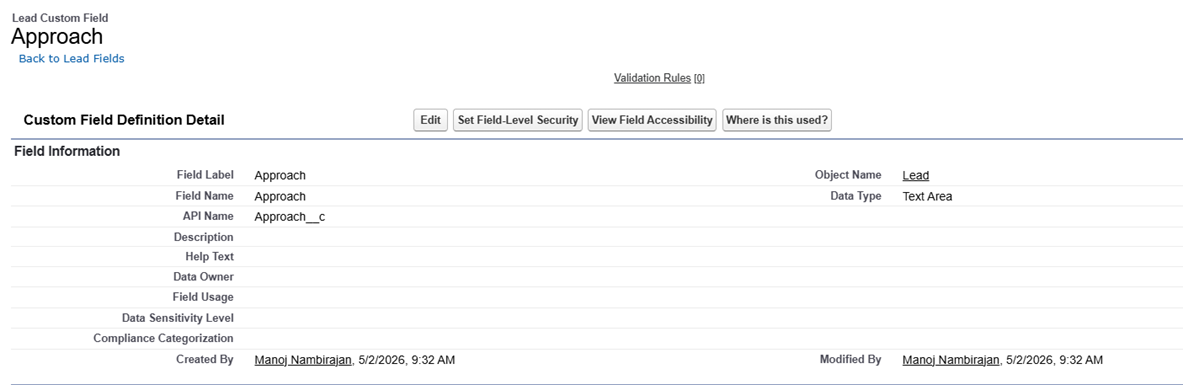
Create a custom field named Approach on the Lead Object using the Text or Text Area data type, and configure the appropriate Field-Level Security to provide the required Profile access
- Navigate to Setup > Object Manager > Lead
- From the left-side panel, select Fields & Relationships, then click New to create a custom field
- On the field creation page:
- Choose Text or Text Area as the field data type
- Enter the field label, for example, Approach
- Configure Field-Level Security by granting Edit access to the required Profiles
- Save the field configuration
- Refer to the image below for the field configuration
Step 2:Create a Dependent Picklist Field for Sub Status
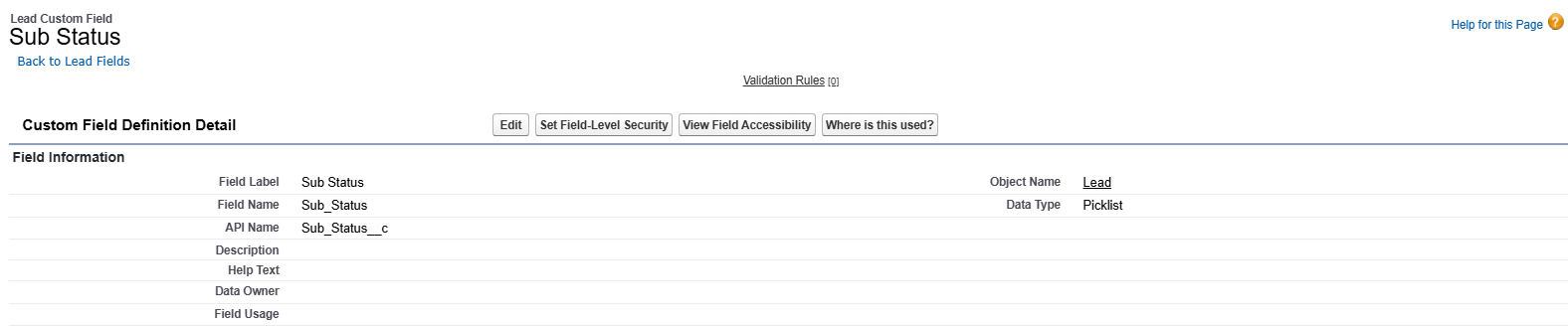
For the Data Point Status field which is a dropdown and its values should react based on the value selected in the primary Lead Status field in Lead Object, we will first create a custom single Picklist field with the appropriate Field-Level Security configurations, as shown below:
- Navigate to Setup > Object Manager > Lead
- From the left-side panel, select Fields & Relationships, then click New to create a custom field
- On the field creation page:
- Select Picklist as the data type
- Enter Sub Status as the field label
- Do not enable the Use global picklist value set option, since a global value set is not required for this implementation
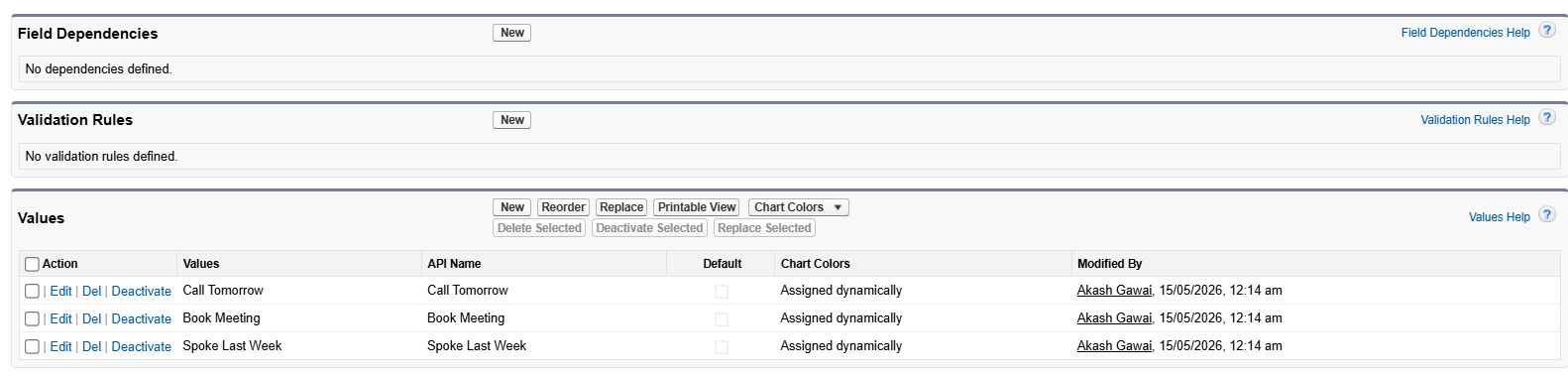
- Define the Picklist values by entering them as separate values, for example:
- Call Tomorrow
- Book Meeting
- Spoke Last Week
- Configure Field-Level Security by granting Edit access to the required Profiles
- Save the field configuration
- Refer to the images below for the field configuration
Step 3:Configure Field Dependency Between Lead Status and Sub Status
Configure a Field Dependency so that the values displayed in the Sub Status field dynamically change based on the selected value in the Lead Status field
- Navigate to Setup > Object Manager > Lead
- From the left-side panel, select Fields & Relationships, then click Field Dependencies
- Click New to create a new field dependency
- Configure the dependency as follows:
- Controlling Field: Lead Status
- Dependent Field: Sub Status
- Click Continue
- Define the Field Dependencies as shown below
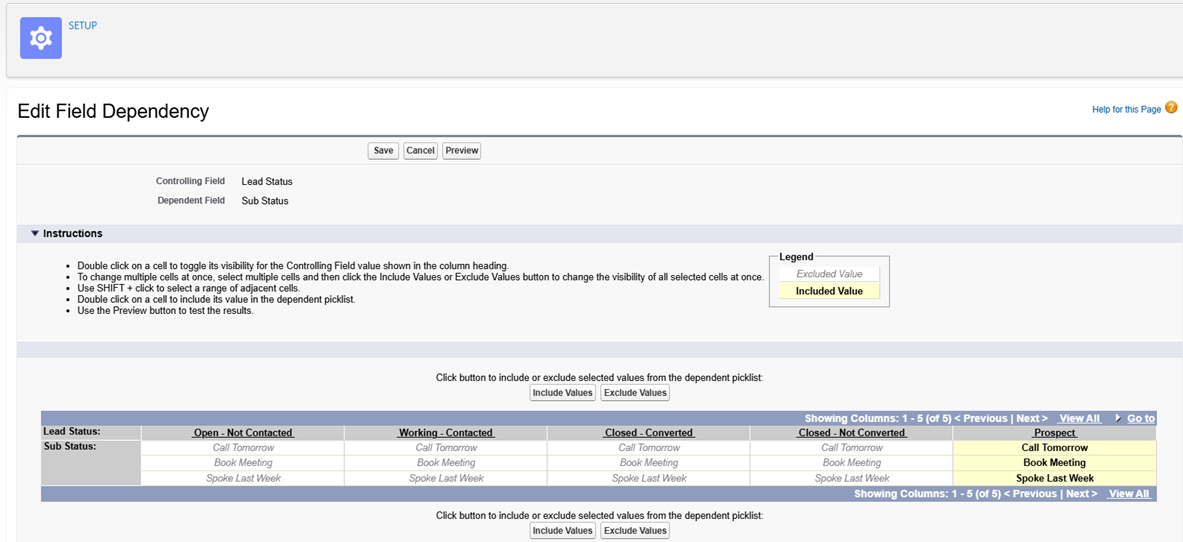
- For the Controlling Field value Prospect, manually select the appropriate values from the Sub Status dependent Picklist field. While selecting multiple values, press and hold the Ctrl key on your keyboard so that all required values remain highlighted. Once the values are selected, click Include Values, and then click Save to complete the dependency configuration
In this way, we can successfully customize the Lead import process in Salesforce whenever additional or dependent data points are required
Note: The screenshot shown above is for reference purposes only and demonstrates how field dependencies are configured between two fields
_____________________________________________________
Written by: Manoj Nambirajan | Forum Ambassador
Manoj Nambirajan is a Salesforce Enterprise Architect at Dell Technologies with more than 17 years of experience in the Salesforce ecosystem. Manoj has exceptional leadership abilities and a flair for solving issues quickly. Accredited as Salesforce MVP, Manoj has 21 Salesforce certifications and is among the Top 10 Answers leader in the Trailblazer Community.
Submissions reflect only the opinions of the user who made available the Submission and not the opinions of Salesforce, regardless of whether the user is affiliated with Salesforce, and may contain or constitute products, services, information, data, content and other materials made available by or on behalf of third parties ("Third Party Materials). Salesforce neither controls nor endorses, nor is Salesforce responsible for, any Third Party Materials, including their accuracy, validity, timeliness, completeness, reliability, integrity, quality, legality, usefulness or safety, or any applicable intellectual property rights. Any Submissions made available through any message board or forum in response to posted questions, or that otherwise purports to answer any questions, including any questions about Salesforce or Programs, are made available for your general knowledge only and should never be relied upon as answers to your specific questions (even if an answer is marked as a “best” answer or with any similar qualifications). You should always contact Salesforce support for answers to your specific questions. Salesforce has no control over Submissions, and is not responsible for any use or misuse (including any distribution) by any third party of Submissions.
If you have questions, tap into the wisdom of our entire Trailblazer Community here: https://trailhead.salesforce.com/trailblazer-community/feed
추가 자원
Knowledge 기사 번호
005322015
이 기사를 통해 문제를 해결했습니까?
개선을 위한 의견을 보내주세요.
