Выбрать организацию
Count records based on Activity Type in a Salesforce Report
Дата публикации: Aug 18, 2026
Описание
Organizations often need to Report on the number of activities completed by sales representatives and categorize them by Activity Type. This article explains how to build Report that displays count for activities such as Calls, Email, Meetings, and Tasks.
Решение
This resolution walks through building a Salesforce report that counts Task and Event records grouped by Activity Type (Call, Email, Meeting, or Task).
Step 1: Create a Report
- Log in to your Salesforce account
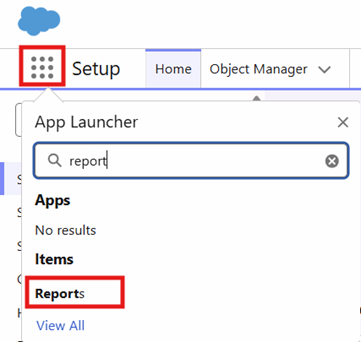
- Click the App Launcher in the top-left corner of the screen, search for Reports, and select the Reports option
- Under the Reports tab, click the New Report button to start creating a Report

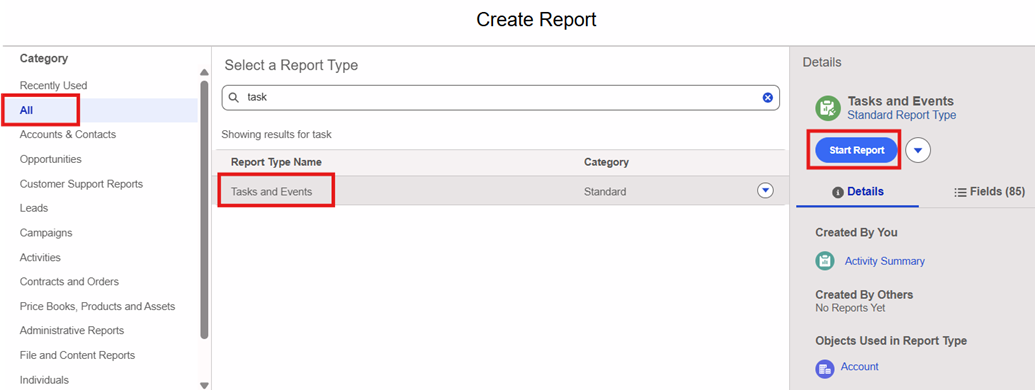
- Under All Categories, search for the Tasks and Events Standard Report Type
- Select Task and Events and click Start Report to create the Report
Step 2: Configure Report Filters and create a Row-Level Formula
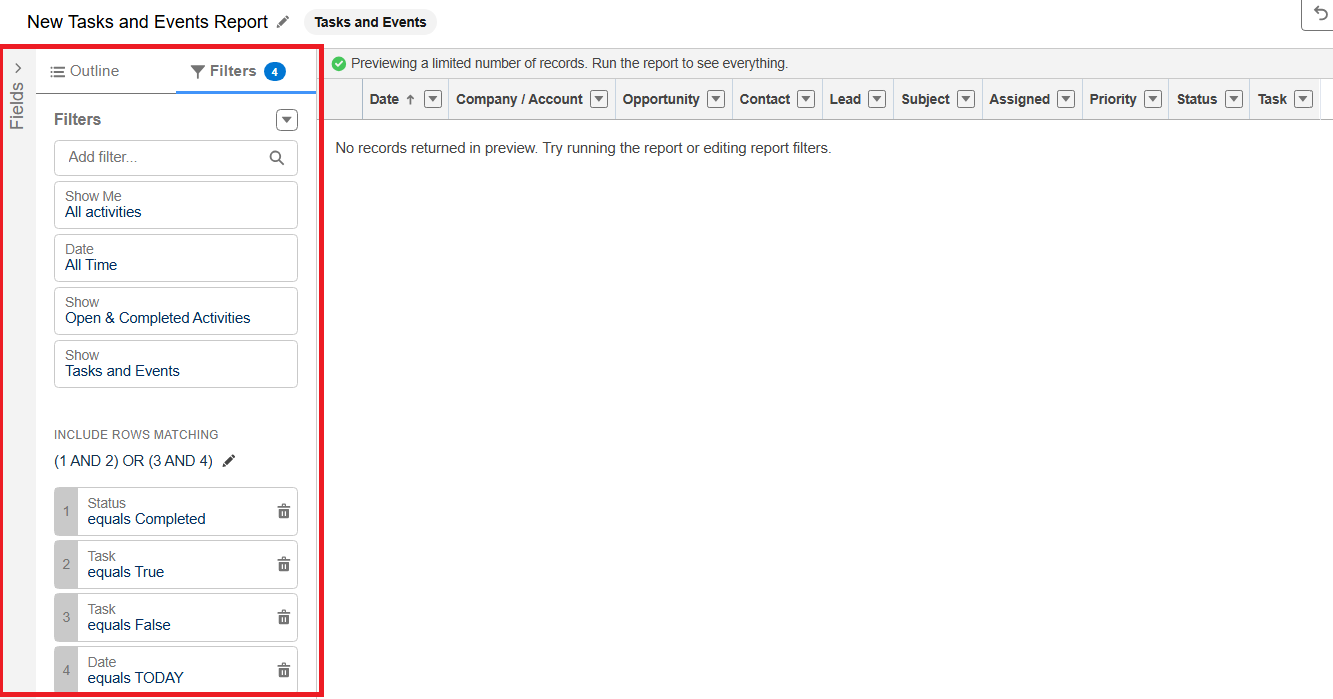
- Click on the Filters tab in the left pane to set the Filters to display all completed Tasks and Events
- Adjust the filters based on the reporting requirements. Add additional filters or custom filter logic as needed
- For example, if counts are required only for the current year or quarter instead of all historical records, the appropriate date filters can be configured
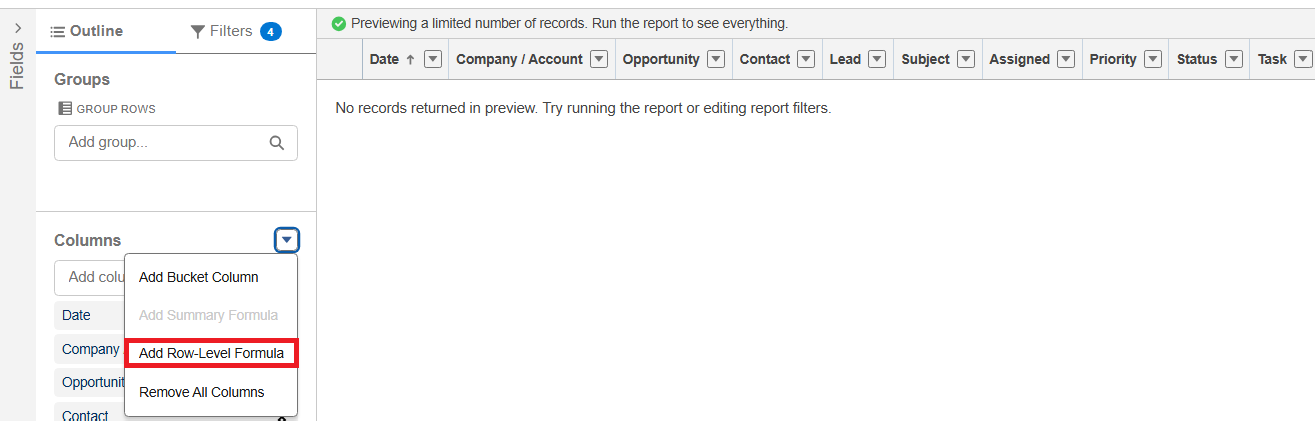
- From the Outline tab, create a Row-Level Formula by clicking on the drop-down arrow next to the Columns section and selecting the Add Row-Level Formula option
- Provide a suitable name to the Row-Level Formula along with the other information as:
| Column Name | Task Summary |
| Formula Output Type | Text |
| Formula |
`IF(EVENT_SUBTYPE = "Event", "Meeting", TASK_SUBTYPE)` |
This formula labels any Event record as "Meeting" and keeps the original Task Subtype for all other Task records, so the report can group by a single, consistent Activity Type value.
- Finally, click on the Apply button to save the Row-Level Formula
Step 3: Configure Report Groupings, Columns, and summary settings
- Now, under the Outline tab, next to the Filters tab, add Row and Column groupings as well as the Columns to be displayed in the Report
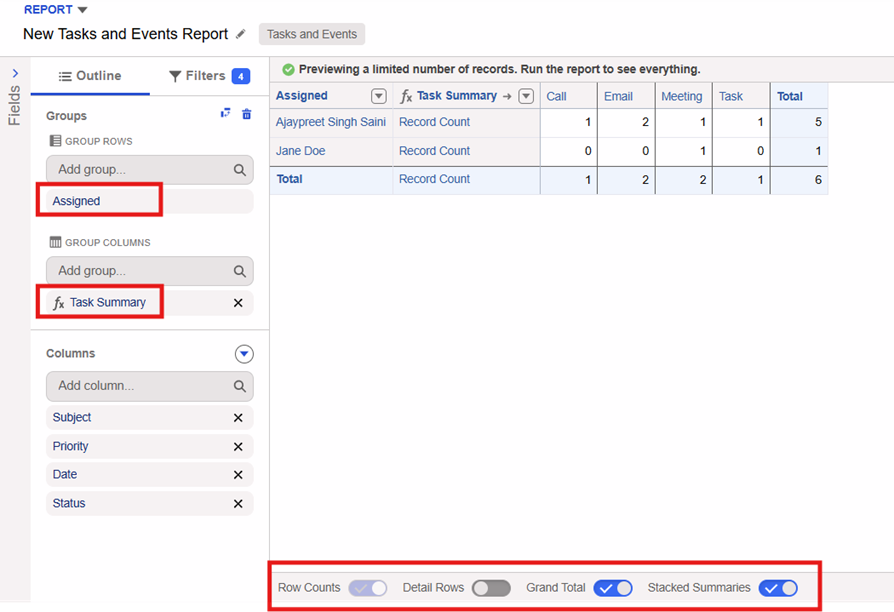
- Under the Group Rows section, search and add the Assigned field
- Under the Group Columns section, search and add the Task Summary Row-Level Formula field that we created above
- Under the Columns section, add the fields required in the Report. In this use case, Subject, Priority, Date, and Status are selected
- Keep all bottom toggles enabled to display Record Count, Grand Total, and Stacked Summaries
- Disable Detail Rows since the Report is intended to show counts only. Enable it if detailed records are required
Step 4: Save, Run and review the Report output
- Click the Save & Run button to save and run the Report

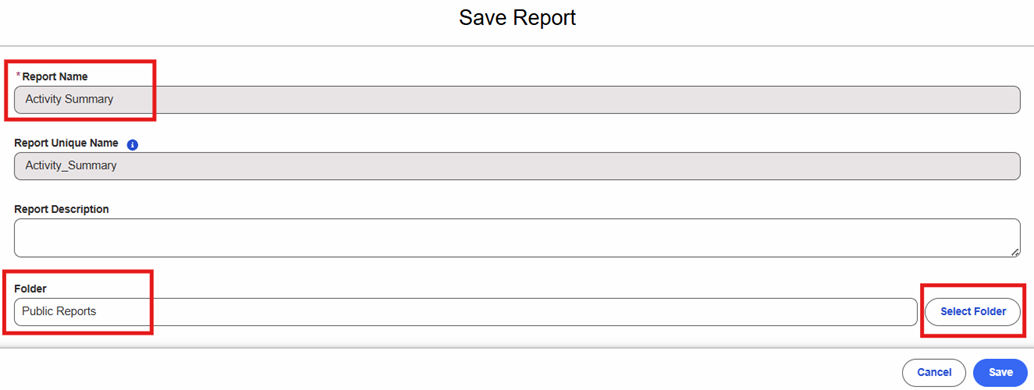
- Enter a Report Name, select a folder using the Select Folder button, and then click Save
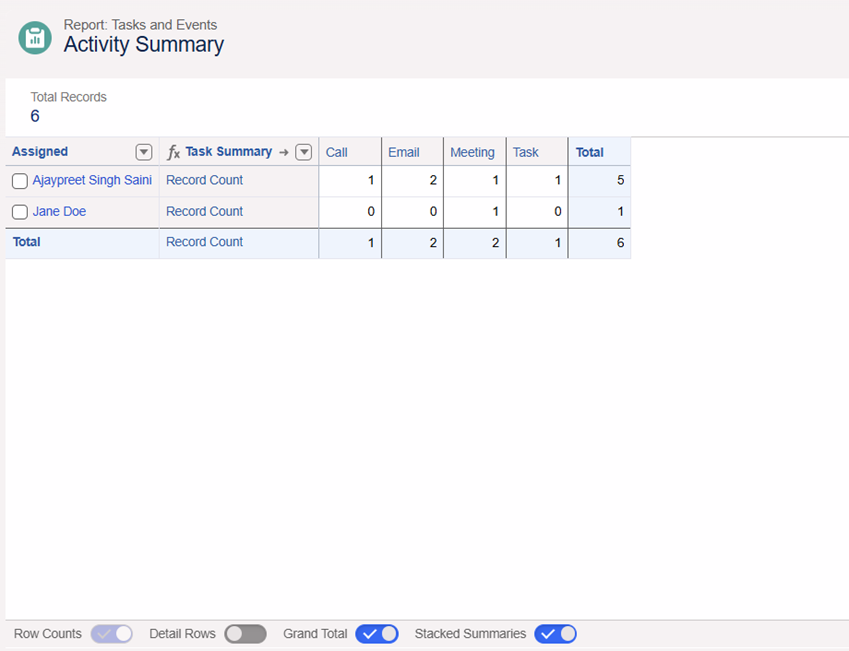
- The output of the Report will look like below
Written By: Ajaypreet Singh Saini | Forum Ambassador
Ajaypreet Singh Saini is working as a Salesforce Implementation Consultant at Grantbook. Ajaypreet has more than 3 years of Salesforce experience working across multiple clouds. Ajaypreet is very active in the Answers community and has been a Salesforce Forum Ambassador since September 2021.
Submissions reflect only the opinions of the user who made available the Submission and not the opinions of Salesforce, regardless of whether the user is affiliated with Salesforce, and may contain or constitute products, services, information, data, content and other materials made available by or on behalf of third parties ("Third Party Materials). Salesforce neither controls nor endorses, nor is Salesforce responsible for, any Third Party Materials, including their accuracy, validity, timeliness, completeness, reliability, integrity, quality, legality, usefulness or safety, or any applicable intellectual property rights. Any Submissions made available through any message board or forum in response to posted questions, or that otherwise purports to answer any questions, including any questions about Salesforce or Programs, are made available for your general knowledge only and should never be relied upon as answers to your specific questions (even if an answer is marked as a "best" answer or with any similar qualifications). You should always contact Salesforce support for answers to your specific questions. Salesforce has no control over Submissions, and is not responsible for any use or misuse (including any distribution) by any third party of Submissions.
If you have questions, tap into the wisdom of our entire Trailblazer Community here: https://trailhead.salesforce.com/trailblazer-community/feed
Дополнительные ресурсы
Номер статьи базы знаний
005385920
Эта статья решила вашу проблему?
Оставьте свой отзыв, чтобы мы могли стать лучше!
