組織を選択
Best Practices for Allowlisting IPv6 Addresses
公開日: Oct 9, 2026
説明
This article outlines best practices for allowlisting IPv6 addresses in Government Cloud Plus. Salesforce supports dual-stack IPv4/IPv6 connectivity once IPv6 is rolled out to your specific instance, and allowlisting the correct address ranges helps your organization maintain secure, uninterrupted connectivity. If you have any questions about allowlisting IPv6 addresses for your org, contact Salesforce Support or your Account Team.
解決策
Work with your network team to identify your public IPv6 address space before you start allowlisting IPv6 addresses for your Salesforce org.
Establish IPv6 Connectivity from Your Corporate Network to Salesforce
-
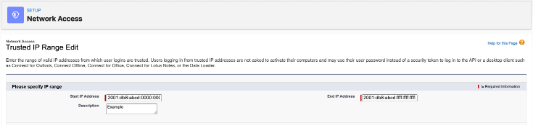
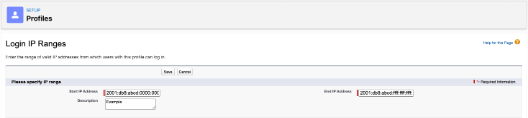
From Setup, enter Trusted IP Ranges. Allowlist the relevant IPv6 addresses from your public address space to your org's Trusted IP Ranges and user profiles' Login IP Ranges. Do the same if you're using a third-party (content delivery network) CDN, like Akamai or Cloudflare to serve content from Salesforce.
-
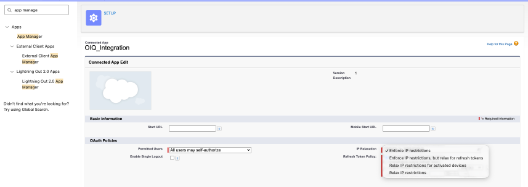
If you're using Connected Apps, allowlist each Connected App's IPv6 address space into its Connected App configuration.
- From Setup, enter Connected Apps.
-
-
Select the Connected App to update, then update the IP Relaxation policy.
-
Allowlist IPv6 addresses to accept your integration's IPv6 traffic policy.
-
Allow IPv6 Connectivity from Salesforce Back to Your Network:
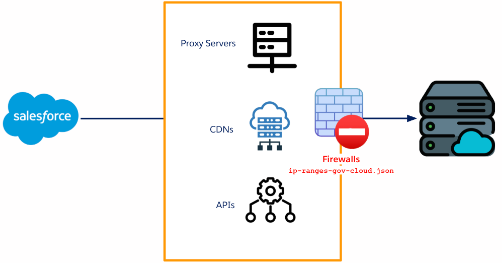
Allowlist Salesforce's published IPv6 ranges across your internal network — proxy servers, firewalls, CDNs, APIs — so you can receive IPv6 traffic from Salesforce.
Heads Up! Keep Your IPv4 Addresses
Don't remove your IPv4 addresses when you add IPv6. You can allowlist up to 2^24 (16.8M) IPv4 addresses and 2^99 IPv6 addresses. See Set Trusted IP Ranges for Your Org for details.
Check Your Session Settings
Review your Session Settings to avoid login issues once IPv6 addresses are allowlisted.
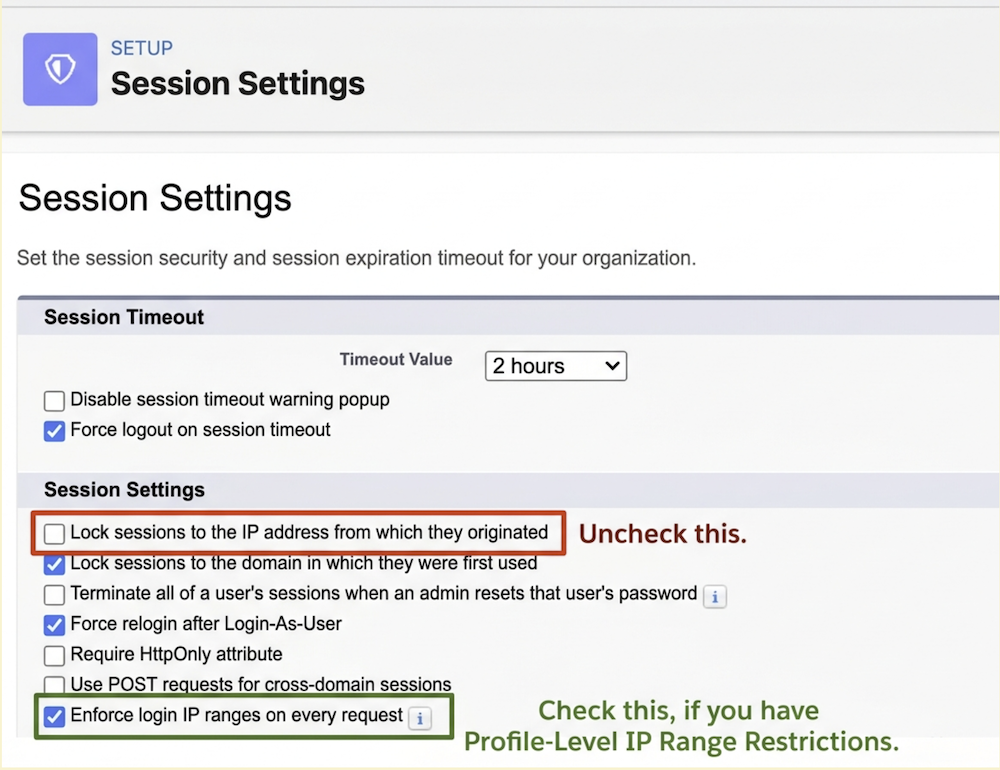
- From Setup, enter Session Settings.
- Uncheck "Lock sessions to the IP address from which they originated" — otherwise you may hit login issues with login.salesforce.com and test.salesforce.com.
- Also enable "Enforce Login IP Ranges" if you've allowlisted Profile-Level IP Ranges.
If You Cannot Support IPv6 Traffic
Salesforce supports dual-stack IPv4/IPv6 once IPv6 is rolled out to your instance. If you can't support IPv6 at all, block traffic from Salesforce's IPv6 addresses on your firewalls. See "IP Addresses to Allow for Government Cloud Plus Customers" for the specific ranges.
ナレッジ記事番号
005386015
この記事で問題は解決されましたか?
ご意見をお待ちしております。
