組織を選択
Receiving “Couldn’t Connect to Telephony (6001)” Banner for OpenCTI Users
公開日: Jul 9, 2026
説明
Applicable for the following Products & Telephony Models :
- Salesforce OpenCTI
The OpenCTI User receives the error notification as below when opening a Lightning Application with the omni utility / omni side-bar enabled.
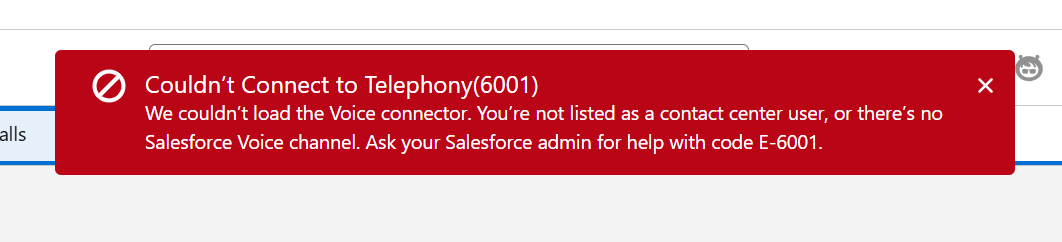
The error indicates that Salesforce attempted to initialize the Voice connector for the user, but the connection could not be established because the user is not configured as a valid Salesforce Voice Contact Center user within the telephony provider setup yet they have been given access to an Omni Presence Status that is linked to a 'VoiceCall' object supported Service Channel.
解決策
To prevent the “Couldn’t Connect to Telephony (6001)” notification, ensure that only valid Salesforce Voice Contact Center users have access to the Omni Presence Statuses associated with the 'VoiceCall' object supported Service Channel.
Q) What is a valid Salesforce Voice Contact Center user?
A) a. The user must be assigned with a Salesforce Voice Permission Set as stated here
b. The user must be added to a Salesforce Voice contact center as stated here
***Omni presence statuses with Voice channel are only meant to be used by Salesforce Voice Users, not OpenCTI Users.
Perform the following steps to verify:
- Navigate to Setup → Presence Status and open the affected Presence Status Configuration.
- Review the Supported Service Channels section and identify the Service Channels that support 'VoiceCall' object.
- If the concerned OpenCTI Users ARE intended to use this Presence Status, then remove the 'VoiceCall' object supported Service Channel(s) from the Presence Status configuration.
- If you have other Salesforce Voice users that were previously using this Omni Presence Status, create a separate Presence Status with 'VoiceCall' object supported Service Channel & assign it to those Salesforce Voice users -- do not use this new Presence Status for OpenCTI Users.
- After completing the configuration changes, ask the affected users to refresh their browser session or log out from the Org and login again for the changes to take effect.
その他のリソース
Salesforce Help: Create Service Channels
Salesforce Help: Service Channel Settings
Salesforce Help: Create Presence Statuses
Salesforce Help: Set Access to Presence Statuses
Salesforce Help: Configure Omni-Channel for Salesforce Voice
ナレッジ記事番号
005387258
この記事で問題は解決されましたか?
ご意見をお待ちしております。
