Sélectionner une organisation
Outlook–Salesforce MuleSoft Flow Connector
Date de publication: Jun 19, 2026
Prérequis
Tâche
Configure a secure connection between Microsoft Outlook and Salesforce using MuleSoft Flow Connectors via OAuth2 Client Credentials, enabling Salesforce to interact with Microsoft services such as Mail and Calendar through the Microsoft Graph API.
Étapes
Step 1 — Open the Automations App
- Click the App Launcher in Salesforce.
- Search for and open the Automations app.
Step 2 — Create a New Connection
- Click Integrations in the left-hand navigation.
- Click New Connection.
- Select Outlook from the list of available connectors.
- Click Next.
Step 3 — Fill In Connection Details
Complete the connection form with the following values:
| Field | Value |
| Connection Name | Enter a descriptive name (e.g., Outlook-Prod-Connection) |
| Authentication Protocol | OAuth2ClientCredentials |
| Client ID | Provided by your Microsoft Admin (from Azure App Registration) |
| Client Secret | Provided by your Microsoft Admin (from Azure App Registration) |
| Scope | https://graph.microsoft.com/.default (default) or a custom scope |
| URL | https://graph.microsoft.com/v1.0 |
| Token URL | https://login.microsoftonline.com/{tenant-Id}/oauth2/v2.0/token |
Important: Replace {tenant-Id} in the Token URL with your actual Microsoft Tenant ID. This is available in your Azure Active Directory settings or get it from your Microsoft Admin.
Step 4 — Save and Verify the Connection
- Click Save once all fields are filled in.
- If credentials and configuration are correct, the system will confirm a Successful Connection.
- Verify the connection status under the Integrations tab.
Once the Connection is Successful you can use the Out of the Box Actions from the connectors in the Flows. Below is the screenshot of a flow which uses Outlook Connector which we created to create Cases whenever a new Email is received in your Outlook Inbox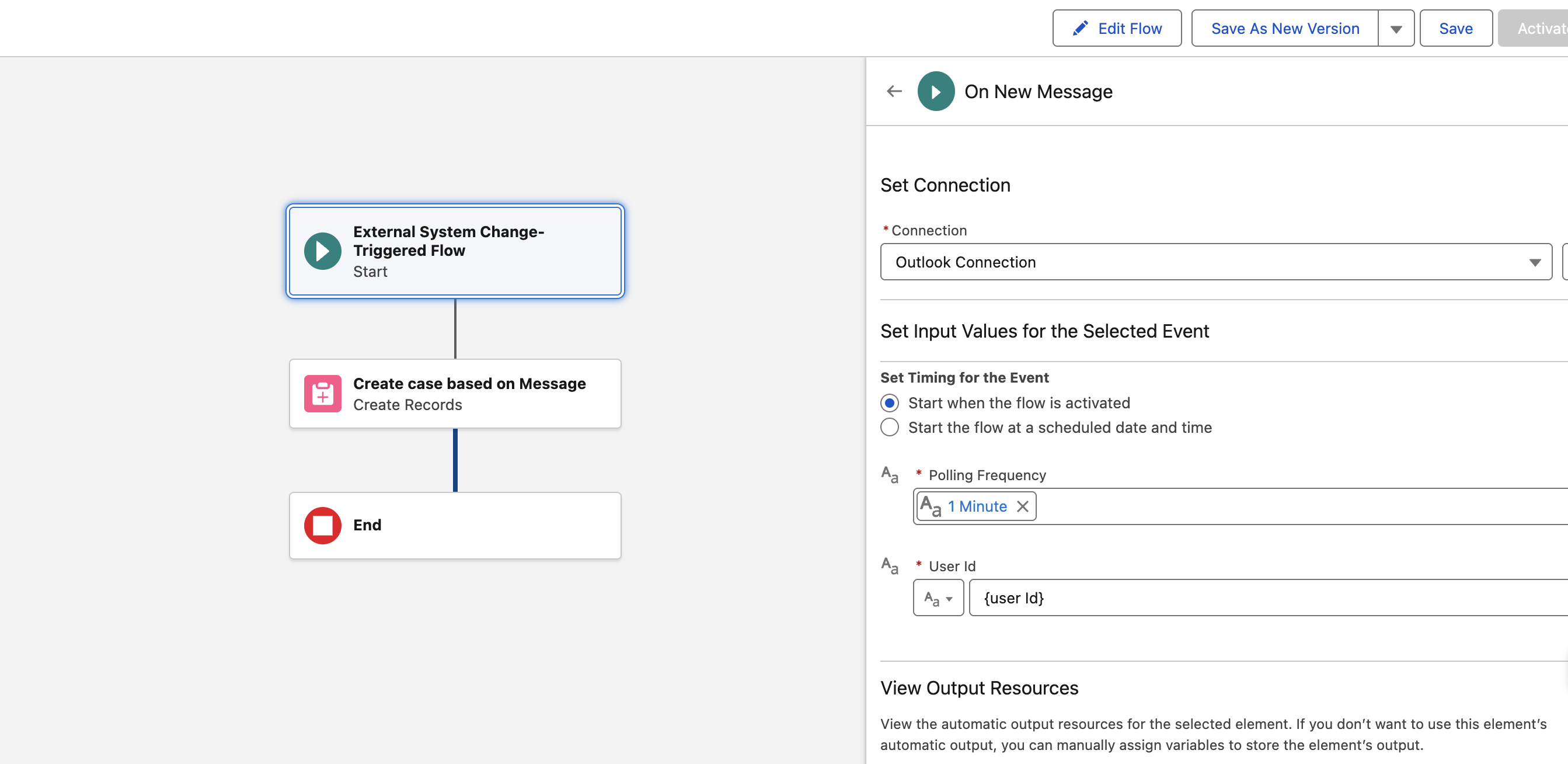
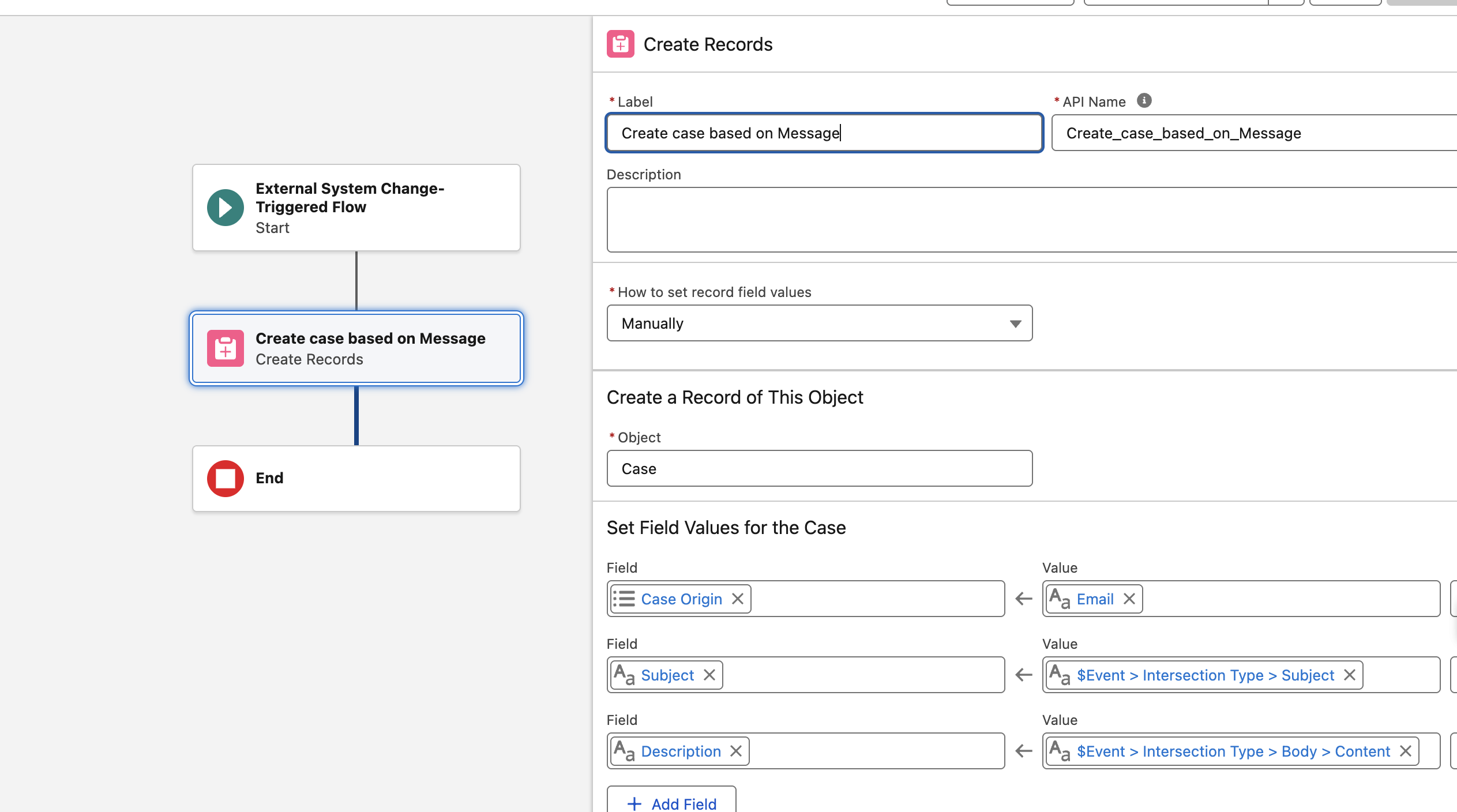
This flow is an External-System Change Triggered Flow, meaning it is invoked automatically whenever a change occurs on the Outlook side — such as a new email, calendar update, or other Microsoft event.
For the
For the
{UserId} field shown in the screenshots, you can provide either:- The Object ID of your user from Microsoft Azure Active Directory, or
- The User Principal Name (UPN) (e.g.,
user@domain.com) associated with your Microsoft account.
The Polling Frequency determines how often the MuleSoft connector checks Microsoft Outlook for new or updated events. A lower value means more frequent checks and near real-time updates, while a higher value reduces API call volume.
Ressources supplémentaires
Create an External System Change-Triggered Flow from Scratch
Numéro d’article de la base de connaissances
005387419
Cet article a-t-il résolu votre problème ?
Dites-nous ce que nous pouvons améliorer !
