Velg en organisasjon
Service Report Button Position Cannot Be Changed in Field Service Mobile App
Publiseringsdato: Jul 7, 2026
Beskrivelse
The Service Report section is a native system section and its position is controlled by the platform — it is not influenced by page layout ordering or app extension configuration.
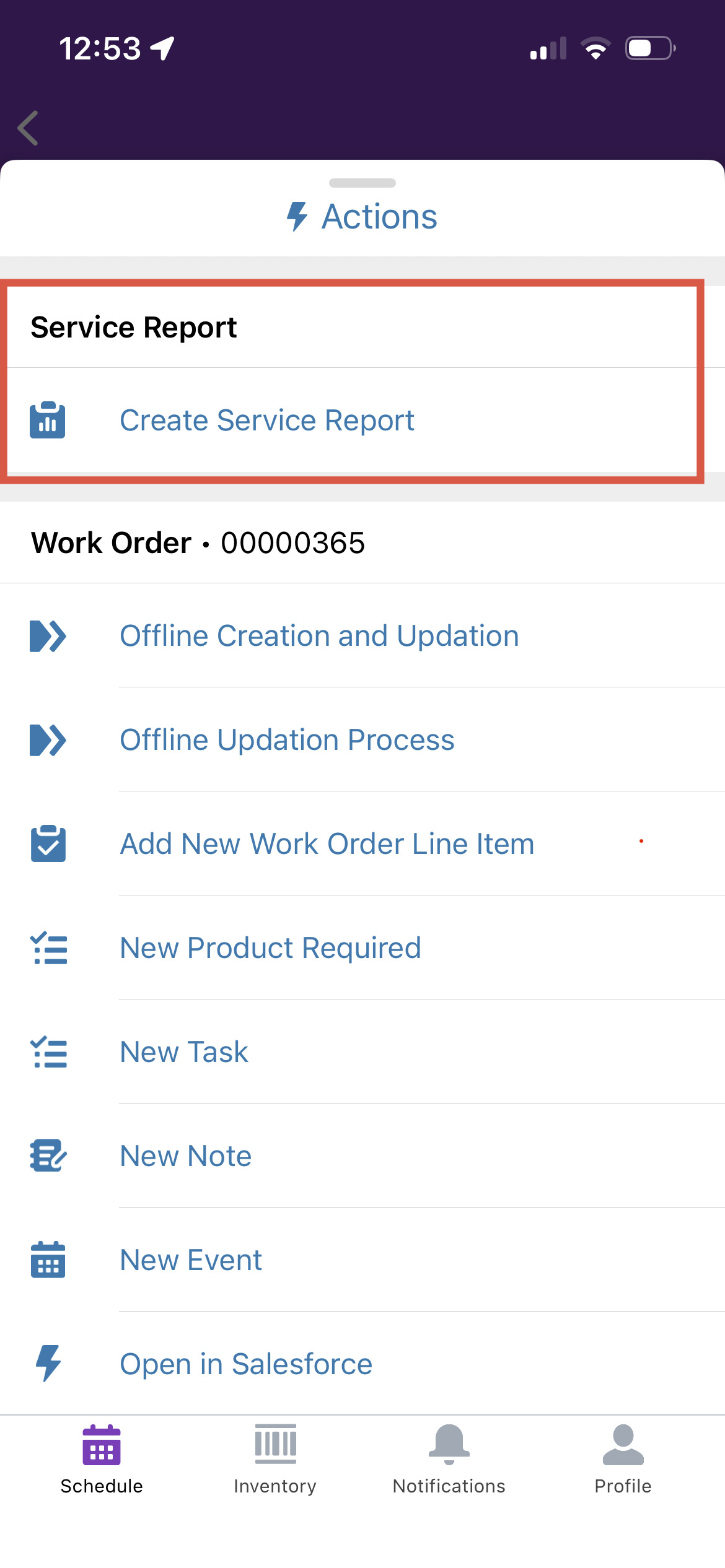
In the Field Service mobile app the Create Service Report button appears:
- Under a dedicated Service Report section on the Work Order or Work Order Line Item record
- At the top of all actions, above other quick actions and custom actions
Løsning
This is Working As Designed (WAD). The Service Report button is a native system action in the Field Service mobile app and its position cannot be changed or reordered through any standard configuration today.
As a workaround you can try connfiguring a Field Service mobile flow and trigger it from an App Extension by following the below example steps.
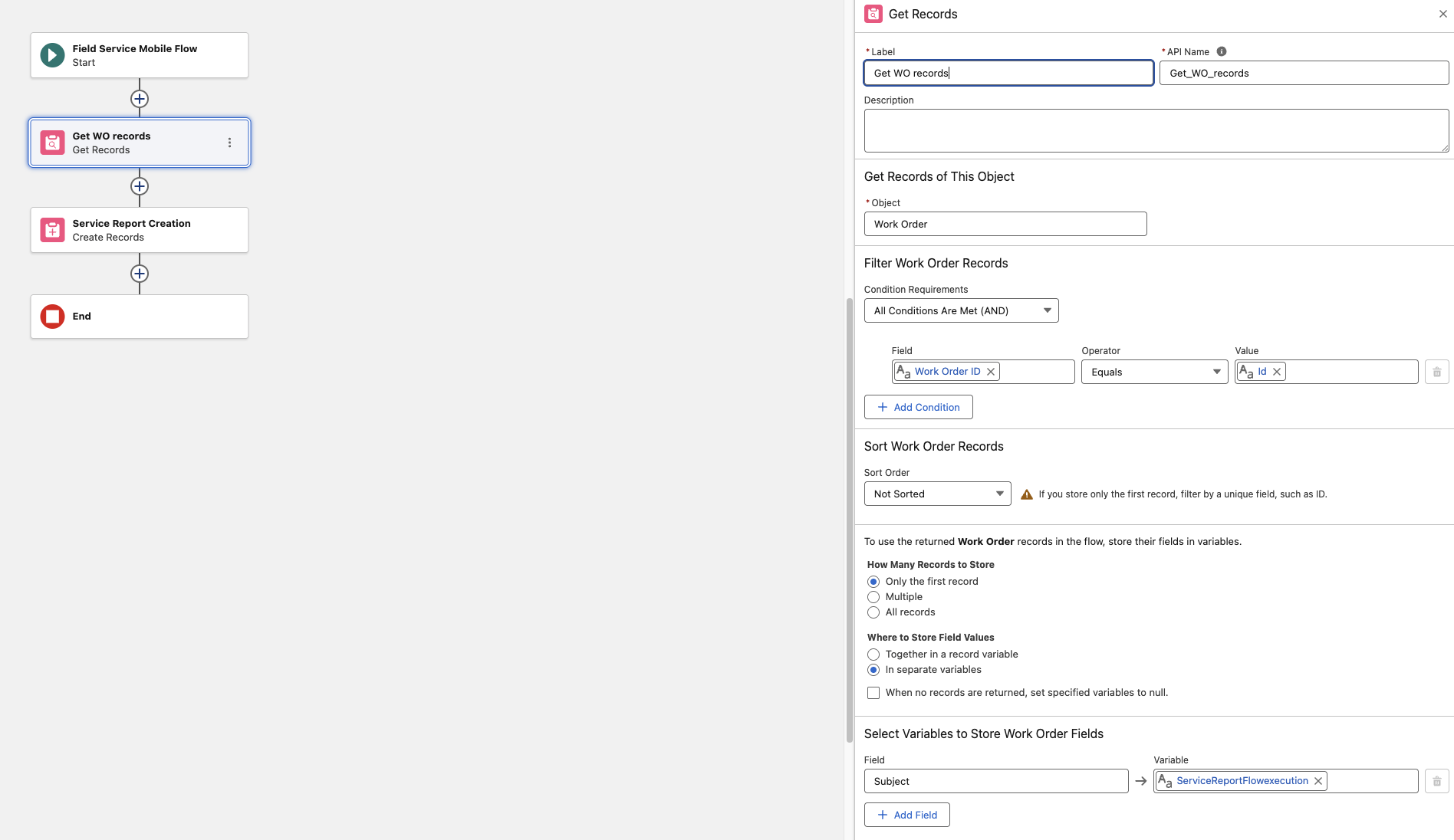
-> Build the Field Service Mobile Flow
1. Go to Setup→ search"Flows"→ click Flow Builder
2. Click New Flow
3. Select Field Service Mobile Flow as the flow type
4. Click Create
Add Input Variables (to receive Work Order context)
5. In the flow, create an Input Variable:
Variable Name:recordId (or workOrderId)
Data Type: Text
Available for Input: Checked
This passes the Work Order Id from the mobile app into the flow
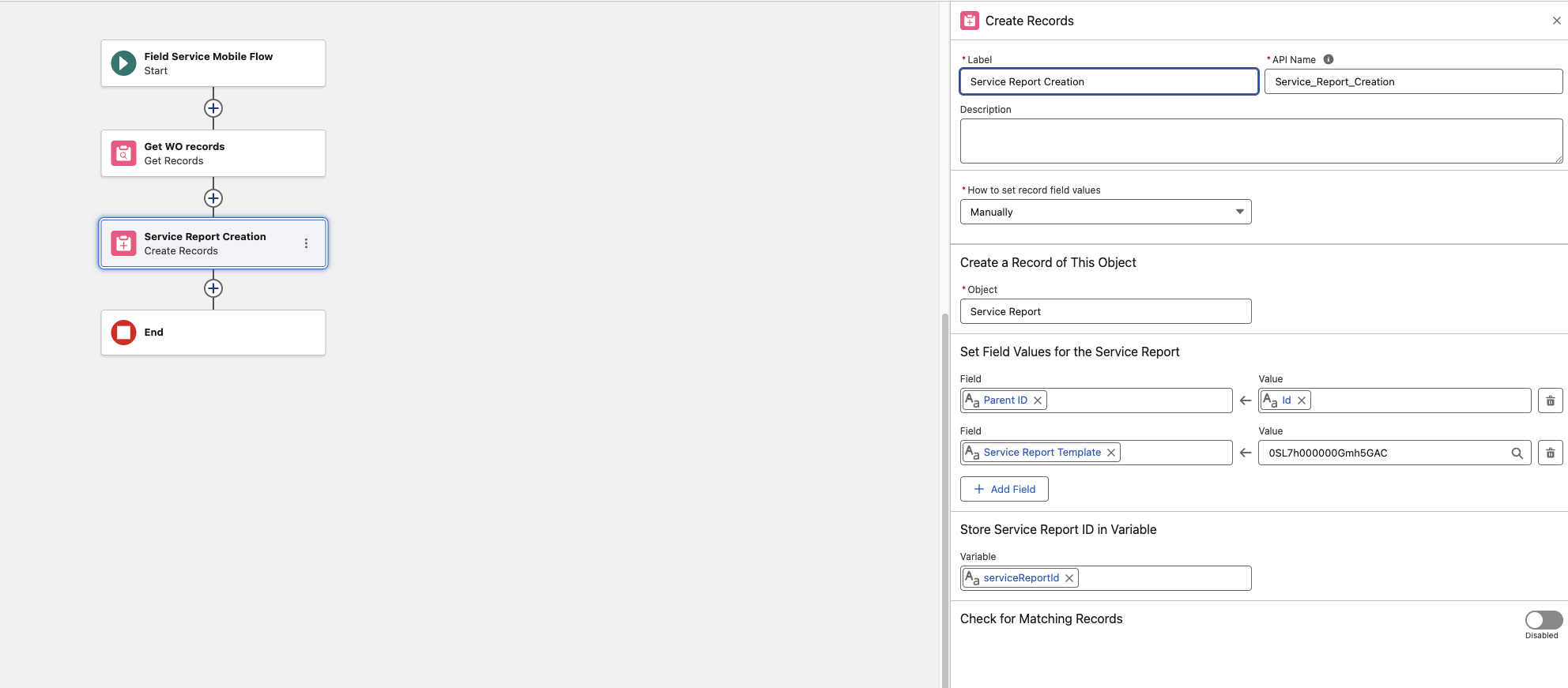
-> Add a "Create Records" Element to Generate the Service Report
6. Add aCreate Records element to the flow canvas
7. Configure it:
Label: e.g.,Create Service Report
Object:ServiceReport
Set field values:
a) ParentId - {!recordId} (the Work Order Id)
b) ServiceReportTemplateId - ID of your Service Report Template
8. Store the output record ID in a new variable (e.g., serviceReportId)
(Optional) Add a Screen Element for Confirmation
9. Add a Screen element after the Create Records step: Display a confirmation message like: "Service Report has been successfully created!"
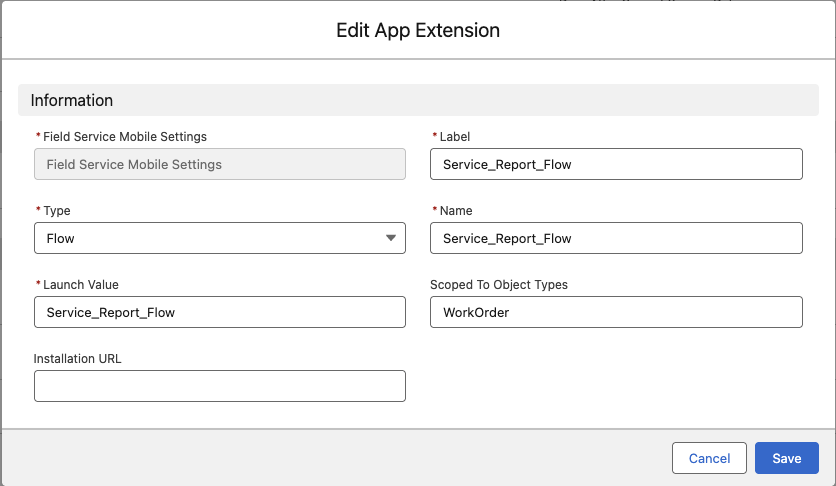
-> Connect the Flow to the Field Service Mobile App via App Extension
- Go toSetup→ search"Field Service Mobile Settings"→ click it
- Click the▾ dropdownnext to Field Service Mobile Settings → clickShow Details
- Scroll to theApp Extensions section → clickNew
- Fill in the details:
- Label -
Create Service Report(what technicians see) - Type - Flow
- Name - Service_Report_Flow (This value is Mandatory and should be same)
- Launch Value - API name of your flow (e.g., Create_Service_Report)
- Scoped to Object Types - WorkOrder or Service Appointment
- Label -
Note: Perform a fresh login to the Field Service mobile app and test the behavior.
Flere ressurser
Knowledge-artikkelnummer
005387444
Hjalp denne artikkelen med å løse problemet ditt?
La oss få vite det slik at vi kan forbedre!
