Seleccionar una organización
Tableau Cloud: Sign-In Failure Due to CloudFront Being Blocked
Fecha de publicación: Jun 29, 2026
Descripción
Users are unable to sign in to Tableau Cloud. The sign-in page may fail to load, the authentication process may hang, or the session does not complete successfully. This issue occurs even in environments where sign-in previously functioned without problems.
This issue is typically observed in environments where a URL filtering solution (such as a proxy, web filter, or firewall with URL categorization) is in use on the corporate network.
Cause:
Tableau Cloud uses Amazon CloudFront to deliver content securely and efficiently. If a corporate firewall or security appliance blocks outbound requests to the CloudFront domain, users may be unable to sign in to Tableau Cloud - the sign-in page may fail to load, the authentication process may hang, or the session may not complete successfully.
Blocking can manifest in different ways in the browser's Network tab:
- HTTP error responses (40x or 50x status codes)
- No response at all (the request is silently dropped with no status code returned)
Solución
To resolve this issue, follow the steps below to identify the specific CloudFront domain your browser uses when connecting to Tableau Cloud, and work with your network/security team to allowlist it.
Note: The steps below involve network and firewall configurations that are outside the scope of Tableau Support. The information provided here is for reference purposes only. Please work with your organization's IT or network team to implement any required changes.
Step 1: Identify the CloudFront Domain
- Open a browser and launch Developer Tools by pressing F12 or right-clicking the page and selecting Inspect.
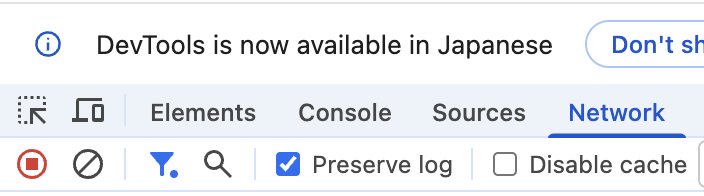
- In the Developer Tools panel, select the Network tab and enable the Preserve log checkbox to ensure all network requests are retained during navigation.
- In the same browser tab where Developer Tools is active, navigate to your Tableau Cloud Manager URL or Tableau Cloud URL and attempt to sign in:
https://<your-tenant-URI>.cloudmanager.tableau.com/https://online.tableau.com - Once the page has loaded and network traffic has been captured, type
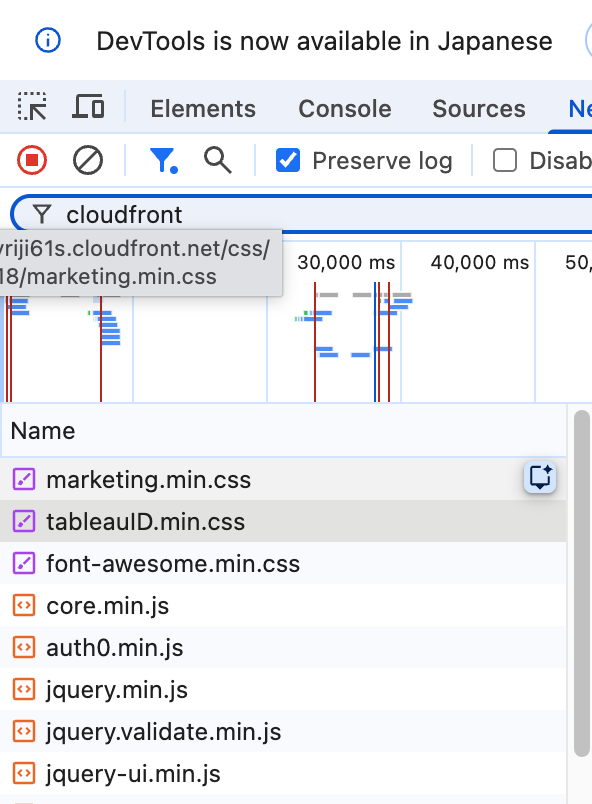
cloudfrontin the filter bar within the Network tab to filter relevant requests. - Select any of the displayed CloudFront requests and review the Request URL on the right panel under the Headers tab.
- The CloudFront domain will appear in a format similar to:
Note: The subdomain portion (e.g., d1y8yjyriji61s) is subject to change in the future.d1y8yjyriji61s.cloudfront.net - Review the Status Code for the CloudFront requests:
- 200 OK: Communication is successful (or served from disk cache).
- 40x / 50x or No response (pending/absent): The request is likely blocked by your organization's security policy or firewall (including silent blocking with no status code returned).

Step 2: Update Your Network Configuration (Allowlist)
Use the wildcard entry *.cloudfront.net to future-proof the allowlist configuration and cover any subdomain changes.
Recursos adicionales
Required Addresses, Proxies, and Ports
Multiple Errors Accessing Tableau Cloud from Behind a Firewall or Proxy
Número del artículo de conocimiento
005387664
¿Resolvió este artículo su problema?
¡Háganos saber cómo podemos mejorar!
