Seleziona un'organizzazione
Troubleshoot Salesforce Field Service Mobile App Installation Error "This app won't work for your device" on Android
Data pubblicazione: Jul 14, 2026
Descrizione
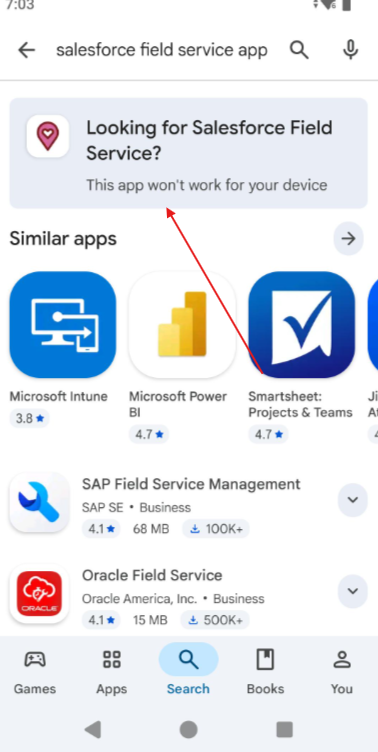
The Salesforce Field Service Mobile app may display a "This app won't work for your device" error in the Google Play Store when users attempt to install it on industrial or ruggedized Android devices. This issue has been reported on specialized devices including Smart-Ex 03, Zebra TC series, Panasonic Toughbook, and Samsung Galaxy XCover Pro.
The error occurs: when the device meets all technical requirements for the Salesforce Field Service Mobile app. The Play Store check is not an accurate reflection of true device incompatibility; the device itself is fully capable of running the app.
For example, a field technician using a Zebra TC57 (running Android 13) may see this error despite the device meeting all processor, RAM, and OS version requirements. In this case, the Play Store is flagging a compatibility declaration mismatch, not an actual hardware or software limitation.
Users observing this error cannot proceed with a standard Play Store installation. The recommended resolution is to install the app directly via APK (Android Package Kit), bypassing the Play Store compatibility check entirely.
For general Salesforce Field Service Mobile app requirements, see: Field Service Mobile App Requirements
Google Playstore Error Screenshot:
Risoluzione
Root Cause
The Google Play Store compatibility validation blocks installation on certain device models due to compatibility declaration settings in the app's Play Store manifest. This is not a true incompatibility issue — the device meets all technical requirements including Android version, processor architecture, RAM, and Google Play Services. The Play Store check is a declaration mismatch, not a functional one.
Direct APK (Android Package Kit) Installation
Installing the Salesforce Field Service Mobile app directly via APK bypasses the Google Play Store compatibility check entirely. This method delivers the same official Salesforce Field Service Mobile app as the Play Store version — with identical features and full functionality — but downloads it from Salesforce's own distribution site.
Follow these steps to install via APK:
- On the Android device, navigate to Settings → Security (or Settings → Apps → Special app access, depending on Android version)
- Enable "Install unknown apps" or "Unknown sources" for your file manager or browser
- Open a web browser on the device and navigate to: https://salesforce-field-service.herokuapp.com/
- Download the latest Salesforce Field Service Mobile APK file
- Tap the downloaded APK file to begin installation
- Grant required permissions when prompted
- Complete the installation process
- Launch the Salesforce Field Service Mobile app from the app drawer
- Log in with your Salesforce credentials
Important Note
Direct APK installation provides the same official Salesforce Field Service Mobile app as the Google Play Store version, with identical features and full functionality. This installation method is recommended for industrial and specialized Android devices that experience Play Store compatibility declaration issues.
Numero articolo Knowledge
005388818
Questo articolo ha risolto il problema?
Facci sapere, così possiamo migliorare!
