Välj en organisation
MFA and Phishing-Resistant MFA Post-Enforcement Passkey Prompts and Extension Behavior
Publiceringsdatum: Aug 23, 2026
Beskrivning
This article outlines updates to MFA registration and login behavior following the enforcement of MFA for All Employee Users and Phishing-Resistant MFA for Privileged Users. It describes the passkey-first MFA registration experience, the login experience for users who authenticate through a single sign-on (SSO) identity provider, and system behavior for orgs with temporary MFA or phishing-resistant MFA extensions.
Please review closely the intended behavior of the MFA Passkey Prompts as users may misunderstand why they are seeing the prompts after enforcement takes effect, particularly when extensions may have been applied.
| Known Issue — W-23493728 (Created: Jul 17, 2026) Orgs with the MFA For All Employees Extension and the Phishing-Resistant MFA (Passkeys) Extension granted may still prompt Single-Sign-On (SSO) users to register Salesforce MFA unexpectedly. This occurs when the SSO provider does not transmit AMR/ACR values and the Org-Wide MFA setting "Require multi-factor authentication (MFA) for all direct UI logins to your Salesforce org" is enabled. See Known Issue W-23493728 for full details. |
Lösning
Direct UI Logins
Single-sign-on (SSO) Logins
Additional Details
Passkey First MFA Registration Flow for Direct UI Logins
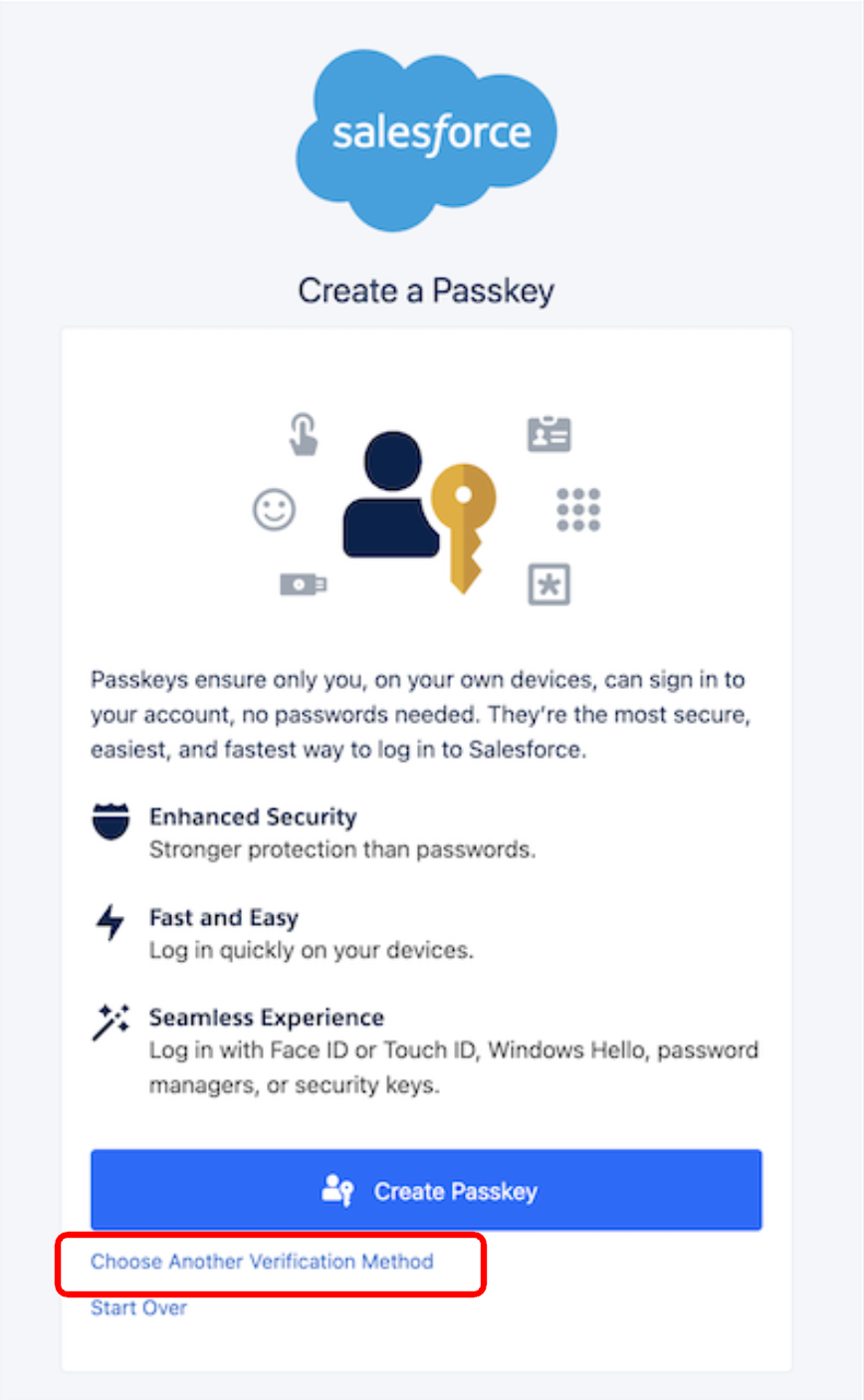
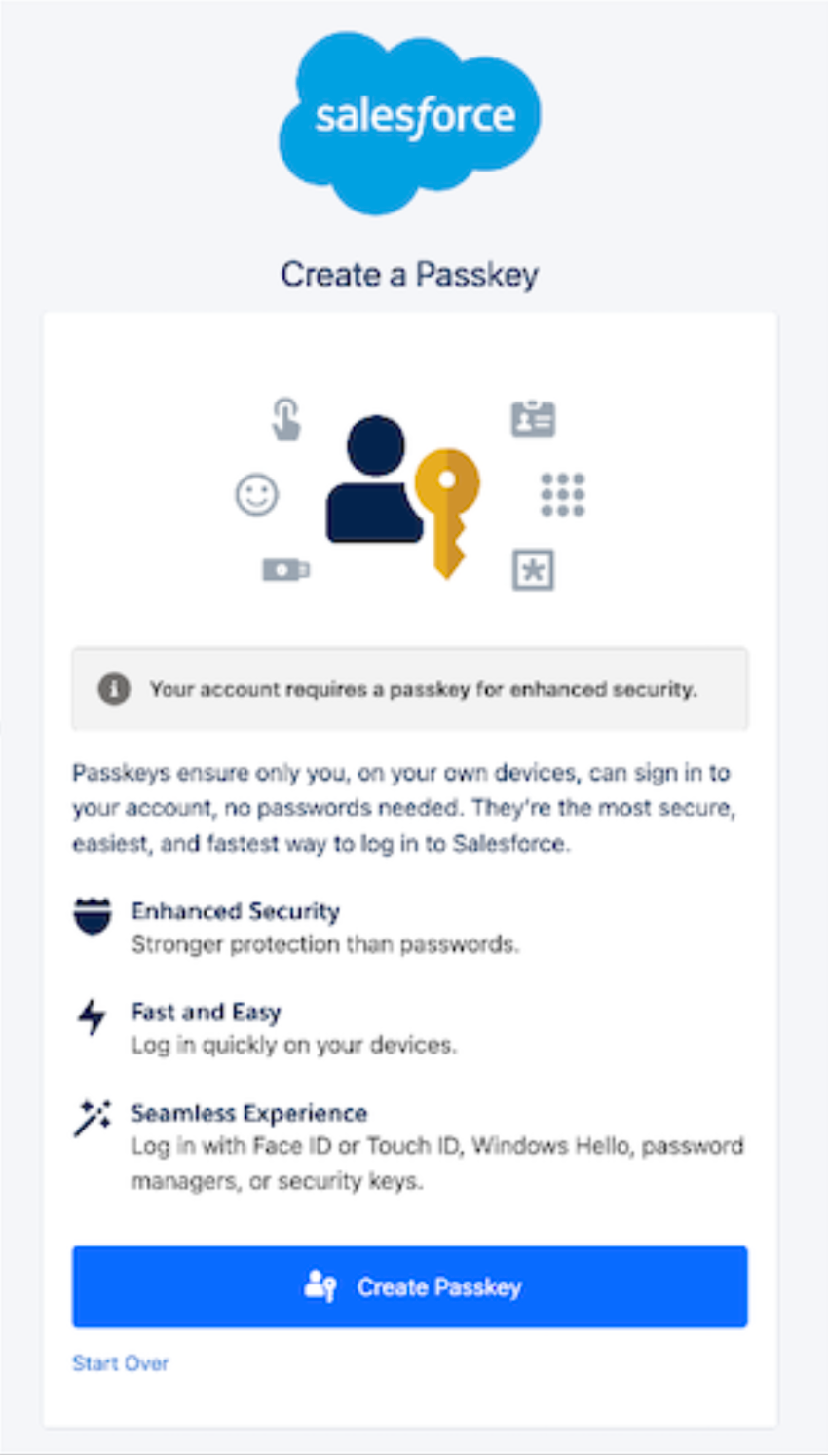
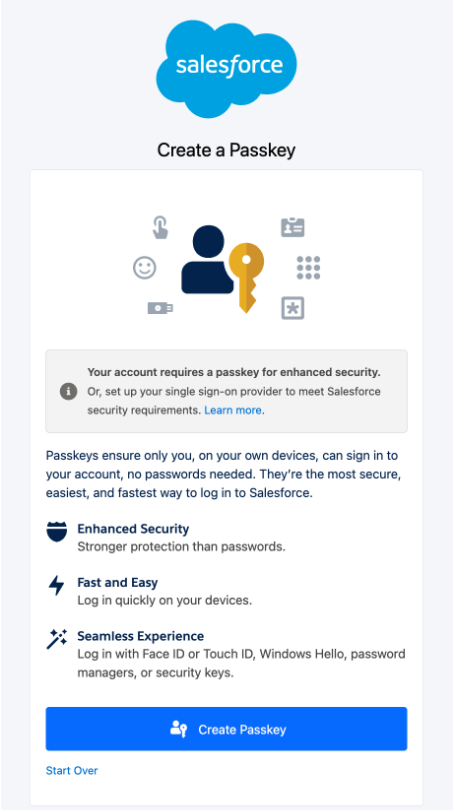
If a user attempts to log in to Salesforce directly with a username and password without having an MFA method registered, the system displays a prompt to “Create a Passkey”. It is important to note a key update to the login experience for all users logging into Salesforce directly: passkey registration is now prompted by default for ALL users upon login. Refer to the following Release Note for reference.
See below for the user login flow based on the user type:
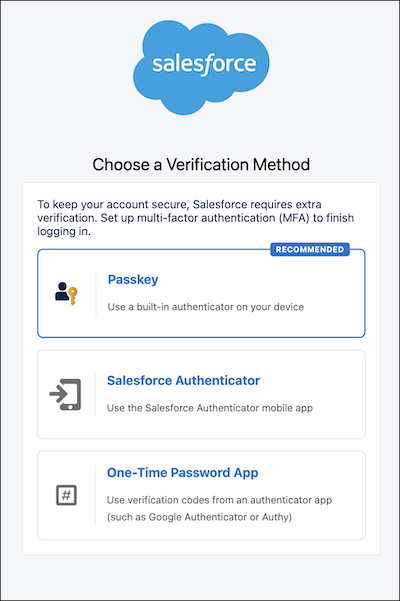
Direct UI Login : Non-Privileged User:These users are permitted to either Create a Passkey or Choose Another Verification Method. Opting for an alternative method redirects them to a secondary screen where they can select either Salesforce Authenticator or a One-Time Password App) - refer to Step 2 below. Extensions:
CRITICAL NOTE:
|
Direct UI Login : Privileged Users (Including Admins):These users are strictly limited to the "Create a Passkey" selection and cannot choose alternative verification options, as the "Choose Another Verification Method" feature is omitted. They must follow the prompts to enroll a Passkey [Built-in Authenticators or Security Keys[ to login. Extensions:
CRITICAL NOTE:
|
| Direct UI Login : Non-Privileged User prompt when no extensions are granted
| Direct UI Login : Privileged Users (Including Admins) prompt when no extensions are granted
|
|
Step 2: If users click Choose Another Verification Method, they will see this screen: | |
Direct UI Login Extension Use Cases & Expected Behavior
The following table details how the MFA for All Employees extension, Phishing-Resistant MFA (Passkeys) extension and Require multi-factor authentication (MFA) for all direct UI logins to your Salesforce org setting define requirements for both privileged and non-privileged users.
Requirements Terminology Expanded [Matrix Legend]
Salesforce classifies MFA verification methods as either phishing-resistant, standard, or weak. Phishing-resistant methods are the most secure. For more information, see MFA Verification Method Tiers.
- Standard MFA Required, at Minimum (Direct UI Logins): MFA registration is passkey-first to encourage phishing-resistant MFA, but users can select standard verification methods like one-time password apps.
- Phishing-Resistant Required (Direct UI Logins): MFA registration requires a passkey; standard verification methods are not available.
- No MFA Required (Direct UI Logins): Users can log in using only their username and password.
|
# |
Use Case |
Customer Org UI Setting |
Salesforce Extensions |
Expected Behavior | ||
|
Org-Wide MFA Setting [in Setup-> Identity Verification] Require multi-factor authentication (MFA) for all direct UI logins to your Salesforce org |
MFA For All Employees Extension |
Phishing Resistant MFA (Passkeys) Extension |
Non-Privileged Users |
Privileged Users (Incl. Admins) | ||
|
Direct UI #1 |
Default: No Extensions |
Enabled (via Salesforce Enforcement) |
Not Granted |
Not Granted |
Standard MFA Required, at Minimum (Direct UI Logins) |
Phishing-Resistant Required (Direct UI Logins) |
|
Direct UI #2 |
Phishing Resistant MFA Extension Only |
Enabled (via Salesforce Enforcement) |
Not Granted |
Granted | Standard MFA Required, at Minimum (Direct UI Logins) |
Standard MFA Required, at Minimum (Direct UI Logins) |
|
Direct UI #3 |
MFA For All Employees Extension Only & Org-Wide MFA setting Enabled |
Enabled (Admin controlled) |
Granted |
Not Granted |
Standard MFA Required, at Minimum (Direct UI Logins) |
Phishing-Resistant Required (Direct UI Logins) |
|
Direct UI #4 |
MFA For All Employees Extension Only & Org-Wide MFA setting Disabled |
Disabled (Admin controlled) |
Granted |
Not Granted |
No MFA Required |
Phishing-Resistant Required (Direct UI Logins) |
|
Direct UI #5 |
Both Extensions Granted & Org-Wide MFA setting Enabled |
Enabled (Admin controlled) |
Granted |
Granted |
Standard MFA Required, at minimum |
Standard MFA Required, at minimum |
|
Direct UI #6 |
Both Extensions Granted & Org-Wide MFA setting Disabled |
Disabled (Admin controlled) |
Granted |
Granted |
No MFA Required (Direct UI Logins) |
No MFA Required (Direct UI Logins) |
Direct UI #1 : Default: No Extensions
Configuration
- MFA For All Employees Extension: Not Granted
- Phishing-Resistant MFA (Passkeys) Extension: Not Granted
- Org-Wide MFA setting Require multi-factor authentication (MFA) for all direct UI logins to your Salesforce org: (Not Controllable by org admins without the MFA For All Employees Extension): Force-Enabled by Salesforce
Behavior
- Non-Privileged Users: Must use at least Standard MFA (one-time password apps Salesforce Authenticator)
- Privileged Users: Must use Phishing-Resistant MFA (Passkeys)
Notes
- This is the highest security baseline and intended behavior enforced by Salesforce Platform
- Privileged Users cannot satisfy the Phishing-Resistant MFA requirement with one-time password apps or Salesforce Authenticator
- Org admins cannot disable the MFA requirement in Setup (toggle is greyed out/hidden) without the MFA For All Employees extension
- Non-Privileged users must use at least one-time password apps to meet the Standard MFA requirement, and are also prompted to register a Passkey by default.
Direct UI #2 : Phishing-Resistant MFA Extension Only
Configuration
- MFA For All Employees Extension: Not Granted
- Phishing-Resistant MFA (Passkeys) Extension: Granted
- Org-Wide MFA setting Require multi-factor authentication (MFA) for all direct UI logins to your Salesforce org: (Not Controllable by org admins without the MFA For All Employees Extension): Force-Enabled by Salesforce.
Behavior
- Non-Privileged Users: Must use at least Standard MFA
- Privileged Users: Must use at least Standard MFA (Phishing-Resistant MFA no longer required)
Notes
- Privileged Users are temporarily downgraded from the Phishing-Resistant MFA requirement to Standard MFA requirement while the extension is in effect.
- Privileged Users still see the option to create a passkey, but they can click Choose Another Verification Method to use standard methods.
- Org admins still cannot disable the MFA requirement in Setup
- Non-Privileged users must use at least one-time password apps to meet the Standard MFA requirement, and are also prompted to register a Passkey by default.
Possible Scenario
- Orgs that need Standard MFA for admins but cannot deploy Phishing-Resistant MFA yet.
Direct UI #3 : MFA For All Employees Extension Only & Org-Wide MFA setting Enabled
Configuration
- MFA For All Employees Extension: Granted
- Phishing-Resistant MFA (Passkeys) Extension: Not Granted
- Org-Wide MFA setting Require multi-factor authentication (MFA) for all direct UI logins to your Salesforce org: Enabled (org admin chooses to keep it on)
Behavior
- Non-Privileged Users: Must use at least Standard MFA
- Privileged Users: Must use Phishing-Resistant MFA
Notes
- This scenario is functionally identical to Use Case # 1
- Difference: Org admin could disable the Org-Wide MFA setting Require multi-factor authentication (MFA) for all direct UI logins to your Salesforce org, but chooses not to
- Privileged Users are still required to use Phishing-Resistant MFA
Possible Scenario
- Org has the MFA For All Employees Extension Granted, giving them the option to disable the Org-Wide MFA setting Require multi-factor authentication (MFA) for all direct UI logins to your Salesforce org but chooses to maintain MFA enforcement.
Direct UI #4 : MFA For All Employees Extension Only & Org-Wide MFA setting Disabled
Configuration
- MFA For All Employees Extension: Granted
- Phishing-Resistant MFA (Passkeys) Extension: Not Granted
- Org-Wide MFA setting Require multi-factor authentication (MFA) for all direct UI logins to your Salesforce org: Disabled (Org admin turns it off)
Behavior
- Non-Privileged Users: No MFA required (password-only login allowed)
- Privileged Users: Must use Phishing-Resistant MFA
Notes
- Because the Org-Wide MFA setting Require multi-factor authentication (MFA) for all direct UI logins to your Salesforce org is disabled, Non-Privileged Users can log in with just their username and password..
- Privileged Users are still required to use Phishing-Resistant MFA
- The Phishing-Resistant MFA requirement is independent of the Org-Wide MFA setting Require multi-factor authentication (MFA) for all direct UI logins to your Salesforce org
- Users with the Multi-Factor Authentication for User Interface Logins user permission will still be challenged for MFA even when extensions are granted and the Org-Wide Require multi-factor authentication (MFA) for all direct UI logins to your Salesforce org setting is disabled. This user permission is fully managed by org admins.
Possible Scenario
- Orgs with SSO-based MFA for Non-Privileged users needing more time, but Phishing-Resistant MFA for Privileged users for direct logins to Salesforce is implemented.
Direct UI #5 : Both Extensions Granted & Org-Wide MFA setting Enabled
Configuration
- MFA For All Employees Extension: Granted
- Phishing-Resistant MFA (Passkeys) Extension: Granted
- Org-Wide MFA setting Require multi-factor authentication (MFA) for all direct UI logins to your Salesforce org: Enabled (org admin chooses to keep it on)
Behavior
- Non-Privileged Users: Must use at least Standard MFA
- Privileged Users: Must use at least Standard MFA
- All users will be prompted to register a Passkey by default, but will still have the option to Choose Another Verification Method.
Notes
- Both groups require Standard MFA minimum; Phishing-Resistant MFA is encouraged but not required
Possible Scenario
- Org chose MFA enforcement to help validate their implementation of Standard MFA, but cannot deploy Phishing-Resistant MFA for admins yet.
Direct UI #6 : Both Extensions Granted & Org-Wide MFA setting Disabled
Configuration
- MFA For All Employees Extension: Granted
- Phishing-Resistant MFA (Passkeys) Extension: Granted
- Org-Wide MFA setting Require multi-factor authentication (MFA) for all direct UI logins to your Salesforce org: Disabled (org admin turns it off)
Behavior
- Non-Privileged Users: No MFA required (password-only login allowed)
- Privileged Users: No MFA required (password-only login allowed)
Notes
- Lowest security posture — no platform-enforced MFA
- Org may rely on SSO IdP-enforced MFA
- Users with the Multi-Factor Authentication for User Interface Logins user permission will still be challenged for MFA even when extensions are granted and the Org-Wide Require multi-factor authentication (MFA) for all direct UI logins to your Salesforce org setting is disabled. This user permission is fully managed by org admins.
Possible Scenario:
- You need more time to implement all requirements. This is not recommended as it means no level of MFA is being enforced for both Privileged and Non-Privileged users.
Login Experience for Users who use SSO
MFA enforcement also applies when users log in to Salesforce through a single sign-on (SSO) identity provider, such as Okta or Microsoft Entra ID.
For a seamless SSO login experience, you can use your identity provider’s MFA service to satisfy the MFA and phishing-resistant MFA requirements. To use this option, the identity provider must send Salesforce a supported authentication signal that identifies the MFA method used during authentication. Salesforce supports two types of authentication signal: Authentication Methods Reference (AMR) and Authentication Context Class Reference (ACR). SAML identity providers send these signals in the SAML response, and OpenID Connect providers send them in the ID token.
Salesforce evaluates the authentication signal based on the user’s requirements:
- Non-privileged users: The signal must indicate Standard MFA or Phishing-resistant MFA.
- Privileged users: The signal must indicate Phishing-Resistant MFA.
If Salesforce receives an accepted signal, the user proceeds to Salesforce without an additional Salesforce MFA prompt. See “Determining Authentication Strength & The Evaluation Logic” section in Prepare for Phishing-Resistant MFA Enforcement for Privileged Users including Admins for the list of SSO AMR and ACR signals.
If Salesforce doesn’t receive an accepted signal, the user can be prompted to create a passkey after signing into SSO. The additional prompt doesn’t necessarily mean that MFA failed at the identity provider. It means Salesforce couldn’t confirm from the SSO response that the completed authentication meets the applicable Salesforce requirement. Here are the prompts that users see:
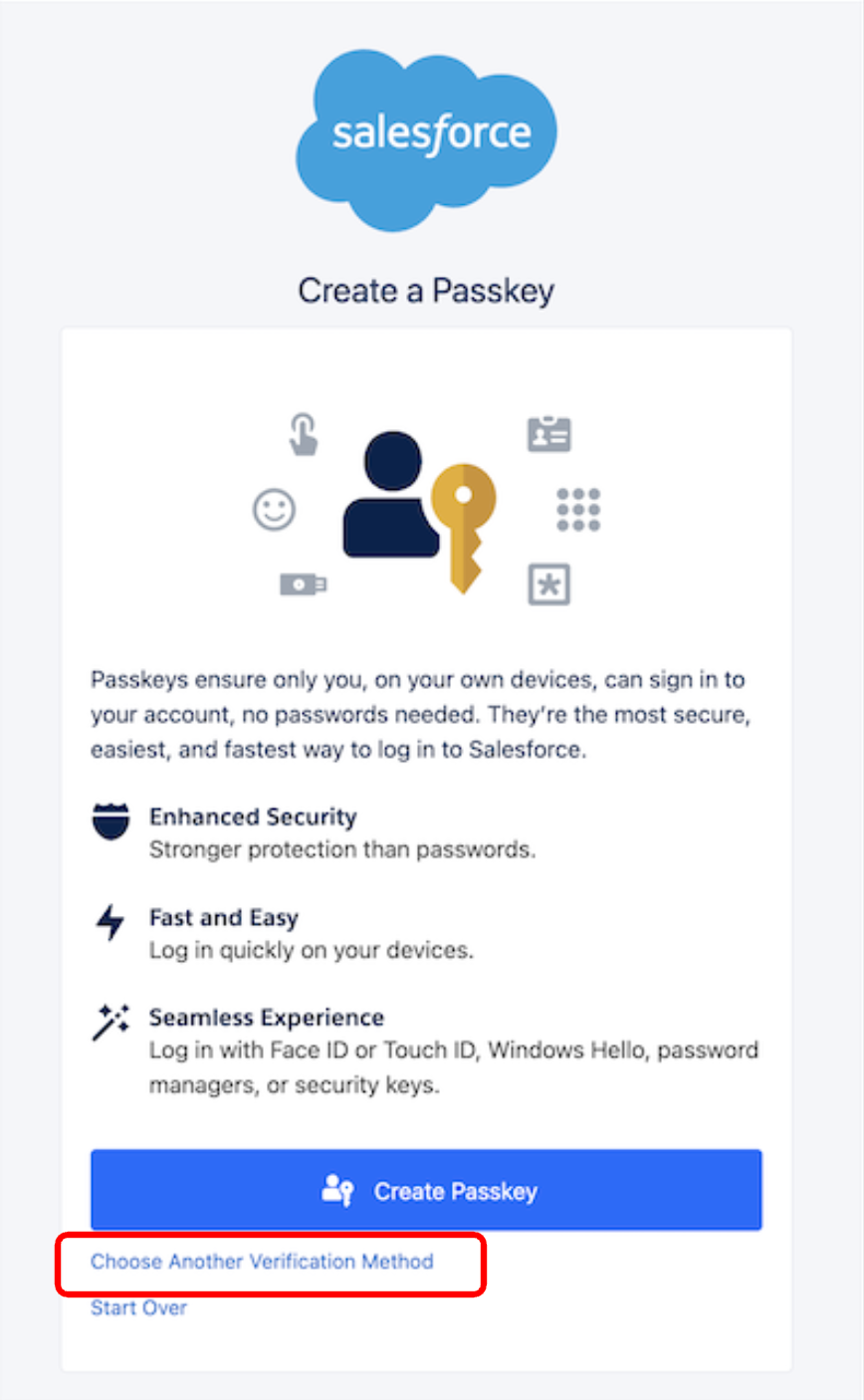
SSO Login : Non-Privileged UserWhen Salesforce doesn't receive an accepted SSO signal (AMR/ACR) for Standard MFA at minimum, a non-privileged user is prompted to create a passkey first. These users can choose to register another supported Salesforce verification method. CRITICAL NOTE:
|
SSO Login : Privileged Users (Including Admins)When Salesforce doesn't receive an accepted SSO signal (AMR/ACR) for phishing-resistant MFA, a privileged user is prompted to Create a Passkey that satisfies the phishing-resistant MFA requirement. These users are strictly limited to the "Create a Passkey" selection and cannot choose alternative verification options, as the "Choose Another Verification Method" feature is omitted. They must follow the prompts to enroll a Passkey [Built-in Authenticators or Security Keys[ to login. NOTE:
|
|
|
|
|
Step 2: If users click Choose Another Verification Method, they will see this screen: | |
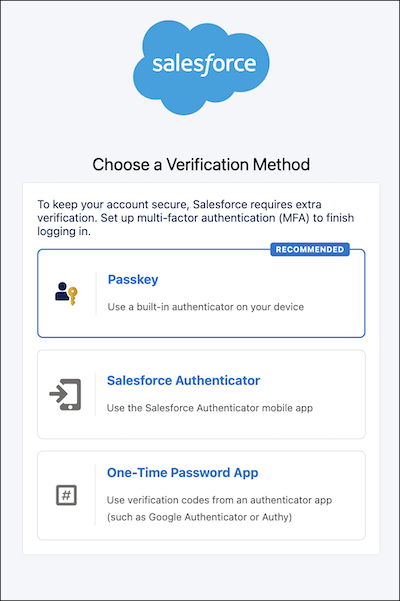
To configure authentication signals, see Set Up MFA with an SSO Identity Provider.
For troubleshooting help, see Troubleshoot Issues with Passkey Prompts and Single Sign-On.
SSO User Login Extension Use Cases and Expected Behavior Matrix
The matrix below details how active extensions for MFA for All Employees and Phishing-Resistant MFA (Passkeys) define authentication requirements for privileged and non-privileged users authenticating via Single Sign-On (SSO):
Refer to the specific expected behavior details for each requirement level below:
Requirements Terminology for SSO Logins [Matrix Legend]
- Standard MFA Required, at Minimum (SSO Logins): Salesforce requires valid Standard or Phishing-Resistant MFA signals (AMR/ACR) from the SSO identity provider.
- When an accepted signal is received, the user logs in seamlessly without an additional Salesforce prompt.
- If required signals are missing, users are directed to the passkey-first MFA registration flow in Salesforce, with standard fallback options (such as one-time password apps) available.
- Phishing-Resistant Required (SSO Logins): Salesforce strictly requires Phishing-Resistant MFA signals (AMR/ACR) from the SSO identity provider.
- When an accepted phishing-resistant signal is received, the user logs in seamlessly without an additional prompt.
- If required phishing-resistant signals are missing, users are prompted to register a passkey in Salesforce with no standard fallback options available.
- No MFA Required (SSO Logins): Salesforce does not enforce MFA signals for these use cases, allowing users to complete their standard SSO flow without additional prompts.
- Note: Salesforce MFA is still required if the Use Salesforce MFA for this SSO Provider setting is enabled by the org Admin.
|
# |
Use Case |
MFA For All Employees Extension |
Phishing-Resistant MFA (Passkeys) Extension |
Non-Privileged Users |
Privileged Users |
|
SSO #1 |
Default: No Extensions |
Not Granted |
Not Granted |
Standard MFA Required, at Minimum (SSO Logins) |
Phishing-Resistant MFA Required (SSO Logins) |
|
SSO #2 |
Phishing-Resistant MFA Extension Only |
Not Granted |
Granted |
Standard MFA Required, at Minimum (SSO Logins) |
Standard MFA Required, at Minimum (SSO Logins) |
|
SSO #3 |
MFA For All Employees Extension Only |
Granted |
Not Granted |
No MFA Required (SSO Logins) |
Phishing-Resistant MFA Required (SSO Logins) |
|
SSO #4 |
Both Extensions Granted |
Granted |
Granted |
No MFA Required (SSO Logins) |
No MFA Required (SSO Logins) |
SSO #1 : SSO, No Extensions
Configuration
- MFA For All Employees Extension: Not Granted
- Phishing-Resistant MFA Extension: Not Granted
Behavior
- Non-Privileged Users: Standard MFA Required At Minimum
- Privileged Users: Phishing-Resistant MFA Required
Notes
- Salesforce accepts the applicable MFA assurance signal from the identity provider. If the signal is missing or insufficient, non-privileged users encounter the passkey-first MFA registration flow with standard fallback methods available, whereas privileged users must register a passkey without alternative options.
Possible Scenario
- An org adhering to the standard, Salesforce-enforced SSO security baseline.
SSO #2 : SSO, Phishing-Resistant MFA Extension Only
Configuration
- MFA For All Employees Extension: Not Granted
- Phishing-Resistant MFA Extension: Granted
Behavior
- Non-Privileged Users: Standard MFA Required At Minimum
- Privileged Users: Standard MFA Required At Minimum
Notes
- Privileged users are temporarily not required to meet Phishing-Resistant MFA, but are still required to meet Standard MFA requirements. If the identity provider signal is missing or insufficient, Salesforce provides passkey-first MFA registration with standard fallback options.
Possible Scenario
- An org enforcing Standard MFA via its identity provider that requires additional time to deploy Phishing-Resistant MFA for privileged users.
SSO #3 : SSO, MFA For All Employees Extension Only
Configuration
- MFA For All Employees Extension: Granted
- Phishing-Resistant MFA Extension: Not Granted
Behavior
- Non-Privileged Users: No MFA Required
- Privileged Users: Phishing-Resistant MFA Required
Notes
- Salesforce does not evaluate or require MFA assurance signals for non-privileged users. Privileged users SSO login must transmit a Phishing-Resistant MFA signal. If the identity provider signal is missing or insufficient, Salesforce prompts to complete Salesforce passkey registration without fallback options.
Possible Scenario
- An org relying on identity-provider-managed MFA for non-privileged users while enforcing Phishing-Resistant MFA for privileged users.
SSO #4 : SSO, Both Extensions Granted
Configuration
- MFA For All Employees Extension: Granted
- Phishing-Resistant MFA Extension: Granted
Behavior
- Non-Privileged Users: No MFA Required
- Privileged Users: No MFA Required
Notes
- Salesforce does not mandate Standard or Phishing-Resistant MFA assurance signals under these controls. However, the identity provider or Salesforce Use Salesforce MFA for this SSO Provider setting may still enforce MFA.
Possible Scenario
- An org requiring additional time to implement both MFA requirements or relying fully on identity-provider-enforced MFA.
Additional Details
User Definitions
Salesforce defines user types based on their assigned permissions as follows:
- Privileged Users (Including Administrators): Any user assigned to at least one of these privileged administrative permissions:
- System Administrator profile (or custom profile cloned from it) OR
- Modify All Data (MAD) permission OR
- View All Data (VAD) permission OR
- Customize Application permission OR
- Author Apex permission
- Non-Privileged User: Any user who does not have any of the following: System Administrator profile (or custom profile cloned), Modify All Data, View All Data, Customize Application, or Author Apex.
Sandbox Refresh Extensions
Sandbox refresh now inherits Production MFA for All and Phishing-Resistant MFA extensions
With a patch release made available in late July, Production org extensions are carried over to sandbox refreshed copies. This means customers no longer need to request separate extensions for sandbox refreshed orgs when the production org's extension remains in effect.
MFA Enforcement and High Assurance Session Security
Session security levels let you control access to Salesforce resources based on the assurance level of a user’s current session. For more information, see Configure Session Security Levels.
In Setup → Session Settings → Session Security Levels, you can assign authentication methods to the High Assurance category. For example, assigning Multi-Factor Authentication to High Assurance allows a user’s session to reach the High Assurance level after the user successfully completes a supported Salesforce MFA challenge.
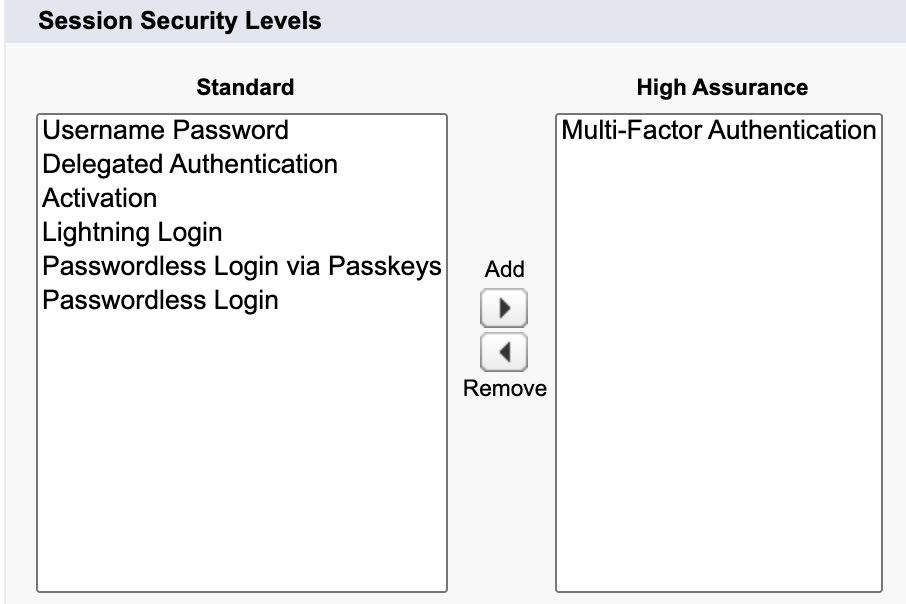
MFA enforcement and session security levels are separate security controls. Enforcement of MFA for All Employees or Phishing-resistant MFA doesn’t, by itself, classify the resulting session as High Assurance. The session level is determined by the authentication method used and the mappings that an admin configures under Session Security Levels.
When Users Are Prompted for MFA
Assigning Multi-Factor Authentication to the High Assurance category doesn’t require users to complete MFA by itself. It specifies that successful Salesforce MFA can satisfy a High Assurance session requirement.
Users can be prompted to complete MFA when another configuration requires High Assurance and their current session doesn’t already meet that level. For example:
- The user’s profile has Session Security Level Required at Login set to High Assurance.
- A connected app’s session policy requires a High Assurance session.
- The user accesses a feature or performs an operation that requires High Assurance.
MFA enforcement, including phishing-resistant MFA enforcement, doesn’t override separately configured High Assurance requirements. A user must still satisfy any High Assurance requirement that applies to the login, connected app, feature, or operation.
Configure a High Assurance Authentication Method First
Before you require High Assurance, make sure that at least one supported authentication method is assigned to the High Assurance category in Session Settings. Depending on your authentication configuration, this method can be Salesforce MFA or another supported authentication method that provides the required assurance level.
If no authentication method is assigned to High Assurance, Salesforce has no configured method for raising a user’s session to that level. Affected users can be unable to:
- Log in
- Open a connected app
- Access a protected feature
- Complete an operation that requires High Assurance
In this situation, users may see an error indicating that they need a higher access level and that no identity verification method is available. For example:
- “Problem Verifying Your Identity To log in, you need both a higher access level and an identity verification method. Contact your administrator to gain login access.”
Ytterligare resurser
|
Date |
Change |
|
August 22, 2026 |
|
|
July 30, 2026 |
Production extensions are being carried over to sandbox copies after a patch release rolled out late July. |
|
July 17, 2026 |
Added Known Issue bulletin. Reference ID : W-23493728 SSO Logins are required to use Salesforce MFA when MFA is enforced even when an extension for MFA and PRMFA is granted.
|
|
July 13, 2026 | Initial Publication |
Knowledge-artikelnummer
005388907
Löste denna artikel ditt problem?
Berätta för oss vad vi kan förbättra!
