Seleziona un'organizzazione
How Video call Activity Rollup Works
Data pubblicazione: Jul 15, 2026
Descrizione
We know that we have a feature named "Roll up activities to a contact’s primary account."
When this is turned on, it will roll up the activities listed under the contact timeline to the contact's primary account timeline. However, when it comes to video calls it is not a straightforward rollup. The video call must meet all the criteria listed below to roll up to the contact's primary account.
Activities roll up from Contact to Account timeline based on this priority:
1. Direct Account relationship (via What field) - takes precedence
2. Contact's parent Account (via Who field) - only if no What relationship exists AND org permission is enabled
If you are expecting a video call record to be shown in contacts timeline and in the contact's primary account's activity timeline then the Expected Behavior is.
When working correctly:
- Video call has Contact as attendee ( shows/appears in the Participants panel of the video call) (EventRelation with IsWhat=false)
- No conflicting "Related To" Account on the Event
- Org permission enabled
- Contact's Account field is set
- → Video call appears on both Contact AND Account timelines
In the below image you can see the contact is highlighted in the Video call record Participants panel, If the contact is associated to video call in this way, then it will satisfy the below mentioned criteria's.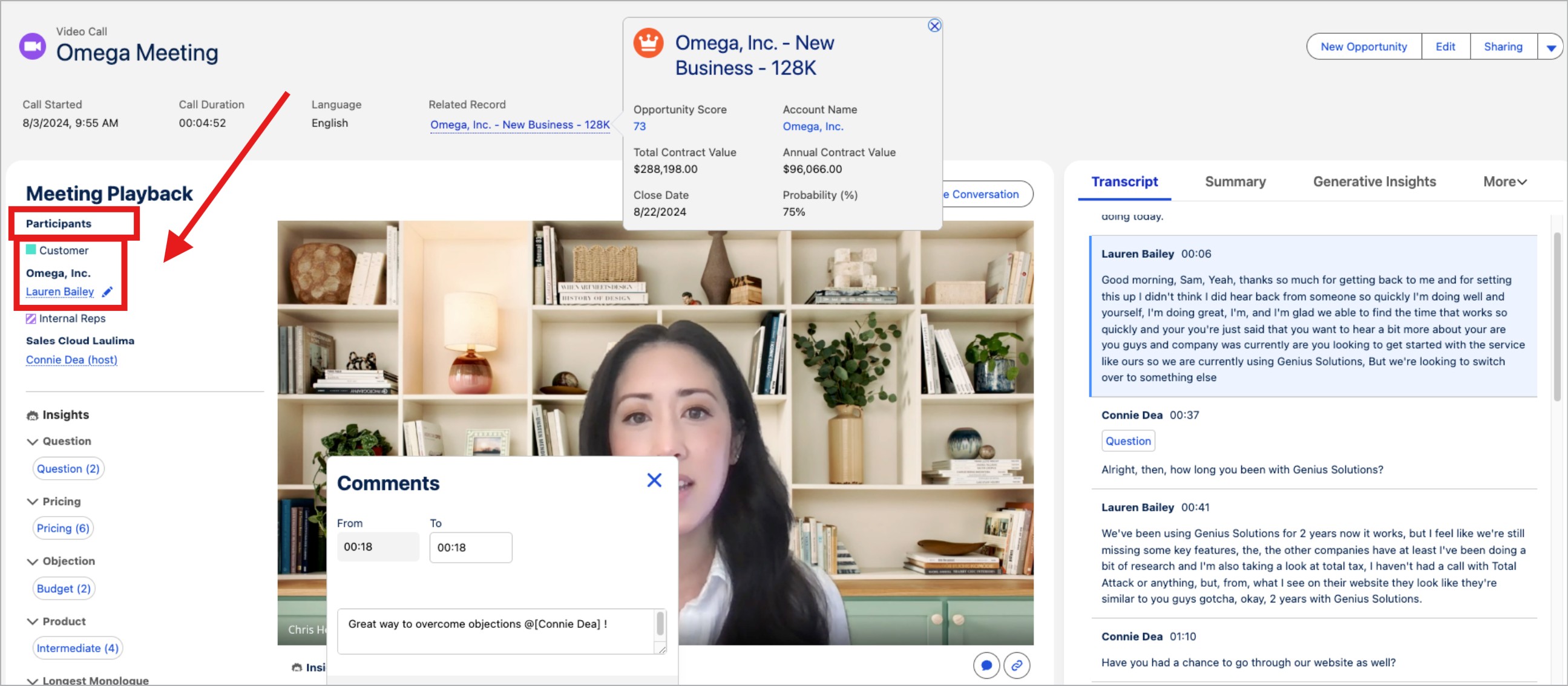
Points to be checked.
Please check these in the org and the video call records for the below conditions.
1. Org Permission (Most common issue)
Check if "Roll Up Activities to Contacts' Accounts" is enabled:
Setup → Activity Settings → Roll Up Activities to Contacts' Accounts
This must be enabled for Contact activities to appear on Account timelines.
2. Contact-Account Link
Verify the Contact record has the correct Account:
- Open Contact and Check the standard Account field to see which account is linked
3. Video Call's Account Relationship
Check if the video call has a direct Account relationship that might be overriding the Contact rollup:
- Open the Event/Video Call record
- Check the "Related To" (What) field
- If this points to a different Account, that takes precedence over the Contact's Account
4. Event Relations
Query EventRelation records for this video call to see all relationships:
SELECT Id, EventId, RelationId, IsWhat
FROM EventRelation
WHERE EventId = '<video_call_event_id>'
- Relationships where IsWhat = true override Contact rollup
- Contact relationships should have IsWhat = false
When all the above-listed conditions are satisfied, the video call will be available in the contact's activity timeline and in the contact's parent account's activity timeline.
Risorse aggiuntive
Related Record Matching for Video Calls
Numero articolo Knowledge
005389014
Questo articolo ha risolto il problema?
Facci sapere, così possiamo migliorare!
