Seleccionar una organización
GovCloud Plus Defense - First Service Agent (Legacy Builder)
Fecha de publicación: Jul 27, 2026
Descripción
A step-by-step guide for building your first Agentforce Service Agent in the Legacy Agentforce Builder in a Salesforce Government Cloud Plus Defense environment. PDF of Instructions.
Prerequisites
-
Edition: Enterprise Edition or higher — verify in Setup > Company Information > Edition or confirm with the customer's order form.
-
Agentforce license: An Agentforce add-on license must be active on the org. Verify in Setup > Company Information.
-
Admin permissions:
|
User Permissions |
|
|
Permission Set Licenses |
|
|
Permission Sets |
|
Solución
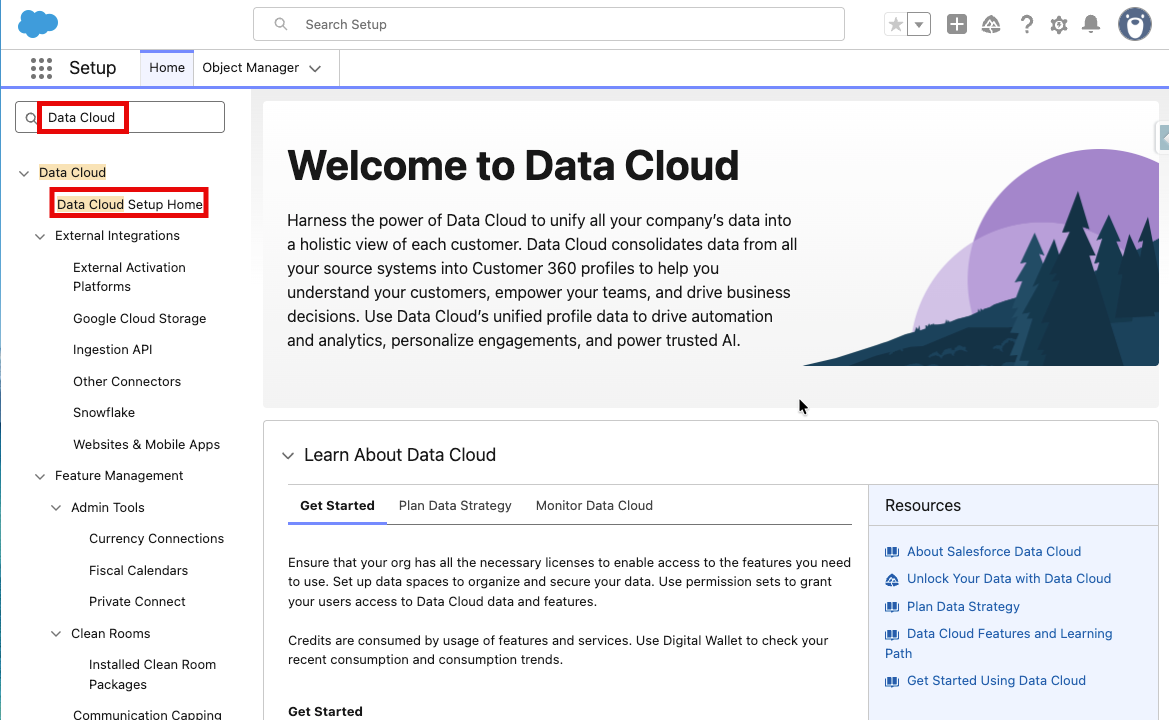
Step 1: Provision Data Cloud (required for data libraries and agent analytics)
Agentforce is integrated with Data Cloud and generative AI features so you can build observable and trusted agentic experiences. We’ll verify and set up these features to prepare your org for your first agent.
If you’re preparing a free Agentforce Developer org, Data Cloud is provisioned and enabled for you. We recommend verifying your Data Cloud installation by viewing home org details in Data Cloud Setup.
-
Make sure proper permission sets and permission set licenses are assigned to your user (see Admin Permission table above)
-
In Setup, search Data Cloud
-
Click Data Cloud Setup Home (note you can also reach Data Cloud home from the setup gear)
-
Click Get Started to begin provisioning
-
Follow the guided prompts
-
Allow 30+ minutes for provisioning to finalize before moving on to other steps
Step 2: Enable Einstein Generative AI
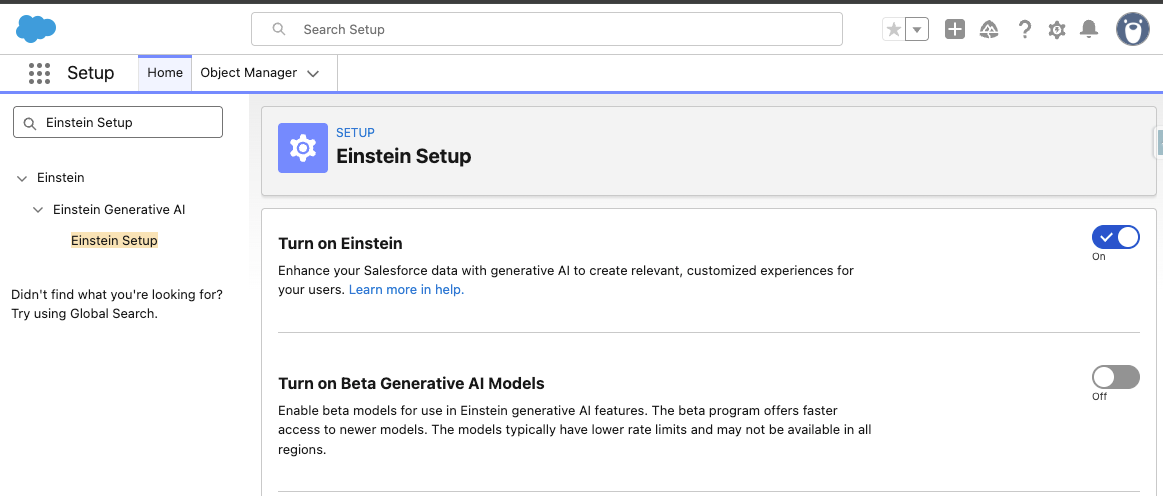
Turn on Einstein to use generative AI features, including Agentforce, across Salesforce.
-
In Setup, search Einstein Setup
-
Click Einstein Setup
-
Turn on Einstein
-
Accept terms, if prompted
-
Refresh your browser
Step 3: Enable Agentforce
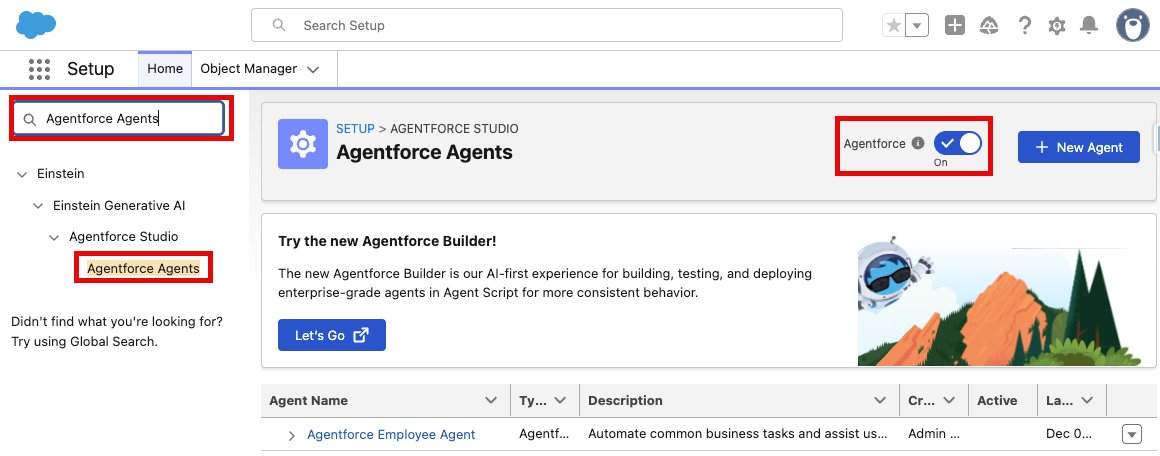
Turn on Agentforce to start building, customizing, testing, and launching AI agents.
-
In Setup, search Agentforce Agents
-
Click Agentforce Agents
-
Turn Agentforce On
Step 4: Enable Einstein Trust Layer
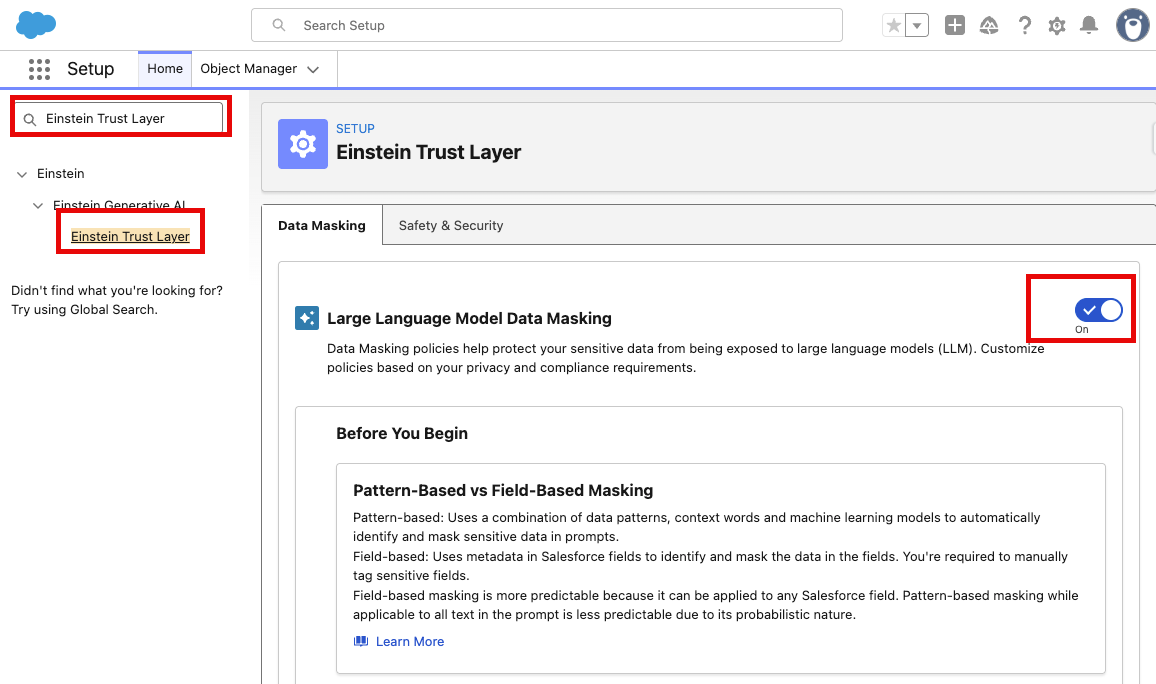
Build trust in your agents and other generative AI features. Use the Einstein Trust Layer to personalize data privacy controls that are integrated into the end-user experience.
Note: Pattern-based and field-based data masking for large language models (LLMs) is disabled for Agentforce. Einstein Trust Layer includes several policies and features to help protect sensitive data from misuse or leaks beyond data masking.
To learn more about the Einstein Trust Layer visit the following sources:
Steps to enable Einstein Trust Layer:
-
Ensure Data Cloud provisioning is complete
-
In Setup, type Einstein Trust Layer into the Quick Find box
-
Toggle on Large Language Model Data Masking
-
Review the Data Masking and Safety & Security options and configure per your organization's data governance requirements
Step 5: Create Your First Agentforce Service Agent
Use the default Agentforce Service Agent template to get a head start on creating an agent. Subagents and Actions will help the Service Agent reason and execute tasks.
A Subagent represents a specific job the agent is designed to perform, such as checking case status or scheduling an appointment. Subagents were formerly called Topics; you may see both terms in the Builder UI and documentation.
An Action is a predefined task the agent executes to complete a job, such as querying records, running a Flow or Apex, or calling a prompt template. Actions are assigned to subagents and define the inputs, outputs, and permissions for each operation. They are how the agent moves beyond conversation to retrieve data and perform real work in Salesforce and connected systems.
Steps to Build a Service Agent:
-
Navigate to Agentforce Setup (Setup > Agentforce Agents)
-
Click New Agent
-
Ensure Create From Template is highlighted
-
Select the Agentforce Service Agent template (this is not the same as the Agentforce Service Assistant)
-
Click Next
-
On the next screen review the Out of the Box Subagents and determine which, if any you want to utilize and deselect the rest
-
Leave the General FAQ Subagent selected to utilize the Out of the Box Answer Questions with Knowledge feature
-
Leave Escalation selected to escalate issues
-
Click Next
-
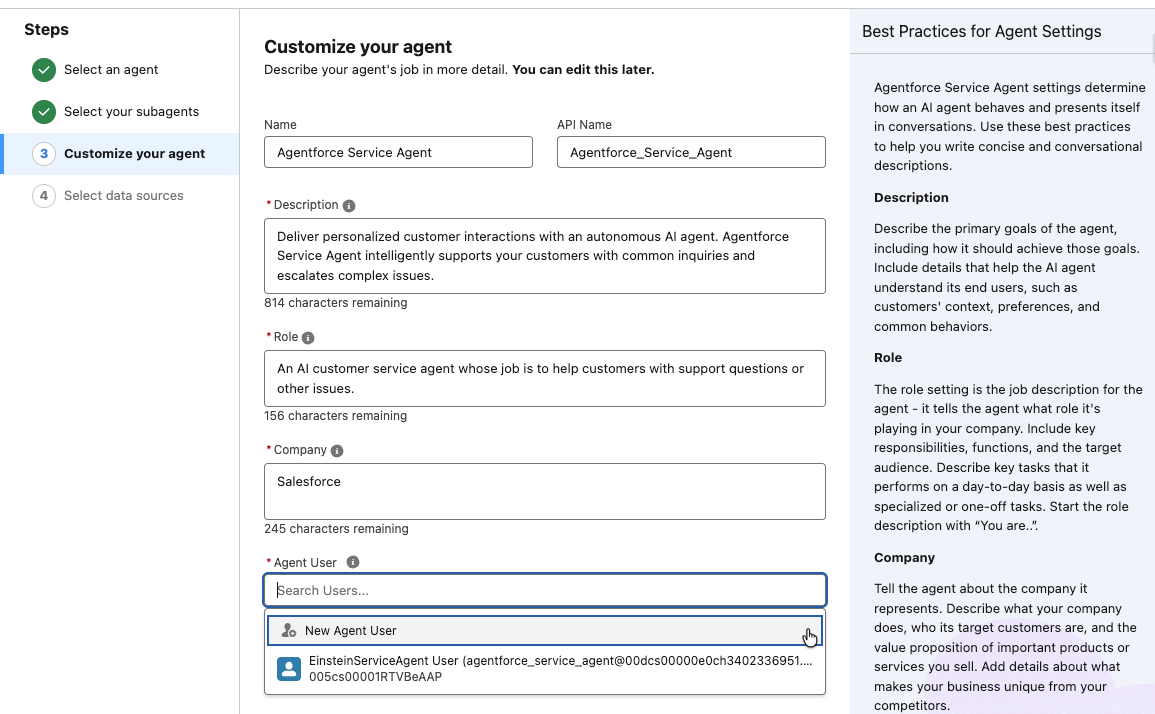
Provide Agent Details
-
Agent Name: Keep this unique and specific to the Service Agent you are creating
-
Description: Explains the goals of your agent but will not be used by the agent to understand its role
-
Role: The job description of your agent
-
Company: Where you will put the name of your company
-
It is recommended to check the Keep a record of conversations with enhanced event logs to review agent behavior box to help test and troubleshoot your agent
-
Agent User: Keep the default selection of New Agent User. This will create the EinsteinServiceAgent user that we will add permissions to later in this guide
-
-
Click Next
-
On the Select Data Sources Screen, click Select a library and select the Default Data Library or + New Library
-
Optionally you can skip adding a Data Library until completing Step 7
Step 6: Configure a Data Library
Agentforce Data Libraries aims to simplify the configuration of Semantic search through chunking and indexing providing Salesforce Agents or Prompt Templates with content based on Salesforce Knowledge articles or files (text, HTML, or PDF). You can find more information about building Agentforce Data Libraries on the Salesforce Help Site.
-
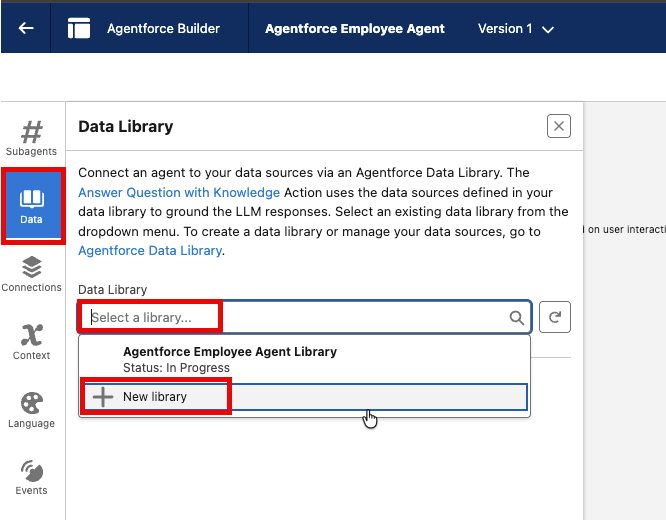
In the Agent Builder, find the Data Library section in the Explorer panel
-
Select New Library
-
Data Space will default to default
-
Library Name should describe the library content
-
Decide if you want to use Knowledge or Files
-
If using Files, upload your data source:
-
Text (4MB limit), HTML (4MB limit), or PDF (100MB limit)
-
-
Wait for indexing to complete
-
-
Click Save
Note: All Agentforce Libraries can be found in Setup by typing Agentforce Data Library in the Quick Find box
Step 7: Assign Permission Sets (Service Agent)
-
In Setup, search Users
-
Click on EinsteinServiceAgent User (the dedicated agent user)
-
Scroll to Permission Set Assignments and click Edit Assignments
-
Add the following permission sets:
-
Agentforce Service Agent User
-
Agentforce Service Agent Object Access
-
Agentforce Service Agent Configuration
-
Data Cloud Architect
-
Data Cloud User
-
Prompt Template Manager
-
Prompt Template User
-
-
Click Save
-
If using Knowledge articles:
-
Back in Setup, Type Permission Set in the Quick Find box
-
Select New
-
Create a new permission set called Agentforce Knowledge Access
-
On the newly created Permission Set Detail Page, scroll down and click Data Cloud Data Space Management
-
Click Edit
-
Check the default data space
-
Click Save
-
-
Click Manage Assignments to assign the newly created Permission Set to the EinsteinServiceAgent User
Step 8: Test Your Agent in Builder
-
In the Agent Builder, interact with the Agent via the Conversation Preview window pane
-
Ask questions the Agent should be able to answer from the provided sources in the Agentforce Data Library
-
If the Agent cannot answer:
-
Rebuild the Data360 Search Index
-
Verify the Data Library shows as Active (Setup > Agentforce Data Library > View Status of your library and ensure it says Active
-
Confirm the agent user has proper permissions to the underlying objects and data spaces
-
-
Activate the Agent when you are ready!
Additional Information
Next step beyond this guide: Connecting your Agentforce Service Agent to channels. Channels are the platforms, apps, and interfaces that you can deploy an Agent to, such as the Agentforce panel in Lightning Experience, enhanced messaging channels, websites, and email.
For more information and steps to connect your ASA to channels, see the following resources:
-
Deploy Your Agent to Channels (be sure to navigate to the Legacy Builder section)
Recursos adicionales
Common Pitfalls
|
Issue |
Resolution |
|---|---|
|
"Prompt not found" error when creating agent |
Verify all required add-on licenses are provisioned (AgentforceBuilderAddon, etc.) and Einstein is fully enabled |
|
Agent user can't be assigned |
Check the user license limit; try a different existing Einstein user or create a new one |
|
Agent not pulling data from Data Library |
Rebuild Search Index, refresh Data Stream, verify Data Cloud is fully provisioned, ensure ASA permission set has access to default data space, Ensure ASA permission set is assigned to Einstein user |
|
Non-admin can't create agents |
Assign Manage AI Agents + Customize Application permissions |
|
PII / Data Masking token limit errors |
Legacy builder handles larger payloads; if hitting the 65K token limit, disable PII detection or reduce prompt size |
References
|
Topic |
Link |
|---|---|
|
Enable Einstein |
https://help.salesforce.com/s/articleView?id=ai.generative_ai_enable.htm&type=5 |
|
Enable Agentforce |
https://help.salesforce.com/s/articleView?id=ai.agent_setup_enable.htm&type=5 |
|
General Agentforce Setup |
https://help.salesforce.com/s/articleView?id=sf.copilot_setup_enable.htm&type=5 |
|
Agent Builder Introduction |
https://help.salesforce.com/s/articleView?id=ai.agent_builder_intro.htm&type=5 |
|
Upgrade to New Builder |
https://help.salesforce.com/s/articleView?id=ai.agent_setup_create_upgrade.htm&type=5 |
|
Agentforce Data Library |
https://help.salesforce.com/s/articleView?id=ai.data_library_parent.htm&type=5 |
|
Agent Setup Permissions |
https://help.salesforce.com/s/articleView?id=ai.agent_setup_explore_types.htm&type=5 |
Número del artículo de conocimiento
005390130
¿Resolvió este artículo su problema?
¡Háganos saber cómo podemos mejorar!
