Seleccionar una organización
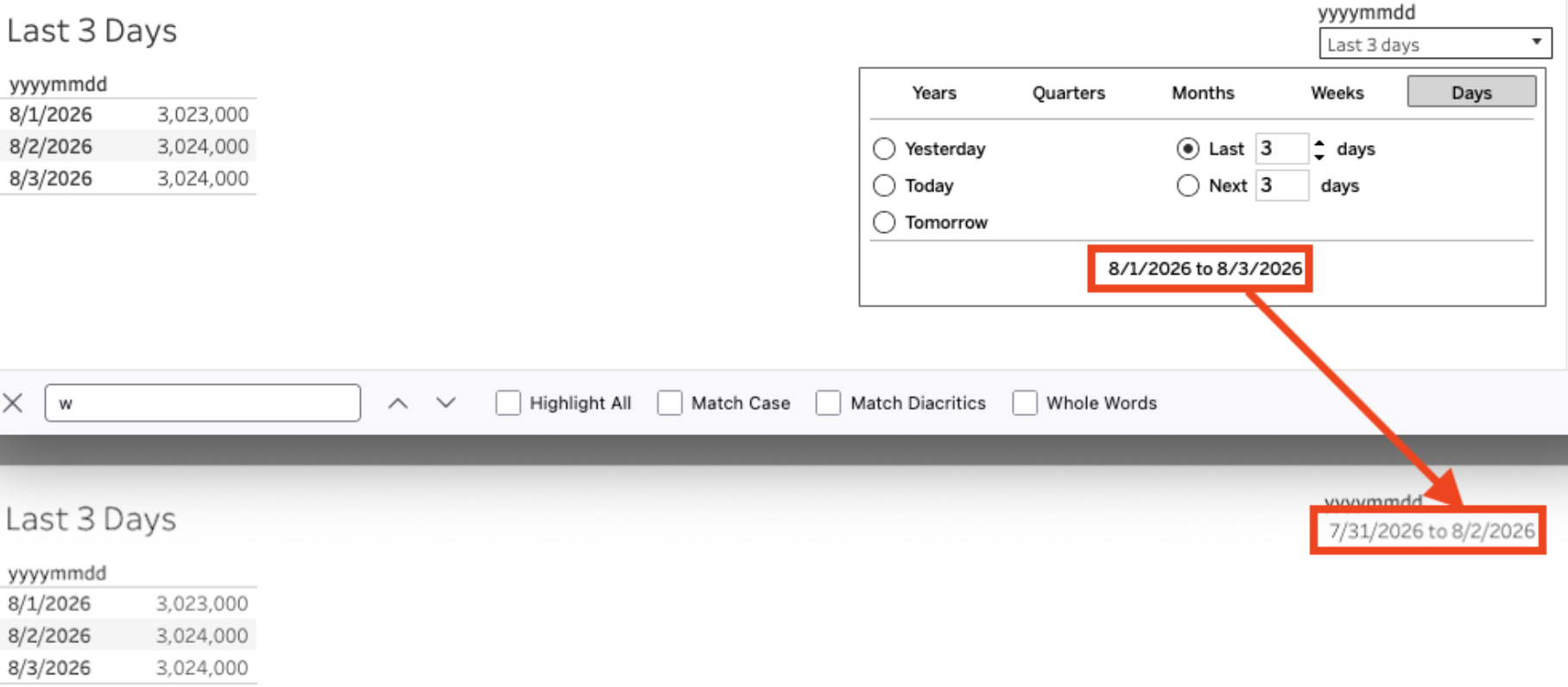
The date discrepancy between browser and exported version
Fecha de publicación: Aug 11, 2026
Descripción
A relative date filter is evaluated by two independent clocks — the data it returns, and the caption shown on the filter card. These do not always use the same timezone, which is why the browser and an exported image/PDF can disagree.
The relative date filter behaves as follows
- Relative Date Filter (View) – Shows the user's time (the user's machine time).
- Relative Date Filter (Data query) – Determines which marks are returned:
- Live data source – the timezone comes from the database.
- Extract / internal (flat-file) extract – uses the site's Time Zone for Extracts setting.
Because the View caption follows the machine that draws the view:
- In the browser, the machine is the user's own computer, so the caption uses the user's local timezone.
- In a downloaded image/PDF or a subscription, the view is drawn on the server (pod/cell), so the caption uses the server's timezone instead of the user's.
When the server's timezone is behind the user's timezone (and the two straddle midnight), the exported caption resolves to the previous day, even though the data marks are correct in both the browser and the export. In other words: the data is anchored to the Time Zone for Extracts and stays correct; only the filter-card caption shifts because it follows the rendering machine's timezone.
Solución
To make the browser and the exported image/PDF match, remove the machine-time caption by using an absolute date range instead of a relative one:
- Use "Range of Dates". Edit the date filter, choose the Range of Dates tab instead of Relative dates, set the start and end dates, and apply. Because absolute dates have no "today"-based anchor, there is no machine-time caption to evaluate, so the browser and the export show the same range.
- Note: Range of Dates is static; it does not roll forward automatically.
Número del artículo de conocimiento
005390894
¿Resolvió este artículo su problema?
¡Háganos saber cómo podemos mejorar!
